Why would a lock screen hide its own PIN pad? Ask Microsoft. Windows Hello has this failure mode where it decides biometrics are the only way in — face scan or fingerprint, nothing else. No PIN link. No sign-in options.
I’ve seen this land after updates, and I’ve seen a flaky webcam driver cause it too. Either way, the sign-in screen forgets that fallbacks exist. But your PIN is not gone. It’s still stored on the machine, and Windows just refuses to show it. So let’s force its hand.
Fix 1 – Fail the Scan on Purpose
This one sounds like a joke. It isn’t. Windows keeps the PIN screen hidden until the biometric hardware gives up — so make it give up.
1 – Wake the PC so you’re looking at the lock screen.
2 – Cover your webcam with a finger or a bit of tape. If your PC uses a fingerprint reader instead, get ready to scan the wrong finger.
3 – Let the scan fail, then let it fail again. You need 5 failed attempts in a row.
4 – Watch the screen after the fifth miss. A link like PIN required or Sign-in options should appear near the bottom.
5 – Click that link and type your PIN.
Takes about a minute. And yes, it feels ridiculous — you are deliberately fooling your own computer. But this is the built-in fallback path, and it works on most machines.
Fix 2 – Knock Out the Biometric Cache From Recovery Mode
If the fallback link never shows up, the biometric database itself is probably corrupted. Of course it is. Time to go around it.
You’ll use the Windows recovery environment for this — a small repair system that runs outside of Windows, so it can rename files Windows normally protects.
1 – On the lock screen, click the power icon in the bottom right corner.
2 – Hold Shift and click Restart. Keep holding Shift until a blue screen says “Please wait.”
3 – Click Troubleshoot.
4 – Click Advanced options tab.
5– Then, go to Command Prompt.
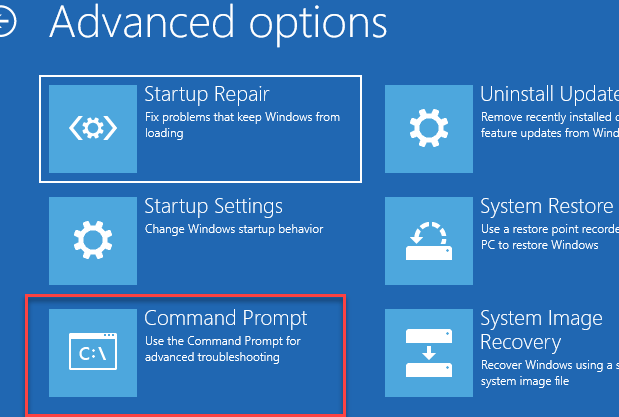
The PC restarts and may ask for a password first (use your Microsoft account password, not your PIN).
5 – In the black window, type this command and press Enter:
ren C:\Windows\System32\WinBioDatabase WinBioDatabase.old
6 – Type exit, press Enter, then click Continue to boot back into Windows.
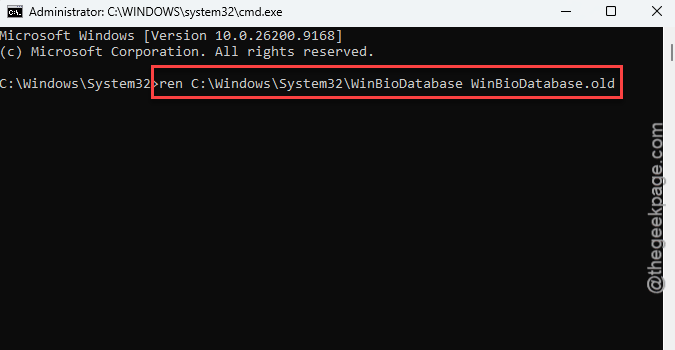
With that folder renamed, Windows can’t run the face or fingerprint check at all. So it falls back to your PIN or password. Not elegant. Effective, though.
Fix 3 – Wipe the Windows Hello Keys and Start Over
Nuclear option. This deletes the Ngc folder — the spot where Windows keeps the encryption keys behind your PIN and your face data. Afterward you sign in with your password once and set up a fresh PIN.
Don’t worry about your files. This only touches sign-in data, nothing else.
1 – Open the recovery Command Prompt again, like in Fix 2.
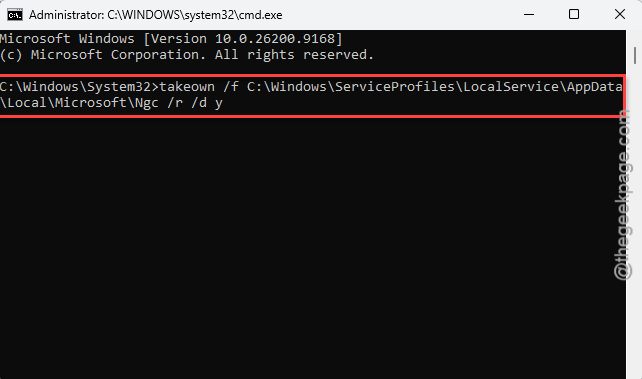
2 – Type this and press Enter:
takeown /f C:\Windows\ServiceProfiles\LocalService\AppData\Local\Microsoft\Ngc /r /d y
3 – Next, type this and press Enter:
icacls C:\Windows\ServiceProfiles\LocalService\AppData\Local\Microsoft\Ngc /grant administrators:F /t
4 – Now delete the folder:
rd /s /q C:\Windows\ServiceProfiles\LocalService\AppData\Local\Microsoft\Ngc
5 – Restart and sign in with your Microsoft account password.
6 – Open Settings, click Accounts in the left sidebar, then Sign-in options, and set up a new PIN.
The first sign-in can take a bit longer than normal while Windows rebuilds that folder. That’s expected.
Fix 4 – Tell the Lock Screen to Default to a Password
Apply this registry hack to fix the problem.
1 – Open the recovery Command Prompt one more time, like in Fix 2.
2 – Type regedit and press Enter. The Registry Editor opens.
3 – Click HKEY_LOCAL_MACHINE once in the left pane to select it.
4 – Click File at the top, then Load Hive.
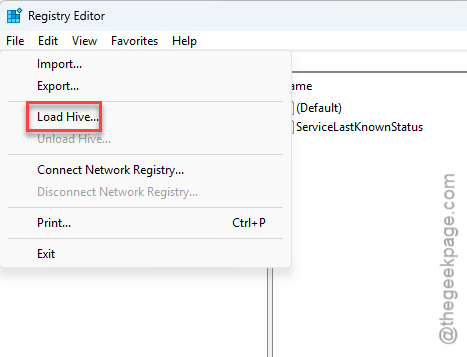
5 – Browse to C:\Windows\System32\config and open the file named SOFTWARE (no extension — it’s the one without a file type).
6 – When it asks for a name, type OFFLINE and click OK.
7 – In the left pane, go to
OFFLINE\Microsoft\Windows\CurrentVersion\Authentication\LogonUI\UserTile
8 – Double-click the value for your account on the right side and change its data to 0.
9 – Click the OFFLINE key once, then click File and Unload Hive.
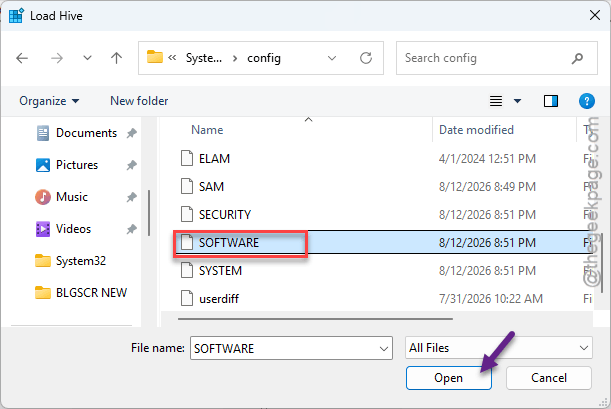
10 – Close everything and restart. The lock screen should now ask for a password instead of a scan.
Keep It From Coming Back
– Keep your Microsoft account password written down somewhere safe. Biometrics fail. A password doesn’t.
– Grab webcam and fingerprint drivers from your laptop maker’s site, not just Windows Update. The generic ones cause more of these lockouts than people think.
– After a big Windows update, lock the PC once and test the sign-in screen. Two seconds. Saves you a morning.
People Also Ask
Why is the PIN option missing from my Windows 11 sign-in screen?
Nine times out of ten it’s a stuck “Windows Hello only” setting or a corrupted biometric database. Windows decides face or fingerprint is the only allowed method, so it hides everything else. Failing the scan five times in a row usually forces the hidden PIN screen back.
Is it safe to delete the Ngc folder in Windows?
Yes — it only holds Windows Hello data, like your PIN keys and face profile. Your files, apps, and account password stay untouched. After deleting it, sign in with your regular password and create a new PIN. Windows rebuilds the folder on its own.