You bought an 8000Hz mouse for buttery-smooth aim. And instead you got stutter, frame drops, and a cursor that somehow feels worse than the cheap mouse it replaced. Backwards, right? The good news: the biggest fix here is embarrassingly simple.
Why This Happens
Short version: your mouse talks faster than Windows can listen.
At 8000Hz, the mouse reports its position 8,000 times a second. Every report is a tiny interrupt your CPU has to stop and handle. Eight thousand interruptions, every single second. But older Windows 11 builds choke on that flood — the input stack (the part of Windows that handles mouse and keyboard data) was never built for it, and your games eat the stutter.
Why does it hit some games harder than others? Raw input. Games that read the mouse directly slam into the broken part of Windows head-on.
And here’s the part most people miss: Microsoft already fixed a lot of this. A recent cumulative update rebuilt the input stack for high report rate mice. So half the battle is just getting that update installed.
Fix 1 – Install the Update Microsoft Shipped for This
Start here, because this is the real fix. The recent Windows 11 cumulative updates include an input stack optimization aimed squarely at high polling rate mice.
1 – Press Windows + I to open Settings.
2 – Click Windows Update at the bottom of the left sidebar.
3 – Click Check for updates.
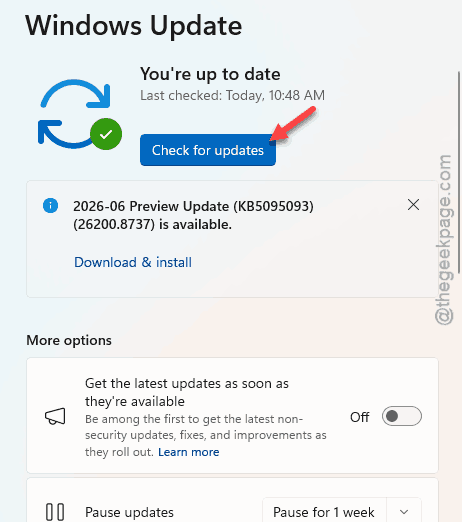
4 – Install everything it offers, including the cumulative updates. This part can take a while (ten minutes or more, depending on your PC).
5 – Restart your computer when it asks.
Then load your game and check. If the stutter is already gone, you’re done — the rest of this article is just cleanup.
Fix 2 – Drop the Polling Rate to 1000Hz
Can’t update yet? Or updated and it still stutters? Then lower the rate. Dropping to 1000Hz stops the CPU interrupt flooding immediately.
I know, I know — you paid for those hertz. But 1000Hz is still one report every millisecond (that’s plenty fast). Nobody’s aim is losing a fight over that.
1 – Open your mouse software. That’s Razer Synapse, Logitech G HUB, or whichever app came with your brand of mouse.
2 – Find the Performance or Polling Rate or Report Rate section.
3 – Change the rate to 1000Hz.
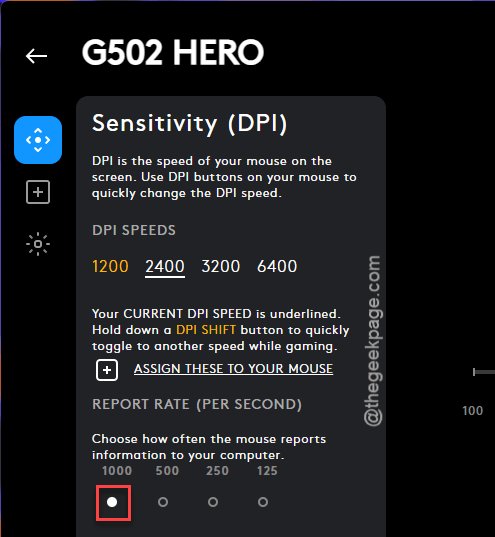
Check if this works or not.
Fix 3 – Turn On Background Input Optimization
Windows 11 has a setting that throttles background USB polling from RGB software, which steadies your mouse. It lives on the Dynamic Lighting page, of all places (yes, the RGB lighting page — don’t ask me why).
1 – Open Settings.
2 – Click Personalization in the left sidebar.
3 – Click Dynamic Lighting.
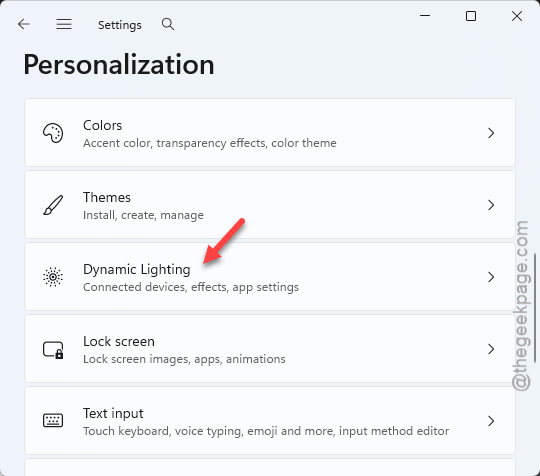
4 – Click Background light control to expand the section, then drag your RGB software to the top of the priority list.
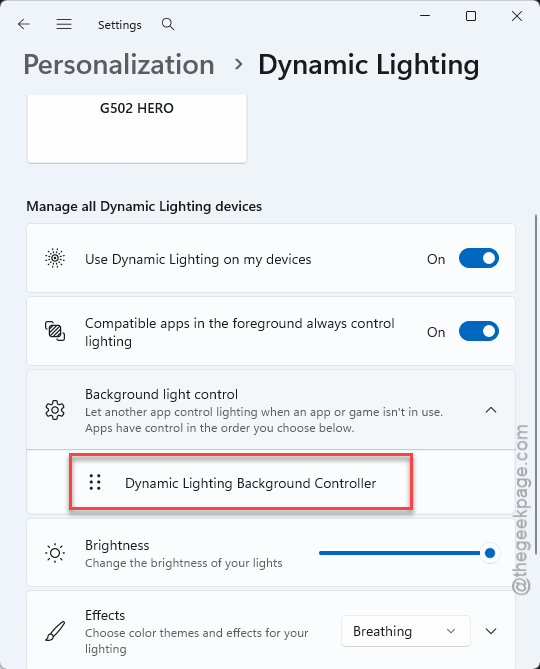
No restart needed.
Fix 4 – Turn Off Raw Input in the Game
This one lets the game fall back to standard Windows mouse tracking, which sidesteps the broken part of the old API.
1 – Open your game’s settings.
2 – Go to the mouse or input section.
3 – Switch Raw Input (some games call it Raw Input Buffer) to Off.
Feels wrong turning that off, I know. But with the Fix 1 update installed, high polling rates run smoothly even without raw input — Valorant players reported exactly that after patching. Test it both ways and keep whichever feels better.
Fix 5 – Stop Windows From Power-Managing Your USB Ports
USB selective suspend is a power-saving feature that briefly cuts power to idle USB devices. Great for battery life. Terrible for a mouse screaming 8,000 packets a second, because the little power dips cause packet desyncs.
1 – Press Windows + R, type powercfg.cpl, and press Enter. The Power Options window opens.
2 – Click Change plan settings next to your selected power plan.
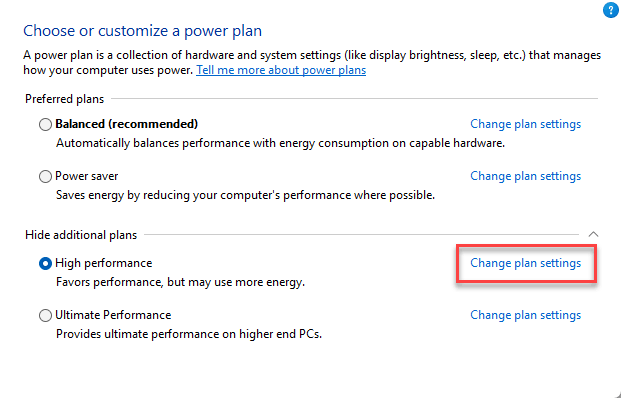
3 – Click Change advanced power settings. A smaller window pops up.
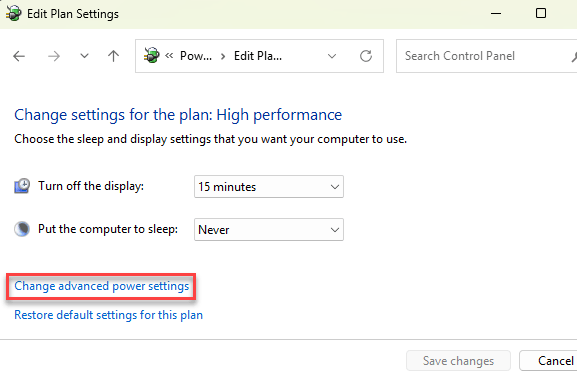
4 – Double-click USB settings, then USB selective suspend setting.
5 – Set it to Disabled.
6 – Click OK.
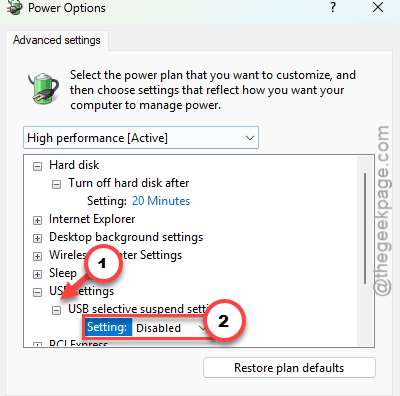
Check if this works.
Fix 6 – The Alt + Tab Trick
Quick one. Does the stutter only show up right after a game launches?
Press Alt + Tab to hop out of the game, then Alt + Tab straight back in.
That resets the focus buffer, and the stutter usually clears on the spot. Not a permanent fix. But it will get you through a match.
Fix 7 – Uncheck Enhanced Pointer Precision
“Enhance pointer precision” sounds helpful, but it’s mouse acceleration wearing a friendly name. At 8000Hz it just adds noise to your aim.
1 – Press Windows + R, type main.cpl, and press Enter.
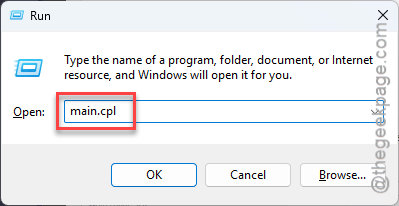
The Mouse Properties window opens.
2 – Click the Pointer Options tab at the top.
3 – Uncheck Enhance pointer precision.
4 – Click OK.
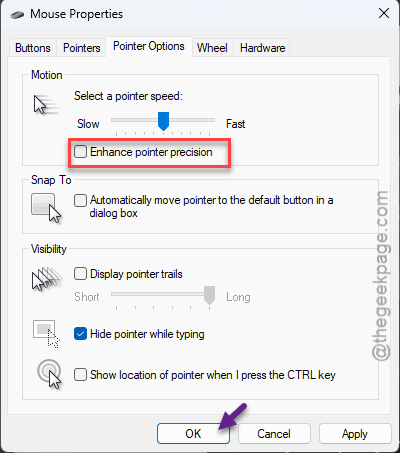
Your cursor may feel slower for a day or two. That’s just your hand relearning honest, un-accelerated movement.
How to Prevent This
- Install cumulative updates as they arrive. The input fixes ship quietly inside them.
- Run 1000Hz for desktop work and save 8000Hz for games that actually benefit. Your CPU will thank you.
- Leave Background input optimization on. Always.
- After any big Windows update, peek at your mouse software. Settings do not always survive the trip.
People Also Ask
Why does my mouse stutter at 8K polling rate?
Because 8,000 reports a second flood the CPU with interrupts, and older Windows 11 builds can’t drain that flood fast enough. Games stutter while the input stack chokes. Install the latest cumulative updates — Microsoft rebuilt that part of Windows for high report rate mice.
Is 8000Hz polling rate good for a mouse?
For most people? Honestly, no. Going from 1000Hz to 8000Hz shaves fractions of a millisecond off input delay — top competitive players might notice. Everyone else just gets extra CPU load and, on unpatched systems, stutter.