Scary message, boring cause. Your encrypted files are almost certainly fine — this error is nearly always a USB connection hiccup or a crashed unlock prompt, not a dying drive. And both of those have quick fixes. Take a breath, then work through these in order.
What’s Behind the Error
BitLocker is picky about how a drive shows up. If the USB handshake wobbles even slightly — a flaky hub, a worn front-panel port, a corrupted driver — Windows declares the whole device “not functioning” instead of retrying.
The unlock window itself is fragile too. Sometimes the drive is healthy and it’s the password prompt that’s crashing. Different problem, same error message. Unhelpful, right?
Fix 1 – Plug the Drive Into a Rear USB Port
Front-panel ports, USB hubs, keyboard passthroughs — they all add a link in the chain that can drop the handshake. The ports on the back of a desktop tower connect straight to the motherboard.
1 – Safely eject the encrypted drive. Tap the USB icon in the bottom right corner of the taskbar, and choose Eject.
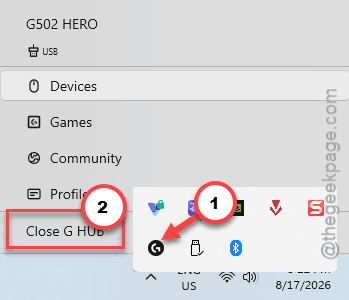
2 – Unplug it from wherever it is now.
3 – Plug it directly into a USB port on the back of the PC.
4 – Enter your BitLocker password when the prompt appears.
Sounds too basic to be the answer? It resolves a surprising share of these errors. Hubs are the usual villain.
Fix 2 – Unlock the Drive From the Command Prompt
Often the drive is fine and the graphical unlock prompt is what’s actually crashing.
1 – At first, type cmd in the search box.
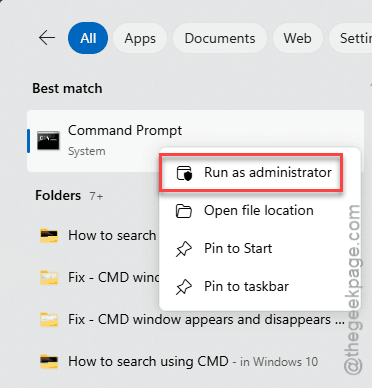
2 – Then, right-click Command Prompt, and choose Run as administrator.
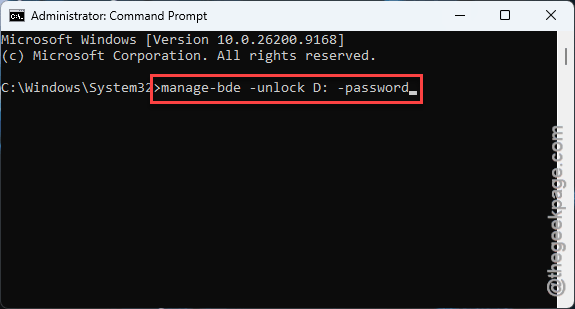
3 – Write down this code, and press Enter. Swap D: for your drive’s actual letter — check it in File Explorer first.
manage-bde -unlock D: -password
4 – Type your password when asked.
Did it reject the password you know is correct? Then use your 48-digit recovery key instead — it skips the password check entirely:
5 – Then, type this code, and press Enter.
manage-bde -unlock D: -RecoveryPassword YOUR-48-DIGIT-KEY
Your recovery key lives at aka.ms/myrecoverykey if you saved it to your Microsoft account (most people did during setup without remembering it). Worth bookmarking, honestly — this is exactly the moment it exists for.
Fix 3 – Turn Off Fast Startup
Fast Startup is a half-shutdown that Windows does to boot quicker. The leftover hibernation file can keep a lock on the encrypted volume, and the drive fails to mount on the next boot.
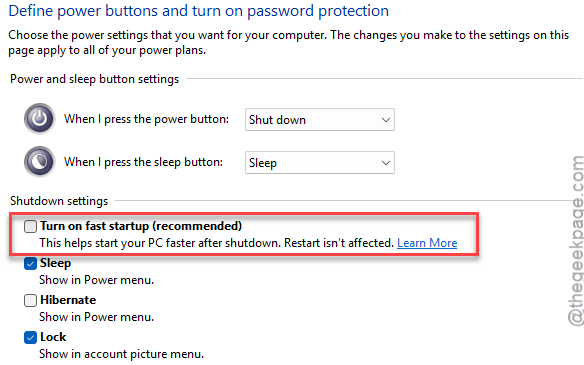
1 – Click Start, type choose a power plan, and press Enter.
2 – Click Choose what the power buttons do in the left sidebar.
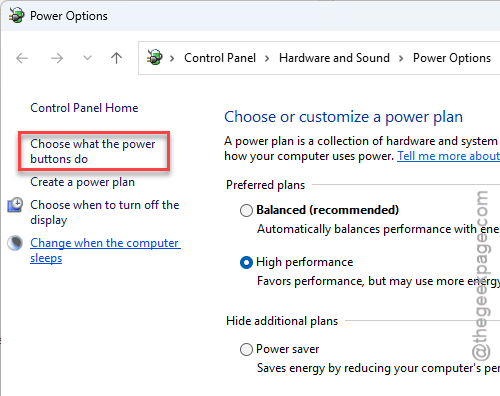
3 – Click Change settings that are currently unavailable near the top. The greyed-out checkboxes light up.
4 – Uncheck Turn on fast startup.
5 – Click Save changes and restart your PC.
Boot takes a few seconds longer from now on. But drives mount cleanly, and that trade favors you.
Fix 4 – Reinstall the USB Storage Driver
Still erroring on a rear port? A corrupted driver can poison the handshake no matter where you plug in.
1 – Right-click the Start button and select Device Manager.
2 – Expand Universal Serial Bus controllers near the bottom of the list.
3 – Right-click USB Mass Storage Device and select Uninstall device.
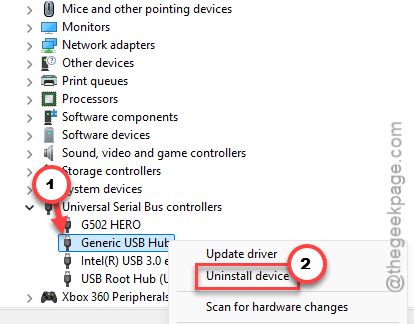
4 – Disconnect the drive and restart your computer.
5 – Plug the drive back in after the reboot.
Windows rebuilds the driver on its own the moment it sees the drive (no downloads needed). Then try unlocking again.
Fix 5 – Relax the Hardware Encryption Policy
This one applies if the error started right after a Windows update, especially on a work-managed PC.
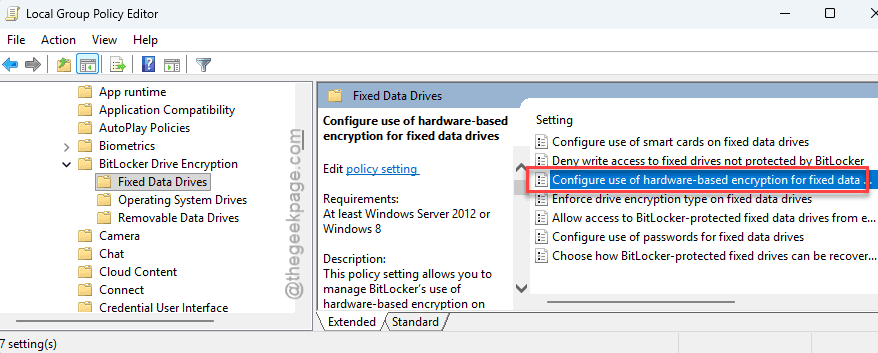
1 – Press Windows + R, type gpedit.msc, and press Enter.
2 – Go this way –
Computer Configuration > Administrative Templates > Windows Components > BitLocker Drive Encryption > Fixed Data Drives.
3 – Double-click Configure use of hardware-based encryption.
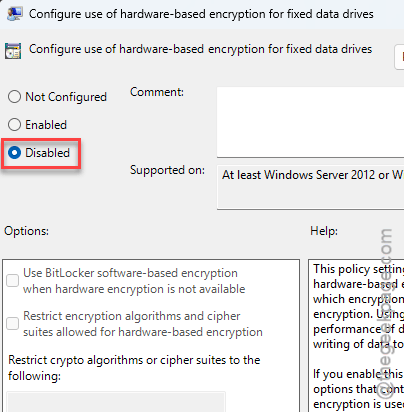
4 – Set it to Disabled and click OK.
On Windows 11 Home there’s no gpedit — and if your PC is company-managed, this policy may snap back. That’s IT’s doing, so loop them in rather than fighting it.
People Also Ask
How do I force turn off BitLocker on a drive?
Unlock the drive first, then open an admin Command Prompt and run manage-bde -off D: with your drive letter. Decryption runs in the background and can take a while on big drives. Check progress anytime with manage-bde -status.
How do I fix a corrupted BitLocker drive?
Try unlocking with your 48-digit recovery key through manage-bde before assuming corruption — most “corrupted” drives are really handshake or prompt failures.
Where do I find my BitLocker recovery key?
Check Recovery Key while signed into the Microsoft account you used when encrypting. People who chose a printout or a file during setup should search for a text file starting with “BitLocker Recovery Key”. Work devices usually store it with the IT department instead.