Having some problem accessing the files on your Microsoft Teams app? Users can easily access and manage their files, like meeting notes, recordings, other Office documents directly from the Microsoft Teams app, thanks to the integration of OneDrive, Sharepoint services. But, accessing these files requires proper account authentication, synchronized data, etc. These are the tips you need to follow to implement these fixes.
Fix 1 – OneDrive Synchronization and Rectify the Authentication
If the OneDrive has not properly synced up the files or the lack of authentication can lead to this issue.
Step 1 – Launch the OneDrive from the search option on Windows.
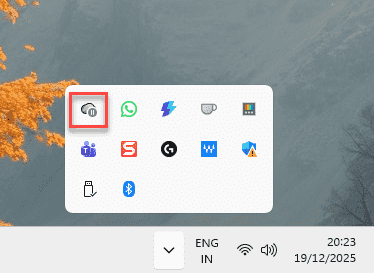
Step 2 – While the OneDrive is running, tap the OneDrive icon on the system tray. Check whether you are signed in with the same OneDrive account as the Microsoft Teams account.
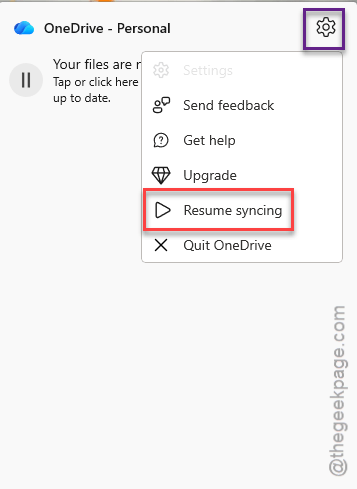
Step 3 – Next, tap the ⚙ in OneDrive panel, tap the Resume Syncing option.
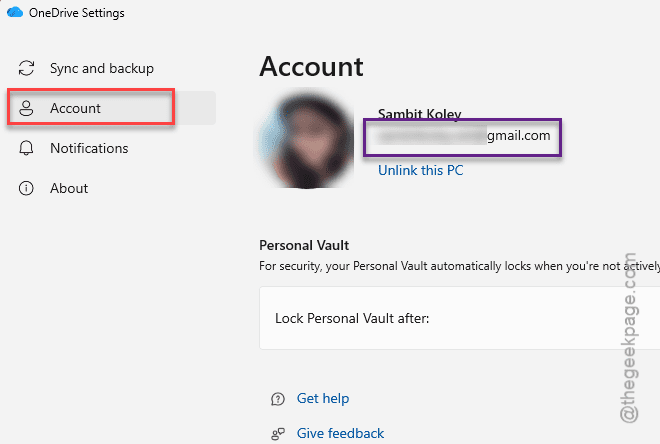
Step 4 – You can open the OneDrive settings page to check whether you are using the correct account.
Reboot the Microsoft Teams client. Check whether this works out.
Fix 2 – Clear the Teams File Cache
Corrupted Teams cache can cause the files to get stuck while loading them up.
Step 1 – Quit the Microsoft Teams client. Then, proceed to the system tray and quit the Teams app from there as well.
Step 2 – Finally, load up a Run tab. Paste this address there, and hit Enter to reach there.
%localappdata%\Packages\\Packages\MSTeams_8wekyb3d8bbwe\LocalCache\Microsoft\MSTeams\EBWebView\Default
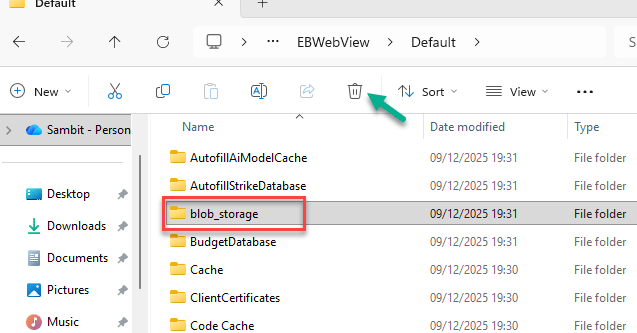
Step 3 – Find and delete these folders, if they are present –
Files
SharePoint
BlobStorage
Restart the Teams app. Go to the Files tab and see if you can access those files or not.
Fix 3 – Turn off VPN/Proxy Settings
Microsoft servers may throttle suspicious connections, if you have changed the VPN or Proxy services. Disable it and try to access those files directly.
Step 1 – Load up the Settings. Then, go to the Network & Internet tab.
Step 2 – Disable any kind of VPN settings from there.
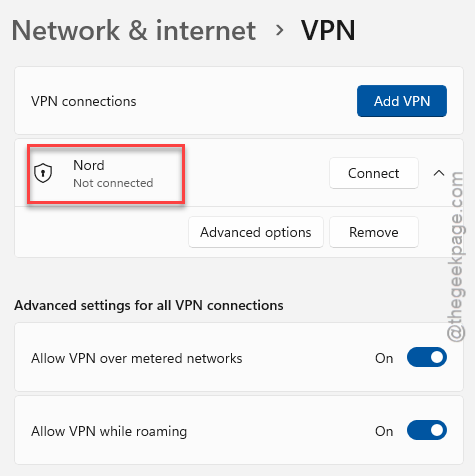
Step 3 – Then, go to Proxy settings. Tap the Edit button to modify the proxy settings.
Step 4 – Later, set the Manual Proxy to Off mode and save the changes.
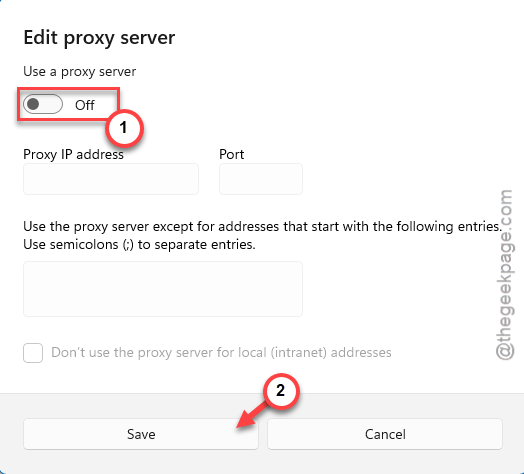
Finally, restart the MS Teams client. Try to open the files again.
Fix 4 – Check for file permission
There are some files that can not be accessed by everyone in your organization.
Step 1 – Try to open the file using the Open in SharePoint option.
Step 2 – If you get the Access Denied messages while opening the file, you have to ask the owner of the file to allow you to access the file.
Step 3 – Once the access is permitted, reload the Microsoft Teams client.
Try to access the files again.
Fix 5 – Sign out of Teams account and log in
Sign out of the Microsoft Teams client and sign back to it to refresh the app.
Step 1 – Go to the Microsoft Teams app. Tap the profile picture, and tap the Sign out option to sign out of the Teams client.
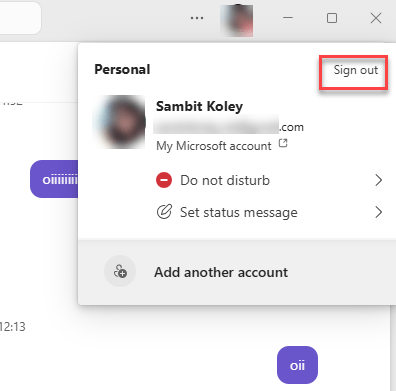
Step 2 – Now, confirm that you want to sign out briefly from the Teams client.
Step 3 – Wait for the MS Teams default page to load up.
Step 4 – Just tap your account info there, or use the account credentials to log in.
Once you have logged in, try to access the files.