Emojis/GIFs have become an essential part of mainstream communication. So, when the Teams client fails to load emojis or GIFs, it usually stems from the sync failure between the client app and Microsoft’s connected services (GIPHY). Enabling the Connected Experience in Teams settings should take care of the problem, but if that does not work, you can try other measures as well. Follow this quick fix table to act according to your situation.
| Issue | Recommended Fix |
| GIF button is missing completely | Enable Optional Connected Experiences (Fix 1) |
| GIF/Emojis stay as spinning circles | Clear the
|
| Emojis appearing as blank boxes | Delete the GPUCache folder (Fix 3) |
Fix 1 – Turn On Optional Connected Experience
Microsoft has recently moved the emojis/GIFs under the Optional Connected Experiences tab.
Step 1 – Tap the … button next to the Teams profile picture, and tap Settings.
Step 2 – Then, switch to the Privacy tab.
Step 3 – Later, find the Optional connected experiences feature. Turn it On.
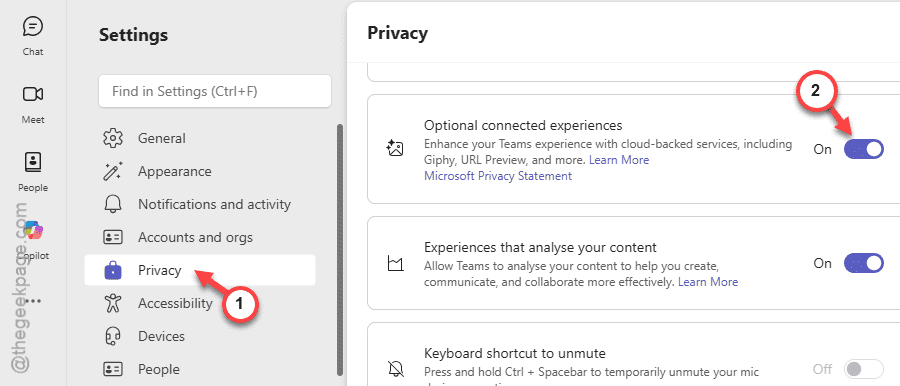
Step 4 – Then, close and relaunch the Teams client.
Once the MS Teams app becomes accessible, you can use the emojis or GIFs properly.
Fix 2 – Flip the UI by Switching Teams Theme
This workaround has worked for many users. Switch the Teams theme should fix the issue.
Step 1 – Open the Teams Settings.
Step 2 – Then, proceed to the Appearance tab.
Step 3 – Switch the current theme to something different. Like, if it is set to Default mode, switch to Dark or High Contrast mode.
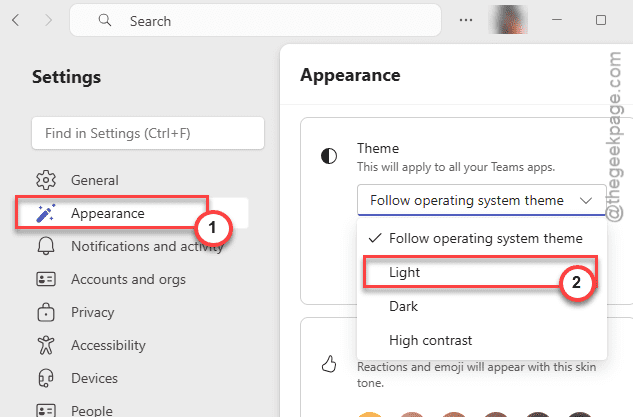
Step 4 – Wait for 5 seconds or so, and then revert to your old Teams theme.
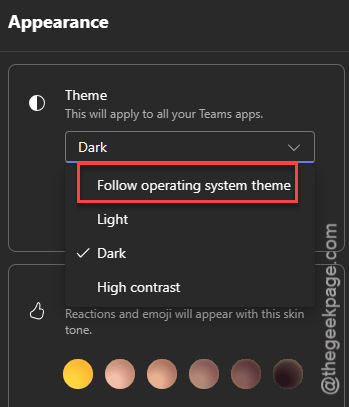
Try using the GIFs again.
Fix 3 – Clean up the GPUCache folder
The possible corruption may cause the emojis and GIFs to appear as blank boxes. Flushing the cache should do the trick.
Step 1 – Quit the current instance of the Microsoft Teams app. Make sure to quit the Teams app as well.
Step 2 – Then, open a Run box. Use this address to reach the MSTeams folder.
%localappdata%\Packages\MSTeams_8wekyb3d8bbwe\LocalCache\Microsoft\MSTeams
Step 3 – Once you are in the specified folder, search for GPUCache.
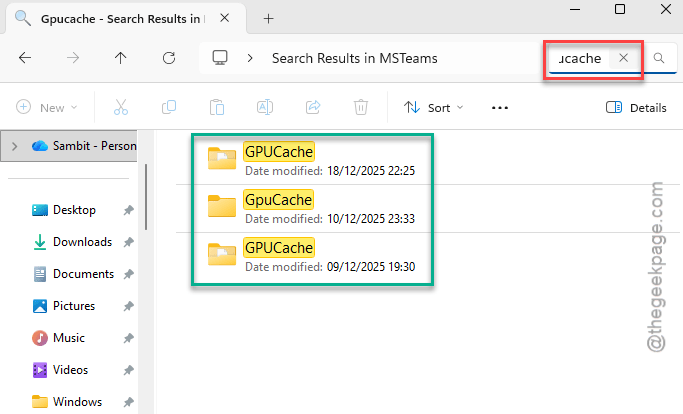
Step 4 – Delete any of the GPUCache folders from there.
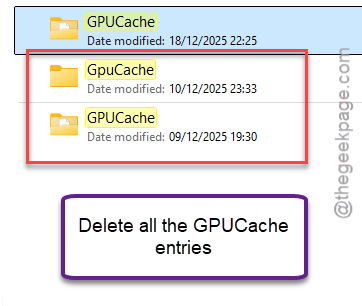
Once you have deleted all the instances of the GPUCache folders, relaunch the Teams client.
Check any messages that has emojis or GIFs.
Fix 4 – Ask the Team Owner to Enable GIPHY
Team owners have the liberty to disable or enable GIFs, memes, and stickers for that particular team.
Step 1 – Find the specific team where participants can’t insert GIFs.
Step 2 – Then, tap the … button, and tap Team name > Manage team.
Step 3 – Go to the Settings tab. Toggle the Fun Stuff section.
Step 4 – Make sure to Enable Giphy and Enable Stickers and Meme features.
The members of that particular team can share emojis and GIFs.
Fix 5 – Use the Windows+Period Workaround
If the MS Teams GIF/Emoji picker does not work, you can use Win+period button to input the emojis.
Step 1 – Go to the Teams message box.
Step 2 – Next, hit the Windows Key + . keys together. This will bring up the emoji selection console.
You will find all the emojis, GIFs, and kaomojis there.
Step 3 – Tap the GIF to insert it directly into the textbox.
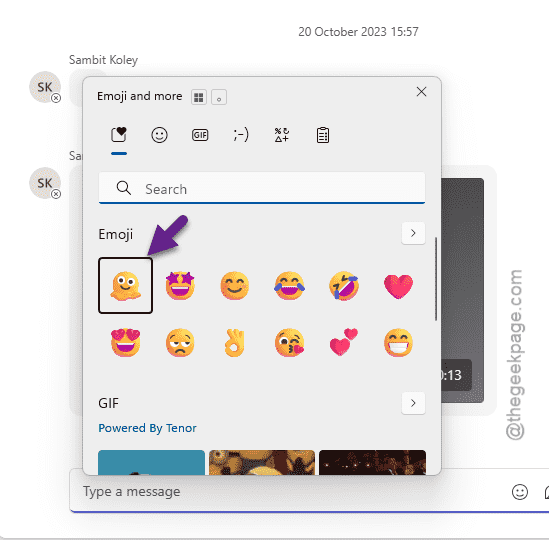
This way, you can use the emojis or GIFs according to your choice. You won’t have to rely on the Teams default GIF/Emoji picker.