If the Bloodwalker stutters or freezes even on your high end machine, it’s not the machine. The Blood of Dawnwalker just needs a few settings nudged. The frame hitches. Then it locks up for a second or two, usually right as you sprint into a new part of the map. There are no loading screens, so the game streams the world in while you move. Cross into a new area and it has to swap textures in and out of your graphics card’s memory (VRAM). And when it meets a new effect, like a weather change, it builds that shader on the spot (a shader is a small program your GPU uses to draw an effect). Either one can freeze the frame, and the the entire game, as well.
Fix 1 – Give the Game a Bigger Texture Pool
Start here. It’s the biggest help for traversal freezes.
1 – Close the game completely.
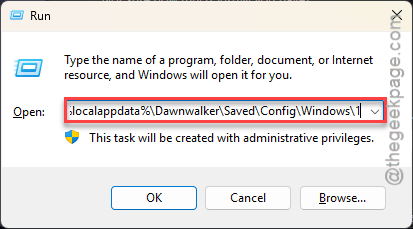
2 – At first, press the Windows + R buttons together to open the Run box.
3 – Next, type this, and press Enter.
%localappdata%\Dawnwalker\Saved\Config\Windows\
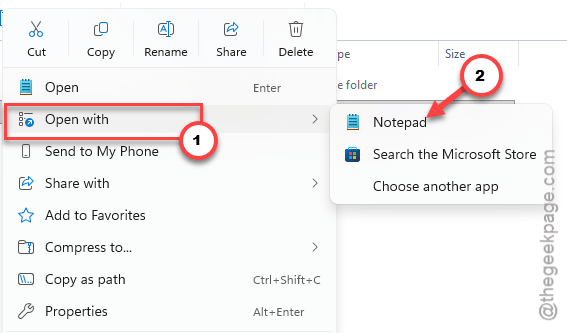
4 – Right-click Engine.ini, choose Open with, and pick Notepad.
5 – Scroll to the very bottom and add a new line: [SystemSettings]
6 – Right below it, add r.Streaming.PoolSize=4096 if your graphics card has 8 GB of VRAM. Use r.Streaming.PoolSize=8192 instead if it has 12 GB or more.
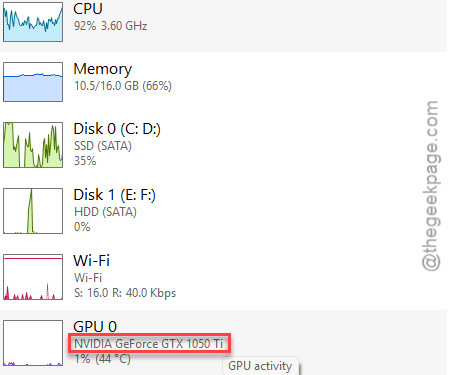
Not sure how much VRAM you have?
1 – Press Ctrl + Shift + Esc keys together.
2 – Tap Performance and then click GPU.
3 – Look for Dedicated GPU memory near the bottom.
7 – Press Ctrl + S to save, then close Notepad.
8 – Right-click Engine.ini and choose Properties.
9 – Check the Read-only box at the bottom and click Apply.
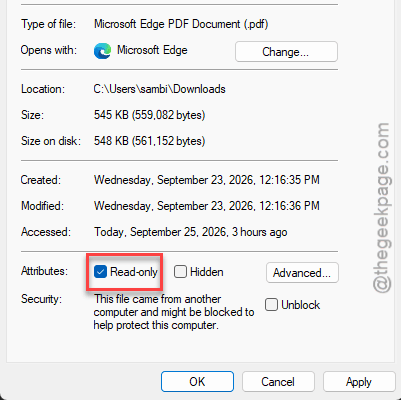
That last part matters more than it looks. Without it, the game can overwrite your change the next time it starts.
Fix 2 – Turn On Shader Pipeline Caching
Same file, three more lines. These make the game build shaders in the background instead of in the middle of a frame.
1 – Open the Config folder from Fix 1 again.
2 – Then, right-click Engine.ini, and next, Properties.
3 – Later, uncheck the Read-only option,, and click Apply.
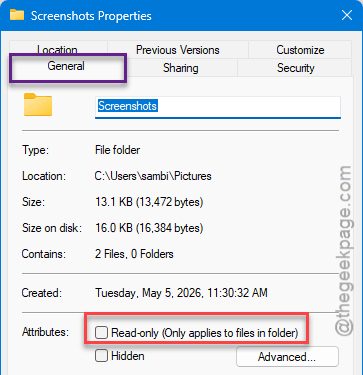
Notepad can’t save the file otherwise.
3 – Open Engine.ini in Notepad.
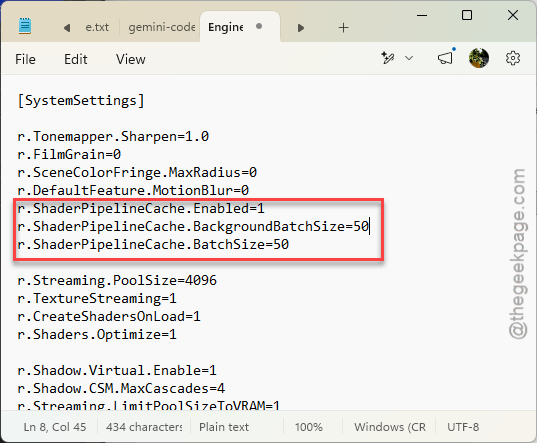
4 – Under the [SystemSettings] line you added in Fix 1, add this line:
r.ShaderPipelineCache.Enabled=1
5 – Add a second line:
r.ShaderPipelineCache.BatchSize=50
6 – Add a third line:
r.ShaderPipelineCache.BackgroundBatchSize=50
7 – Save and close the file.
8 – Turn Read-only back on, the same way as in step 2.
Your first load will take a little longer while shaders compile. That’s expected. And once it’s done, crossing the map should feel noticeably smoother.
Fix 3 – Give Your GPU a Bigger Shader Cache
This part is for NVIDIA cards. The driver caps how much shader data it keeps, so the game ends up rebuilding the same shaders over and over.
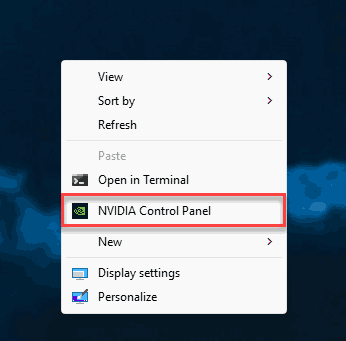
1 – Right-click an empty spot on your desktop and open NVIDIA Control Panel. On Windows 11 you might need to click Show more options first.
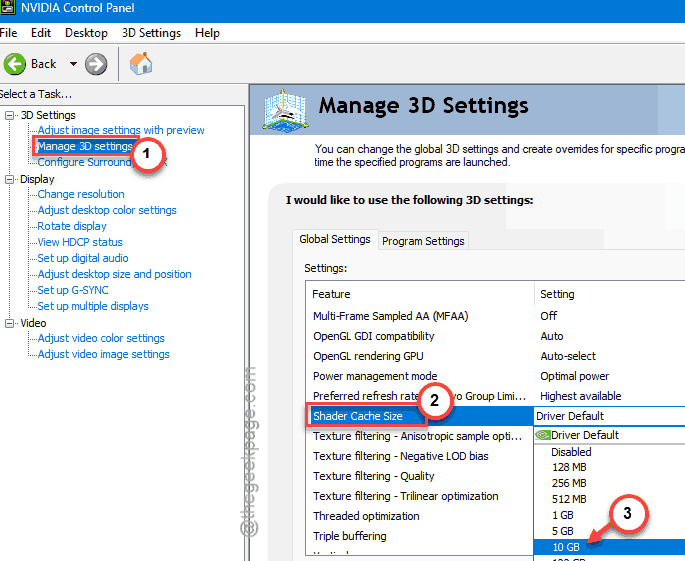
2 – Click Manage 3D Settings in the left sidebar.
3 – Stay on the Global Settings tab.
4 – Scroll down to Shader Cache Size.
5 – Change it from Driver Default to 10 GB.
6 – Click Apply at the bottom right.
Check if this helps.
Fix 4 – Move the Game to an NVMe SSD
No loading screens means the game reads from your drive nonstop. A hard drive can’t keep up. And an older SATA SSD struggles too, which surprises people.
1 – Open Steam and right-click The Blood of Dawnwalker in your library.
2 – Select Properties.
3 – Click Installed Files in the left sidebar.
4 – Click Move install folder.
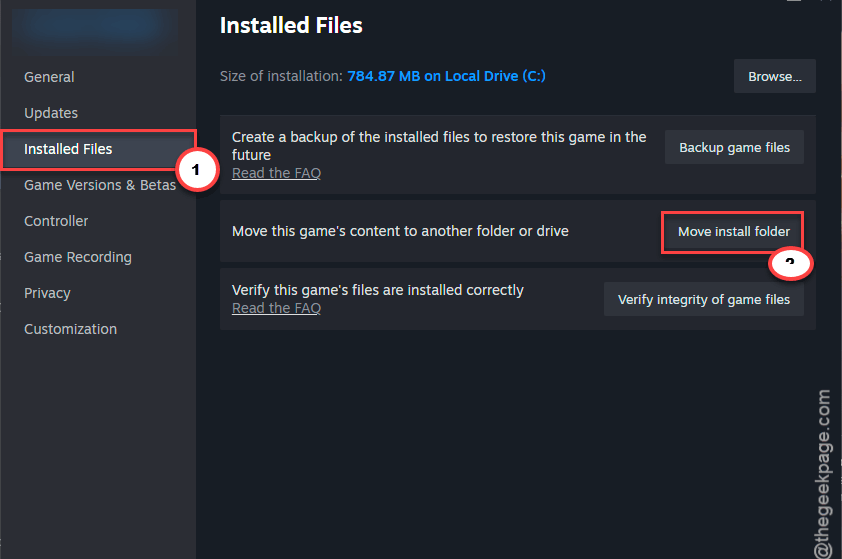
5 – Pick a Steam library folder on your NVMe drive.
The move can take 10 to 20 minutes for a game this size. No library on your NVMe drive yet? Add one in Steam’s storage settings first.
Fix 5 – Best Optimization Settings for Blood of DawnWalker
Wondering which setting hurts the most? Volumetric fog. On High it tanks your frame rate, and honestly it barely looks different. Dropping it to Medium gives back about 15 to 20 FPS.
1 – Open the in-game Graphics Settings.
2 – Scroll down to the Lighting & Effects section.
3 – Change Volumetric Fog to Medium.
Want more headroom? These settings help too:
- V-Sync: Off
- Upscaling: DLSS on NVIDIA, FSR on AMD, XeSS on Intel. Set the mode to Quality or Balanced.
- Shadows and Lighting: Low or Medium
- Post-Processing: Low
- Motion Blur: Off
- Textures: keep on High if your VRAM allows it (textures cost memory, not much speed)
One catch. If you use Frame Generation, Display Mode has to be Borderless.
Fix 6 – Turn On Hardware-Accelerated GPU Scheduling
1 – Press Windows + I to open Settings.
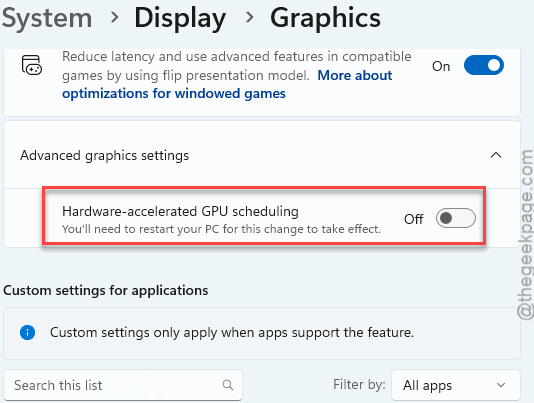
2 – Go to System > Display > Graphics.
3 – Click Change default graphics settings.
4 – Turn on Hardware-accelerated GPU scheduling.
5 – Go back to the Graphics page, click Browse, and add dawnwalker.exe. It’s inside the game folder under Dawnwalker\Binaries\Win64.
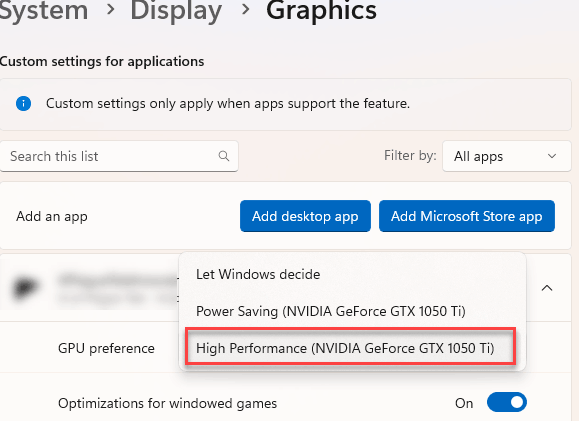
6 – Click the game in the list and choose Options.
7 – Pick High performance and click Save.
8 – Restart your PC.
While you’re in Settings, turn off Xbox Game Bar too. It’s an overlay that runs in the background. And this game needs every bit of CPU it can get.
Fix 7 – Turn Off Control Flow Guard (Last Resort)
Control Flow Guard (CFG) is a Windows security feature. It watches running programs for a certain kind of attack. But some games clash with it, and the extra CPU work shows up as stutter, especially during the vampire transformations.
1 – Press the Windows key, type Exploit Protection, and press Enter.
2 – Stay on the System settings tab.
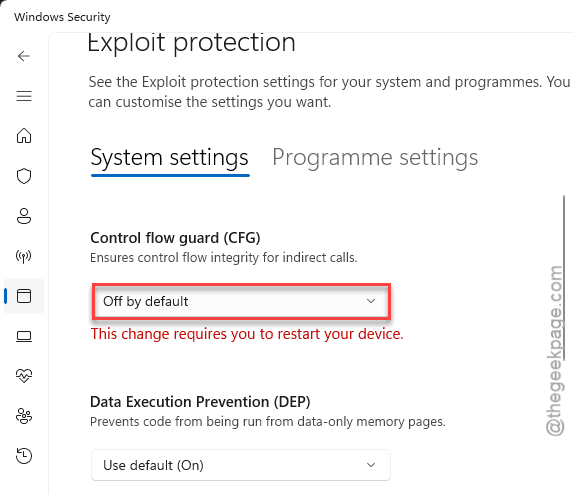
3 – Find Control flow guard (CFG).
4 – Change its drop-down to Off by default.
5 – Restart your PC.
Heads up: this turns CFG off for every program, not just the game. So if the stutter doesn’t get better, set it back to On by default. It is not worth losing the protection for nothing.
Still hitching after all of that? Some players say a community stutter-fix mod on Nexus Mods fixed it completely for them. It’s not official, so back up your saves before you try it.
Keep It From Coming Back
- Keep Engine.ini set to read-only. If a patch resets it anyway, add the lines again. Two minutes.
- Install big open-world games on your NVMe drive from day one. Moving them later takes longer than just starting there.
- Expect one stuttery session after every GPU driver update while shaders rebuild. Normal. So don’t panic and start reinstalling.
- Leave volumetric fog on Medium. You won’t miss High.
People Also Ask
Why does The Blood of Dawnwalker stutter so much?
There are no loading screens, so the game streams the world constantly. Entering new areas swaps textures in and out of VRAM, and new effects compile shaders mid-play. Both cause hitches. A bigger texture pool in Engine.ini and an NVMe SSD fix most of it.
What’s the best setting to boost FPS in The Blood of Dawnwalker?
Volumetric fog, by a mile. Dropping it from High to Medium gives back about 15 to 20 FPS and barely changes the look. After that, turn on DLSS, FSR, or XeSS at Quality or Balanced. Then lower shadows and post-processing for extra headroom.