Your LET formula looks right. The logic checks out. But the result is just wrong. Off by a mile. Or returning an error when it should not.
LET is powerful. But when you start nesting functions inside it, things get messy fast. And debugging it is a nightmare because you cannot see intermediate values. Here is how to track down what is going wrong.
Why This Happens
The LET function assigns names to values and then uses those names in a calculation. Simple enough in theory. But when you nest IF statements, AND functions, or other LET blocks inside each other, the order of evaluation gets tricky. One wrong reference and the whole formula silently returns garbage. Excel does not warn you. It just gives you a bad number. Also, LET handles arrays differently than regular formulas. So if one of your named variables returns an array when you expected a single value, everything downstream breaks.
Fix 1 – Break the Formula into Separate Cells
The fastest way to find the bug. Stop trying to debug it in one cell. Pull it apart.
1 – Look at your LET formula and identify each named variable.
2 – Put each one in its own cell. So if your LET has x, y, and z as names, create three helper cells that calculate x, y, and z separately.
3 – Check each cell. Find the one returning the wrong value.
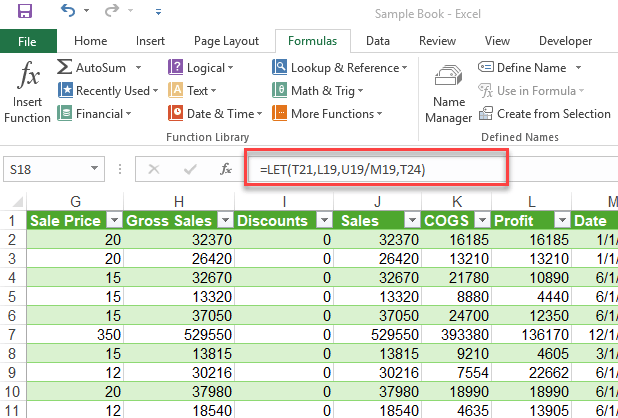
4 – Once you fix the bad piece, put it all back into one LET formula.
Not elegant. But it works every time. And honestly, this is how most people debug nested formulas.
Fix 2 – Check Your Nested IF Logic
Nested IF statements inside LET are the number one cause of wrong results. The conditions overlap or the order is wrong.
1 – Write out your IF conditions on paper. Draw a decision tree if you have to.
2 – Check if any conditions overlap. For example, if you check “greater than 10” and then “greater than 5,” the second one never fires because the first catches everything above 5 that is also above 10.
3 – Make sure the final FALSE case in your IF chain is not returning something unexpected.
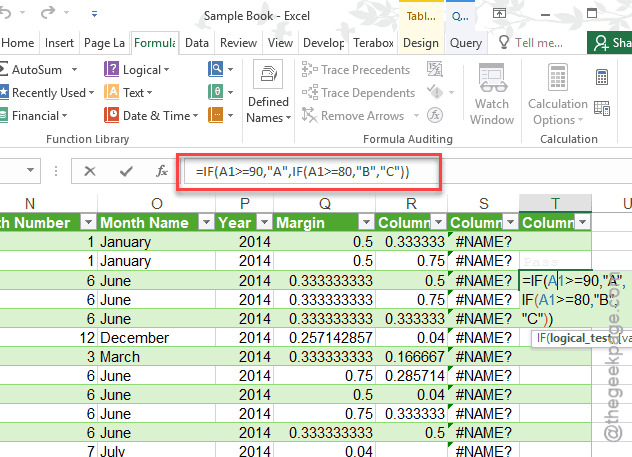
4 – Test each condition with known values. Plug in a number you know should trigger a specific branch and see if it does.
Sound familiar? Yeah, nested IFs are error magnets. Even outside of LET.
Fix 3 – Use the Evaluate Formula Tool
Excel has a built-in debugger that most people do not know about.
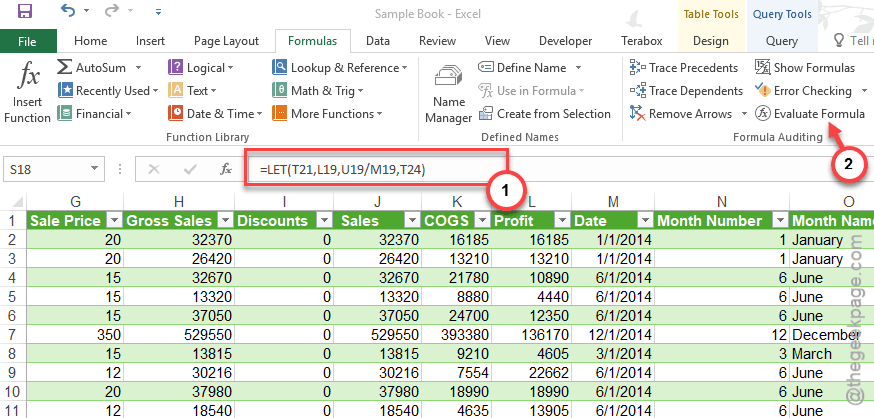
1 – Click on the cell with the LET formula.
2 – Go to the Formulas tab at the top.
3 – Click Evaluate Formula in the Formula Auditing section. It is in the middle of the ribbon.
4 – Click Evaluate repeatedly. Excel steps through your formula one piece at a time and shows you each intermediate result.
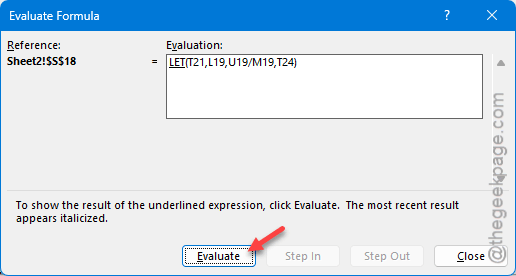
This is a lifesaver. You can watch exactly where things go wrong. But it is slow with very complex formulas.
Fix 4 – Watch Out for Array Spillover
LET variables can accidentally return arrays instead of single values. And that throws off everything.
1 – At first, go through the sheet and check if whether you have pointed a range (like A1:A10) trying to point it to a simple cell.
2 – You can wrap a single cell value from a range in INDEX or use an aggregation function like SUM or MAX to perform the same operation.
3 – If you have to use arrays in the sheet, use them efficiently.
This one is sneaky. In these cases, Microsoft Excel will not produce any error (as there is no methodical error), but you will run into such issues.
Fix 5 – Replace LET with Helper Columns Permanently
Sometimes LET is not the right tool. No shame in that.
If your formula has more than three or four named variables, it is probably easier to use helper columns. Each column calculates one piece. The final column combines them. Easier to read. Easier to debug. Easier for the next person who opens your spreadsheet. Worth considering.
Fix 6 – Check Regional Settings and Separator Characters
If you copied the formula from the internet or a coworker in a different country, the separator character might be wrong.
1 – Some Excel users of a particular region sometimes use semicolons (;) instead of commas (,) to separate function arguments in Excel spreadsheet.
2 – Check your formula. This kind of unintentional separtor error can make the formula proudce either an error or parse arguments incorrectly.
3 – In that case, you can check the current region and change it at will from the following section –
Windows Settings > Time & Language > Region
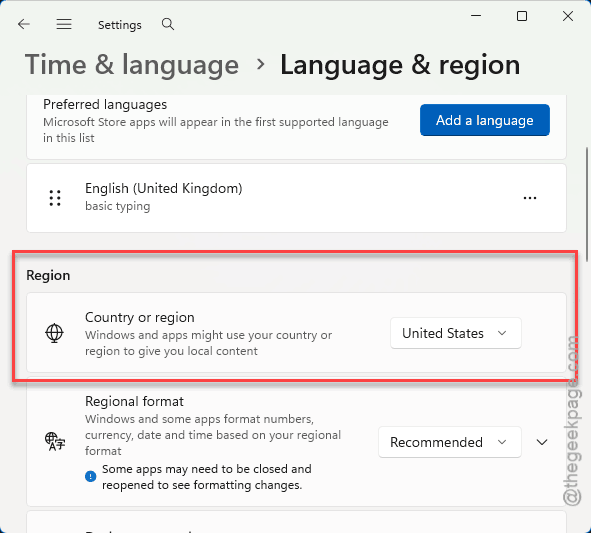
Weird cause. But it happens more than you would think.
How to Prevent This
– Keep LET formulas simple. If you need more than four named variables, use helper columns instead.
– Test each piece individually before combining everything into one formula.
– Add comments in nearby cells explaining what each part of the formula does. Future you will appreciate it.
– Avoid nesting more than two IF statements inside LET. Use IFS or SWITCH instead for cleaner logic.
People Also Ask
Why does the Excel formula show a wrong result?
Usually? A reference is pointing to the wrong cell. Or nested IFs have overlapping conditions. Break the formula into pieces and check each one. The Evaluate Formula tool under the Formulas tab also helps a ton.
How can nested IF statements increase the risk of errors in Excel?
Each layer adds complexity. Conditions can overlap. The FALSE branch might return something you did not expect. And if you miss one argument, Excel shifts everything. So three nested IFs become a guessing game. Use IFS instead when you can.
How to insert an IF function with a nested AND function in Excel?
Use this format: =IF(AND(condition1, condition2), value_if_true, value_if_false). The AND goes inside the IF as the first argument. Make sure both conditions are correct before adding more layers. Test with simple values first.