The iPhone Pro models have a LiDAR sensor that can be used to measure lengths in real life. But, after the iOS 26 update has rolled out, there are some reports of the Measure app producing wrong readings, which is leading to incorrect measurements. Many users use this in their daily lives, and these wrong measurements may lead to various other issues. So, here is a list of top fixes and instructions to fix the wrong measurement issue in the Measure app.
Fix 1 – Reset the ARKit Cache
The existing spatial cache of the Measure app can falsely attach dimensions from a previous measurement.
Step 1 – At first, close the Measure app completely. Swipe up from the left-hand side and quit the Measure app instance from the iPhone.
Step 2 – Then, go to the iPhone Settings. Load up the Privacy & Security tab.
Step 3 – Open up the Location Services tab.
Step 4 – Tap the System Services at the bottom.
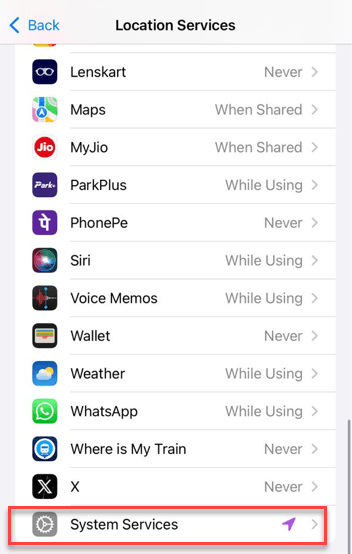
Step 5 – Toggle the Compass Calibration feature to OFF and then to ON.
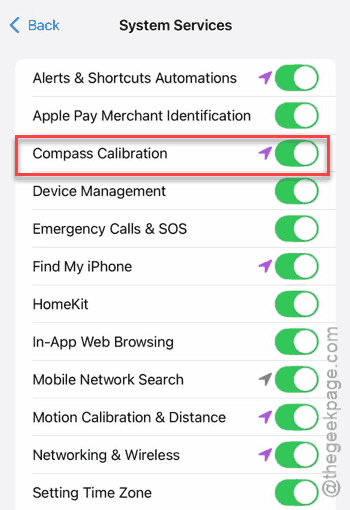
This should hard reset the Measure app uses for spatial scaling. Check if this works.
Fix 2 – Perform a Slow-Sweep Calibration
Sometimes the high-frequency LiDAR on the iPhones can lead to ghost measurements.
Step 1 – Start the Measure app, and instead of immediately tapping a point, move the device in a very slow, wide circle around the object.
Step 2 – Ensure you capture multiple angles of the floor and objects’ base.
Step 3 – Wait until the dot on the screen becomes small and solid.
This indicates the iOS has successfully detected the object’s points and is ready for measurement.
Fix 3 – Toggle Measurements Units to Force Recalculation
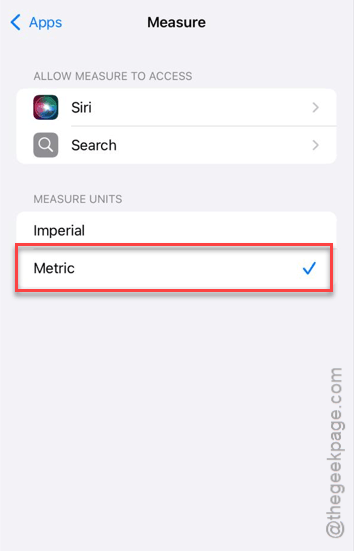
Switching the measurement units between the Imperial and Metric system can restart the conversion engine in the Measure app.
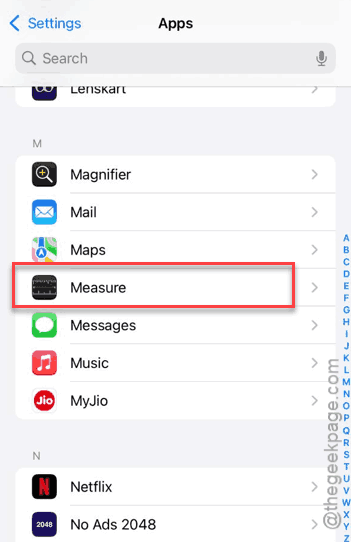
Step 1 – Proceed to the Apps tab on the iPhone.
Step 2 – Then, load up the Measure app.
Step 3 – Locate the Measure Units from Imperial to Metric or vice-versa.
Step 4 – Open the Measure app. Go ahead and take a measurement.
Step 5 – Later, return to the Settings and go this way –
Apps > Measure
Step 6 – Switch back to your preferred unit style from there.
This will refresh the app and try to measure the length again.
Fix 4 – Clean the LiDAR Sensor Region
The LiDAR sensor region is located in the camera island on the backside of your iPhone. Dusts or even smudges can
Step 1 – Take a piece of clean, dry microfiber cloth.
Step 2 – Use it to wipe the entire camera island in a circular motion.
NOTE – Do not use any chemical cleaners or any other foreign agents, as they can damage the sensor coatings used in the newer iPhone models, which can cause permanent damage to them.