Does your Apple Watch showing wrong time or displaying completely different time zone? Apple Watch users can sometimes face this problem in certain situation due to a time-server synchronization problem. The Apple Watch by default uses the network provided time, so if there is any issue with that or any location-related permission issues can also lead to such weird effect. So, without wasting any more time, focus on implementing these fixes.
Fix 1 – Refresh the Automatic Time Zone settings
Some users have found that setting the Apple Watch to automatic mode has got the device ‘stuck’. Turning off and on the automatic timezone system should solve the issue.
Step 1 – Go to the iPhone Settings. Proceed to the General settings.
Step 2 – Next, load up the Date & Time settings.
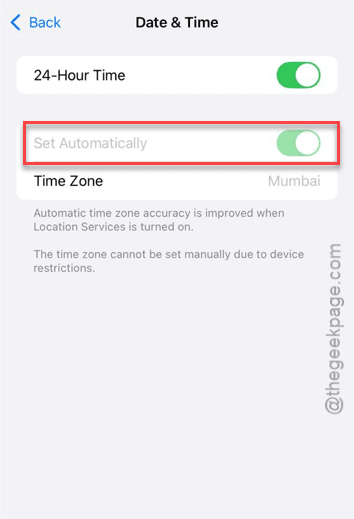
Step 3 – Then, toggle the Set Automatically option to Off.
Step 4 – Set the Time Zone manually to a different city, preferably a different country to offset it.
Step 5 – Wait for a few seconds, and then, set it back to current city. Turn on the Set Automatically option.
Step 6 – Open the Watch app.
This will force-resync the time management settings for the watch. If there is any indeed any lag, it will be fixed by this.
Fix 2 – Reset the Sync Data on Apple Watch
Resetting the synchronized data on the Apple Watch should resolve any background sync log and fix this time-glitch.
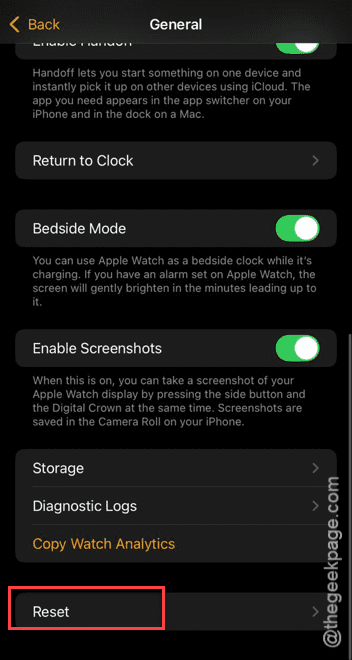
Step 1 – Go to the Watch app. Proceed to the General tab in there.
Step 2 – Then, open up the Reset tab.
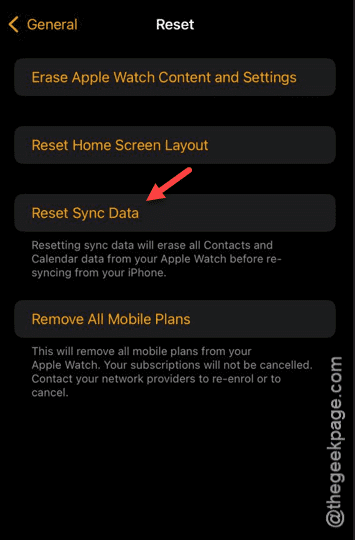
Step 3 – Tap the Reset Sync Data option to reset the sync data for the Apple Watch.
You may not see any changes, but it will empty the sync log files in the background. Do check the date and time now.
Fix 3 – Adjust the Clock Offset in Apple Watch settings
If you have added some minutes to the Apple Watch clock in the watch face, that cause this confusion.
Step 1 – Press the Digital Crown on the Apple Watch once to view all the apps. Proceed to the Settings app.
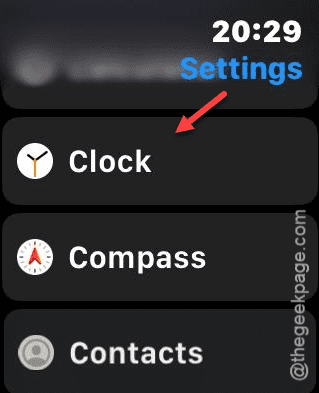
Step 2 – Then, load up the Clock settings.
Step 3 – Look for any 0 min button (or any other digit button) and tap it once. This is the offset value we are talking about.
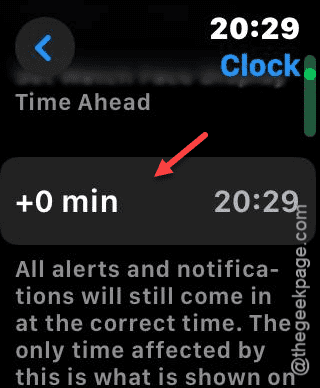
Step 4 – You must set this Offset value to 0 min. Tap ✔ button to save the changes.
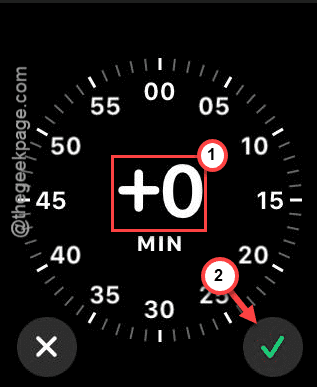
After resetting the offset value, you will see the correct time information on the Apple Watch Watchface.
Fix 4 – Modify the Location Services Permission
Location Services is a vital component for setting up the time and time zone settings on iPhone and Apple Watch.
Step 1 – Go to the Settings page and proceed to the Privacy & Security tab.
Step 2 – Proceed to the Location Services tab. Scroll to the bottom and open the System services panel.
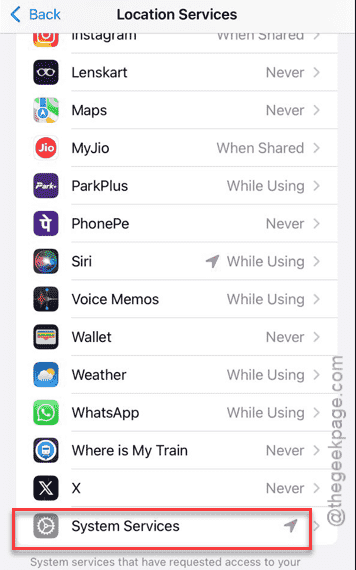
Step 3 – Make sure the Setting Time Zone feature is enabled in there.
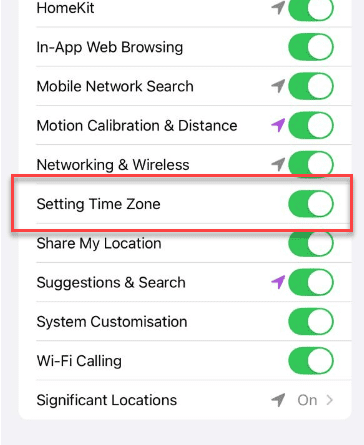
While this toggle is enabled, the time zone settings can use the location services to get your location information and switch the time and time zone accordingly.
Check the time again on the Apple Watch and it will show up correctly.