Does the fonts on Microsoft Outlook looks too small? The smaller size of fonts on Microsoft Outlook can be very problematic for the senior users who face some difficulty to view and read the contents of their mails on Outlook. But, having too large fonts on the main Outlook view can also limit the number of emails viewable in a single window. So, these
Fix 1 – Adjust the Text Size to Large in Mail Layout
The main way to toggle the overall font size in MS Outlook, is to adjust it universally from the View settings of the app.
Steps for Outlook (new) app –
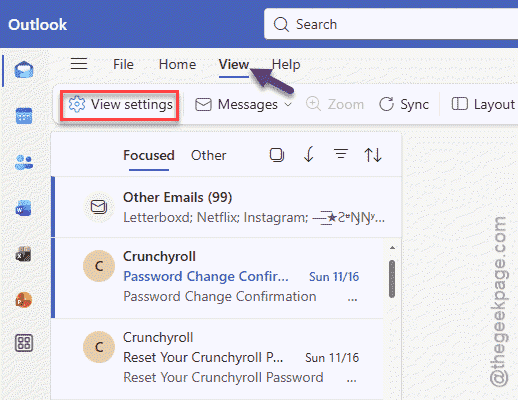
Step 1 – On the MS Outlook app, go to the View tab. Next, tap the View settings to load up the View settings.
You should already be in the Layout settings pane.
Step 2 – Go to the Text size and spacing settings. Set it to the Large setting.
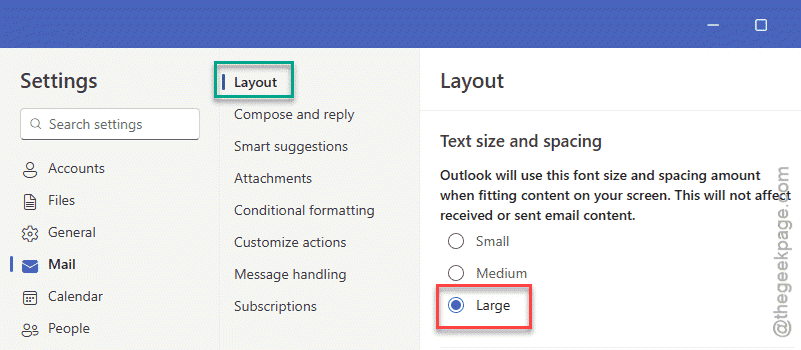
This will increase the font size universally throughout your MS Outlook client.
NOTE – This is only a viewing modification on your client, means that the change only takes effect on the app on your machine. So, font size of the emails won’t be changed at the recipient’s end.
Steps for Outlook (classic) app –
The classic version of the Outlook app offers a more intricate control over the font size of emails, where you can resize the row, column font size.
Step 1 – Go to the View tab. Open the View Settings option.
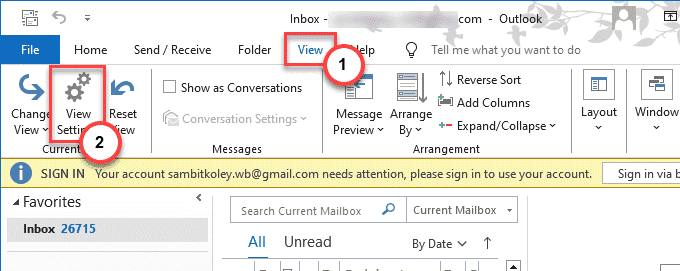
Step 2 – Then, go to the Other Settings option.
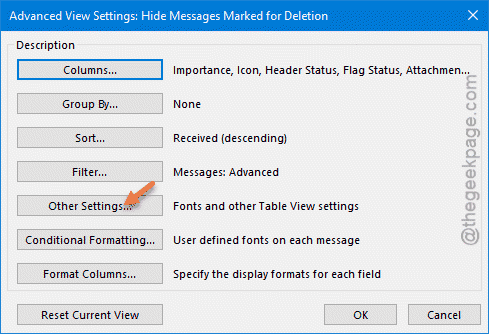
Step 3 – Now, in the Other Settings window, you have to change the Column Font and Row Font feature.
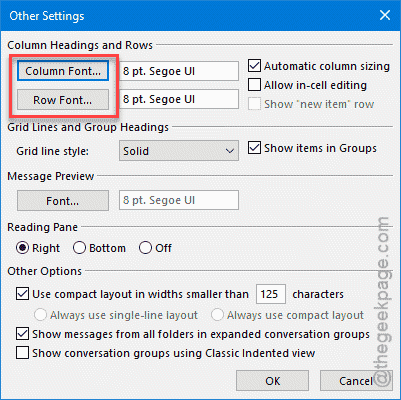
Step 4 – Tap the Column Font and set the size of the font to 14 or 16 or any font size of your preference.
Step 5 – Tap the OK button to save the font change.
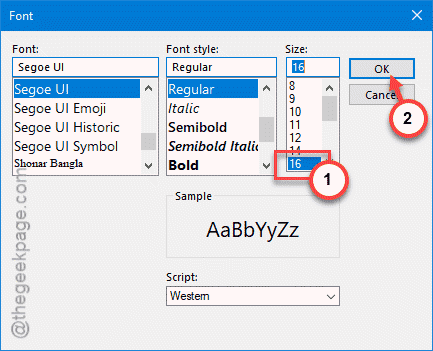
Step 6 – Change the Row Column value following the same steps.
Step 7 – After altering the values, tap the OK button there to save the changes.
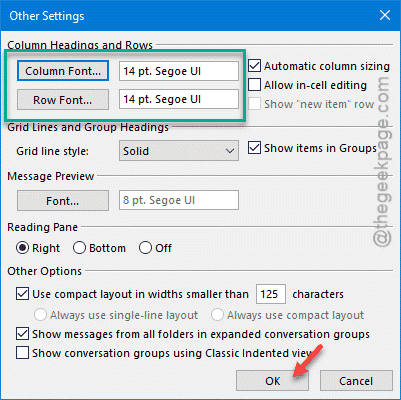
After applying these changes, the fonts on the Outlook will be increased, to make it more legible for the users.
Fix 2 – Use the Ctrl key to Zoom Out or In
You can use the Text Zoom slider or press the Ctrl+ Scroll wheel to zoom out or zoom into the emails on the Microsoft Outlook.
This won’t change the fonts of the email, but it will provide a better readability.
For Outlook Classic Users –
Step 1 – On the Microsoft Outlook (Classic) app, you will see the Zoom slider at the bottom of the Outlook window.
Step 2 – You can adjust the slider right or left to change the zoom in or out respectively on the email feed.
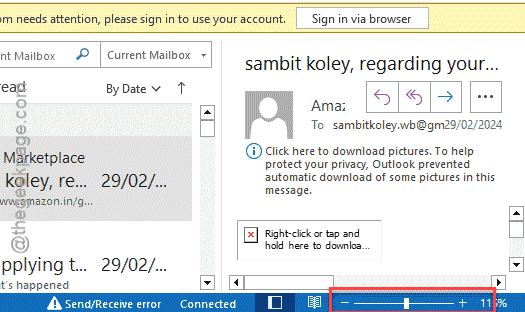
Step 3 – The Ctrl+Scroll wheel of the mouse can be used to zoom out or in as well.
For Outlook app users –
The Zoom slider available in the View > Zoom. But, the users can easily zoom out or in using the Ctrl+Scroll wheel of the mouse can be used to temporarily enlarge the view in the Outlook client.
Fix 3 – Set the Density to Roomy level
[For MS Outlook app users only]
On the Microsoft Outlook client, offers three distinct email ‘Density’ to arrange the emails list.
Step 1 – Open the MS Outlook app.
Step 2 – Go to the View tab and tap the Density settings.
Step 3 – Set it to Roomy settings to get a better view of the email messages with increased font size, but fewer emails per page.
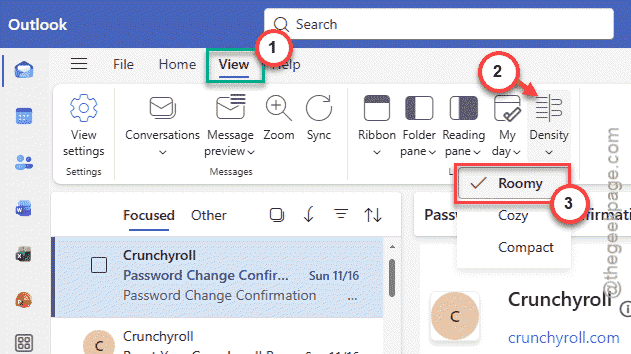
This does offer a better reading experience for the MS Outlook client.
Fix 4 – Increase the Font Size in Mail
If you want to increase the font of the outgoing emails in the Mail app, you can follow these steps-
Step 1 – Reach the View tab and load up the View Settings panel.
Step 2 – Go to the Compose and reply tab.
Step 3 – You can adjust the size of the font in the email on the right-hand.
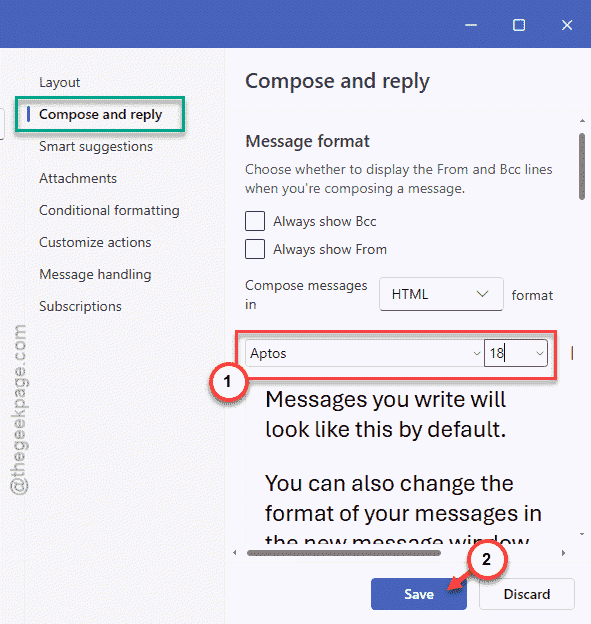
Keep in mind that this will impact the font size of the email that you will send.
Why the fonts are too small on Microsoft Outlook?
The change in the text zoom level on the Microsoft Outlook client can be the probable reason behind the too small fonts. You can increase the zoom using the Ctrl+Scroll wheel of the mouse or View > Zoom settings. If that does not work, reset the View feature to retrieve the default font size on the Outlook client.
Why the Outlook view panel is so small?
Lower density of emails is a common reason for having a small View panel on the Outlook app. Follow these steps to get a bigger View panel – Go to the View > Density and set it to Compact or Cozy setting. The Compact offers more dense email list, where Cozy shows less number of emails at the cost of comparatively smaller view panel.