You hit Install on Forza Horizon 6. Nothing happens. Or it spins forever. Or you get a vague error from the Xbox app and that’s it.
Painful. Especially on release week.
Why This Happens
Here’s the deal. The Xbox app and Microsoft Store share a lot of plumbing. And that plumbing breaks in weird, quiet ways.
Most of the time it’s a license issue. The game thinks you don’t own it. Or your account isn’t fully signed in. Or your region got out of sync between the Xbox app and the Store.
And sometimes the Microsoft Store cache is just corrupted. No error message. The install just refuses to start. Annoying.
For pre-loads? The license doesn’t activate until launch time. So if you’re trying to install before that — yeah, it won’t work. Not your fault.
Fix 1 – Sign Out and Sign Back Into Both Apps
Account refresh first. This fixes more install bugs than you’d expect.
1 – Open the Xbox app.
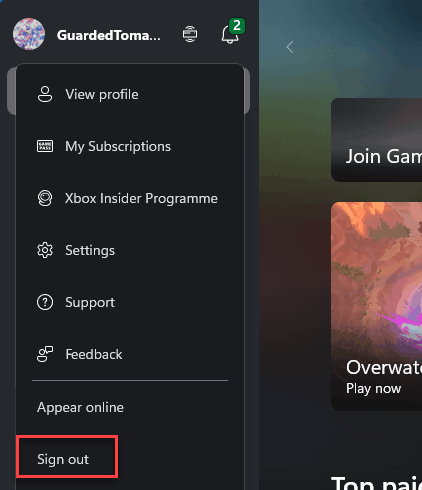
2 – Click your profile picture in the top-left corner.
3 – Click Sign out.
4 – Now open the Microsoft Store.
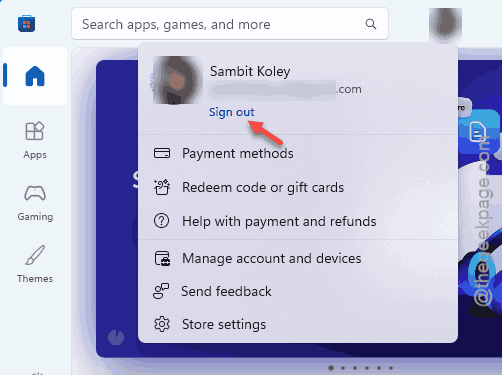
5 – Click your profile picture at the top.
6 – Sign out.
7 – Restart your PC. Don’t skip this.
8 – Sign back in to both apps using the same Microsoft account.
9 – Try the install again.
Tedious. But it refreshes your ownership tokens.
Fix 2 – Reset the Microsoft Store Cache
Quick one. You should reset the Store cache.
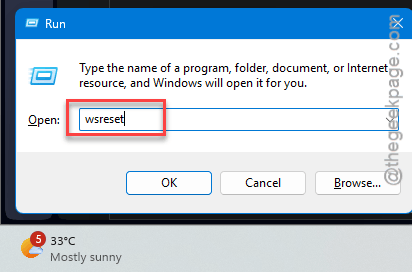
1 – Press Windows + R to open the Run window.
2 – Type wsreset.exe and press Enter.
3 – A black Command Prompt window pops up. Don’t close it.
4 – Wait. It looks like nothing’s happening. That’s normal.
5 – After a minute, the Microsoft Store opens automatically. Cache is cleared.
6 – Search for Forza Horizon 6 and try the install again.
Don’t skip this if you’ve been getting weird install errors for a while. Stale cache is the silent killer.
Fix 3 – Check Your Region Settings
If your region in the Xbox app doesn’t match the one on your Microsoft account, installs can block silently. Common gotcha.
1 – Press Windows + I to open Settings.
2 – Click Time & language in the left sidebar.
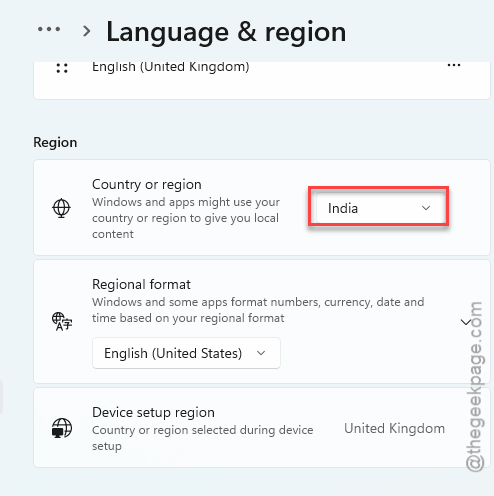
3 – Click Language & region.
4 – Look at the Country or region dropdown. Make sure it matches your actual Microsoft account country.
5 – Now open account.microsoft.com in a browser. Sign in. Check your account country matches.
6 – If they don’t match, fix the Windows side. Then restart your PC.
Region mismatches trigger anti-fraud blocks. No warning. Just no install.
Fix 4 – Wait Until Actual Launch Time
If you’re pre-loading Forza Horizon 6 before its official drop, the license isn’t active yet. The install bar will sit at 0%. Or you’ll get a vague error. Or nothing at all.
Check the official launch time on Forza’s storefront. Different regions, different times. If you’re early — there’s literally nothing to fix.
Try again at launch and most of the install issues fix themselves.
Fix 5 – Reset Your Microsoft Account Device
If your PC is showing up as a stale device on your Microsoft account, license checks fail. Re-registering the device usually fixes it.
1 – Open a browser and go to account.microsoft.com/devices.
2 – Sign in with your Microsoft account.
3 – Find your PC in the device list.
4 – Click Remove next to it. Confirm.
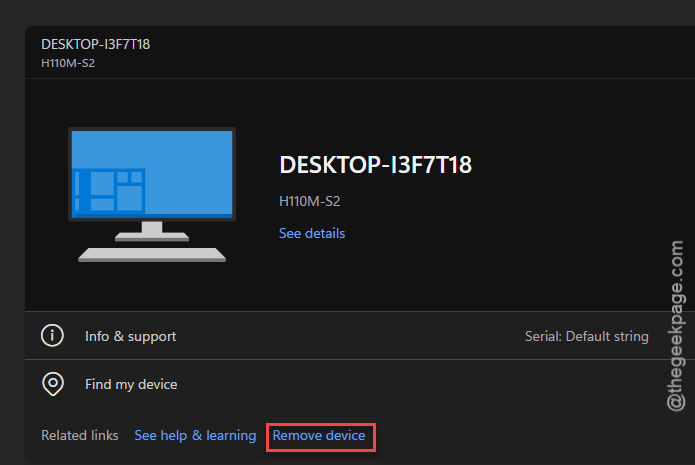
5 – Back on your PC, open the Xbox app and sign out, then sign back in.
6 – The device gets re-registered automatically.
7 – Try installing Forza again.
Last-resort license fix. Works when nothing else does.
Fix 6 – Uninstall and Install Through the Microsoft Store Instead
If the Xbox app keeps choking, install through the Microsoft Store directly. Same game. Same license. Different installer.
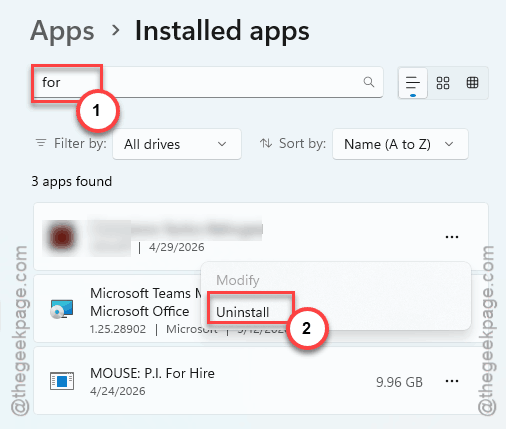
1 – If Forza is partially installed, open Settings > Apps > Installed apps.
2 – Search Forza in the box at the top.
3 – Click the three dots (⋯) next to it. Click Uninstall.
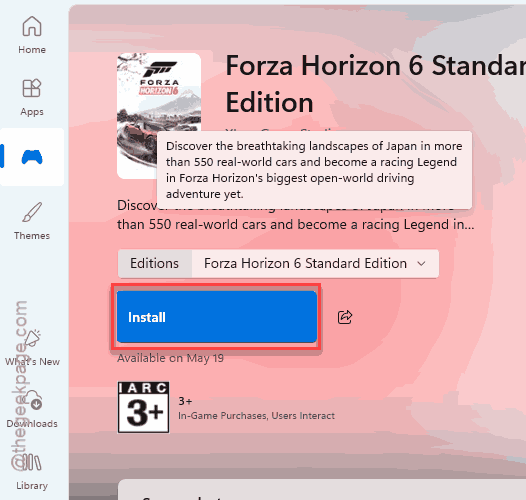
4 – Open the Microsoft Store — not the Xbox app.
5 – Search Forza Horizon 6 in the search bar at the top.
6 – Click Install.
Same library. Same Game Pass. The Store handles certain license edge cases the Xbox app fumbles.
How to Prevent This
- If you have mutiple Microsoft accounts logged into your Windows system, this problem can arise. Mixing personal and Game Pass accounts breaks ownership checks.
- Run wsreset.exe once a month if you install a lot of games. Keeps the Store cache fresh.
- Make sure Game Pass is active before launch day. Subscriptions can lapse silently if your card expired.
People Also Ask
How to fix games not installing on Xbox app?
Start with sign-out and sign-in on both the Xbox app and Microsoft Store. Then run wsreset.exe to clear Store cache. You can reinstall the Microsoft Store directly from the Xbox app.
How to fix couldn’t install app Microsoft Store?
Usually a cache problem. Run wsreset.exe — Windows + R, type wsreset.exe, press Enter. Wait a minute. The Store reopens with cleared cache. Then try installing again.