Remote Desktop connects fine in the morning. Then a few hours later? Dead. No error. Just the spinning circle.
You restart the PC and it works again. For a few hours. Same thing happens. Painful loop.
Why This Happens
Your Windows system may put the network adapter to sleep if it detects an idle state.
When the adapter dozes off, the RDP service loses its grip. Connections fail until something forces the network stack to wake up. Like a full restart.
And there are other culprits too. UDP can act up on certain networks. Sometimes the Windows Firewall drifts into a weird state after an update. Group policy and laptop power profiles make it worse.
Fix 1 – Restart the Remote Desktop Service Without Rebooting
Faster than a full PC restart. Two minutes instead of ten.
1 – Press Windows + R to open the Run window.
2 – Type services.msc and press Enter.
3 – The Services window opens. Scroll down to find Remote Desktop Services. List is alphabetical.
4 – Right-click it. Click Restart.
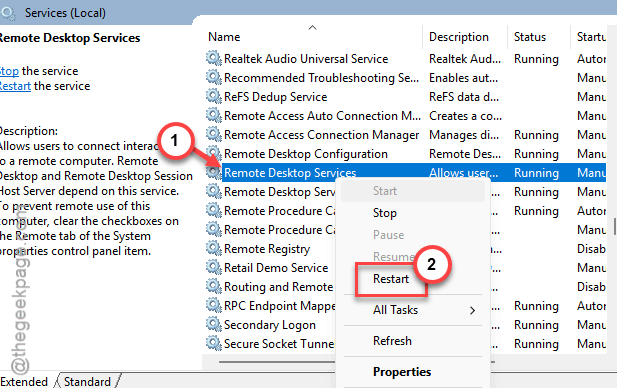
5 – Wait. It takes a few seconds.
6 – Try the RDP connection again.
Works most of the time. Skip the full reboot.
Fix 2 – Stop Windows From Putting Your Network Adapter to Sleep
This is the actual root cause for a lot of people. Windows kills the adapter to save power. RDP dies with it.
1 – Press Windows + X to open the quick menu.
2 – Click Device Manager.
3 – Expand Network adapters.
4 – Right-click your main adapter (Wi-Fi or Ethernet).
5 – Click Properties.
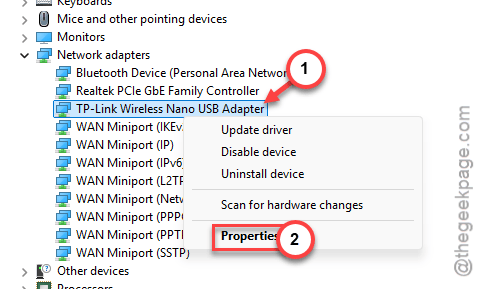
6 – Go to the Power Management section at the top. If you don’t see one, click Cancel and move on to the next adapter.
7 – Uncheck Allow the computer to turn off this device to save power.
8 – Click OK.
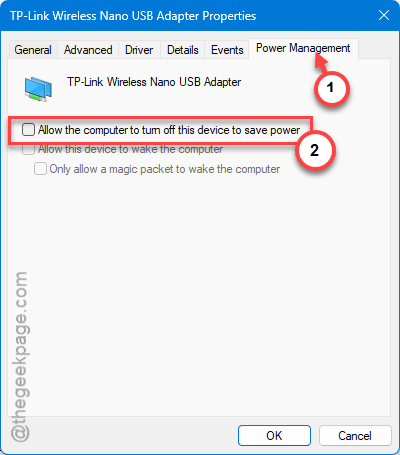
9 – Repeat for every other network adapter in the list.
Now do the same thing for USB controllers if you use a USB-attached network adapter. Same pattern. Same tab.
Fix 3 – Restore Firewall to Defaults
Firewalls drift. Random apps install their own rules. Old policies stack on top of each other. Eventually something blocks RDP.
1 – Press Windows and type Windows Security. Open it.
2 – Click Firewall & network protection in the sidebar.
3 – Scroll down. Click Restore firewalls to default.
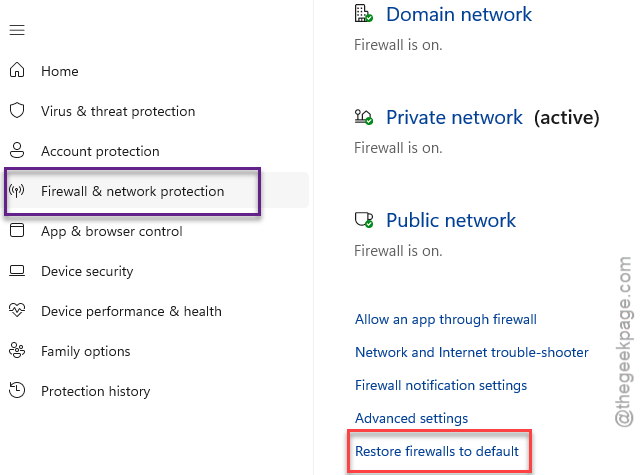
4 – Click Restore defaults on the page that opens.
5 – Confirm if asked.
This blows away custom rules. Most people don’t have any that matter. But if you do — note them first.
Fix 4 – Turn Off UDP on the RDP Client
UDP is supposed to make RDP smoother. But on flaky networks, it actually causes drops. Forcing TCP-only is more stable.
1 – Press Windows + R.
2 – Type gpedit.msc and press Enter. (Won’t work on Windows 11 Home — Pro and higher only.)
3 – Navigate through the sidebar. Expand:
Computer Configuration > Administrative Templates > Windows Components > Remote Desktop Services > Remote Desktop Connection Client.
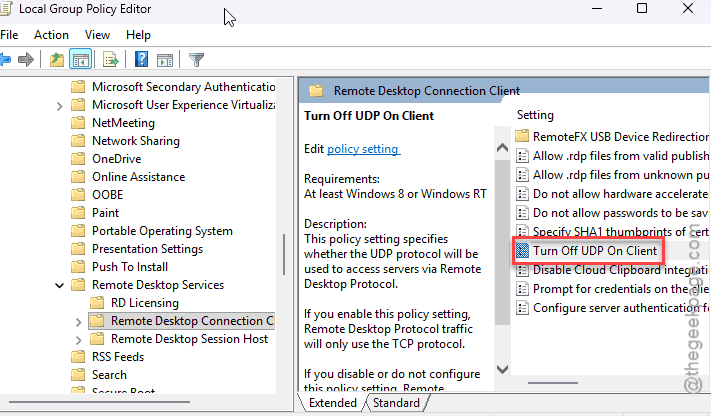
4 – Find Turn Off UDP On Client in the right pane.
5 – Double-click it.
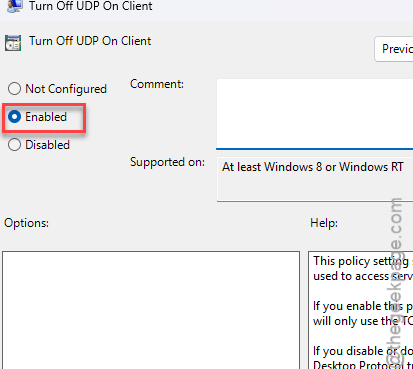
6 – Select Enabled.
7 – Click Apply then OK.
Restart your PC for it to take effect. RDP should be more stable after.
Fix 5 – Restart the Service via Command Line
Quick one. If you want a one-liner instead of clicking through services.msc every time, this is it.
1 – Press Windows and type cmd.
2 – Right-click Command Prompt. Click Run as administrator.
3 – Click Yes on the UAC prompt.
4 – Type this and press Enter:
net stop TermService /y && net start TermService
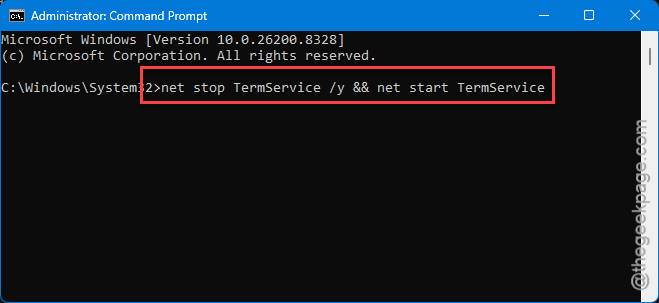
5 – Done. Test the RDP connection again.
Save this as a shortcut on your desktop. Faster than digging through Services every time.
How to Prevent This
- Turn off the Allow the computer to turn off this device to save power feature for the network adapter. The number one root cause.
- If you RDP a lot, set your power plan to High performance.
- Document any custom firewall rules. Restoring defaults wipes them. Worth noting before you have to do it.
People Also Ask
How to fix RDP connection issues?
You should start to look at the power settings of the network adapter. If the computer is allowed to turn off the network adpter automatically, that may have caused this issue. Most issues clear up after that.
Why is RDP not working in Windows 11?
Network adapter going to sleep is the most common cause. Windows kills the adapter to save battery, and RDP can’t hold its connection. Tweaking the power management system of the network adapter should take care of this issue.