You double-click the Epic Games installer. Nothing happens. Or it starts, runs for a second, then quits. No error. Just gone.
And it’s not your PC. This is an Epic problem. Affects Windows 10 and 11 equally. Here’s how to actually get it installed.
Why This Happens
Basically? Epic’s installer doesn’t like Windows’ security settings. The installer needs admin rights to run properly. But double-clicking doesn’t always grant them. So the installer launches without enough permission. Then dies silently.
On Windows 11 it’s worse. SmartScreen blocks unsigned-looking installers. Or the file gets flagged as untrusted. No warning. No popup. Just nothing.
And sometimes Windows itself is the issue. Outdated certificates can’t verify the installer. The .msi package refuses to deploy. Frustrating, but fixable.
Fix 1 – Launch the Installer Through Task Manager
This is the fix that works for almost everyone. You should try launching the installer through the Task Manager.
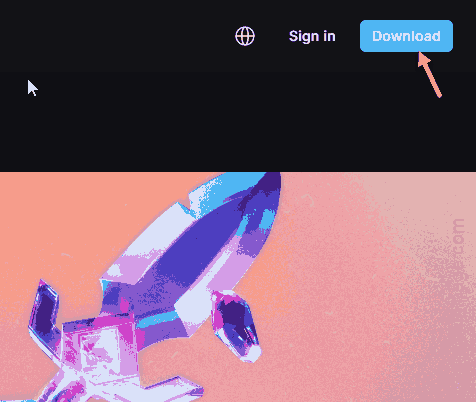
1 – Download the installer from Epic Games if you haven’t already. You can save it to the Downloads folder.
2 – Then, press the Ctrl + Shift + Esc keys together to load up the Task Manager.
3 – Now, use the Run new task option at the top right of the Task Manager window.
4 – Click Browse.
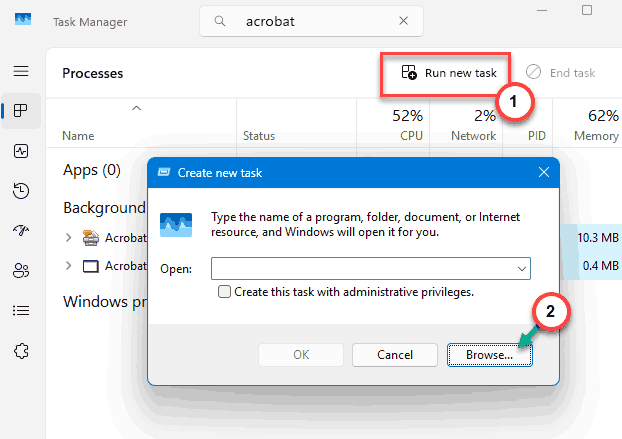
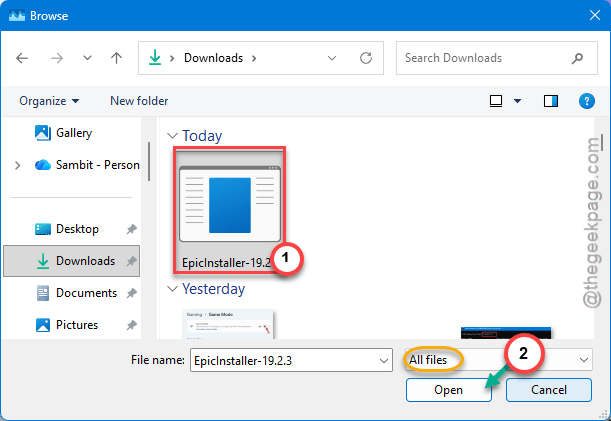
5 – Navigate to your Downloads folder.
6 – Look at the bottom right of the browse window. There’s a file type dropdown — probably set to Programs. Change it to All Files.
7 – Now you’ll see the Epic installer. Select it. Click Open.
8 – Important — check the box that says Create this task with administrative privileges.
9 – Click OK.
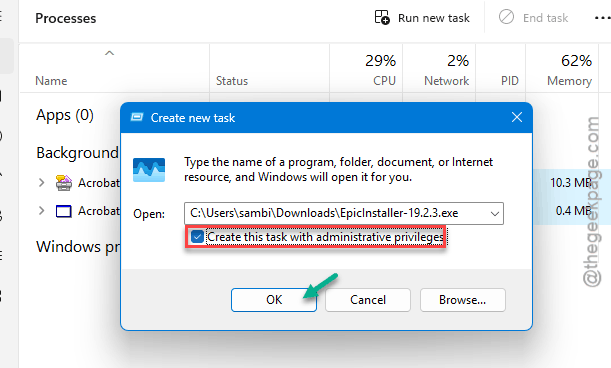
And the installer should run normally now. If you’re on Windows 10, click File inside Task Manager first to find Run new task. Same steps after.
Fix 2 – Install From the Microsoft Store Instead
Honestly? This is the easiest fix. Skip the standalone installer entirely.
Open the Microsoft Store from the Start menu. Make sure you’re signed in (check the avatar in the top right). Search for Epic Games Launcher. Click Get or Install. Done.
Saves you the whole installer headache. Microsoft handles the certificates, permissions, all of it. Wish more launchers worked this way.
Fix 3 – Kill the Stuck Epic Process First
If you tried installing once and it failed, there might be a zombie Epic process hanging around. Blocking the next install attempt.
1 – Press Ctrl + Shift + Esc to open Task Manager.
2 – Click the Processes tab if you’re not already there.
3 – Type “epic” in the search bar at the top — or scroll through the list.
4 – Right-click anything Epic-related. Click End task.
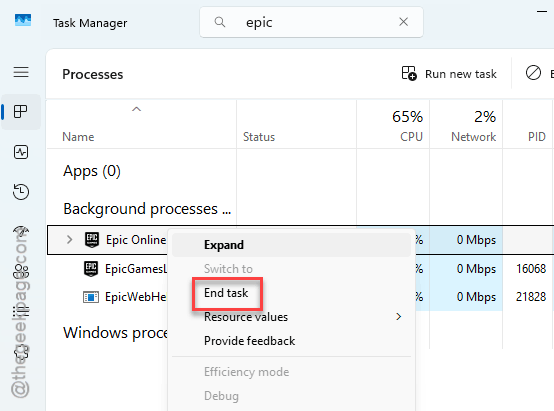
5 – Do this for every Epic process you find. Including background ones.
6 – Now try the installer again.
Sometimes that’s all it takes. Worth checking before you do anything bigger.
Fix 4 – Run Windows Update
Old Windows builds miss critical certificate updates. The installer can’t verify itself. Update Windows. Try again.
1 – Press Windows + I to open Settings.
2 – Click Windows Update on the left sidebar.
3 – Click Check for updates.
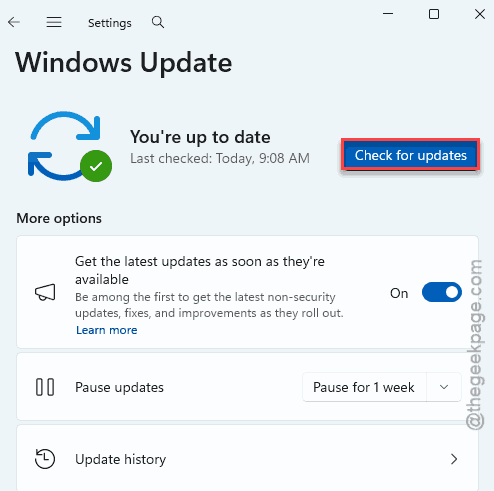
4 – Install everything that shows up. Even the optional ones.
5 – Restart your PC.
6 – Try the Epic installer again.
Fix 5 – Reset Windows (Last Resort)
If literally nothing else works, deep system corruption might be blocking app installs altogether. Reset Windows is the nuclear option — but it works.
Before you do this — back up your important files. Even though there’s an option to keep them.
1 – Press Windows + I to open Settings.
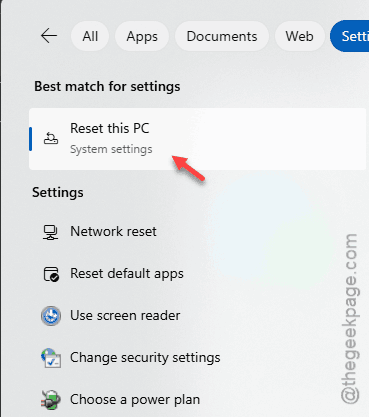
2 – Type “reset” in the search bar at the top.
3 – Click Reset this PC.
4 – Click Get started under Reset this PC.
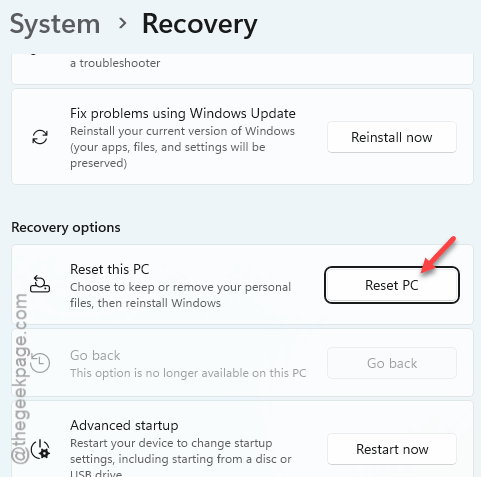
5 – Choose Keep my files. This reinstalls Windows but keeps your documents.
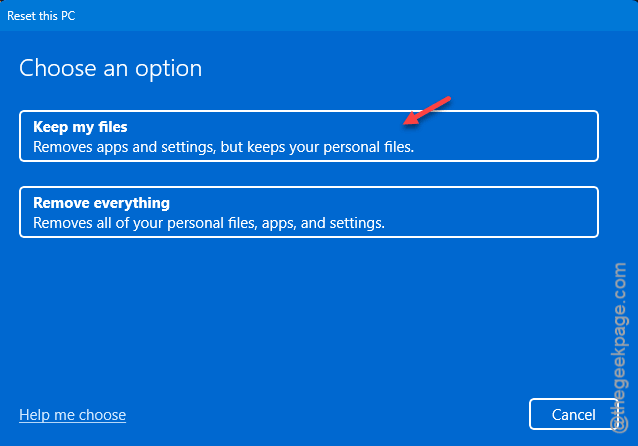
6 – Follow the prompts. Takes about an hour.
After the reset, try installing Epic again. Or just grab it from the Microsoft Store. Skip the standalone installer entirely.
How to Prevent This
– Install future updates through the launcher itself. Skip the standalone installer when you can.
– Or just use the Microsoft Store version going forward. Way fewer issues.
– Keep Windows up to date. Outdated certificates break installers like this one.
– Don’t disable SmartScreen entirely — just learn to right-click and “Run as administrator” when needed.
People Also Ask
How to fix app not installed Epic Games?
Kill any Epic processes in Task Manager first. Then try the installer again. Still failing? Run Windows Update to fix old certificates. The Microsoft Store version skips this whole problem — install from there if the standalone keeps failing.
How to download Epic Games Launcher on Microsoft Store?
You can download the Epic Games Launcher as you have done for any other app. Search for the app and just click Get or Install. Way easier than the standalone installer. And it auto-updates through the Store.