You renamed a file. OneDrive throws a sync error. Red X icon. “We can’t sync this file.” All you did was change the name. Now nothing uploads. Microsoft OneDrive is insanely picky about filenames. Characters that Windows allows just fine? OneDrive rejects them. And it will not always tell you which character is the problem.
Why This Happens
OneDrive uses SharePoint’s file naming rules. SharePoint does not allow certain characters that Windows does. Things like # % & { } \ < > * ? / $ ! ‘ : @ + and leading/trailing spaces.
So you rename a file on your PC. Windows is fine with it. But when OneDrive tries to sync it to the cloud, SharePoint rejects it. And the error message? Vague. It just says the file cannot sync. No mention of which character caused it.
Also, file paths that are too long cause the same error. OneDrive has a 400-character limit for the full path. Rename a file with a longer name inside a deeply nested folder? Boom. Sync error.
Fix 1 – Remove Special Characters from the Filename
The most common cause. One bad character and OneDrive refuses to sync.
1 – Look at the OneDrive icon in your system tray. If it shows a red X or a warning, click it.
2 – Click View sync problems to see which files are failing.
3 – Check the filename for any of these characters: # % & { } \ < > * ? / $ ! : @ +
4 – Right-click the file in File Explorer.
5 – Click Rename.
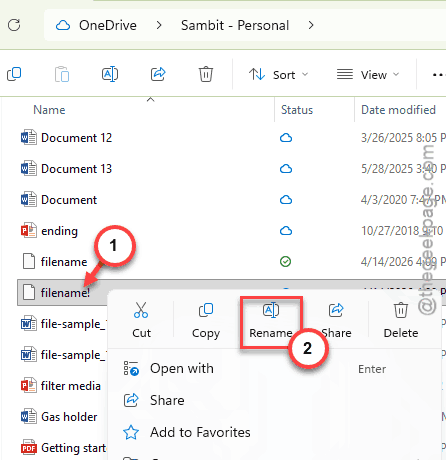
6 – Remove the special character. Replace it with a dash or underscore.
7 – Press Enter.
And OneDrive should start syncing again automatically. Give it a minute. The red X should turn into a green checkmark.
Fix 2 – Shorten the File Path
Long file paths trip up OneDrive all the time. Especially with deeply nested folders.
1 – Check the full path of the problem file. Right-click it, go to Properties, and look at the Location field.
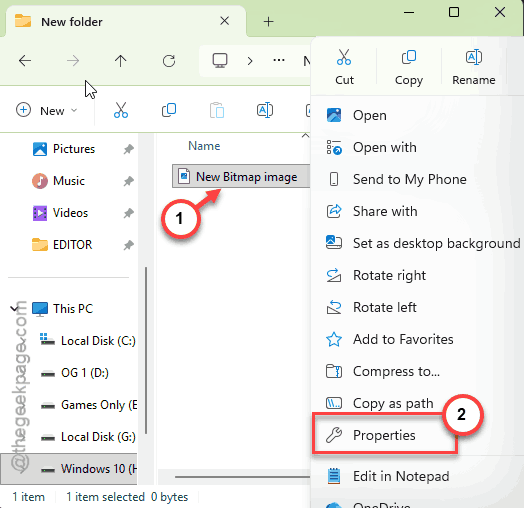
2 – If the full path (location + filename) is close to 400 characters, that is your problem.
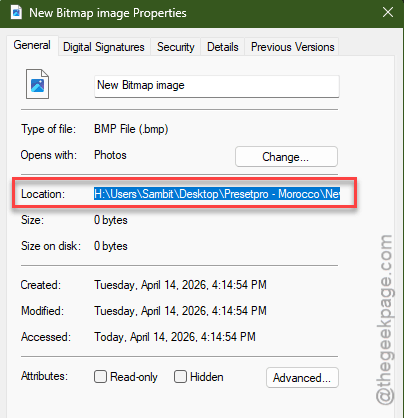
3 – Either shorten the filename itself or move the file to a folder closer to the root of your OneDrive directory.
Quick trick: move the file to the top level of your OneDrive folder. If it syncs there, the path length was the issue. Then reorganize with shorter folder names.
Fix 3 – Remove Leading or Trailing Spaces
Invisible spaces at the start or end of a filename. You cannot even see them most of the time. But OneDrive can. And it hates them.
1 – Right-click the file in File Explorer.
2 – Click Rename.
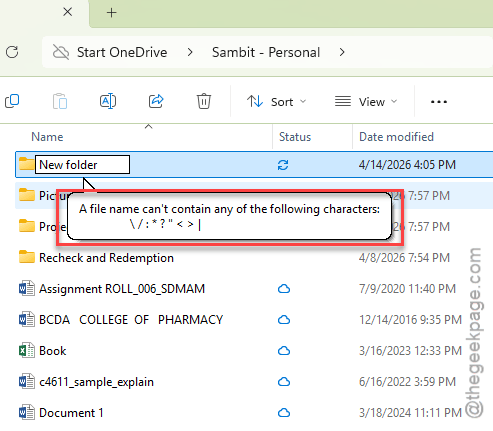
3 – Press Home on your keyboard to jump to the beginning of the name.
4 – Delete any spaces before the first letter.
5 – Press End to jump to the end.
6 – Delete any spaces after the last character (before the file extension).
7 – Press Enter.
Sounds silly. But trailing spaces are a surprisingly common cause of sync errors. And you would never know unless you checked.
Fix 4 – Avoid Reserved Filenames
Windows has reserved names that cannot be used as filenames. OneDrive inherits this restriction plus some extras from SharePoint.
Do not use these as filenames: CON, PRN, AUX, NUL, COM1 through COM9, LPT1 through LPT9, desktop.ini, .lock files, _vti_ prefixed names.
If you renamed a file to something like “AUX report.docx” — that will fail. Change it to something else. “Auxiliary report.docx” works fine.
Weird, but true. These are holdovers from ancient DOS rules. And they still cause problems in 2026.
Fix 5 – Reset OneDrive If Errors Persist
If you fixed the filenames but sync errors keep showing, the sync database might be corrupted.
1 – Press Windows + R to open Run.
2 – Paste this and press Enter:
%localappdata%\Microsoft\OneDrive\onedrive.exe /reset

3 – Wait for OneDrive to restart. If it does not come back after a minute, run:
%localappdata%\Microsoft\OneDrive\onedrive.exe
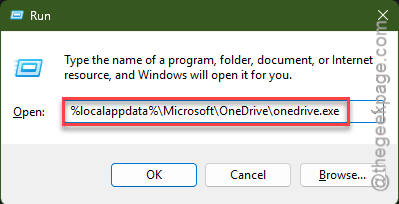
4 – Let it re-sync everything.
Takes a few minutes. But it clears out any stuck errors from the old filenames. Fresh start.
Fix 6 – Use a Batch Rename Tool for Bulk Cleanup
Got dozens of files with bad characters? Renaming them one by one is painful. Use PowerShell instead.
1 – Open PowerShell (right-click the Start button, select Terminal).
2 – Run this command to find files with problem characters in your OneDrive folder:
Get-ChildItem -Path "$env:USERPROFILE\OneDrive" -Recurse | Where-Object { $_.Name -match '[#%&{}\\<>*?/$!:@+]' }
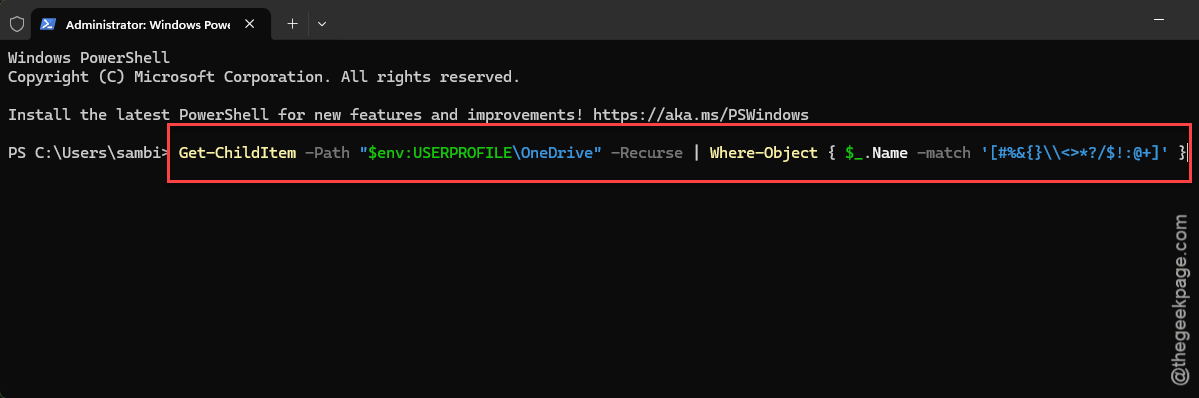
3 – Review the list. Then rename them manually or write a script to replace bad characters with underscores.
Not the friendliest approach. But if you have a hundred files with sync errors, this beats clicking through each one.
How to Prevent This
- Avoid special characters in filenames. Stick to letters, numbers, dashes, and underscores.
- Keep file paths short. Use concise folder names.
- Do not use spaces at the start or end of filenames. Ever.
- Before bulk-renaming files, check OneDrive’s naming restrictions. Microsoft has a full list online.
People Also Ask
Why does OneDrive give sync errors after renaming files?
OneDrive uses SharePoint rules for filenames. Characters like # % & * are fine on Windows but banned by SharePoint. So you rename a file, Windows accepts it, but OneDrive rejects it during sync. Just remove the special character and it fixes itself.
What characters are not allowed in OneDrive filenames?
These are the characters that are not allowed in: # % & { } \ < > * ? / $ ! : @ + and also leading or trailing spaces. You should also avoid names like CON, PRN, AUX, NUL. Yes, those old DOS names still cause problems.
How do I fix OneDrive sync problems?
Do check the filename first. Then, remove any special characters or shorten the path if it is too long. If that does not help, reset OneDrive with the /reset command. That clears the sync database and usually gets things moving again.