You click Copilot. And you get “Copilot is disabled by your organization.” But you don’t have an organization. This is your personal PC. What?
Turns out a leftover work or school account — or a wrong Group Policy setting — can trigger this. Even on personal machines. Makes no sense, but here we are.
Why This Happens
Windows applies organization policies whenever it detects a work or school account connected to the system. Even if you added it months ago for one Teams meeting and forgot about it. That account pushes group policies. And one of those policies can disable Copilot.
The other cause? The Group Policy Editor or registry has Copilot explicitly turned off. Maybe from a privacy tweak you did. Or a third-party tool that “optimized” your system. Either way, Windows thinks an admin said no.
Fix 1 – Disconnect Work or School Accounts
This is the fix that works for most people. If you ever connected a work email to your PC, it is probably applying policies you never asked for.
1 – Open Settings (press Windows + I).
2 – Go to Accounts in the left sidebar.
3 – Click Access work or school.
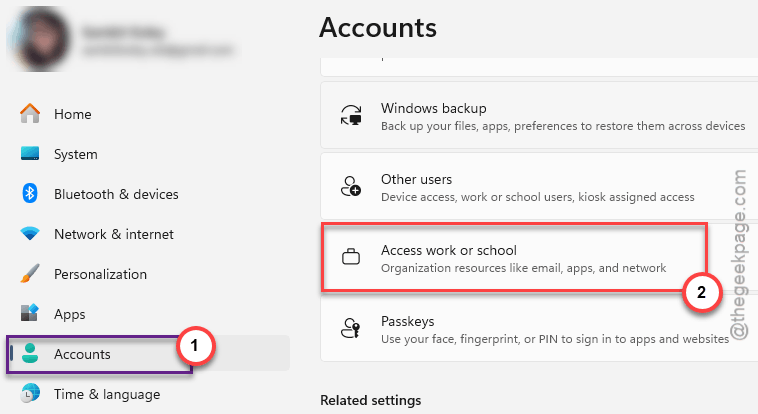
4 – If any account is listed there, select it.
5 – Click Disconnect.
6 – Restart your PC.
And that’s usually it. The organization policy goes away once the account is gone. Copilot should work again after reboot.
Fix 2 – Fix It in Group Policy Editor
This works on Windows Pro and above. Home users — skip to Fix 3.
1 – Press the Search bar on the taskbar and type gpedit.msc. Open it.
2 – In the left pane, go to
User Configuration > Administrative Templates > Windows Components > Windows Copilot.
3 – On the right, double-click Turn off Windows Copilot.
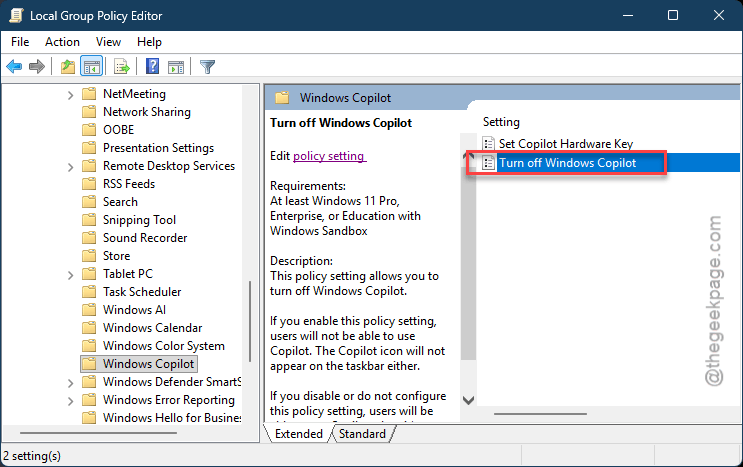
4 – Select Disabled. Yes, “Disabled” means you’re disabling the block.
5 – Click Apply, then OK.
6 – Restart your computer.
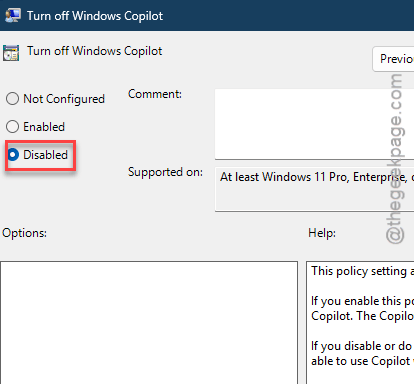
So “Disabled” on the “Turn off” policy = Copilot is ON. Double negatives. Classic Microsoft.
Fix 3 – Fix It in Registry Editor (Works on Home)
No Group Policy on Home? No problem. The registry does the same thing.
1 – Press Windows + R, type regedit, hit Enter.
2 – Go to:
HKEY_CURRENT_USER\Software\Policies\Microsoft\Windows
3 – Look for a key called WindowsCopilot. If it exists, click on it.
4 – On the right side, find TurnOffWindowsCopilot.
5 – Double-click it. Change the value to 0.
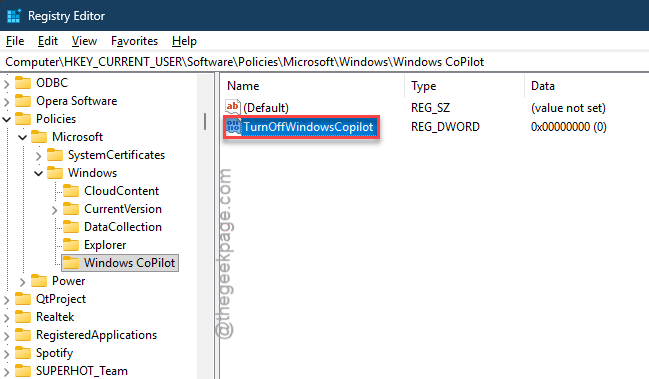
That turns Copilot back on.
6 – If the key doesn’t exist at all, Copilot wasn’t blocked here. Move on to the next fix.
But wait — also check this second path for system-wide blocks:
7 – Go to
HKEY_LOCAL_MACHINE\SOFTWARE\Policies\Microsoft\Windows
8 – Same thing. Look for WindowsCopilot key and set TurnOffWindowsCopilot to 0.
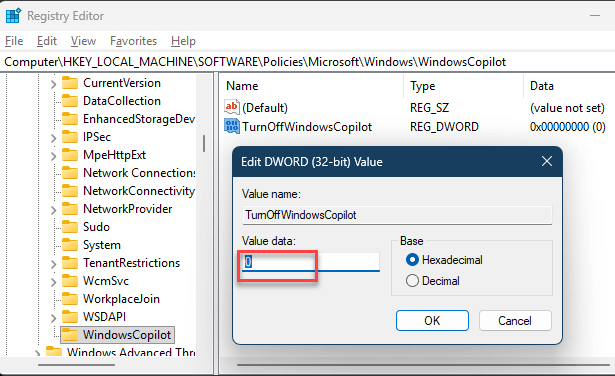
9 – Restart.
How to Prevent This
- Think twice before connecting work or school accounts to your personal PC. They push policies you can’t see.
- If you use third-party “privacy” tools or debloaters, check what they disabled. Many turn off Copilot by default.
- After removing a work account, restart immediately. Policies don’t clear until reboot.
People Also Ask
Copilot not working Windows 11?
Check for connected work accounts first. Go to the Settings > Accounts > Access work or school. Then, disconnect anything there. Nexr, check Group Policy or registry for a Turn off Windows Copilot setting. One of those is almost always the cause.
Microsoft Copilot not working today?
This prolem could be a service outage. But if it says “disabled by organization,” that’s a system issue. You must check the Group Policy or disconnect work accounts that can prohibit your CoPilot access. Restart the device afterwards to check whether this works.
Copilot Something went wrong please try again later?
Different issue. That’s usually a server-side thing or a network problem. But if you also see “disabled by organization” at any point, fix the policy first. Then the “something went wrong” error might clear up on its own.