The “Files On-Demand” toggle is gone. You open OneDrive settings. And the option to save space by downloading files as you use them just isn’t there. Vanished. This usually means a system service is disabled or a policy is blocking it.
Why This Happens
Basically? Files On-Demand depends on a Windows service called “Windows Cloud Files Filter Driver” (CldFlt). If that service isn’t running, the feature disappears from OneDrive settings entirely.
IT admins can also disable it through Group Policy. If you’re on a work machine, that might be the reason. And sometimes OneDrive’s own config file gets corrupted and hides the option even though the system supports it.
No idea why it doesn’t just show an error message. It just removes the toggle. Silent. Helpful.
Fix 1 – Re-enable in OneDrive Settings
Check if the toggle just got turned off somehow.
1 – Click the OneDrive cloud icon in the system tray.
2 – Click the gear icon.
3 – Click Settings.
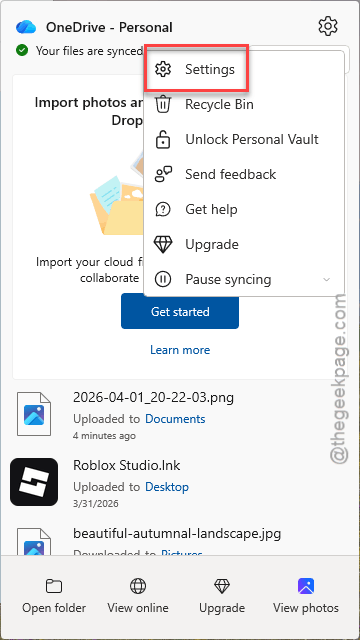
4 – Go to Sync and backup.
5 – Scroll to the bottom panel of the right-hand panel. Expand the Advanced settings.
6 – Find the the Files on Demand feature. Use the Download files as you use them (or Free up disk space) option.
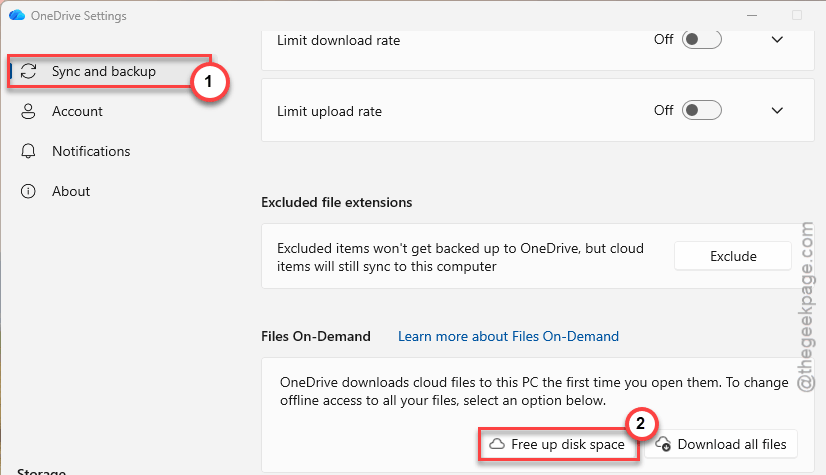
If the toggle isn’t there at all, the underlying service or policy is the problem. Keep going.
Fix 2 – Enable the Cloud Files Filter Driver Service
This service needs to be running and set to auto-start. If it’s not, Files On-Demand disappears.
1 – Press Win + R.
2 – Type:
regedit
3 – Press Enter.
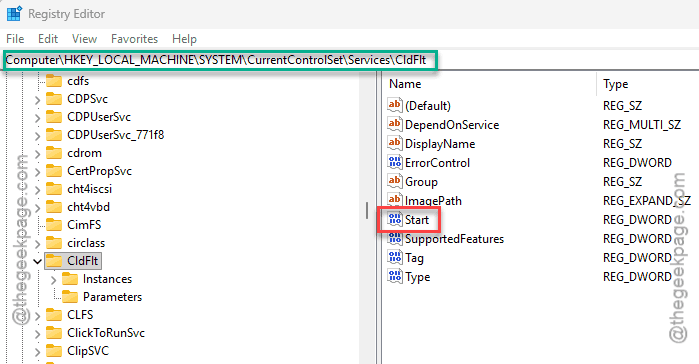
4 – Go to:
HKEY_LOCAL_MACHINE\SYSTEM\CurrentControlSet\Services\CldFlt
5 – Find Start in the right pane.
6 – Double-click it.
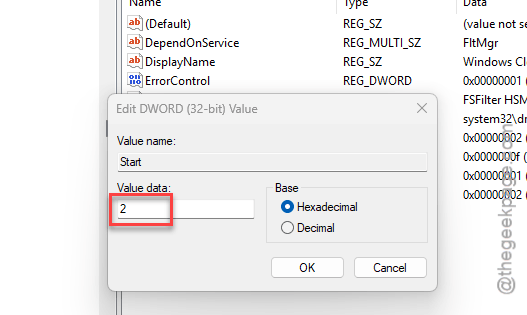
7 – Set the value to 2 (which means auto-start).
8 – Click OK.
9 – Restart your PC.
10 – Open OneDrive settings again.
The Files On-Demand toggle should be back.
Fix 3 – Enable Files On-Demand via Registry Policy
If an admin policy disabled it, you can re-enable it through the registry (if you have admin access).
1 – Open Registry Editor (Win + R > regedit > Enter).
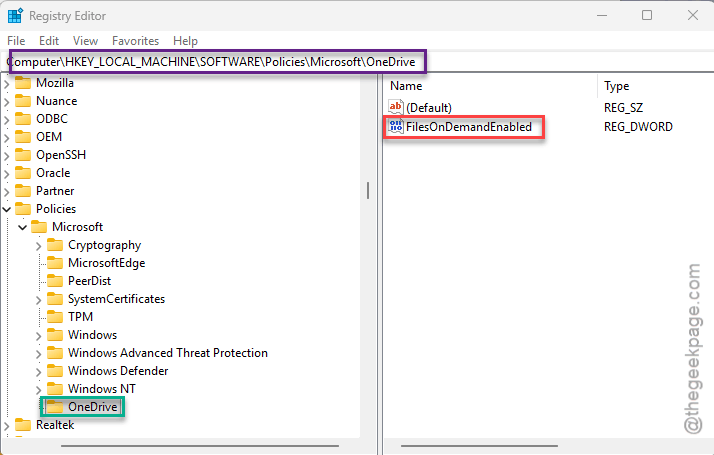
2 – Go to:
HKEY_LOCAL_MACHINE\SOFTWARE\Policies\Microsoft\OneDrive
3 – Look for FilesOnDemandEnabled.
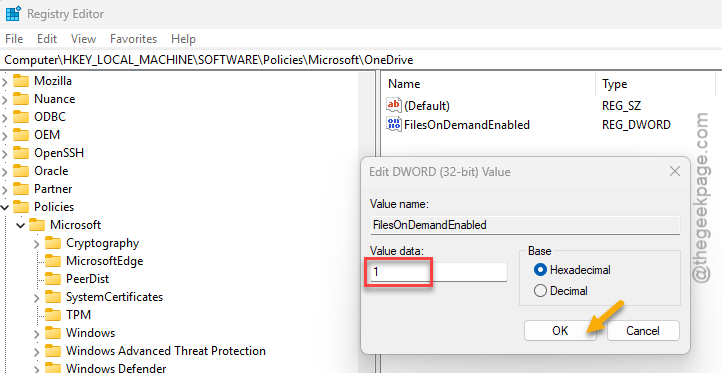
4 – If it exists, double-click it.
5 – Set the value to 1.
6 – Click OK.
7 – Restart.
If this key doesn’t exist, the policy isn’t the issue. But if it was set to 0? That’s why the feature was hidden. Setting it to 1 brings it back.
Fix 4 – Edit the OneDrive Config File
OneDrive has a global.ini config file that can override the Files On-Demand setting.
1 – Press Ctrl + Shift + Esc to open Task Manager.
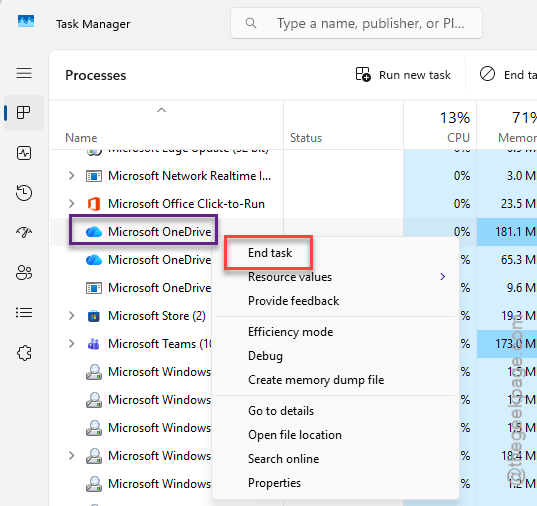
2 – Find OneDrive in the Processes tab.
3 – Right-click it.
4 – Click End task.
5 – Open File Explorer.
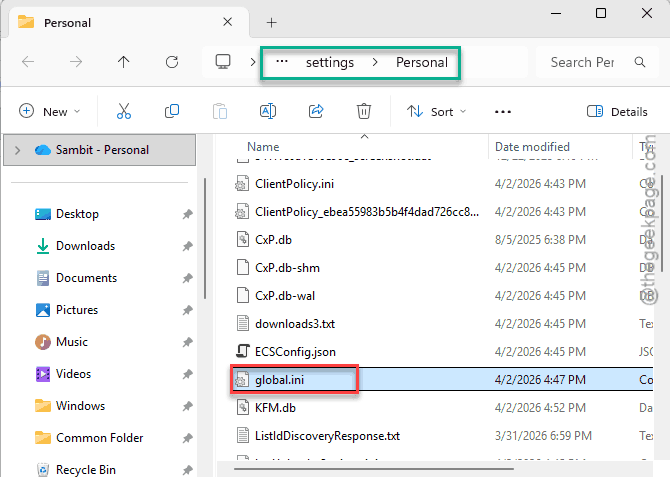
6 – Go to:
%localappdata%\Microsoft\OneDrive\settings\Personal
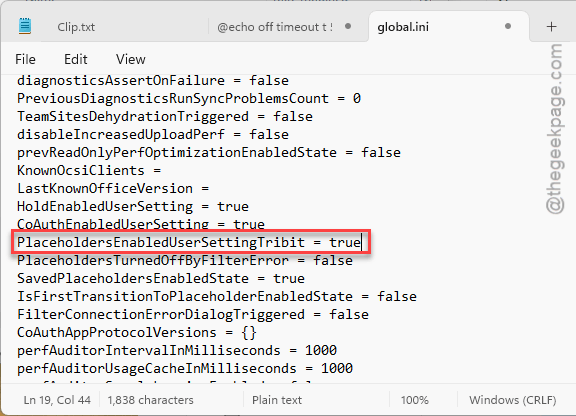
7 – Open global.ini with Notepad.
8 – Find the line:
PlaceholdersEnabledUserSettingTribit
9 – Change it to:
PlaceholdersEnabledUserSettingTribit = false
10 – Save the file.
11 – Restart OneDrive.
Wait — false? Yeah. This sounds backwards. But changing this value forces OneDrive to re-evaluate the setting. And the Files On-Demand option reappears. Weird, but true. It worked for multiple people on both personal and business accounts.
Fix 5 – Reinstall OneDrive
Nothing else working? Clean reinstall.
1 – Open Settings.
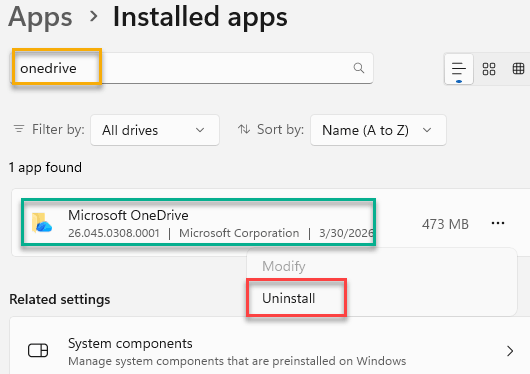
2 – Go to Apps > Installed apps.
3 – Find Microsoft OneDrive.
4 – Click the three dots.
5 – Click Uninstall.
6 – Restart your PC.
7 – Download and install OneDrive from Microsoft’s website.
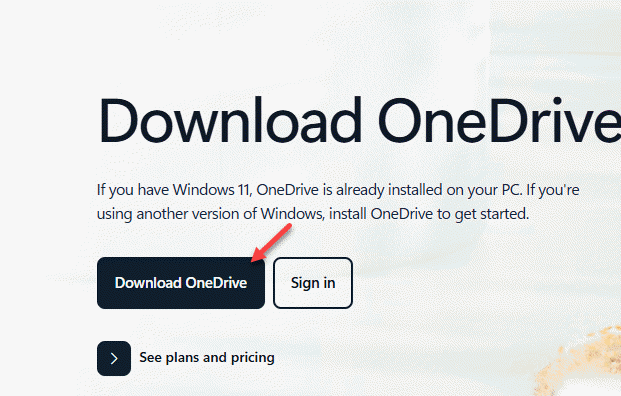
8 – Sign in.
Fresh install brings back Files On-Demand if your system supports it. And it resets any corrupted config files.
How to Prevent This
- Don’t manually edit OneDrive registry keys unless you’re sure what they do.
- If you’re on a work machine, ask IT whether Files On-Demand is disabled by policy.
- Keep OneDrive and Windows updated. Compatibility fixes ship regularly.
- After major Windows updates, check that the CldFlt service is still set to auto-start.
People Also Ask
How to enable files on demand in OneDrive?
OneDrive icon > Settings > Sync and backup > toggle on “Save space and download files as you use them.” If the toggle is missing, check the CldFlt service in the registry.
Where are files on demand on OneDrive?
Settings > Sync and backup. Should be right there. If it’s gone, the Cloud Files Filter Driver service is disabled. Fix it in regedit.
Why have my files disappeared from OneDrive?
If Files On-Demand was turned off, online-only files disappear from Explorer. They’re still in the cloud. Re-enable the feature and they’ll come back as placeholder icons.