You click a OneDrive file. It just sits there. That little cloud icon? Still cloud. Nothing downloads. Nothing opens offline. Painfully stuck.
And you need that file on your actual machine. Not in the cloud. Now. So here’s what actually fixed it for me.
Why This Happens
Short version? Files On-Demand is the culprit most of the time.
OneDrive shows every file in your folder. But it doesn’t actually download them all. It fakes it. You see the name, the size, the icon. Click the file, and OneDrive is supposed to pull it down on demand.
But sometimes that handoff just… breaks. The cloud icon stays. No download starts. No error either. Annoying.
A few reasons this happens. A bad Windows update messes with the sync engine. Your account token silently expires. Group policies block the download. And the OneDrive process gets stuck in a weird state after sleep or hibernation.
None of those throw a proper error. OneDrive just sits there looking fine while nothing actually works.
Fix 1 – Toggle Files On-Demand Off to Force Downloads
This is the one that fixed it for most people. Turning Files On-Demand off yanks every file down to your PC. No more cloud placeholders.
1 – Look at the bottom right of your taskbar. Click the small up arrow if you don’t see the OneDrive cloud icon. It’s hidden under there half the time.
2 – Right-click the OneDrive cloud icon.
3 – Click the gear icon at the top right of the popup. Then click Settings.
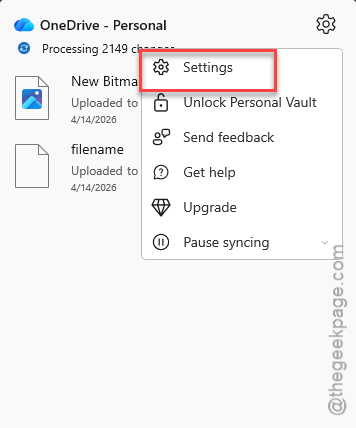
4 – Click Sync and backup from the left sidebar.
5 – Scroll down. Click Advanced settings.
6 – Find Files On-Demand. Click Download all files.
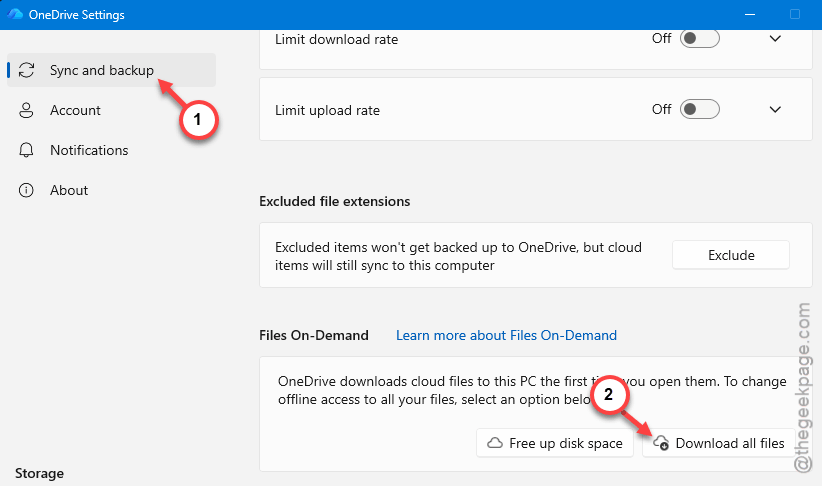
And now wait. OneDrive starts pulling everything to your local drive. Could take a while if you have a lot of files.
Once the downloads finish, you can switch Files On-Demand back on if you want to save disk space. Your already-downloaded files stay local. The new ones become cloud-only again.
Fix 2 – Reset OneDrive With a Command
Nuclear option for the sync engine. Doesn’t delete your files. Just resets the OneDrive app itself.
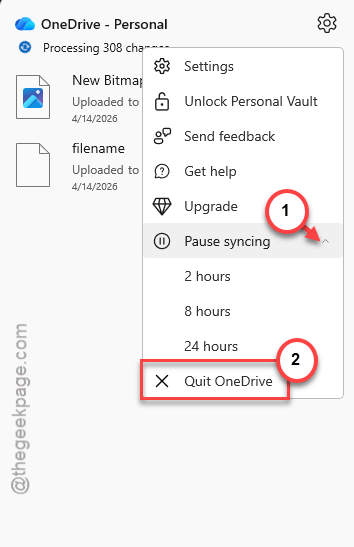
1 – Quit OneDrive first. Right-click the cloud icon. Click the gear icon, Pause syncing > Quit OneDrive. Confirm if it asks.
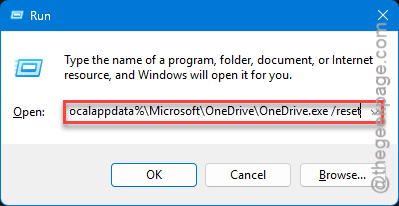
2 – Press Windows + R on your keyboard. The Run box opens.
3 – Paste this exactly:
%localappdata%\Microsoft\OneDrive\OneDrive.exe /reset
4 – Hit Enter.
The OneDrive icon disappears from your taskbar for a minute or two. That’s normal. It’s resetting.
Did you get a “Windows cannot find…” error? Not ideal, but fixable. Open Run again and try this path instead:
C:\Program Files\Microsoft OneDrive\onedrive.exe /reset
5 – Wait about 2-3 minutes. If OneDrive doesn’t restart on its own, open the Start menu, type OneDrive in the search box, and launch it manually.
And your files start syncing fresh. The stuck downloads? They usually resolve after a reset.
Fix 3 – Pause Sync, Then Resume
Worth a shot before the bigger fixes. Sometimes OneDrive just needs a kick.
1 – Click the OneDrive cloud icon in the taskbar.
2 – Click the gear icon at the top right of the popup.
3 – Click Pause syncing. Pick 2 hours.
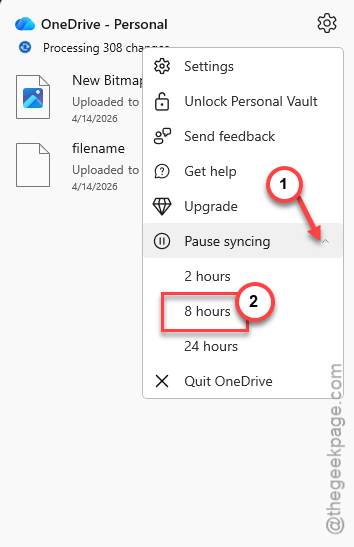
4 – Wait about 30 seconds. Then click the gear icon again and hit Resume syncing.
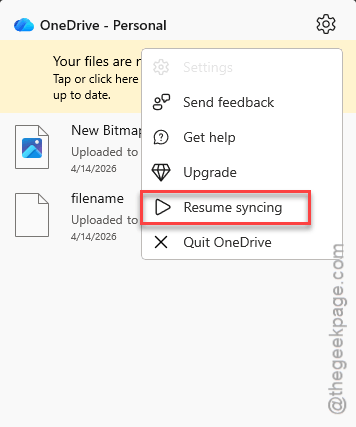
Takes 10 seconds. And it fixes stuck downloads more often than you’d expect.
Fix 4 – Force Specific Files to Download
If you don’t want to download everything, just force the files you actually need. Way more targeted.
1 – Open File Explorer (press Windows + E — quick shortcut).
2 – Click OneDrive in the left sidebar.
3 – Navigate to the folder with the stuck files.
4 – Select the file or folder. You can pick multiple with Ctrl + click.
5 – Right-click. Choose Always keep on this device.
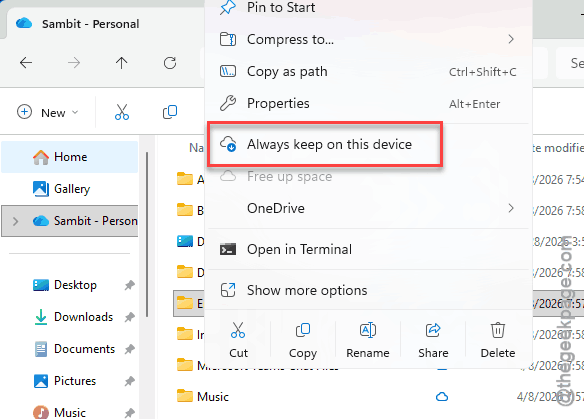
A green checkmark appears once the download completes. That checkmark? That means the file is fully local. No more cloud-only status.
And if the download still won’t start, move to Fix 5.
Fix 5 – Unlink Your Account, Then Link It Back
Account tokens go stale. And OneDrive doesn’t always tell you. Unlinking forces a fresh login.
Your local files stay put. Nothing gets deleted (yes, really). You just need to sign in again after.
1 – Right-click the OneDrive cloud icon. Click the gear, then Settings.
2 – Click Account from the left sidebar.
3 – Click Unlink this PC. Confirm when it asks.
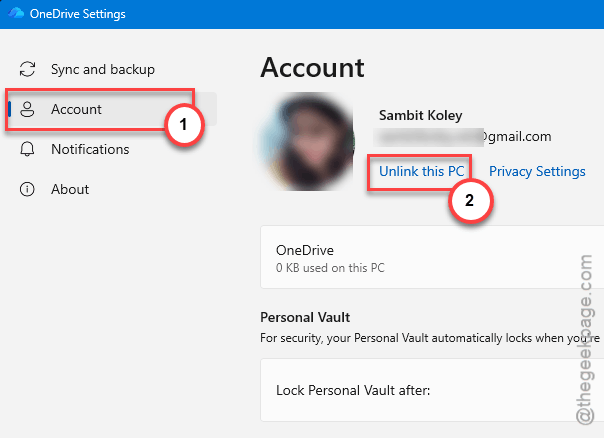
4 – OneDrive opens a sign-in window. Enter your email and password.
5 – Go through the setup prompts. Keep the default OneDrive folder location if you want your existing files to pick up where they left off.
Now try opening one of those stuck files. Usually works on the first try.
Fix 6 – Uninstall OneDrive and Reinstall It
Last resort. But if nothing above worked, a clean install fixes deep corruption.
1 – Press Windows + I to open Settings.
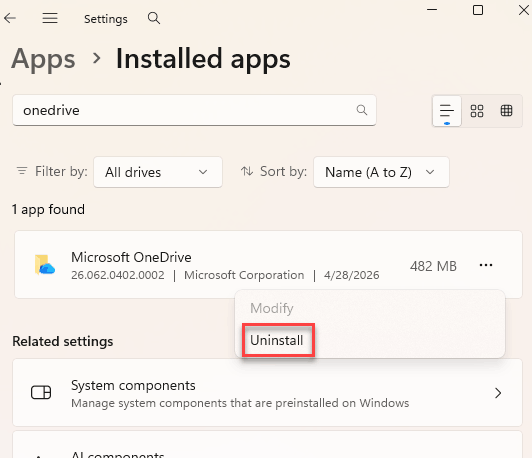
2 – Click Apps in the left sidebar. Then click Installed apps.
3 – Type OneDrive in the search box at the top. Faster than scrolling through hundreds of apps.
4 – Click the three dots (⋯) next to Microsoft OneDrive. Click Uninstall. Confirm.
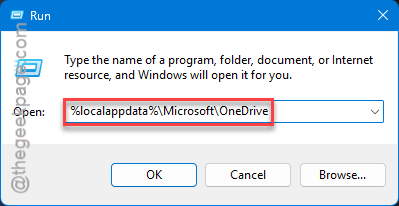
5 – Now clean up leftover junk. Press Windows + R and paste this:
%localappdata%\Microsoft\OneDrive
Delete everything in that folder.
6 – Then run this in Run too:
%appdata%\Microsoft\OneDrive
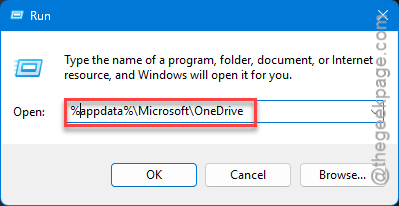
Delete everything inside.
7 – Restart your PC. Don’t skip this step.
8 – Go to the official Microsoft OneDrive download page. Grab the latest installer. Run it.

9 – Sign in with your Microsoft account. Let it sync fresh.
Takes about 15 minutes start to finish. But this fixes pretty much any OneDrive problem.
How to Prevent This
- Right-click important folders and pick Always keep on this device. Critical stuff should never be cloud-only. Trust me.
- Keep OneDrive updated. The auto-updater is flaky. Check the version once a month.
- After a big Windows update? Restart OneDrive manually. Don’t wait for it to figure itself out.
- Sign out and back in every few months. Refreshes your account token. Quick fix that prevents a lot of headaches.
People Also Ask
Why is OneDrive not downloading files properly?
Most of the time? Files On-Demand is the problem. OneDrive shows the file but never actually pulls it down. Toggle Files On-Demand off to force a full download. Or right-click the file and pick Always keep on this device. A stale account token or stuck OneDrive process can also cause it.
Why is OneDrive not syncing files locally?
A few reasons. OneDrive might be paused (easy to check — click the cloud icon). Your account session expired silently. Or the sync engine got stuck after a Windows update. Reset OneDrive with the /reset command in Run. Fixes it most of the time. Nuclear option is uninstall and reinstall.
Does resetting OneDrive delete local files?
No. Resetting OneDrive only clears the app settings and sync state. Your actual files stay safe on your PC and in the cloud. You might need to re-select which folders to sync after the reset. But the files themselves are untouched. Safe to run whenever.