Your Bing Wallpaper hasn’t changed in days. Maybe weeks. Same image every morning. The daily refresh just stopped working. This is way more common than it should be. And Microsoft doesn’t make it easy to fix.
Why This Happens
Basically? The Bing Wallpaper app caches images locally. And sometimes that cache gets corrupted. The app thinks it already downloaded today’s wallpaper. So it never checks for a new one.
A preferences file called WPPrefs.bin controls the refresh schedule. When that file gets stuck or corrupted? The app just keeps showing the same image. Forever.
Windows updates can break it too. And if the Microsoft Store cache is bloated, the app can’t even check for updates to fix itself. No idea why Microsoft made this so fragile. So yeah. That’s why.
Fix 1 – Delete Cached Wallpaper Files
This clears the stuck images and forces the app to download fresh ones. Works for most people.
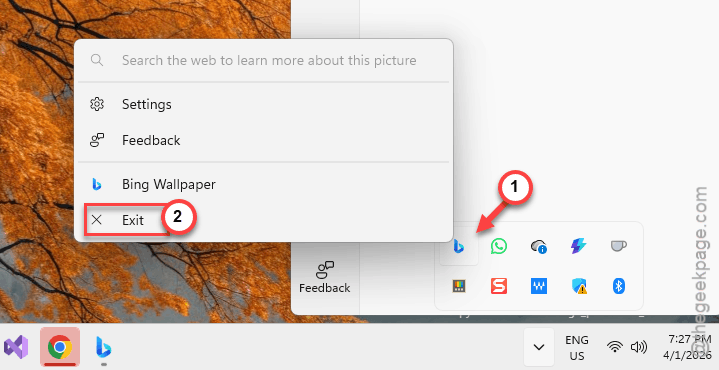
1 – Right-click the Bing Wallpaper icon in the system tray (bottom right, near the clock).
2 – Click Quit or Exit to close it completely.
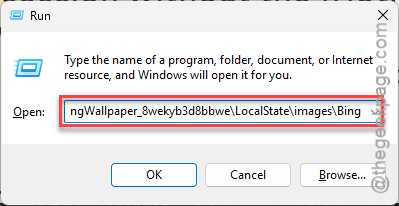
3 – Press Win + R to open the Run dialog.
4 – Paste this path and press Enter:
%LocalAppData%\Packages\Microsoft.BingWallpaper_8wekyb3d8bbwe\LocalState\images\
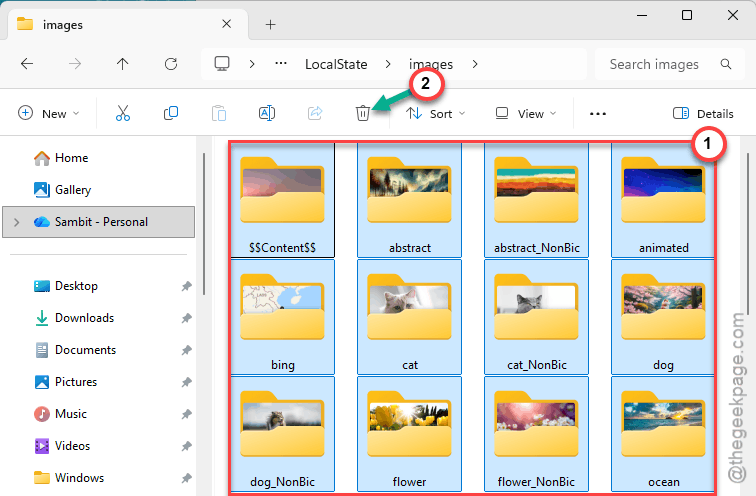
5 – Delete EmbeddedImage1.jpg.
6 – Delete EmbeddedImage2.jpg.
7 – Delete WPPrefs.bin.
This is the preferences file that controls refresh timing.
8 – If you can’t find those exact files, just delete everything in the folder.
9 – Restart your computer.
10 – Open Bing Wallpaper again.
And it should download a fresh wallpaper. If this was the issue, daily refresh should work again going forward.
Fix 2 – Repair or Reset Bing Wallpaper
Windows has built-in repair tools for Store apps. Worth trying if deleting cache files didn’t help.
1 – Open Settings.
2 – Click Apps.
3 – Click Installed apps.
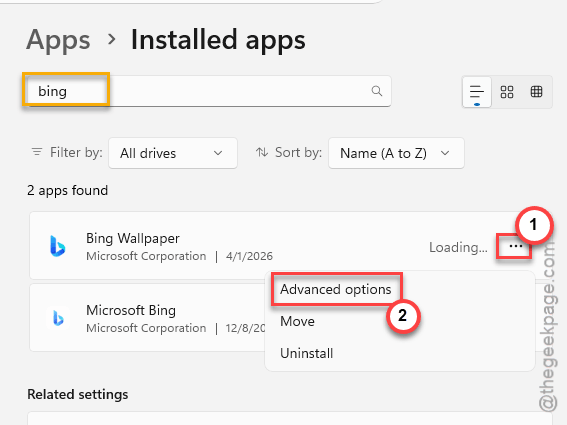
4 – Find Bing Wallpaper in the list.
5 – Click the three dots next to it.
6 – Click Advanced options.
7 – Click Repair first. Wait for it to finish.
8 – Test it the next day. See if the wallpaper changes.
Didn’t help? Go back to the same screen and click Reset instead.
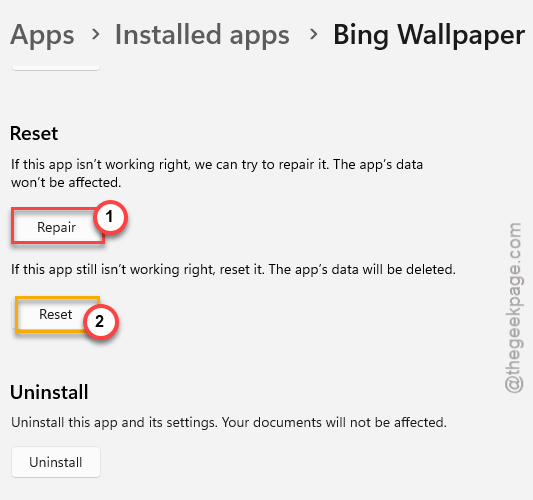
This wipes all the app’s data and starts clean. More aggressive. But sometimes Repair alone isn’t enough.
Fix 3 – Reinstall Bing Wallpaper
Full uninstall and reinstall. Nuclear option for this issue.
1 – Open Settings.
2 – Go to Apps.
3 – Click Installed apps.
4 – Find Bing Wallpaper.
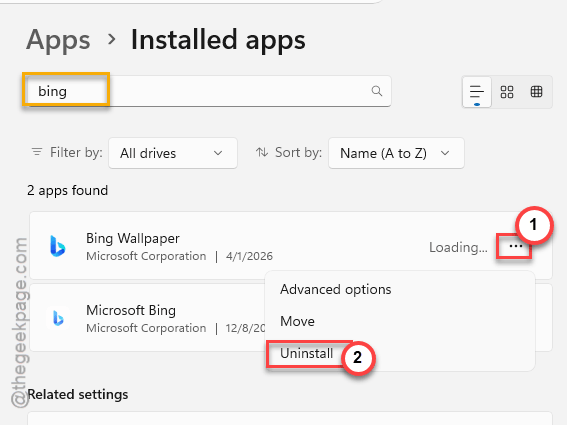
5 – Click the three dots.
6 – Click Uninstall. Confirm it.
7 – Open the Microsoft Store.
8 – Search for Bing Wallpaper.
9 – Click Install.
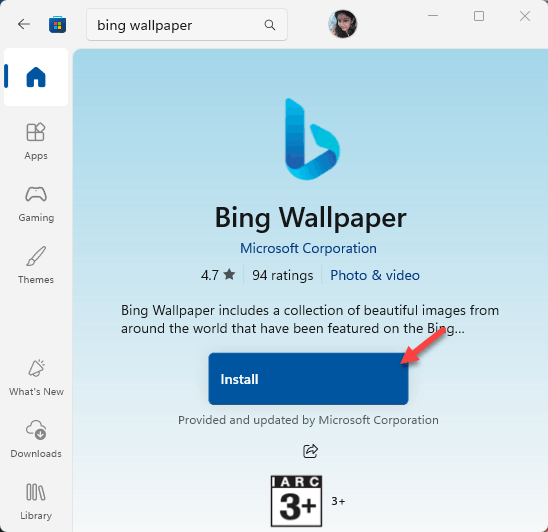
Fresh install re-registers everything. And it forces a new wallpaper download on first launch.
Fix 4 – Restart Windows Explorer via PowerShell
Weird fix. But some people report that force-restarting Explorer kicks Bing Wallpaper back to life.
1 – Click Start.
2 – Type PowerShell.
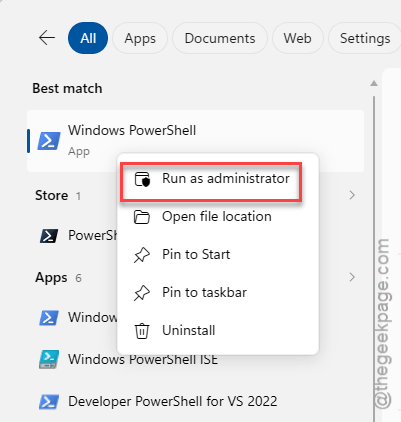
3 – Right-click Windows PowerShell and select Run as administrator.
4 – Type this command and press Enter:
Stop-Process -Name explorer -Force
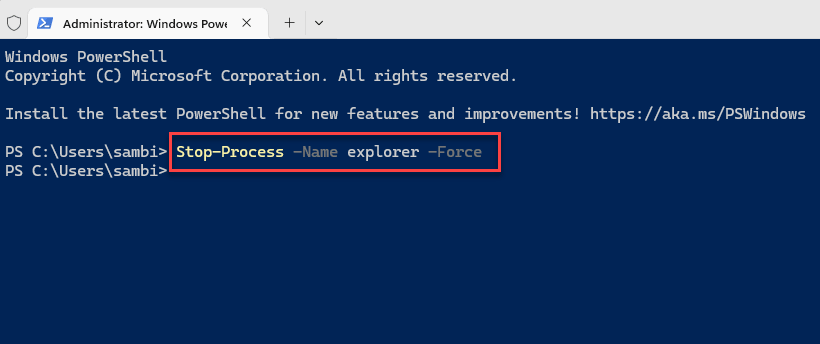
5 – Explorer will close and reopen automatically. Your taskbar disappears for a second.
Honestly, this one’s inconsistent. Some people say it works first try. Others need to run it multiple times. But it’s quick and harmless, so worth a shot.
Fix 5 – Clear the Microsoft Store Cache
If the Store cache is bloated, Bing Wallpaper can’t update itself or refresh properly.
1 – Press Win + R.
2 – Type:
wsreset.exe
3 – Press Enter.
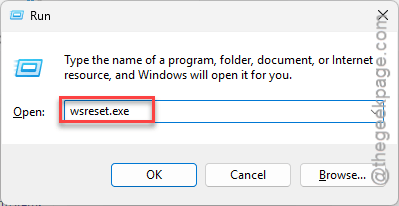
4 – A blank window opens. Wait for it to close on its own.
Then open the Microsoft Store and check for updates. Click Library at the bottom left, then Get updates at the top right. Make sure Bing Wallpaper is fully up to date.
Fix 6 – Check Windows Updates
Some Windows updates break Store app refresh behavior. Staying current helps.
1 – Open Settings.
2 – Click Windows Update.
3 – Click Check for updates.
4 – Install everything available.
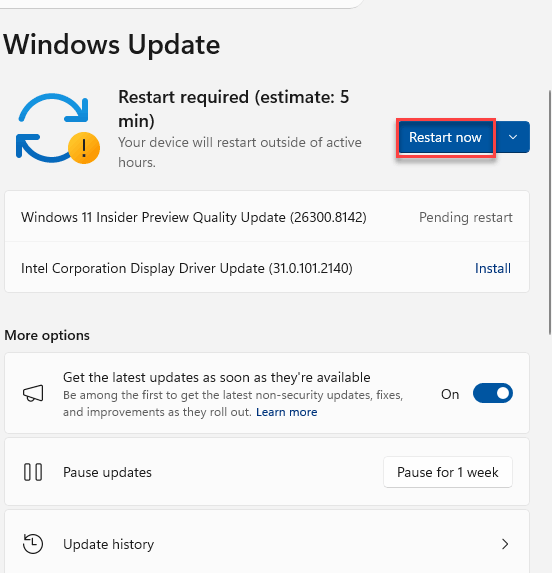
And after restarting, check if Bing Wallpaper downloaded a new image. Sometimes just updating Windows is enough to unstuck it.
How to Prevent This
- Keep Bing Wallpaper updated through the Microsoft Store. Don’t rely on auto-updates.
- Run wsreset.exe monthly. Keeps the Store cache clean.
- If the wallpaper stops changing, delete the WPImages folder contents immediately. Don’t wait — the longer it’s stuck, the harder it is to fix.
- Consider a third-party Bing wallpaper app from the Store if this keeps happening. Some are more reliable than Microsoft’s own app. Which is ironic.
People Also Ask
Why is Bing wallpaper not changing daily?
Probably a stuck cache. Delete the files in %LocalAppData%\Microsoft\BingWallpaperApp\WPImages. Restart. That fixes it most of the time.
How do I get my wallpaper to change every day?
Make sure Bing Wallpaper is running and updated. If it’s stuck, repair or reset it through Settings > Apps > Bing Wallpaper > Advanced options.
How do I enable daily refresh on Bing wallpaper?
Should be automatic. If it stopped, clear the cached images, reset the app, and make sure it’s running at startup. Check the system tray for the icon.