Your Game Pass download crawls to 100%. Then sits there. Spins. Then fails. Or worse — it completes, but the game won’t launch. And the Xbox App just shrugs.
Happens on a different drive from C:? Almost always. The Xbox App is weirdly picky about install locations.
Why This Happens
Here’s what’s going on. The Xbox App doesn’t install games like normal programs. It uses Windows’ protected storage system — folders called WindowsApps, WpSystem, and XboxGames on your target drive. These folders have locked-down permissions.
And when those folders get corrupted? The download appears to finish. Files are on disk. But the final commit step fails because the permissions aren’t right. So it errors out at 100%. Over and over.
On top of that — the Gaming Services component breaks constantly. Windows updates corrupt it. Store glitches corrupt it. It’s just fragile. And when it’s broken, downloads silently fail in all kinds of weird ways.
Recent Windows updates made all this worse. A lot of people saw the issue start after a specific cumulative update. Not ideal.
Fix 1 – Reset Gaming Services
Start here. Gaming Services is the most common failure point. Nuking it and reinstalling fixes a huge chunk of download issues.
1 – Press Windows + X and click Terminal (Admin). Click Yes on the UAC prompt.
2 – Make sure you’re in PowerShell mode (not Command Prompt). There’s a dropdown at the top if you need to switch.
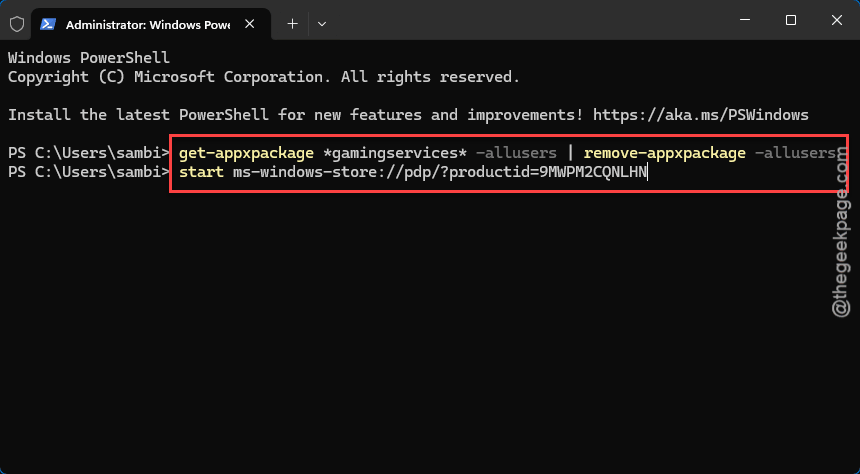
3 – Paste this and press Enter:
get-appxpackage Microsoft.GamingServices | remove-AppxPackage -allusers
4 – Wait for it to finish. Should take a few seconds.
5 – Then run this to open the Store page for Gaming Services:
start ms-windows-store://pdp/?productid=9MWPM2CQNLHN
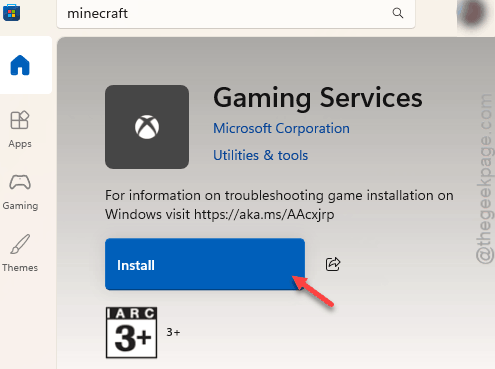
6 – Click Install in the Microsoft Store.
7 – Restart your PC. This is not optional. Gaming Services won’t properly register without a reboot.
After restart, try the download again. If it still fails at 100%? The target drive is the next thing to check.
Fix 2 – Delete Corrupted Xbox Folders on the Target Drive
This is the big one. If your games install to a different drive than C:, those system folders on that drive are probably corrupted. They need to be wiped.
⚠️ This deletes installed Game Pass games on that drive. You’ll have to redownload them. Not a problem if the downloads are already broken, but know that going in.
Let’s say your target drive is H:. Swap in whatever drive letter you actually use.
1 – Open File Explorer.
2 – Go to your target drive (e.g. H:\).
3 – Try to delete these three folders:
- WindowsApps
- WpSystem
- XboxGames
You’ll probably get Access Denied. That’s expected. These are protected system folders. Do this in PowerShell (Admin) instead.
4 – Open Terminal (Admin) again (Windows + X > Terminal (Admin)).
5 – Run these one at a time. Change E: to your drive letter if different:
takeown /f “E:\WindowsApps” /r /d y
icacls “E:\WindowsApps” /grant administrators:F /t
rmdir /s /q “E:\WindowsApps”
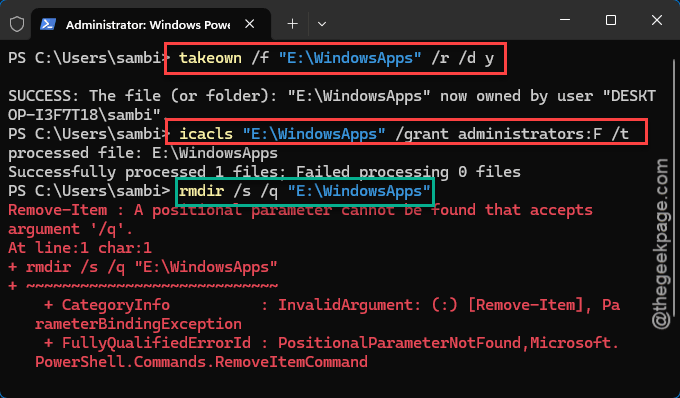
6 – Repeat for the other two folders — replace WindowsApps in each command with WpSystem, then with XboxGames.
7 – Restart your PC once everything’s cleared.
Fix 3 – Create a Fresh Install Folder and Tell Xbox to Use It
Now for a clean slate. Make a new folder for Xbox games, then point the Xbox App at it.
1 – Open File Explorer.
2 – Go to your target drive (e.g. E:\).
3 – Right-click in the empty space. Click New → Folder.
4 – Name it something obvious like GamePassLibrary.
5 – Open the Xbox App.
6 – Click your profile picture in the top-left, then Settings.
7 – Click General in the left sidebar.
8 – Under Game install options, click Change Folder.
9 – Pick the new E:\GamePassLibrary folder.
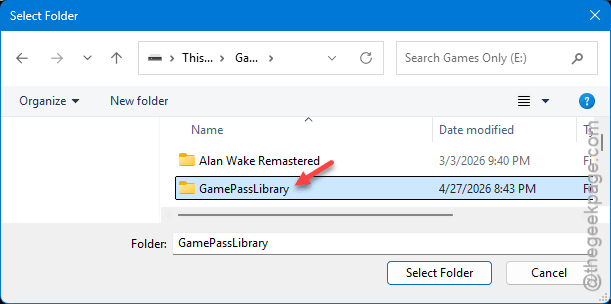
10 – Click Apply. Close the Xbox App. Reopen it.
Fix 4 – Tell Windows About the New Save Location
Windows has its own default save location for new apps. If it still points at C:, the Xbox App can get confused and revert. Sync the two.
1 – Press Windows + I to open Settings.
2 – Click System in the left sidebar.
3 – Click Storage.
4 – Scroll down and click Advanced storage settings.
5 – Click Where new content is saved.
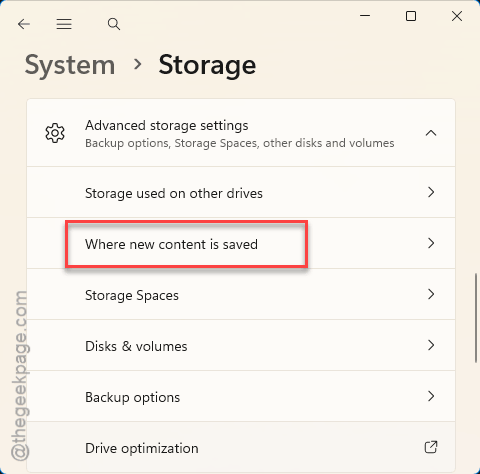
6 – Change New apps will save to to your target drive (e.g. H:).
7 – Click Apply.
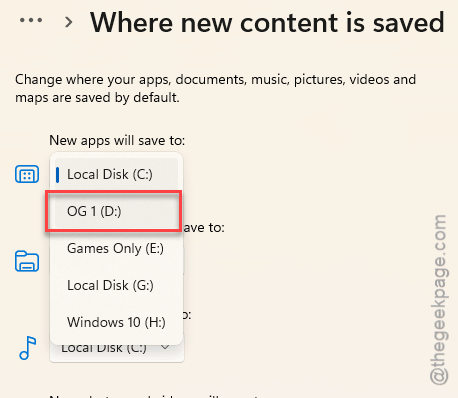
Restart the Xbox App. Start a download. Should go through now.
Fix 5 – Uninstall the Most Recent Windows Update
Did this start right after a Windows update? Probably the update’s fault. Uninstall it as a test.
1 – Press Windows + I to open Settings.
2 – Click Windows Update in the left sidebar.
3 – Click Update history.
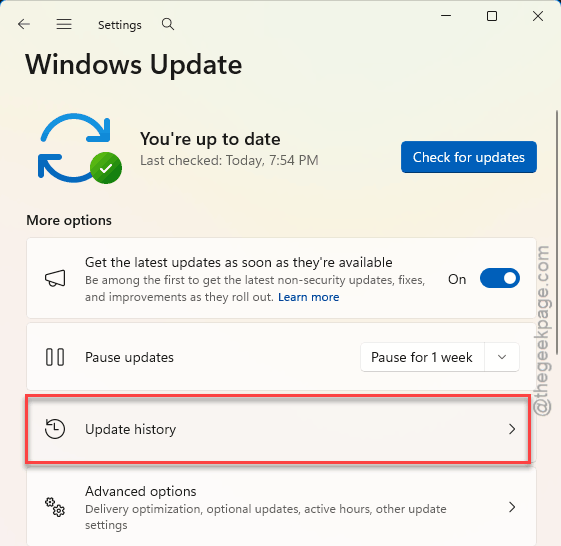
4 – Scroll to the bottom. Click Uninstall updates.
5 – Find the most recent update (top of the list, look at the date). Click Uninstall next to it.
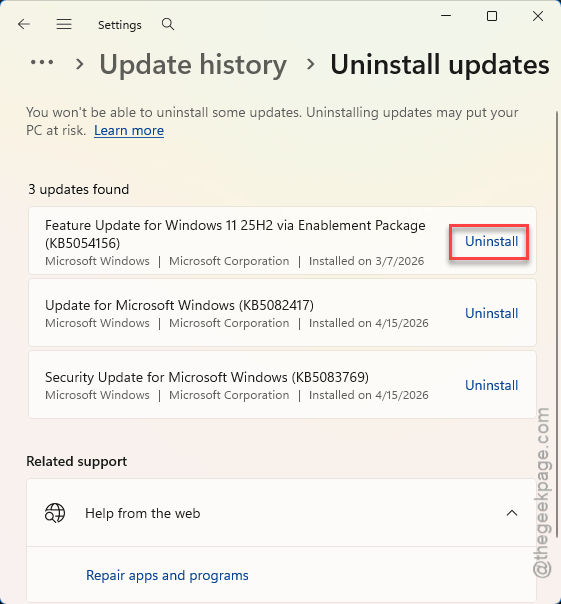
6 – Confirm. Restart your PC when it finishes.
Worked for a lot of people whose issue started after a cumulative update broke Omen Gaming Hub or similar bundled gaming apps. Same class of bug.
Fix 6 – Test With a Small Game First
Quick one. Before downloading a 100GB AAA title, test with something tiny.
Open the Xbox App, search for something small — 9 Kings, Pentiment, any indie under 5GB works. Install it. If it completes without the 100% stall, your install pipeline is fixed.
Then try the big download. Saves you hours of “did it work this time?” anxiety.
Fix 7 – Reset the Xbox App
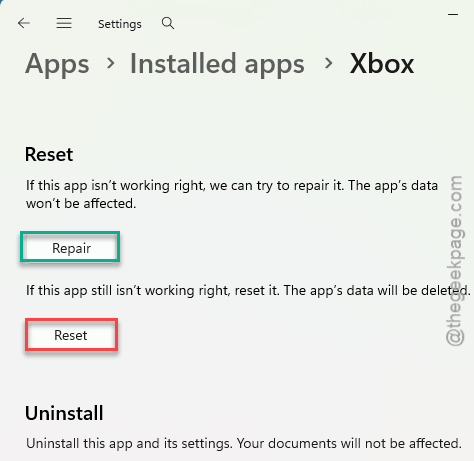
Last resort for the app itself. This clears Xbox App cache and settings. You’ll have to sign back in.
1 – Press Windows + I to open Settings.
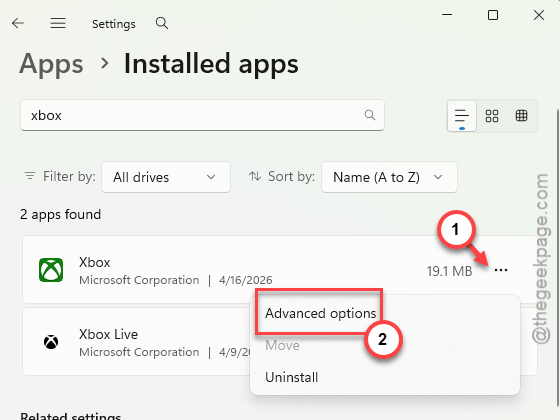
2 – Click Apps → Installed apps.
3 – Type “Xbox” in the search box at the top.
4 – Click the three dots (⋯) next to Xbox, then click Advanced options.
5 – Scroll down and click Reset. Confirm.
Do the same for Gaming Services and Microsoft Store while you’re there. Belt and braces.
How to Prevent This
- Pick one drive for Game Pass and stick with it. Switching install drives mid-library is how corrupted folders happen.
- Keep Windows updates current, but hold off 1-2 weeks on brand-new cumulative updates. Microsoft patches bad ones quickly.
- Restart your PC after installing Gaming Services updates. The Store doesn’t always tell you to. It matters.
- Don’t manually touch WindowsApps, WpSystem, or XboxGames folders. Only clean them when something’s actually broken.
People Also Ask
What is error code 0x80073cf6 on Xbox app?
It’s a package registration error. Usually means Gaming Services or your install folder permissions are broken. Reset Gaming Services first (see Fix 1). If that doesn’t work, wipe the WindowsApps/WpSystem/XboxGames folders on your install drive and start fresh.
How to fix code 0x80073CF3 in Microsoft Store?
Related family of errors. Points to a bad package install. Run wsreset.exe from the Run box (Windows + R), then reset the Microsoft Store in Settings > Apps > Installed apps > Advanced options > Reset. Restart. Try the download again.
What is error code 0x80073CFC on Xbox app?
Similar story. The app is failing to register the installed package. Fix 1 and Fix 2 above handle this. The Gaming Services reset plus cleaning the target drive’s system folders fixes it for most people. If it persists, roll back the latest Windows update.