OneDrive logs you out for no reason. Hour later? Gone again. Files stop syncing. The little cloud icon goes gray. You sign in. Same thing happens tomorrow. And the next day.
Pointless cycle. And nothing in OneDrive’s settings looks broken.
Why This Happens
OneDrive uses Windows’ built-in Credential Manager to remember your login. When that cache gets corrupted? OneDrive can’t read its own saved credentials. So it asks you to sign in. Every. Single. Time.
Windows updates love to gunk up Credential Manager. So do third-party password managers. So do random Microsoft account changes — like enabling 2FA, changing your password, or revoking a device.
There’s also a Windows sign-in setting that nobody knows about. The “if you’ve been away, sign in again” option. When that’s set to anything aggressive, OneDrive’s session token gets invalidated alongside your Windows session. Then OneDrive thinks you logged out. Annoying.
And on top of all that — corrupted OneDrive install files. The OneDrive process itself crashes silently in the background. It restarts. But without your sign-in. So next time you check? Logged out. No warning.
Fix 1 – Clear OneDrive Credentials in Credential Manager
Best place to start. Wipe the bad cached credentials. Force OneDrive to save fresh ones.
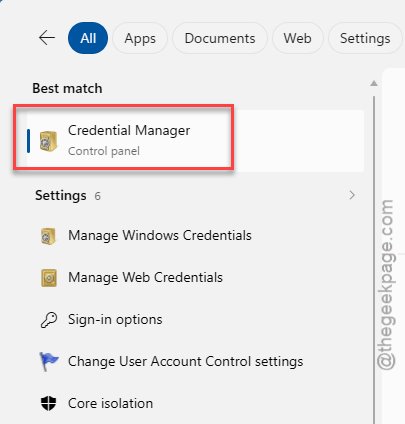
1 – Click the Start button. Type “Credential Manager” in the search box.
2 – Click Credential Manager in the results.
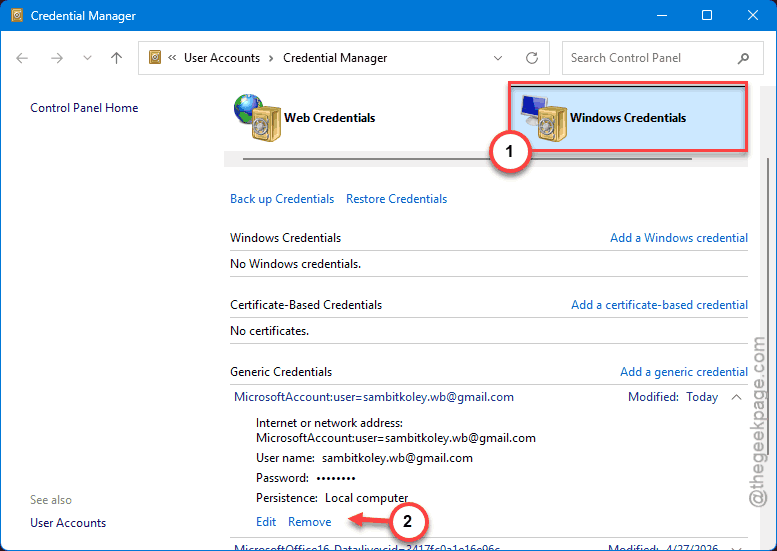
3 – Click Windows Credentials at the top.
4 – Scroll down to the Generic Credentials section.
5 – Look for entries with names containing OneDrive or MicrosoftAccount:user=.
6 – Click each entry to expand it. Click Remove.
7 – Click Yes to confirm.
8 – Repeat for every OneDrive-related entry. Get them all.
9 – Close Credential Manager.
10 – Open OneDrive (cloud icon in the system tray). Sign in fresh.
Should hold this time.
Fix 2 – Disable Conflicting Cloud Apps
iCloud Drive, Google Drive Desktop, and Dropbox all hook into File Explorer the same way OneDrive does. They fight. Sometimes that fight kicks OneDrive’s session.
If you have multiple cloud sync apps installed:
1 – Press Ctrl + Shift + Esc to open Task Manager.
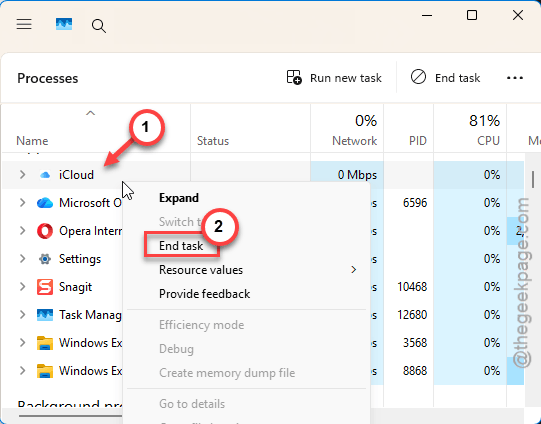
2 – Look for any cloud sync app processes — iCloud, Google Drive, Dropbox.
3 – Right-click each one. Click End task.
4 – Use OneDrive for a few hours. See if it stays signed in.
If it does, the conflict was real. Decide which cloud app you actually need most. Uninstall the others — Settings > Apps > Installed apps > three dots (⋯) > Uninstall.
Fix 3 – Reset the OneDrive
Quick fix. Resets OneDrive to a clean state without removing your synced files. Takes about a minute.
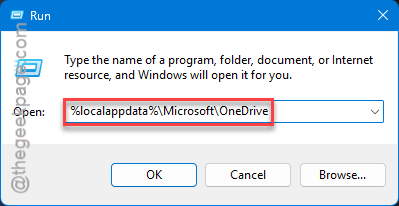
1 – Press Windows + R to open the Run box.
2 – Paste this:
%localappdata%\Microsoft\OneDrive\onedrive.exe /reset
3 – Press Enter.
4 – If you get a “Windows cannot find” error, try this command instead:
C:\Program Files\Microsoft OneDrive\onedrive.exe /reset
5 – Wait. The OneDrive icon disappears from the system tray. That’s normal.
6 – Wait 2-3 minutes. OneDrive should reappear automatically. If it doesn’t, click Start, search for “OneDrive”, and open it manually.
7 – Sign in.
Reset doesn’t delete your files. Just rebuilds the connection.
Fix 4 – Stop Windows From Forcing Re-Sign-In
This sign-in option catches a lot of people. It’s buried in account settings. And by default it can boot OneDrive’s session along with yours.
1 – Press Windows + I to open Settings.
2 – Click Accounts in the left sidebar.
3 – Click Sign-in options.
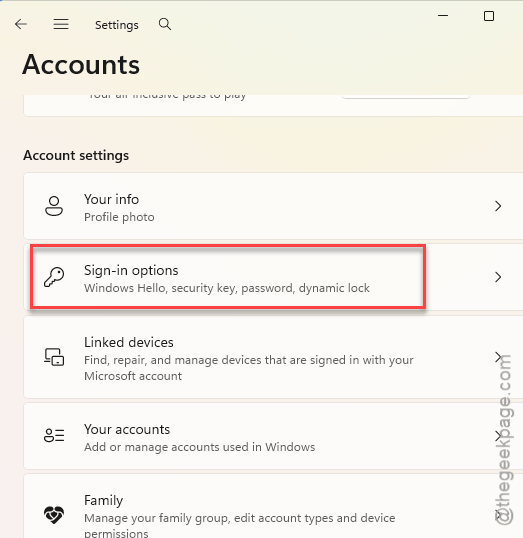
4 – Scroll down to Additional settings.
5 – Look for the question: “If you’ve been away, when should Windows require you to sign in again?“
6 – Click the dropdown. Select Never.
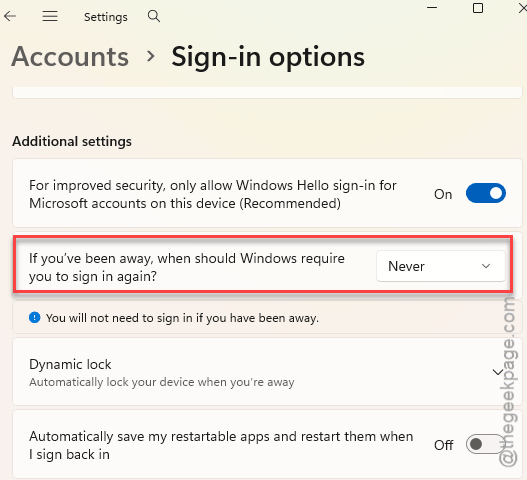
Just one less reason for OneDrive to lose its session. Won’t solve everything by itself, but combined with Fix 1, it usually does.
Fix 5 – Unlink and Re-link Your OneDrive
Heavier fix. But sometimes the only one that sticks. You’re disconnecting the OneDrive client from your account, then reconnecting clean.
1 – Click the OneDrive cloud icon in the system tray (bottom-right corner). If you don’t see it, click the ^ arrow to show hidden icons.
2 – Click the gear icon (⚙) in the top-right of the OneDrive popup.
3 – Click Settings.
4 – Click Account in the left sidebar.
5 – Click Unlink this PC.
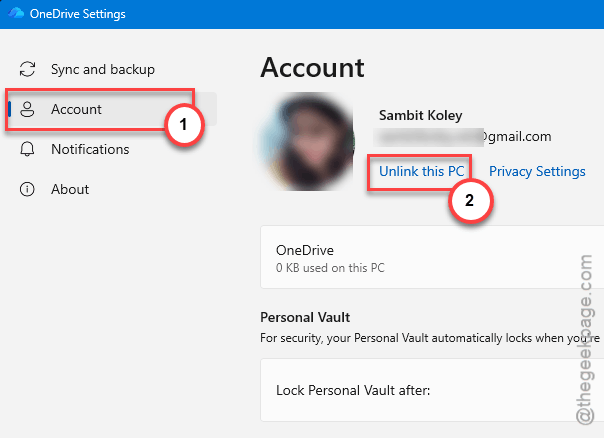
6 – Confirm. OneDrive will close and reopen with a sign-in screen.
7 – Sign in with your Microsoft account.
8 – When asked about sync location, just keep the existing OneDrive folder. Don’t move anything.
Your files stay where they are. The connection is fresh.
Fix 6 – Update OneDrive
Outdated OneDrive crashes more. New builds patch sign-in issues regularly. Don’t sit on old versions.
1 – Click the OneDrive cloud icon in the system tray.
2 – Click the gear icon (⚙).
3 – Click Settings.
4 – Click About in the left sidebar.
5 – Note the version number.
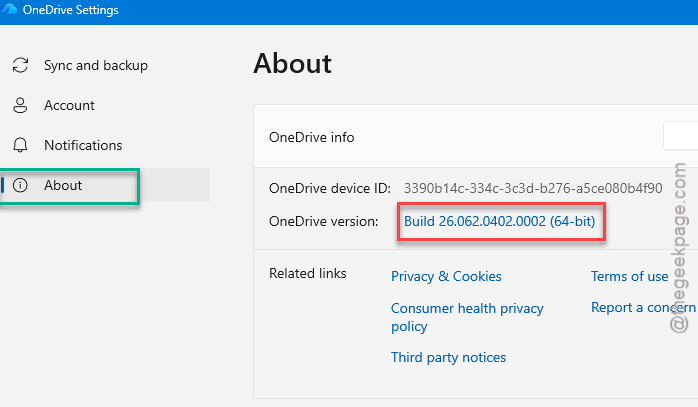
6 – Compare it to the latest build at Microsoft OneDrive.

7 – If you’re behind, download and run the installer. It updates over your existing install.
Restart OneDrive after.
Fix 7 – Check Your Microsoft Account Security
Last one. If your account password recently changed, or you enabled two-factor authentication, OneDrive might keep getting kicked out. Microsoft revokes old session tokens when security changes.
1 – Open a browser. Go to Account Security.
2 – Sign in.
3 – Check View sign-in activity. Look for any suspicious sign-ins or session revocations.
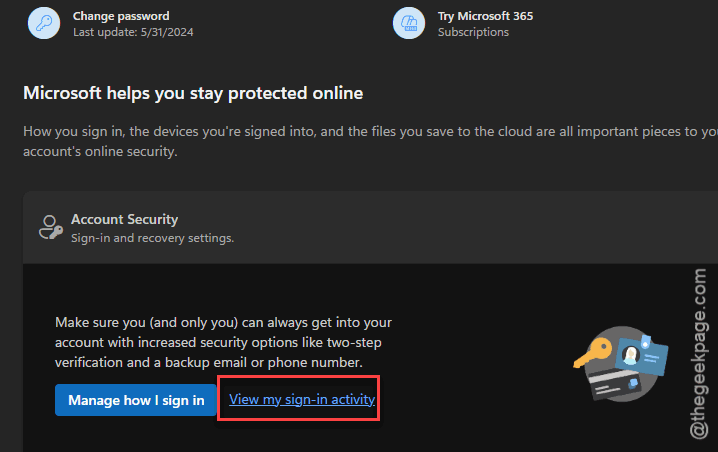
4 – If 2FA is on, make sure your authenticator method is current. Lost phone? Old number? OneDrive will fail silently.
5 – If you have an app password set up for OneDrive, generate a new one.
Once your account side is clean, sign back into OneDrive on your PC.
How to Prevent This
- Set Windows sign-in requirement to Never (or at least longer than your work day). Frequent re-sign-ins kill OneDrive’s session.
- Pick one cloud sync app. Don’t run iCloud, Google Drive, and OneDrive at the same time. They genuinely conflict.
- Keep OneDrive updated. The desktop client patches sign-in bugs all the time. Old builds are fragile.
- Don’t blindly clear Credential Manager. It nukes saved logins for everything — email, network drives, the works. Only target OneDrive entries when fixing this.
People Also Ask
Why do I keep getting signed out of OneDrive?
Most often it’s a corrupted credential cache. Open Credential Manager, click Windows Credentials, and remove every entry that mentions OneDrive or MicrosoftAccount. Sign in fresh. If it keeps happening, reset OneDrive — Windows + R, then %localappdata%\Microsoft\OneDrive\onedrive.exe /reset.
Why do I have to login to OneDrive every time?
Either the credential cache won’t save, or Windows is invalidating your session too aggressively. Clear OneDrive entries from Credential Manager. Then go to Settings > Accounts > Sign-in options and set the “require sign-in again” dropdown to Never. Together those fix it for most people.
Why do I keep getting signed out of Microsoft?
Microsoft revokes session tokens when something changes — password update, 2FA enable, suspicious activity. Check account.microsoft.com/security for recent activity. If everything looks normal, the issue is local credential corruption. Clear Credential Manager entries and sign in again. Should hold.