You connect via Remote Desktop. See the login screen. Enter your credentials. And then it just… freezes. Stuck on “Please wait.” Forever.
A network detection setting in Group Policy is almost always the cause. Fixable, but you need to get in first.
Why This Happens
Windows 11 has a Group Policy setting that auto-detects network quality when you connect via RDP. It’s supposed to optimize performance. But after certain updates, this detection process hangs. The server never finishes checking the connection. And your session just sits there.
Microsoft knows about it. But instead of disabling the setting by default, they left it on. So you have to fix it yourself. Annoying.
Fix 1 – Adjust RDP Experience Settings Before Connecting
This gets you past the freeze so you can apply the permanent fix on the server side.
1 – On your local PC, search for Remote Desktop Connection and open it.
2 – Click Show Options at the bottom left to expand the settings.
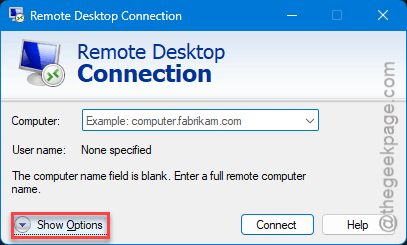
3 – Go to the Experience tab.
4 – Change the connection speed dropdown to LAN (10 Mbps or higher) or High-speed broadband (WAN).
5 – Connect to the server.
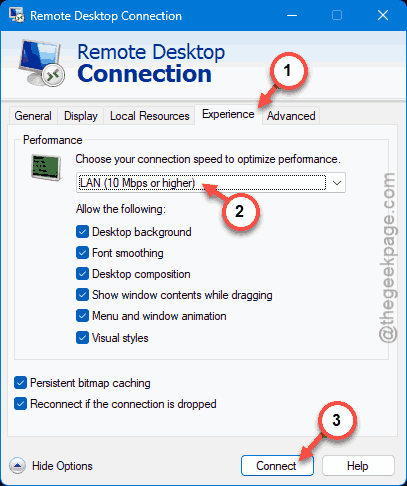
This tells the client to skip auto-detection and assume a fast connection. Should get you past the freeze. But it’s a workaround. For the permanent fix, do Fix 2.
Fix 2 – Disable Network Detection in Group Policy (Server Side)
This is the real fix. Once you’re connected to the server, do this:
1 – On the server, press Windows + R, type gpedit.msc, press Enter.
2 – In the left pane, go to:
Computer Configuration > Administrative Templates > Windows Components > Remote Desktop Services > Remote Desktop Session Host > Connections.
3 – Find Select network detection on the server on the right side. Double-click it.
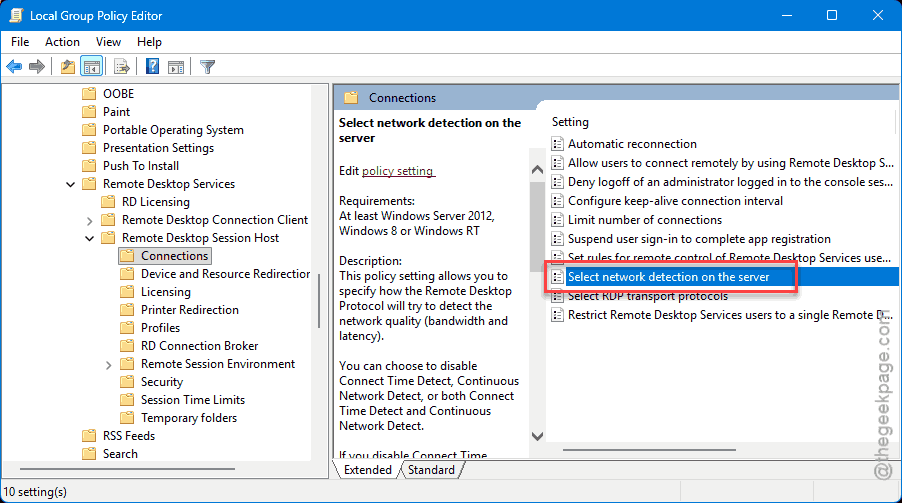
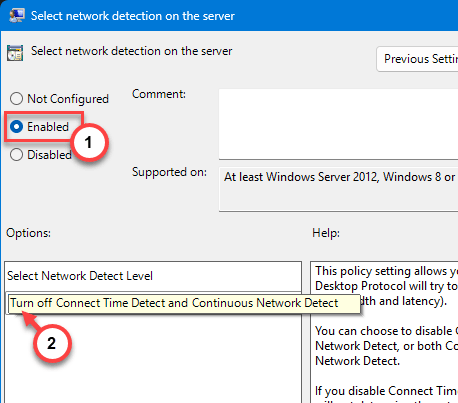
4 – Set it to Enabled.
5 – In the dropdown below, choose Turn off connect time detect and continuous network detect.
6 – Click Apply, then OK.
7 – Restart the server.
And future RDP logins should stop freezing. This disables the broken network detection that hangs during login.
Fix 3 – Disable UDP for RDP
If the freeze keeps happening even after Fix 2, UDP transport might be adding to the problem.
1 – On the server or client, open gpedit.msc.
2 – Go to:
Administrative Templates > Windows Components > Remote Desktop Services > Remote Desktop Connection Client
3 – Find Disable UDP on the client. Set it to Enabled.
4 – Restart.
Forces TCP only. Removes another potential hang point.
Fix 4 – Check the RDP Port Number
Odd one. But if someone changed the RDP port, the freeze could be a timeout issue.
1 – Open regedit on the server.
2 – Go to:
HKEY_LOCAL_MACHINE\SYSTEM\CurrentControlSet\Control\Terminal Server\WinStations\RDP-Tcp
3 – Find PortNumber on the right.
4 – Make sure it’s set to 3389 (the default). This is in Decimal format.
5 – If it’s something else, change it back to 3389.
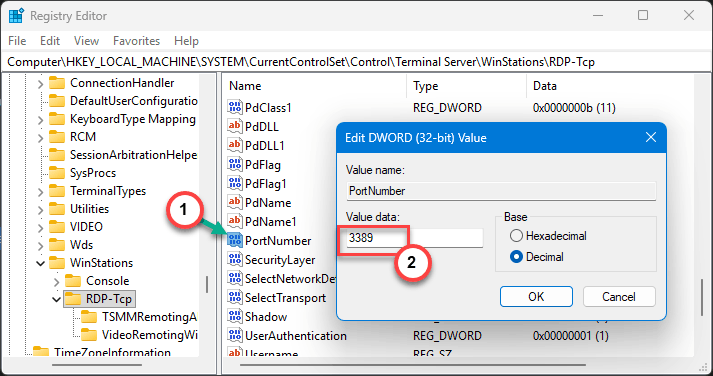
6 – Restart Remote Desktop Services.
Non-standard ports can cause weird negotiation delays that look like a freeze. Setting it back to default eliminates that variable.
How to Prevent This
- After Windows updates on the server, check the network detection Group Policy. It’s the most common cause of login freezes.
- Set RDP connection experience to LAN manually instead of relying on auto-detect.
- Keep UDP disabled if you frequently have RDP issues. TCP-only mode is slower but more stable.
People Also Ask
How to stop RDP from freezing?
Disable network detection on the server. Open gpedit.msc and go to Remote Desktop Session Host > Connections. Set “Select network detection” to Enabled, then pick “Turn off” in the dropdown. Restart. That fixes 90% of login freezes.
How to fix stuck on login screen Windows 11?
For RDP specifically, change your connection Experience setting to LAN before connecting. That bypasses the auto-detect that hangs. Then apply the Group Policy fix on the server side for a permanent solution.
Why is Remote Desktop stuck at please wait Windows 11?
The server is stuck trying to detect your network speed. It’s a Group Policy setting that hangs after updates. Disable it in gpedit.msc under Remote Desktop Session Host > Connections. Choose “Turn off” network detection. Restart.