Xbox app won’t run. Open it and it either crashes, shows a blank screen, or gets stuck on the update page. Tried restarting. Didn’t help.
Almost always a Gaming Services issue or a Store cache problem. Fixable with a few steps.
Why This Happens
The Xbox app checks for Gaming Services on launch. If Gaming Services is outdated, corrupted, or improperly registered, the app can’t proceed. It just sits there. Or crashes silently.
And sometimes the app gets stuck in an update loop. It opens to a “please update” screen but the update itself fails. That’s usually the Store cache being broken underneath.
Fix 1 – Reset the Xbox App and Clear the Store Cache
Start simple. This clears cached data that might be corrupted.
1 – Click Start and open Settings.
2 – Go to Apps > Installed apps (or Apps & features on Windows 10).
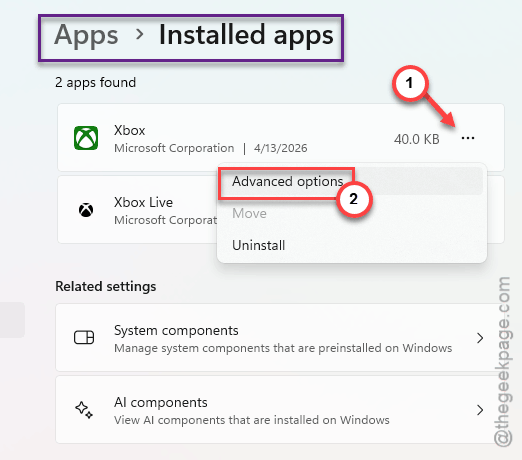
3 – Find the Xbox app. Click the three dots. Select Advanced options.
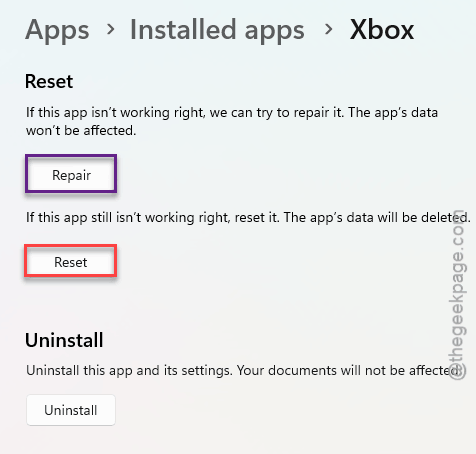
4 – Click Repair first. Wait a moment.
5 – Then click Reset.
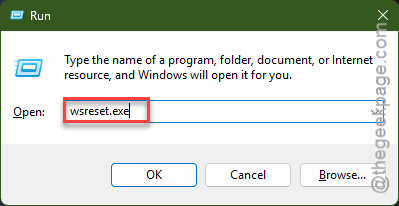
6 – Now clear the Store cache. Press Windows + R, type wsreset, right-click it and run as admin. Wait for the Store to reload.
7 – Restart your PC.
Try the Xbox app again. If it opens, you’re good. If not, keep going.
Fix 2 – Reinstall Gaming Services via PowerShell
If the app still won’t run, Gaming Services is probably the culprit. Time to rip it out and put it back.
1 – Right-click the Start button. Select Windows PowerShell (Admin) or Terminal (Admin).
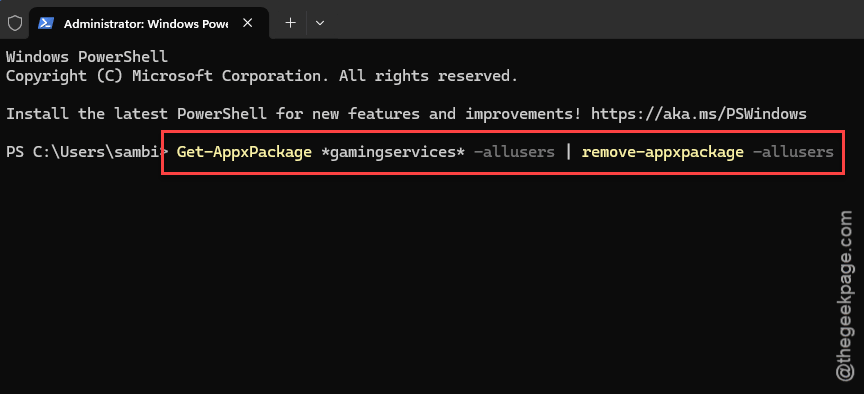
2 – Run this command:
Get-AppxPackage *gamingservices* -allusers | remove-appxpackage -allusers
3 – Restart your PC.
4 – Open PowerShell as admin again. Run:
start ms-windows-store://pdp/?productid=9MWPM2CQNLHN
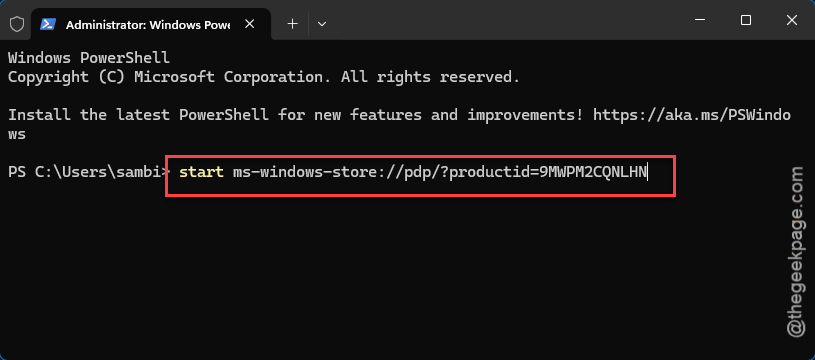
5 – The Store opens to the Gaming Services page. Click Install.
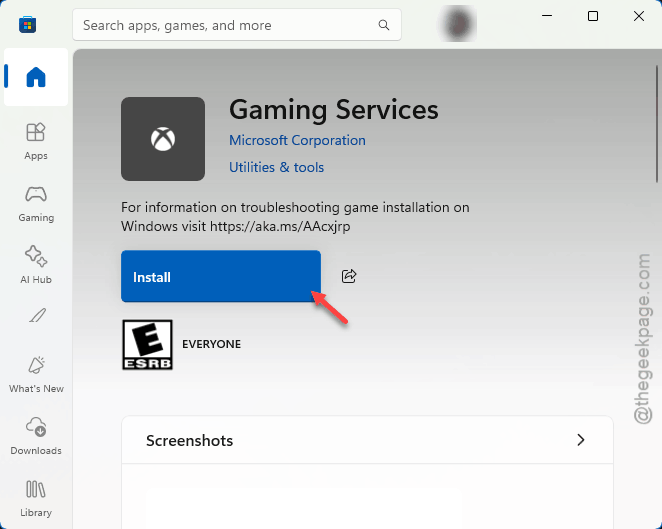
6 – Try the Xbox app now.
And that reinstall fixes the broken registration. Works for most people who got past Fix 1 without success.
Fix 3 – Restart All Xbox Services
Maybe the services are installed but just not running. Quick check.
1 – Search for Services in the Windows search bar. Open it.
2 – Find these four services:
- Xbox Accessory Management Service
- Xbox Live Auth Manager
- Xbox Live Game Save
- Xbox Live Networking Service
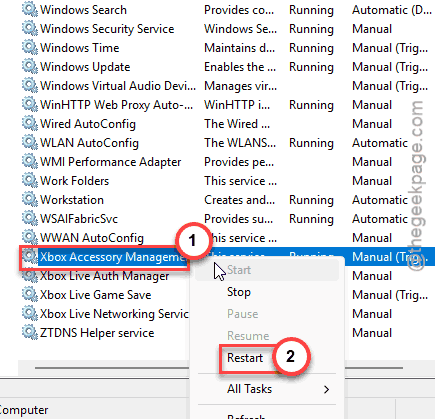
3 – Right-click each one. Select Restart (or Start if they’re not running).
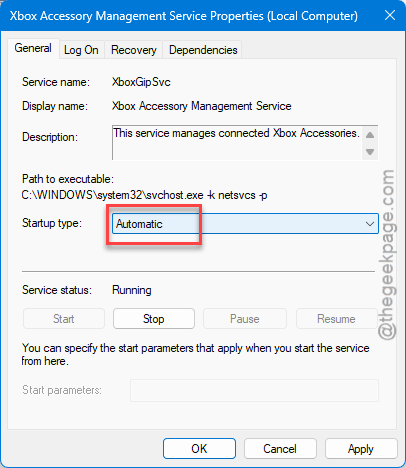
4 – Double-click each service. Set the Startup type to Automatic.
5 – Try the Xbox app again.
Sometimes these services get set to Manual or Disabled after updates. Setting them to Automatic keeps them running when needed.
Fix 4 – Reinstall the Xbox App from the Store
If none of the above worked, the app itself might be corrupted beyond repair.
1 – Go to Settings > Apps > Installed apps.
2 – Find Xbox. Uninstall it.
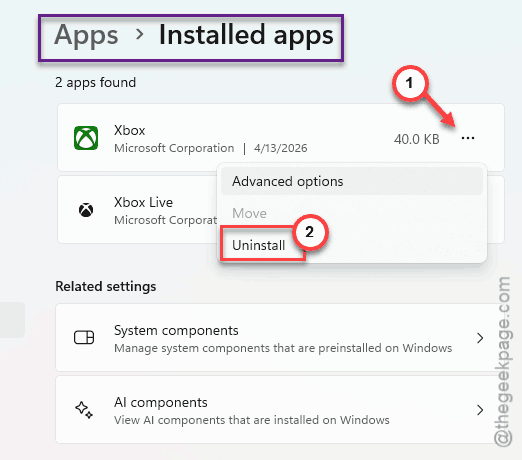
3 – Open the Microsoft Store. Search for Xbox.
4 – Install it fresh.
5 – Open it.
Clean install. No leftover state. Should work now.
Fix 5 – Offline Launch Workaround
Weird trick. But if the app keeps getting stuck on the update screen, this bypasses it.
1 – Disconnect from the internet (turn off Wi-Fi or unplug ethernet).
2 – Open the Xbox app.
3 – It should skip the update check and load directly into the app.
4 – Once it’s open, reconnect to the internet.
Not a real fix. More of a workaround. But it gets you in when nothing else does. Janky? Yes. But it works.
How to Prevent This
- Keep Gaming Services and the Xbox app updated regularly through the Microsoft Store.
- Set all four Xbox services to Automatic startup so they’re always ready.
- Clear the Store cache (wsreset) monthly. Prevents stale data from building up.
- Avoid force-killing Xbox processes from Task Manager unless absolutely necessary.
People Also Ask
How to fix Xbox app not working on Windows 11?
You have to Reset the app in Settings this way > Apps > Xbox > Advanced options > Reset. Then reinstall Gaming Services through PowerShell. If it’s stuck on the update screen, try opening it offline. You can reeconnect easily after it loads.
Why is the Xbox desktop app not opening?
The Gaming Services is probably broken on your system. Just remove it with PowerShell (Get-AppxPackage *gamingservices* | remove-appxpackage). Next, restart your system and reinstall from the Store. This should fix the registration issue that prevents the app from launching.
Does the Xbox app work on Windows 11?
Yes. It is a native Windows app developed by Microsoft. So, it is fully supported and compatible with Windows 11. But it depends on Gaming Services and other background Xbox services. If any of those services break down, the app may stop working.