Xbox app won’t open. Click it, nothing. Maybe a brief flash. Then it’s gone. You try again. Same result.
Nine times out of ten it’s Gaming Services being broken. Here’s what to do.
Why This Happens
The Xbox app depends heavily on a background component called Gaming Services. If that gets corrupted — which happens after updates, failed installs, or even just randomly — the Xbox app refuses to open. It doesn’t crash visibly. It just does nothing.
And sometimes the app itself is fine, but its cache or internal state is stuck. A repair or reset at the app level fixes that without touching Gaming Services.
Fix 1 – Repair and Reset Gaming Services
Start here. This is the most common solution and it takes about a minute.
1 – Press Windows + I to open Settings.
2 – Go to Apps > Installed apps.
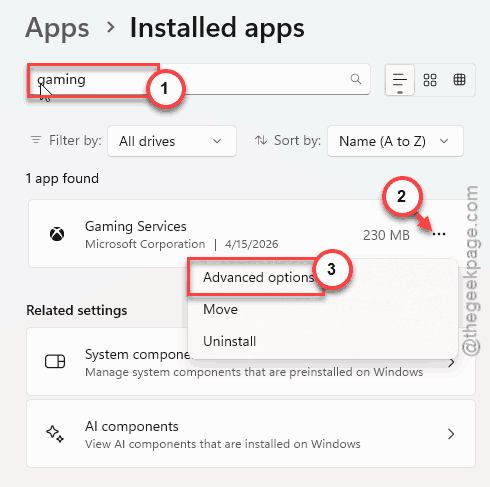
3 – Search for Gaming Services in the list.
4 – Click the three dots next to it. Select Advanced options.
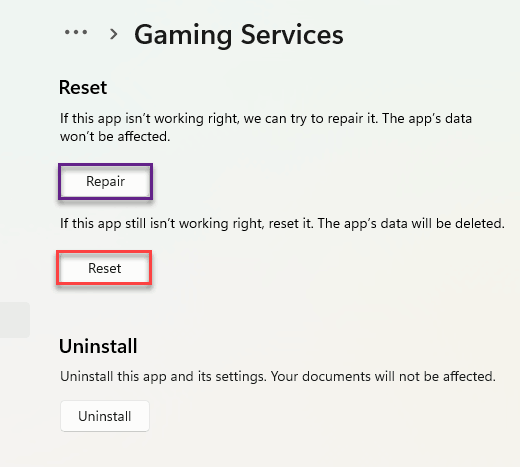
5 – Scroll down. Click Repair. Wait a moment.
6 – Then click Reset right below it.
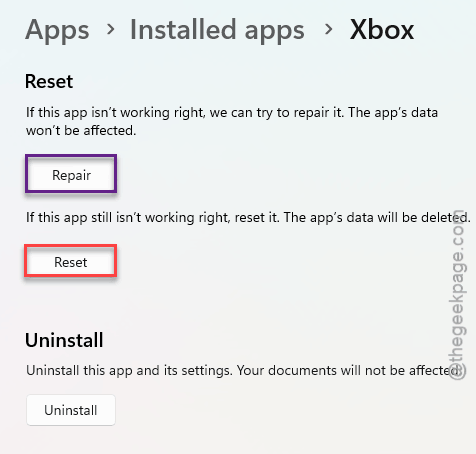
7 – Do the same for the Xbox app itself.
8 – Restart your PC.
That clears the cache and re-registers the services. Works for most people.
Fix 2 – Download the Gaming Services Repair Tool
Microsoft has an official repair tool for this. Weirdly, they don’t advertise it much.
1 – Go to the Xbox support site and search for Gaming Services Repair Tool.
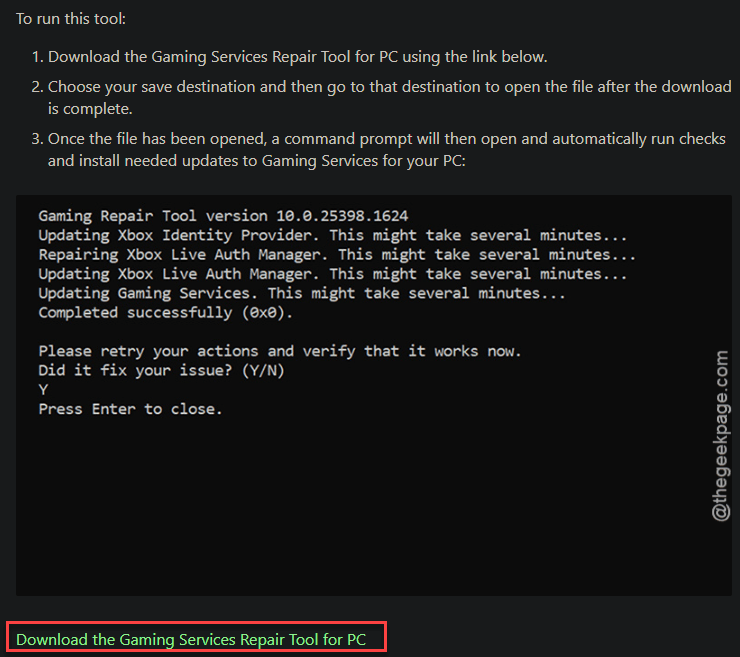
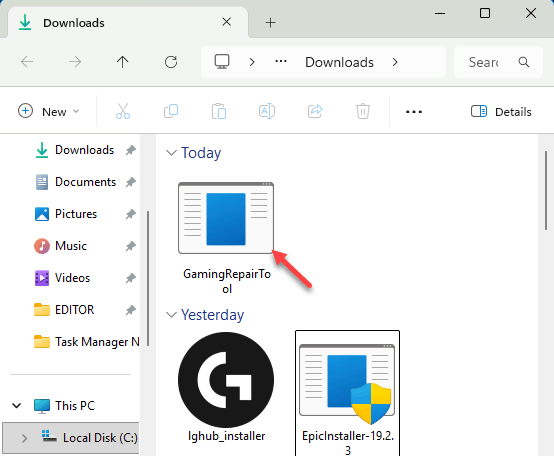
2 – Expand the Downloadable section and choose the Download the Gaming Services Repair Tool. Now, go to the Downloads section, find the tool and run it.
3 – A command prompt window will open and automatically check things.
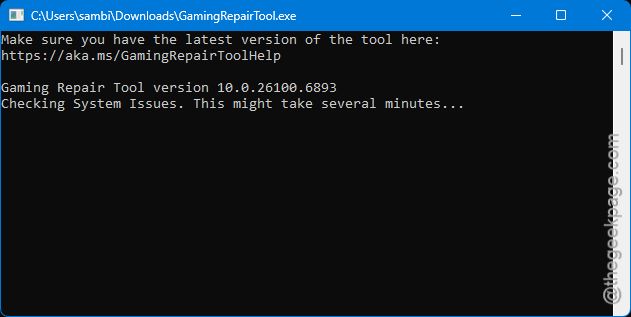
4 – Follow any prompts.
5 – Restart when it’s done.
Honestly, this should be the first thing Microsoft suggests. But it’s buried on their support page.
Fix 3 – Uninstall and Reinstall Everything
Nuclear option. But if the above didn’t work, a clean reinstall of all Xbox components usually does the trick.
1 – Open Settings > Apps > Installed apps.
2 – Uninstall Xbox app.
3 – Uninstall Gaming Services.
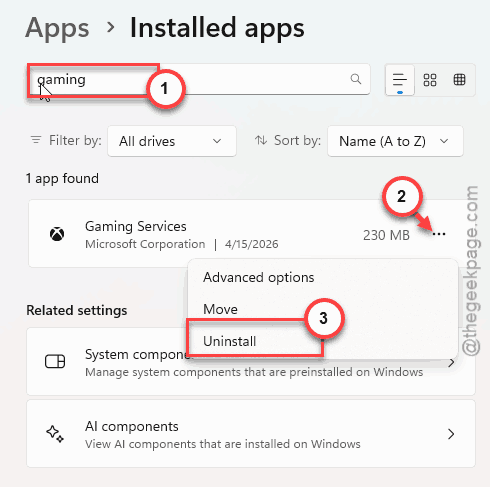
4 – Uninstall Game Bar if it’s listed.
5 – Restart your PC. This clears any leftover background services.
6 – Open the Microsoft Store. Search for Xbox and install it.
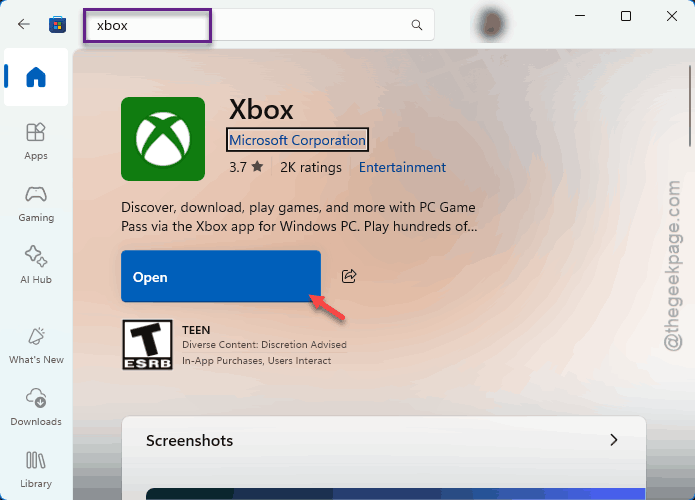
7 – Open the Xbox app. It should prompt you to install Gaming Services. Do it.
And that should be a clean start. No leftover broken state.
Fix 4 – Reset the Microsoft Store Cache
Quick one. A corrupted Store cache can block Xbox app updates and installs.
1 – Press Windows + R.
2 – Type wsreset.exe and press Enter.
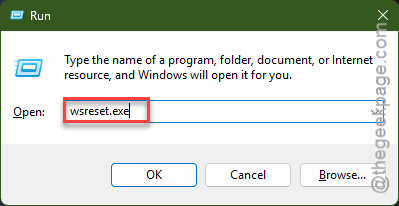
3 – A blank command prompt window opens. Wait until the Store opens automatically.
4 – Try the Xbox app again.
Takes about 15 seconds. Not a guaranteed fix, but worth trying before the bigger stuff.
How to Prevent This
- Keep Gaming Services and the Xbox app updated through the Microsoft Store.
- If the Xbox app starts acting slow or glitchy, repair it early before it stops opening entirely.
- Avoid force-closing the Xbox app from Task Manager regularly. That can corrupt its state over time.
People Also Ask
How to fix Xbox apps not opening?
Repair and reset Gaming Services first. Settings > Apps > Installed apps > Gaming Services > Advanced options > Repair, then Reset. If that doesn’t work, uninstall everything Xbox-related and reinstall from the Store.
How to fix Xbox not opening on PC?
Download the Gaming Services Repair Tool from Xbox support official page. Run the tool and check. If that doesn’t help, uninstall the Xbox app, Gaming Services, and Game Bar. Reinstall them from the Microsoft Store afresh.
How to fix apps not opening in Windows 11?
You can reset the Store cache with wsreset.exe. Then try repairing the specific app in Settings > Apps > Installed apps > [app name] > Advanced options > Repair. If it’s still broken, just uninstall and reinstall it from the Store.