You turned on Auto HDR expecting better colors. Instead, everything looks bleached. Or the opposite — colors so oversaturated they glow like a cartoon. And this is on an expensive multi-zone mini-LED monitor that’s supposed to be great at HDR. Not ideal.
The monitor isn’t broken. The setup is. Here’s how to fix it.
Why This Happens
The display reports it’s running in HDR mode. Technically true. But the image comes out less saturated than it was in plain SDR. Sometimes dimmer too. Washed out, basically.
Mini-LED monitors add their own twist. Hundreds of dimming zones, aggressive tone mapping, factory presets that assume perfect conditions. If the monitor-side HDR settings don’t match what Windows is sending? You get the cartoon look instead. Oversaturated everything.
And Auto HDR sits on top of all this, converting SDR games on the fly. Great when the chain is calibrated. Ugly when it is not.
Fix 1 – Adjust the HDR/SDR Brightness Balance
This slider is the single biggest culprit for the washed-out look. Most people don’t even know it exists.
1 – Right-click the desktop and select Display Settings.
2 – Under Rearrange your displays at the top, select your HDR-capable display.
3 – Move the Settings window onto that display. Sounds silly, but do it — you need to see the changes live on the screen you’re adjusting.
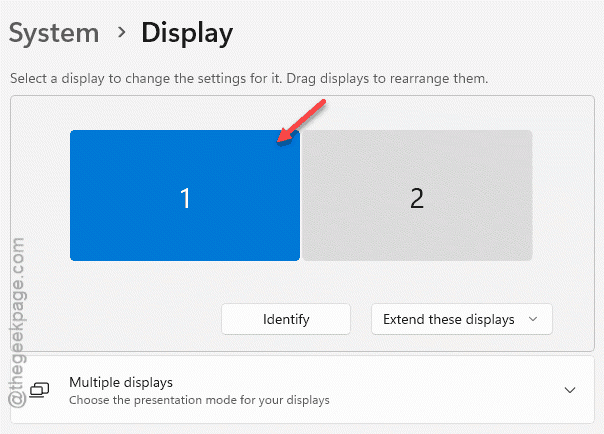
4 – Select Windows HD Color settings.
5 – Find the HDR/SDR brightness balance slider.
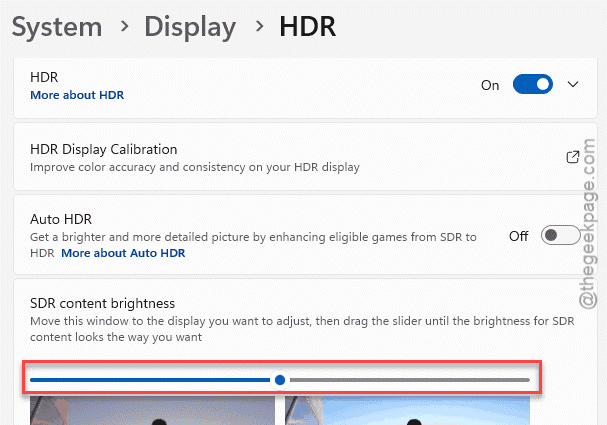
6 – Drag it until SDR content looks right next to HDR content. Go slow. Small moves.
That slider controls how bright regular (SDR) content appears while HDR mode is on. Too low and everything looks gray and lifeless. Find your balance and half the problem disappears.
Fix 2 – Stop Leaving HDR On All the Time
Honest advice: the Windows desktop gains nothing from HDR. Nothing. So don’t run it there.
Keep HDR turned off for everyday use. Then, when you’re about to play an HDR-capable game or watch HDR video, press Windows + Alt + B.
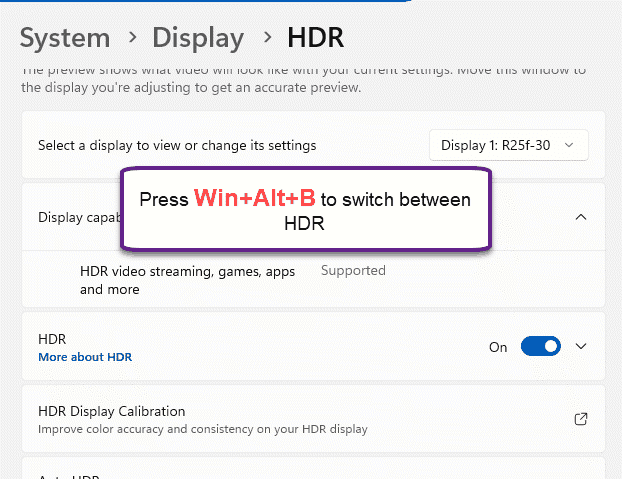
That shortcut toggles HDR on instantly. Game over? Press it again. Back to clean SDR.
Plenty of HDR gamers work exactly this way — desktop always SDR, HDR flipped on seconds before the game boots. Two keystrokes. And your desktop never looks washed out again, because it’s never in HDR mode to begin with.
Fix 3 – Set Up HDR on the Monitor Itself
Windows is only half the chain.
Open your monitor’s on-screen menu (the buttons or joystick on the monitor itself, usually bottom edge or back right) and check the HDR mode it’s using. Many monitors ship with several HDR presets. Some are accurate. Some are marketing — maximum saturation, maximum zones, maximum wow in a showroom. Pick the most neutral one and judge from there.
Results vary by monitor, honestly. Some QD-OLED and mini-LED panels work right out of the box.
Fix 4 – Install the Monitor Driver, ICC Profile, and Firmware
Sounds boring. Fixes a surprising number of HDR color problems.
1 – Go to your monitor manufacturer’s support page.
2 – Download the monitor driver for your exact model.
3 – Grab the ICC profile too, if they offer one, and install it in Windows.
4 – Check for a firmware update for the monitor itself.
5 – Install everything, then restart and re-test HDR.
The ICC profile tells Windows precisely how your panel handles color. Without it, Windows guesses. (And it guesses badly on unusual panels like multi-zone mini-LEDs.) One Alienware QD-OLED owner needed nothing more than the driver and a firmware upgrade — everything worked after that.
How to Prevent This
- Use Win + Alt + B as your HDR habit. On for games, off for everything else. Simple.
- Install the driver and ICC profile the day you unbox a new monitor. Not after the colors look wrong.
- Re-check the HDR/SDR balance slider after major Windows updates. It does not always survive them.
- Be suspicious of vivid factory presets. Neutral first, then adjust to taste.
People Also Ask
Why does HDR make my colors washed out?
Because Windows has to render SDR content inside an HDR signal, and the default translation is too dim and undersaturated on many displays. The fix is the HDR/SDR brightness balance slider in Windows HD Color settings. Adjust it and SDR content comes back to life.
Is HDR supposed to look oversaturated?
No. Oversaturation usually means the monitor’s HDR preset is cranked for showroom impact, or the tone mapping doesn’t match what Windows sends. Switch to a neutral preset and calibrate from there.
Can Auto HDR cause issues?
Yes. Auto HDR converts SDR games to HDR on the fly, and the conversion is only as good as your setup. On a miscalibrated display it amplifies every flaw — washouts, banding, crushed colors. Calibrate first. Or just toggle HDR per game with Win + Alt + B.