Sometimes, your old NVIDIA driver choke on Photoshop’s new Select Subject option. You click one button , the screen goes black, and the PC either freezes solid or reboots itself. Every time. If you’ve looked in Event Viewer, you may have seen the name nvlddmkm. So it’s a driver problem, not any other type of problem. Here are five fixes, in the order I’d try them to fix the issue.
Where This Comes From
Select Subject used to be a quick trick. In Photoshop 2026 it runs a proper AI model, and by default it runs that model on your graphics card. Heavy work. Normally Windows notices a stuck driver, resets it, and you get a black flicker. But with this workload the reset fails. And when a driver at that level fails, Windows doesn’t crash Photoshop. It crashes everything.
Adobe made it worse, honestly. Old licensing files (the NGL folders in your temp directory) and a corrupted plugin storage folder can both trip the same crash, because they hook into the moment Photoshop starts the GPU job. So you fix one thing and it still dies. Great.
The quickest way out? Stop running the model on your card at all. Adobe can run it in the cloud instead, and that’s Fix 1.
Fix 1 – Move Select Subject to the Cloud
One dropdown. This sends the heavy lifting to Adobe’s servers, so your graphics driver never touches it. But you need an internet connection when you click the button. That’s the only catch.
1 – Open Photoshop.
2 – Press Ctrl + K to open Preferences.
3 – Click Image Processing in the list on the left.
4 – Find Select Subject and Remove Background and change the dropdown from Device to Cloud.
5 – Click OK.
Try Select Subject on any photo. It takes a second or two longer than before (the image has to go up and come back), but the PC stays up. Leave it on Cloud until NVIDIA and Adobe sort themselves out. Could be a while.
Fix 2 – Clear the NGL Temp Files
NGL is Adobe’s licensing layer. It leaves folders in your temp directory, and old ones hang around long after they’re useful. Clearing them resets the licensing hooks that fire when Photoshop starts a GPU job. Takes a minute.
1 – Close Photoshop completely.
2 – Press Windows + R.
3 – Type this short code, and press Enter.
%temp%
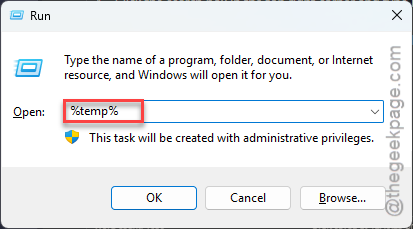
4 – Click the search box in the top right corner and type NGL.
5 – Select every folder with NGL in the name, then press Delete.
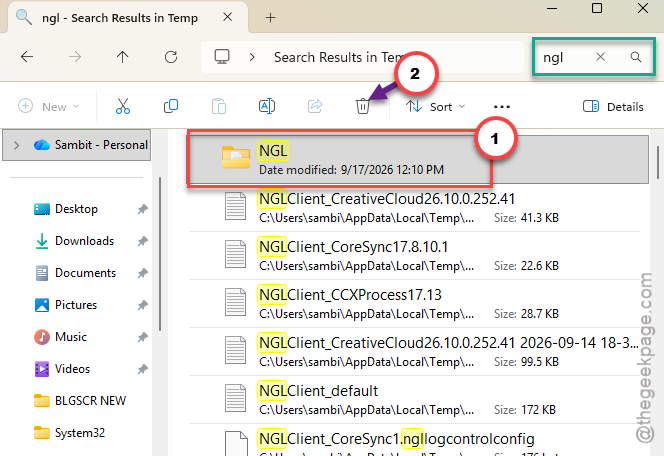
6 – Reopen Photoshop and test Select Subject.
Windows says a folder is in use? Skip that one. It belongs to something still running, and the rest still count.
Fix 3 – Reset the Plugin Storage Folder
Photoshop keeps its plugin data in a folder called PluginsStorage. When that folder goes bad, the crash shows up on GPU-heavy actions like this one, even if you never installed a single plugin. So we rename it instead of deleting it, and you can undo this if it doesn’t help.
1 – Close Photoshop.
2 – Press Windows + R.
3 – Paste this code, and press Enter.
%APPDATA%\Adobe\UXP\PluginsStorage\PHSP
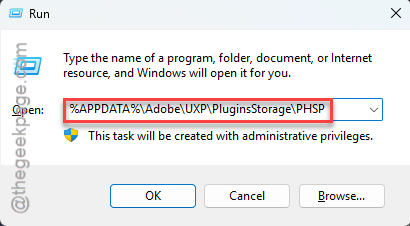
4 – Right-click the folder named 27 and click Rename.
5 – Change the name to 27.old and press Enter.
6 – Reopen Photoshop. It builds a fresh 27 folder on its own.
Any plugins you installed will need to be signed in or set up again. Annoying, but they aren’t gone. Their installers are still in the Creative Cloud app under Stock & Marketplace.
Fix 4 – Turn Off the Graphics Processor
Still crashing with Cloud on? Then something else in Photoshop is poking the driver. Turning off GPU acceleration takes the card out of the picture entirely. But Photoshop gets slower at zooming and some filters, so treat this as a temporary step while you do Fix 5.
1 – Press Ctrl + K in Photoshop.
2 – Click Performance on the left.
3 – Uncheck Use Graphics Processor under the Graphics Processor Settings heading on the right.
4 – Click OK.
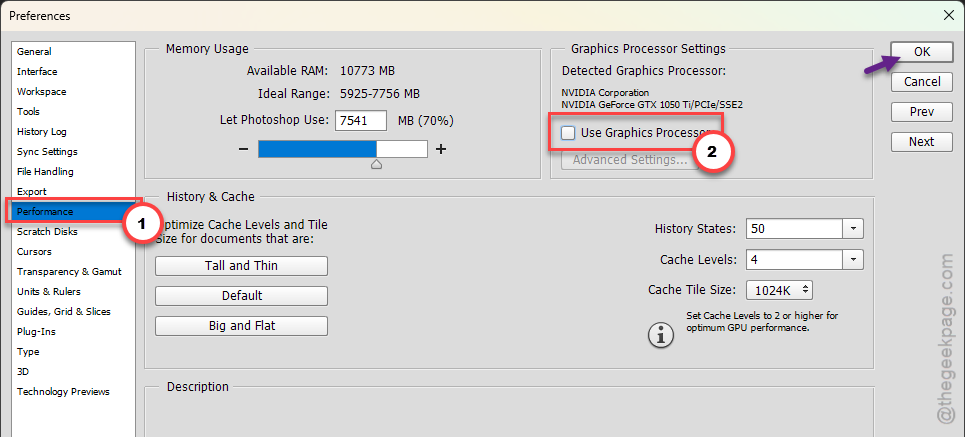
5 – Close and reopen Photoshop.
The change only fully applies after a restart of the app.
Fix 5 – Clean-Install the NVIDIA Driver With DDU
The permanent fix, and the one NVIDIA support will eventually tell you to do anyway. A normal driver update leaves old files behind.
1 – At first, download the latest NVIDIA Studio driver from NVIDIA. You need the Studio driver, not Game Ready, since you’re on Photoshop.
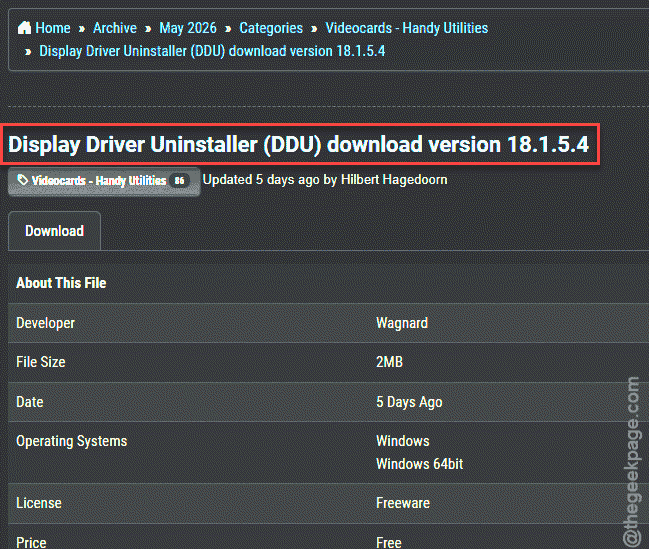
2 – Then, download the DDU from its official site, and unzip it.
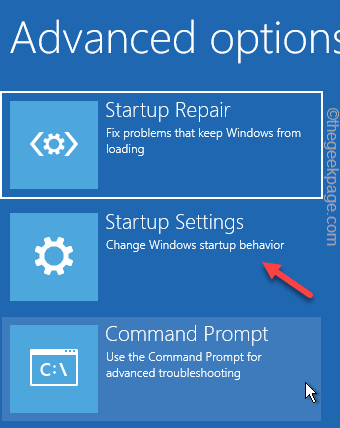
3 – Hold Shift and click Restart on the Start menu, then choose Troubleshoot.
Then, proceed this way –
Advanced options > Startup Settings
4 – After this, hit the Restart button, and then, press 4 to boot into Safe Mode.
4 – Next, load up the DDU tool. Select the GPU as the device type and choose the NVIDIA as the brand from the drop-down list.
5 – Click Clean and restart.
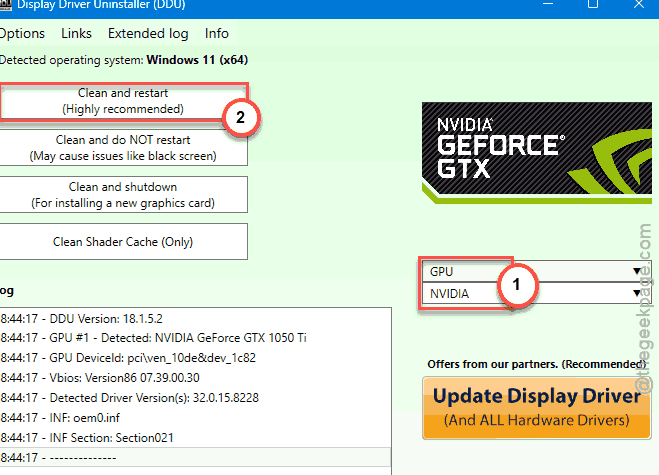
The screen will flicker and go to a low resolution. That’s expected.
6 – After the reboot, run the Studio driver installer you downloaded and pick Custom, then check Perform a clean installation.
7 – Restart once more, then turn Use Graphics Processor back on in Photoshop if you turned it off in Fix 4.
Whole thing takes about 20 minutes. Boring, but it clears the crash for good in most cases. And if a future driver brings it back, you’ll know exactly what to do.
Avoiding This Next Time
- Stay on the Studio driver, not Game Ready. Studio releases get tested against Adobe apps before they ship. Game Ready ones don’t.
- Wait a week before installing any new NVIDIA driver. Let the forums find the bad ones first.
- Keep Select Subject on Cloud if your card is more than a few years old. No shame in it. Adobe’s servers are faster than a tired GPU anyway.
- Clear the NGL temp folders every few months. Two minutes, and it heads off a bunch of weird Photoshop crashes, not just this one.
Quick Answers
Does Cloud processing for Select Subject cost extra?
No. It’s included with your Photoshop subscription. You do need an internet connection at the moment you click Select Subject or Remove Background, and each use takes a second or two longer while the image goes to Adobe’s servers and comes back. The result looks the same as the on-device version.
Will renaming the PluginsStorage folder delete my plugins?
Not the plugins themselves, just their settings and sign-in state. You can easily sign in later, when the Photoshop rebuilds the folder on your system. Check whether if this works.