You bought an NVMe SSD for speed. And your PC still takes one, two, sometimes three whole minutes to boot.
Makes no sense. The drive is fast. The boot isn’t. So something between the two is dragging. Let’s find it.
Why This Happens
Basically? The slow part usually isn’t the SSD itself. It’s everything around it.
An old Windows install left on a second drive — say an HDD you never wiped — can confuse the boot loader. It hunts for the right partition. That hunting costs you time.
And pending updates do it too. Windows sometimes finishes installing them during boot. For some reason, that can stall things badly. Corrupted system files? Same story.
But the good news. Almost all of this is fixable without touching the hardware. So let’s go through it.
Fix 1 – Install Every Pending Windows Update
Half-finished updates love to slow down boot. Clear them out first.
1 – Press Windows + I to open Settings.
2 – Go to Update & Security (on Windows 11 it’s just Windows Update in the left sidebar).
3 – Click Check for updates.
4 – If it says You’re up to date — great, move on. If it lists anything, click Download and install.
5 – Let it finish, then restart. Maybe twice. Some updates need a second reboot to settle.
And give it time on that first reboot after updating. It might be slow once. Then quick after.
Fix 2 – Repair Corrupted System Files
If updates didn’t help, broken system files might be the cause. Two commands fix most of that.
1 – Press Windows + X and pick Terminal (Admin) or Command Prompt (Admin).
2 – Click Yes on the prompt.
3 – Type this and press Enter:
sfc /scannow
4 – Wait for it to hit 100%.
5 – Then type this and press Enter:
Dism /Online /Cleanup-Image /RestoreHealth
6 – Let it finish (it can crawl at 20% — don’t panic, leave it).
7 – Restart the PC.
Run them in that order. SFC checks the files. DISM repairs the underlying image they pull from.
Fix 3 – Get Rid of the Old Windows Install
Got Windows on an old HDD as well as your NVMe drive? That’s a classic cause. The boot manager doesn’t always know which one to use.
The cleanest fix is to make sure your PC boots straight from the NVMe drive — and only that drive.
1 – Restart and tap Delete or F2 as it powers up to enter the BIOS (the key flashes briefly on screen).
2 – Find the Boot menu.
3 – Set your NVMe SSD as the first boot device.
4 – Save and exit (usually F10).
If you don’t need the old install at all? Back up anything important off that HDD, then wipe its old Windows partition later. One Windows install. One headache gone.
Fix 4 – Turn On Fast Startup
Try enabling the Fast Startup on your machine.
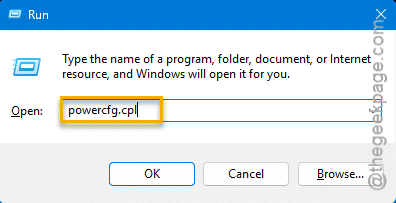
1 – Press Windows + R, type powercfg.cpl, and press Enter.
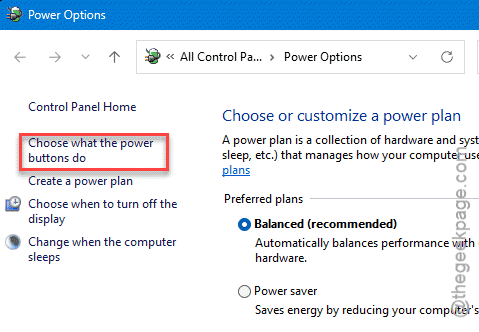
2 – Click Choose what the power buttons do on the left.
3 – Click Change settings that are currently unavailable at the top.
4 – Tick Turn on fast startup.
5 – Click Save changes.
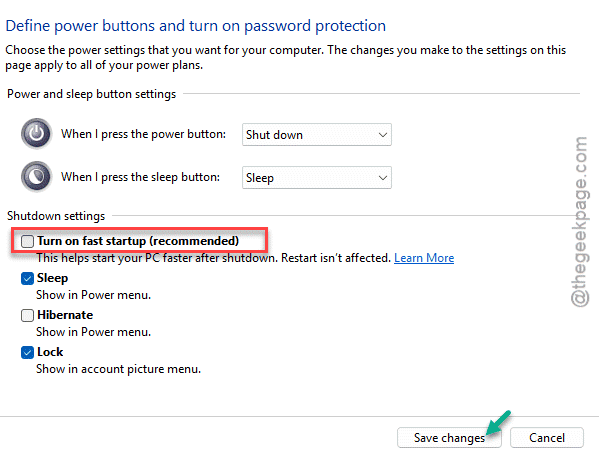
Works for most people.
Fix 5 – Trim the Startup Apps
Your SSD might be ready in seconds. But a pile of startup programs keeps the desktop hostage long after.
1 – Press Ctrl + Shift + Esc to open Task Manager.
2 – Click the Startup apps tab on the left.
3 – Look at the Startup impact column.
4 – Right-click anything marked High that you don’t need at launch, and choose Disable.
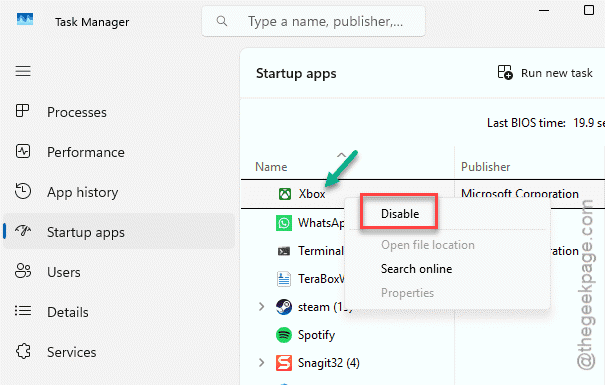
Disabling them doesn’t uninstall anything. It just stops them launching the instant you log in. You can still open them whenever.
Fix 6 – Optimize the Drive
Last one. Windows can re-optimize your drive, and on SSDs it runs the right kind of cleanup automatically.
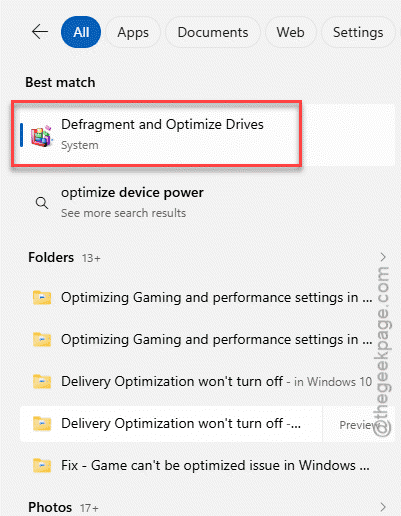
1 – Type Defrag in the taskbar search box.
2 – Open Defragment and Optimize Drives.
3 – Click your NVMe SSD in the list.
4 – Click Optimize.
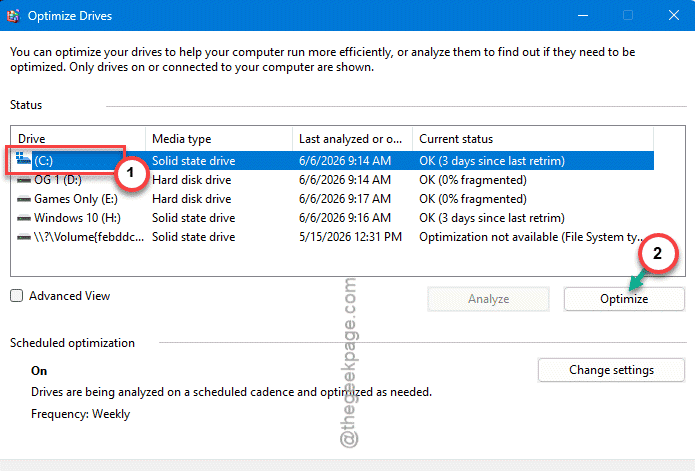
Don’t worry — Windows knows it’s an SSD and runs TRIM, not old-school defragmentation. So it won’t wear the drive out.
How to Prevent This
– Keep only one Windows install. A leftover copy on an old HDD is the number-one boot-slowing culprit.
– Stay current on updates. Don’t let a backlog pile up and finish itself during boot.
– Check startup apps every few months. They creep back. Trim them.
People Also Ask
Why is my SSD taking so long to boot?
Usually it’s not the SSD. A leftover Windows install on another drive, pending updates finishing during boot, or corrupted system files are the common causes. Too many startup apps make it feel slow even after the drive’s ready.
Can an SSD cause boot issues?
It can, but it’s rarer than people think. A failing SSD or outdated firmware can stall boot. Far more often the slow boot comes from software — old Windows installs, updates, startup clutter. Update the firmware and rule out the software side first. The drive itself is usually fine.