Another OBS update, another overlay to rebuild. OBS Version 31 shipped with a group bug, and it’s a mean one. You toggle a source inside a group, or just hop between preview and program, and the whole group shrinks. It sometimes streches or jumps three hundred pixels to the left. Your stream alert ends up half off the canvas. Lovely.
What’s Actually Going On
Groups in OBS don’t store a real size for each child. They store relative positions, a bit like saying “the webcam sits 20 percent in from the left edge of the group.” Fine when nothing changes.
But something always changes. A source updates its native resolution. Windows nudges the window onto a monitor with different scaling. And OBS 31 does the math again from scratch, slightly wrong, every single time. That’s the bug (it’s logged on OBS’s GitHub).
Wondering why version 30 was fine? Different math. The 31 rewrite of the group coordinate code is where it went sideways.
So the fixes below either pin sizes down hard, or sidestep groups entirely.
Fix 1 – Pin Down the Bounding Box
A bounding box is a fixed frame you force a source into. Set one. And OBS will not recalculate it.
1 – At first, right-click the group in the Sources dock and choose Transform, and choose Edit Transform (or press Ctrl + E).
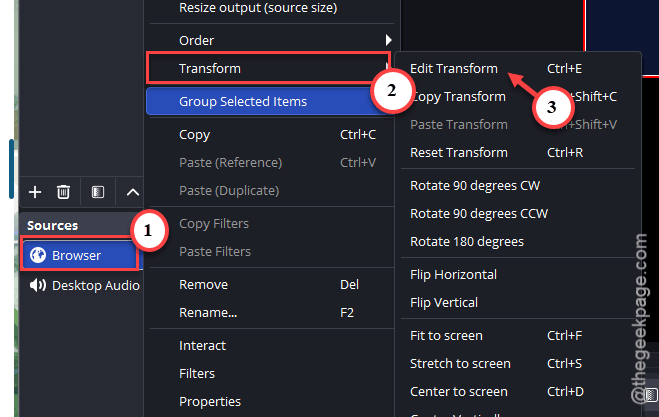
2 – Then, change Bounding Box Type from No bounds to Scale to inner bounds feature.
3 – Next, type your real canvas size into Bounding Box Size, like 1920 by 1080.
4 – Finally, close the box, then do the same for each source inside the group.
5 – Next, right-click the group and choose Lock (the padlock icon does the same thing).
Typing the numbers matters. Dragging the corners is exactly what triggers the bad math, so do not touch them.
Fix 2 – Replace the Group With a Nested Scene
This is the real fix, honestly. It renders as one flat image. So the children can’t drift.
1 – At firt, right-click the group, and choose Ungroup.
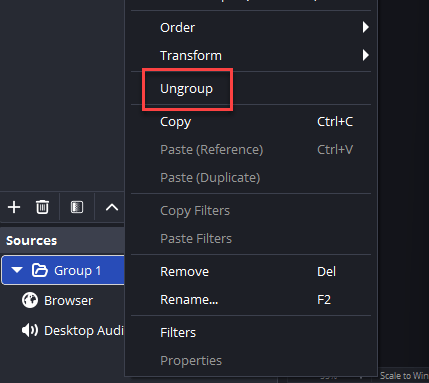
2 – In the Scenes dock at the bottom left, tap the + and name a new scene, like Overlay_Container.
3 – Move your overlay sources into that scene and size them there.
Then, switch back to your main scene.
4 – Later, click + under Sources, and choose Scene.
5 – Finally, choose Overlay_Container from the list.
Filters and transforms go on the nested scene now. Everything inside stays put.
Fix 3 – Match the Output Resolution to the Canvas
Mismatched canvas and output sizes make OBS run a downscale on every grouped transform. Not sure if that’s you? Check.
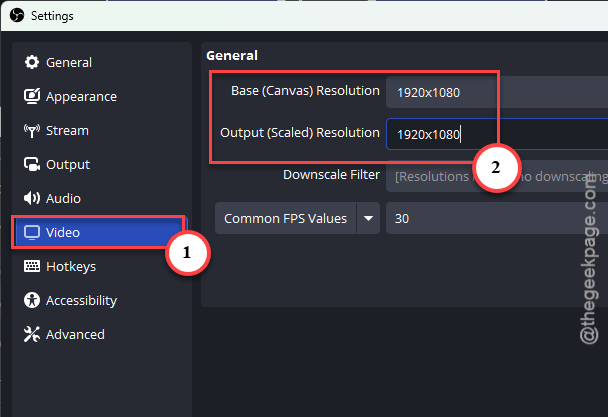
1 – Click Settings in the bottom right, then Video.
2 – Look at Base (Canvas) Resolution.
3 – Set Output (Scaled) Resolution to the exact same numbers.
4 – Set Downscale Filter to Bicubic or Lanczos.
5 – Click Apply, then restart OBS.
You won’t lose anything here. If you need a smaller stream, rescale it under the Output tab instead.
Fix 4 – Fix the DPI Scaling on obs64.exe
Change the high DPI scaling feature for the OBS app.
1 – Close OBS fully.
2 – Now, open the File Explorer and reach there:
C:\Program Files\obs-studio\bin\64bit
3 – Right-click obs64.exe and choose Properties.
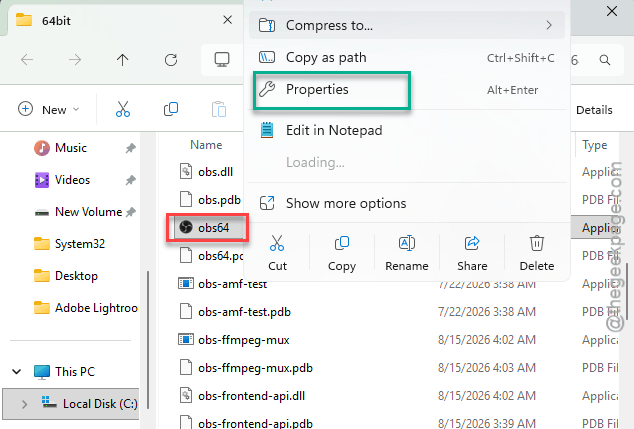
4 – Go to the Compatibility tab and choose the Change high DPI settings feature.
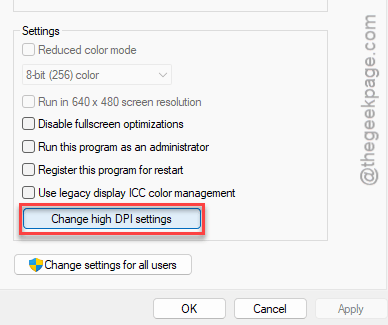
5 – Finally, tick Override high DPI scaling behavior. Don’t forget to set the dropdown to Application.
6 – Click OK, then Apply, and open OBS.
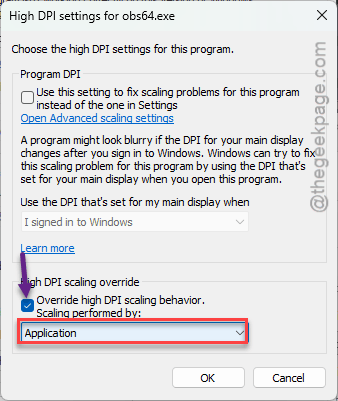
The OBS window might look a touch smaller on your scaled monitor (that’s the override working). And your groups should stop jumping.
Fix 5 – Rebuild the Scene Collection
Upgraded from 30 and the groups came along for the ride? The old collection carries the old math.
1 – Click Scene Collection in the top menu bar, pick New,
2 – Build your scenes again from scratch in 31.
Tedious, I know (budget half an hour for a busy layout). But the groups you create fresh behave.
Fix 6 – Test Without Plugins
Transform plugins can make the bug worse.
1 – Download the OBS zip from OBS webpage.
2 – Then, unzip it to a new folder, and drop an empty file named portable_mode.txt inside that folder.
3 – Run obs64.exe from there.
4 – That’s portable mode, and it starts clean with none of your plugins loaded.
Groups behave now? One of your plugins is stirring the pot. Update it, or remove it.
Fix 7 – Go Back to OBS 30.2.3
Nothing above sticking? The last version 30 release, 30.2.3, doesn’t have the group bug. Roll back until a hotfix lands.
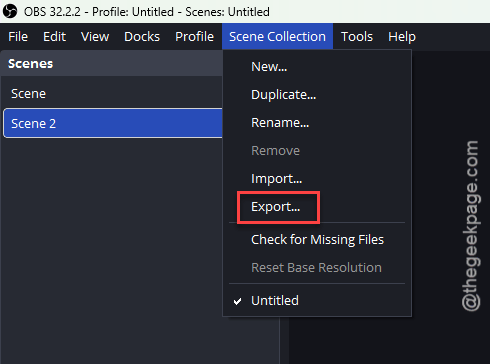
1 – Click Scene Collection, then Export, so you don’t lose your layout.
2 – Uninstall OBS Studio 31 from Settings, then Apps.
3 – Download 30.2.3 from the OBS GitHub releases page.
4 – Install it and import your scene collection.
Not ideal. But it works today, and your overlays stay the size you made them.
Avoiding This Next Time
- Type transform numbers in. Never drag a grouped source’s corners. Period.
- Build new overlays as nested scenes from the start. Groups are convenient. They’re also the thing that breaks.
- Keep canvas and output at the same resolution, and let the encoder do the shrinking.
- Hold off on a major OBS version for a few weeks. Let someone else find the bugs (there are always bugs).
Quick Answers
How do I resize a source in OBS without breaking it?
Skip the corner handles. You can choose the . Typed values stay put. Dragged ones get recalculated, which is where the 31 bug bites.
Is this an OBS 31 bug or something I did?
It’s the bug. OBS 31 changed how groups turn child positions into real pixels, and the new code drifts whenever a source changes resolution or the window moves between monitors. It is tracked on the OBS GitHub. Nested scenes and locked bounding boxes work around it until a hotfix ships.