You click Paint. And wait. And wait. The loading circle just spins. Sometimes it opens after 30 seconds. Sometimes it never opens at all. This is a Windows 11 thing. And it’s been driving people crazy.
Why This Happens
Basically? Microsoft replaced the old lightweight Paint with a bloated Store app. The new version loads web frameworks. Checks licensing. Syncs with your Microsoft account. All before the window even shows up.
And if the Store cache is bloated — which it almost always is — Paint gets stuck checking for updates on launch. Every single time.
The old Paint opened instantly because it was basically nothing. The new one has all this overhead. No idea why they made a simple drawing app this heavy. So yeah. That’s why.
Fix 1 – Kill Background Paint Processes
Sometimes Paint gets stuck from a previous session. And that old process blocks the new one from opening.
1 – Press Ctrl + Shift + Esc to open Task Manager.
2 – Click the Processes tab.
3 – Look for Paint or mspaint.exe. Check both the apps section and background processes — scroll down.
4 – Right-click it.
5 – Click End task.
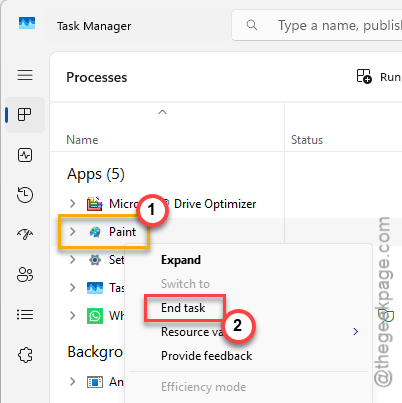
6 – Now try opening Paint again.
If it opens fast now? The old process was the problem. Classic.
Fix 2 – Terminate and Repair Paint
Corrupted app data makes Paint choke on startup. Windows has a built-in fix for this.
1 – Open Settings.
2 – Click Apps.
3 – Click Installed apps.
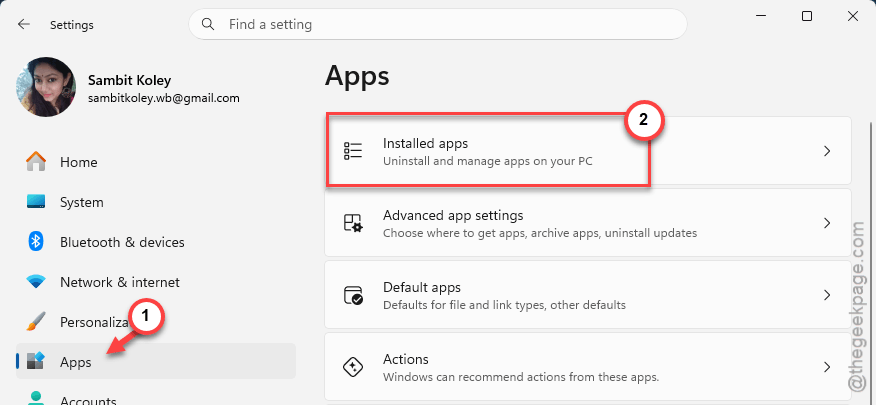
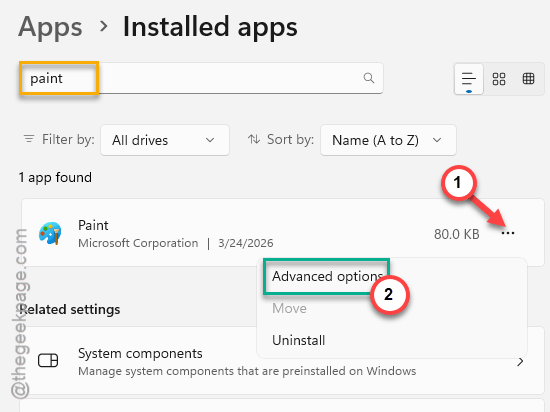
4 – Find Paint in the list.
5 – Click the three dots next to it.
6 – Select Advanced options.
7 – Click Terminate first. This fully stops the app.
8 – Then click Repair.
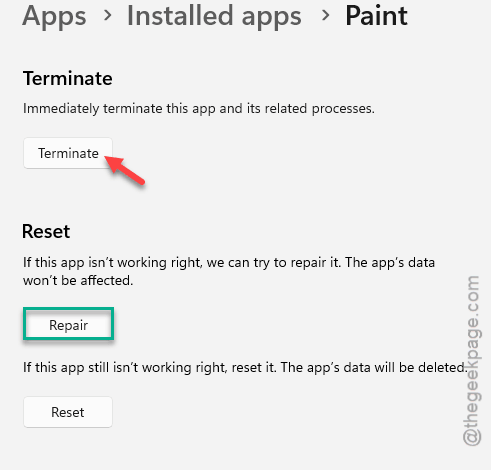
Takes about 30 seconds. And if it’s still slow after that? Come back to this same screen and hit Reset instead. More aggressive (but it will not delete your saved files).
Fix 3 – Clear the Microsoft Store Cache
Quick fix. The Store cache gets bloated over time and slows down every Store app. Including Paint.
1 – Press Win + R to open the Run dialog.
2 – Type:
wsreset.exe
3 – Press Enter.
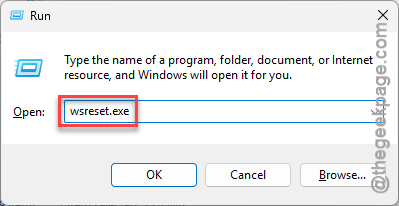
4 – A blank command window opens. Just wait for it to close on its own.
That’s it. This clears the junk Paint gets hung up on—including those licensing checks. Honestly, everyone should run this monthly. It just builds up.
Fix 4 – Reinstall Paint from Settings
Still painfully slow? Full reinstall.
1 – Open Settings.
2 – Go to Apps.
3 – Click Installed apps.
4 – Find Paint.
5 – Click the three dots.
6 – Hit Uninstall. Confirm it.
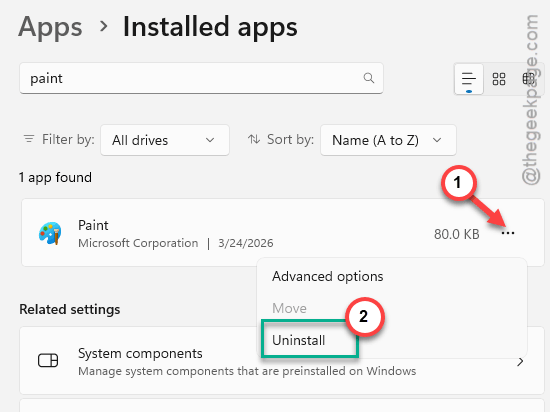
7 – Restart your PC. Do not skip this.
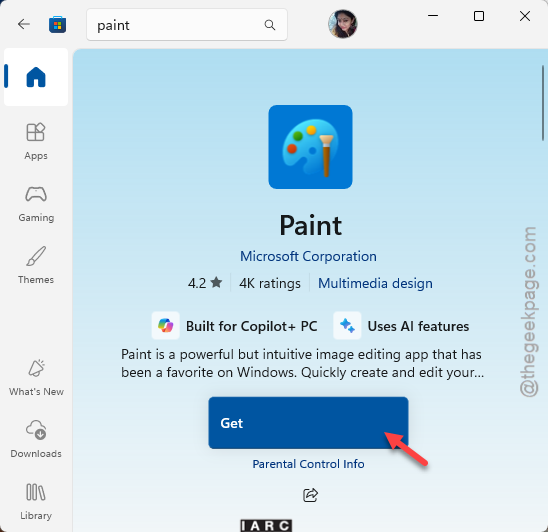
8 – Open the Microsoft Store.
9 – Search for Paint.
10 – Click Get.
And if Paint doesn’t show up in Installed apps at all, check this instead: go to Settings, then Apps, then Optional features. Find Paint there. Uninstall it. Restart. Then add it back from the same page. Same deal.
Fix 5 – Check Your Hard Drive
Still slow after everything? Your storage might be the bottleneck.
1 – Press Win + R.
2 – Type dfrgui
3 – Press Enter.
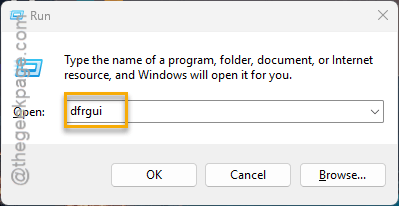
4 – Check the Media type column. If it says Hard disk drive — that’s probably your problem.
5 – Select the drive.
6 – Click Optimize.
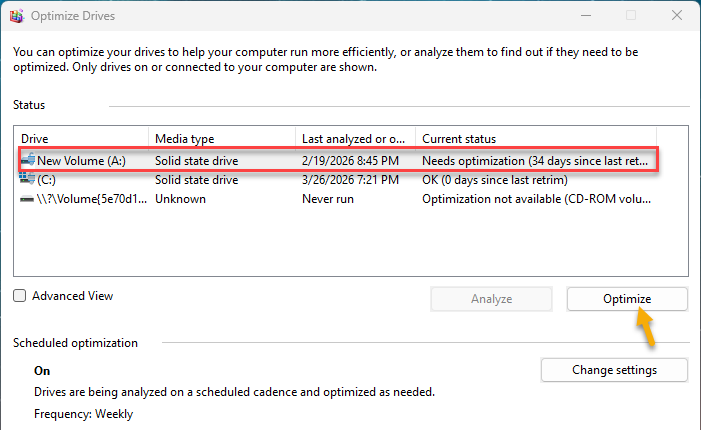
But honestly? If you’re on a spinning HDD in 2026, upgrading to an SSD fixes way more than just Paint. Night and day difference.
How to Prevent This
- Keep Paint updated through the Microsoft Store. Performance fixes ship regularly.
- Run wsreset.exe once a month. Clears Store junk before it builds up. Takes two seconds.
- Don’t let 20 apps run at startup. Fewer background apps means faster launches for everything.
- If you’re on a HDD, seriously consider an SSD. Biggest single upgrade you can make.
People Also Ask
How to fix MS Paint not opening?
Kill background Paint processes in Task Manager first. Then repair or reset through Settings > Apps > Paint > Advanced options. Still broken? Reinstall from the Store.
How do I fix Windows taking too long to start?
Disable startup apps in Task Manager. Run Disk Cleanup. And if you’re on a hard drive? SSD. That’s the real answer.