Your VMs behave all morning. Then the load ramps up. And packets start corrupting through the Hyper-V NAT switch.
Connections stutter. Throughput drops. But only when it’s busy — quiet hours look perfect. Maddening to chase. So let’s chase it properly.
Why This Happens
Short version: it’s rarely Hyper-V. It’s the physical network card sitting underneath it.
NICs try to be helpful. They offload jobs off the CPU — checksums, splitting large packets, queueing across cores. Fine when traffic’s light. But hammer them at peak and some of those offload paths start mangling frames as they cross the virtual switch. Checksums come out wrong. Data arrives broken.
And VMQ is the prime suspect. Virtual Machine Queue spreads load across cores, but plenty of drivers — older Intel and Broadcom ones especially — botch it under pressure. Why only at peak? Because that’s when every offload path gets slammed at once.
So the fix is mostly about switching off the flaky offloads. Let’s go.
Fix 1 – Update the NIC Driver From the Vendor
Start at the root. A stale driver is behind a huge share of these offload bugs. But don’t trust Windows Update here — go straight to the source.
1 – Open Device Manager and note your exact NIC model.
2 – Head to the vendor’s site — Intel, Broadcom, Realtek, whoever built it.
3 – Grab the latest driver for that exact model and your Windows Server version.
4 – Install it and reboot.
Windows Update tends to ship a generic, older driver — often missing the very fix you’re after. The vendor’s build is the one that counts.
Fix 2 – Disable VMQ on the Physical NIC
If a fresh driver didn’t settle it, kill VMQ next. On a single host it costs you almost nothing.
1 – Open PowerShell as admin. Press Windows + X, choose Terminal (Admin).
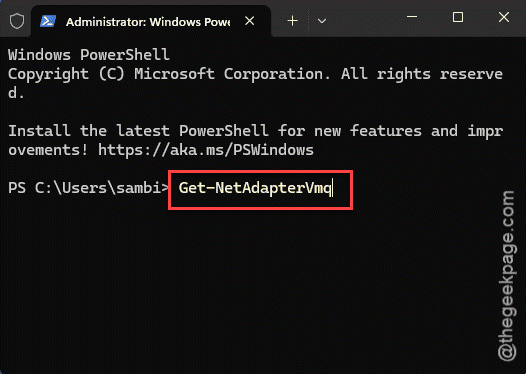
2 – Check the current state:
Get-NetAdapterVmq
3 – Spot the physical NIC bound to your virtual switch.
4 – Disable it (swap in your adapter’s real name):
Disable-NetAdapterVmq -Name "Ethernet"
5 – Run a load test during a busy window.
Prefer clicking? Open the NIC in Device Manager, go to the Advanced tab, set Virtual Machine Queues to Disabled. Same outcome.
Fix 3 – Turn Off TCP Offload Features
VMQ wasn’t it? The offload engine is next in line. Large Send Offload and checksum offload corrupt frames more than anything else under strain.
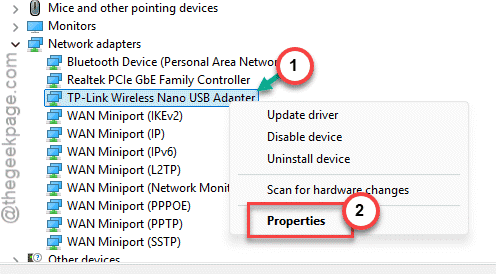
1 – In Device Manager, expand Network adapters.
2 – Right-click your physical NIC, choose Properties.
3 – Open the Advanced tab.
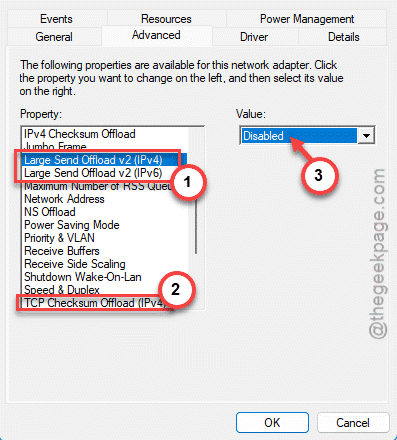
4 – Set Large Send Offload V2 (IPv4) to Disabled.
5 – Do the same for Large Send Offload V2 (IPv6).
6 – Set TCP Checksum Offload and UDP Checksum Offload to Disabled as well — both IPv4 and IPv6.
You trade a sliver of CPU efficiency. So be it. Correct packets beat fast-but-broken ones. And on a modern CPU you won’t feel it.
Fix 4 – Disable RSC on the Virtual Switch
Receive Segment Coalescing bundles incoming packets to save CPU. Nice idea. But it’s caused throughput and corruption grief on Hyper-V switches for years.
1 – Open PowerShell as administrator.
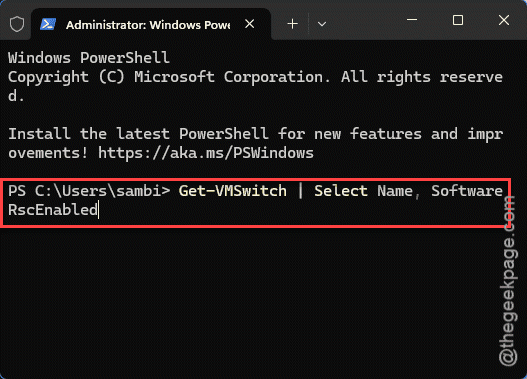
2 – Check the setting:
Get-VMSwitch | Select Name, SoftwareRscEnabled
3 – Disable it:
Set-VMSwitch -Name "YourSwitchName" -EnableSoftwareRsc $false
4 – Run another load test through the NAT switch.
Corruption clears at peak? RSC was the culprit. Leave it off and move on.
Fix 5 – Match MTU and Jumbo Frames End to End
Mismatched packet sizes cause fragmentation. And fragmentation under load looks exactly like corruption. Worth ruling out before you call it solved.
Quick check. In Device Manager, open the NIC’s Advanced tab and find Jumbo Packet. If it’s on for the host but not for the VMs, switches, and router in the path, frames get chopped. Either enable jumbo frames everywhere along the route with the same MTU top to bottom — or turn them off everywhere and stick to the standard 1500. Don’t leave it half-on. That mismatch is what bites you the moment traffic spikes.
How to Prevent This
– Pull NIC drivers from the vendor, not Windows Update. Stale drivers cause most offload bugs. Period.
– On hosts with iffy NICs, disable VMQ up front. Easier than chasing corruption later.
– Keep MTU and jumbo settings identical across every hop. One mismatch fragments traffic under load.
– Always load-test before going live. A switch that’s flawless when idle can still fall apart at peak.
People Also Ask
Why does Hyper-V drop packets under heavy load?
Almost always the physical NIC’s offload features. VMQ, Large Send Offload, and checksum offload all chase speed, but flaky drivers corrupt frames once traffic spikes. Light load never triggers it. Disabling VMQ and the offloads on the host adapter clears it up most of the time.
Should I disable VMQ on Hyper-V?
On a single host with a problematic NIC — often, yes. VMQ helps spread load on big multi-NIC servers, but on 1Gb adapters and older drivers it causes more trouble than it’s worth. Seeing corruption or drops at peak? Disable it and test. The performance hit is tiny.
Does disabling TCP offload hurt performance?
A little, in theory. Offloading moves work off the CPU, so turning it off nudges CPU usage up. But on any modern processor the difference is negligible. And a slightly busier CPU beats corrupted packets and dropped connections. For most setups it’s a trade worth making.