You right-click Command Prompt. You pick Run as administrator. And Windows throws back access denied.
Or the option does nothing at all. Either way you’re stuck — half the useful commands need that elevated window. So let’s get it back.
Why This Happens
Basically? Something is blocking the jump from regular user to admin.
On Pro and Enterprise machines, a Group Policy rule can quietly forbid the elevation prompt. No warning. It just refuses. And the Application Information service handles that whole escalation — if it’s stopped, nothing elevates.
Sometimes it’s your own account. If your profile slipped out of the Administrators group somehow, Windows won’t hand you the keys. And every so often it’s antivirus — overzealous security software locking files and blocking access for “suspicious behaviour.”
So we check the policy, the service, your account, and a couple of backdoor ways in. One clears it.
Fix 1 – Restart the Application Information Service
This service runs every “run as administrator” request. If it’s dead, elevation dies with it. Quick to check.
1 – Press Windows + R, type services.msc, and press Enter.
2 – Scroll down to Application Information.
3 – Check its status. If the service has not started yet, right-click that and choose Start. If it’s already running, choose Restart.
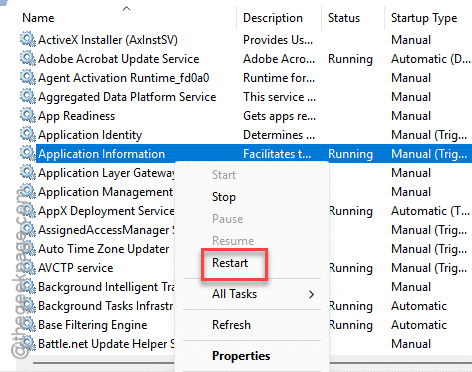
4 – Now, right-click it again, choose Properties, and fix the Startup type to Automatic.
5 – Click OK.
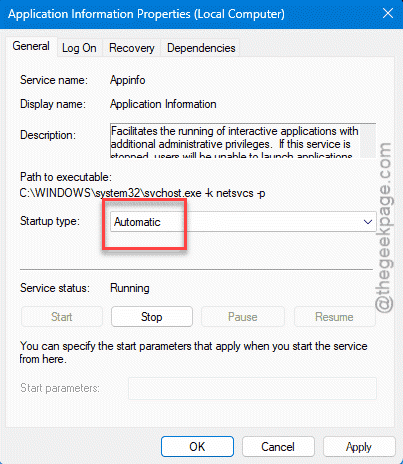
Now try running Command Prompt as admin again. For a lot of people, that’s the whole fix.
Fix 2 – Launch It From Task Manager
If the Start menu shortcut is the broken part, go around it. Task Manager can launch an elevated window directly.
1 – At first, press the Ctrl + Shift + Esc to open Task Manager.
2 – Click Run new task at the top. (On older builds it’s File > Run new task.)
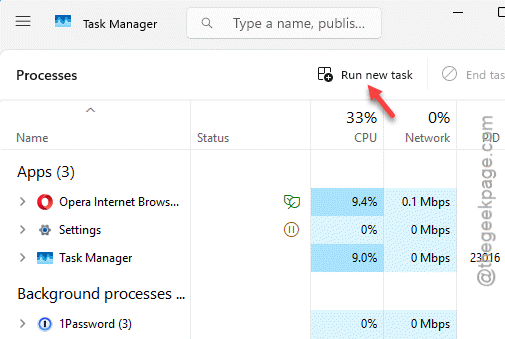
3 – Type cmd in the box.
4 – Tick Create this task with administrative privileges.
5 – Click OK.
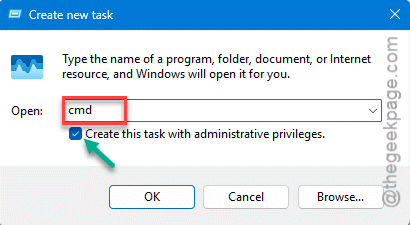
Done. An elevated Command Prompt, no right-click menu involved. Worth knowing even when everything’s working.
Fix 3 – Confirm Your Account Is an Administrator
If your profile lost its admin status, no trick will elevate it. Let’s verify it first.
1 – Press Windows + R, write this, and press Enter:
netplwiz
2 – Click your username in the list.
3 – Click Properties.
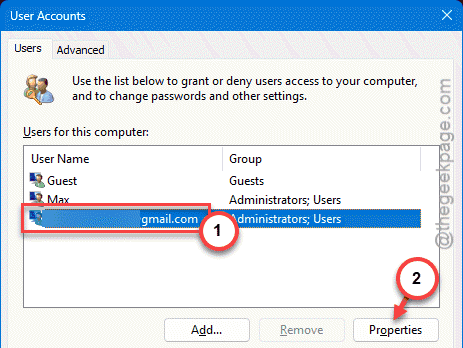
4 – Open the Group Membership tab.
5 – Make sure Administrator is selected.
6 – Click OK, then OK again, and sign out and back in.
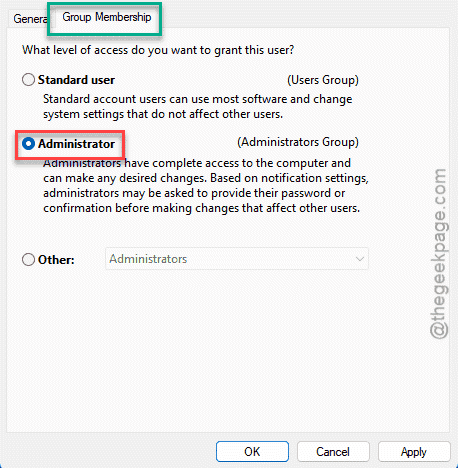
If your account was a standard user the whole time, that explains everything. And the change needs that sign-out to take effect.
Fix 4 – Check Group Policy (Pro and Enterprise)
Group policies can block the user access to the shell terminal.
1 – Press Windows + R, type this and press Enter:
gpedit.msc
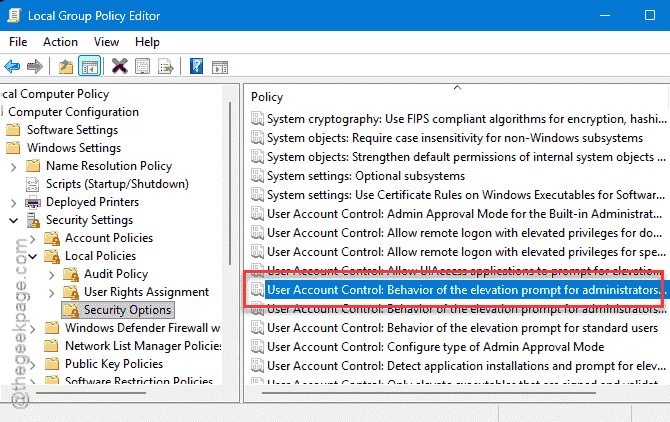
2 – Go to
Computer Configuration > Windows Settings > Security Settings > Local Policies > Security Options
3 – Find User Account Control: Behavior of the elevation prompt for administrators.
4 – Double-click it.
5 – Set it to Prompt for consent (or Prompt for credentials).
6 – Click Apply, then OK.
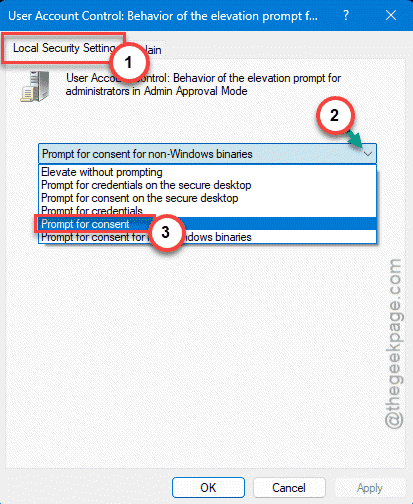
If it was set to Elevate without prompting or some locked-down value, that was the blocker. This puts the normal prompt back.
Fix 5 – Whitelist It and Run cmd.exe Directly
Two quick last resorts. First, your antivirus might be the culprit — tools like Malwarebytes can lock files and block elevation as “suspicious behaviour.”
1 – Open your security app. Then, find the folder protection or exploit settings.
2 – Then, whitelist the folder you’re working in (or temporarily pause protection to test).
You can also try this approach –
1 – Open File Explorer.
2 – Reach this point –
C:\Windows\System32
3 – Go straight to the search box at the top right and seach for cmd.exe.
4 – Next, right-click the actual executable file, and choose Run as administrator.
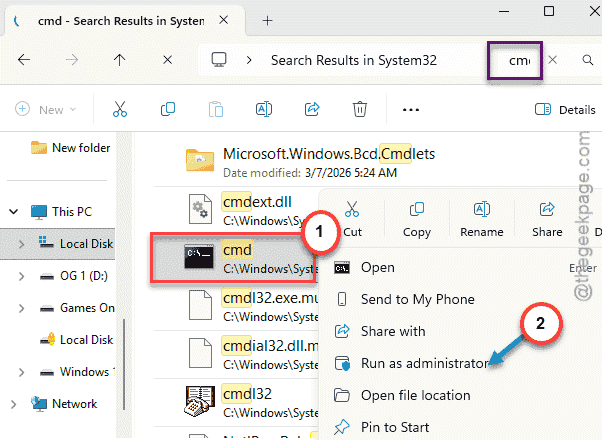
Launching the real file bypasses a broken shortcut that’s failing to pass the admin token.
How to Prevent This
– Keep the Application Information service on Automatic. It’s the engine behind every elevation — don’t let it stop.
– Whitelist your dev and build folders in your antivirus. Saves you from random “access denied” lockouts.
– Don’t fiddle with UAC group policies unless you have to. A wrong setting quietly kills elevation.
– Keep at least one confirmed admin account. Always. Losing admin access is a nightmare to undo.
People Also Ask
How do I fix Command Prompt not running as administrator?
The best method is to access the terminal as an administrator from the Task Manger. That bypasses a broken shortcut. Otherwise, try disabling the group policy that is causing this issue.
How do I open CMD when it’s blocked by admin?
If your PC or laptop is managed by the IT Admin, an imposed group policy is restricting you from accessing the shell. You’ll have to contact the IT team and ask them to disable the policy for your account for you to access it.