Does the iOS and system data taking too much space on the device? The constraints of your iPhone’s storage can be felt whenever you get an iOS update, which ranges anything from 15-20 GB in size and require additional 10 GB of recommended free space for a smooth installation. Normally, it is the residual iOS files left on the disk that occupies the disk space on your iPhone.
Fix 1 – Clear Safari Data from iPhone
Deleting excess Safari web data from your iPhone should clear up more space.
Step 1 – On your iPhone Settings page, proceed to the Apps tab.
Step 2 – Load up the Safari settings from there.
Step 3 – Next, use the Clear History and Website Data option there to clean up the website data.
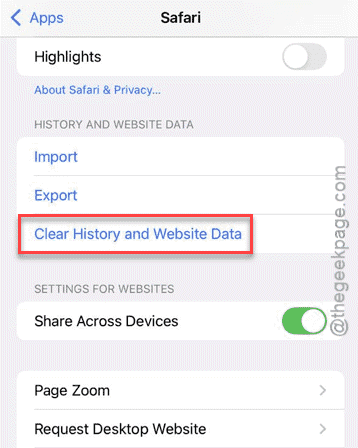
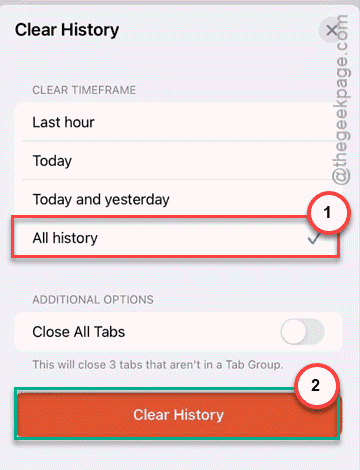
Step 4 – Select All history from there, and use the Clear History function to clear the Safari web history.
After clearing it up, go back to the iPhone storage page. Check the current status of the storage condition of your iPhone. You will find a lot of free space has opened up since clearing the Safari web data.
Fix 2 – Force Restart your iPhone
If this is just a cached memory, a hard restart of your iPhone should fix the issue.
Step 1 – At first, press the Volume Up button once.
Step 2 – Next, press-release the Volume Down button next.
Step 3 – Finally, hold down the Power button of the iPhone for 10–15 seconds. You can release the button only when the Apple Logo appears.
After executing this force restart procedure should fix your issue.
Fix 3 – Uninstall and reinstall large apps
On iOS, you can’t remove the appdata from big apps. So, the best way to tackle the low space issue is to uninstall and reinstall such big apps from your iPhone.
Step 1 – Load up the Settings page on the iPhone and head this way –
General ⇾ iPhone Storage
Step 2 – In the iPhone Storage function, set the filter to Size.
Step 3 – Tap the top app in that list that is taking up too much space.
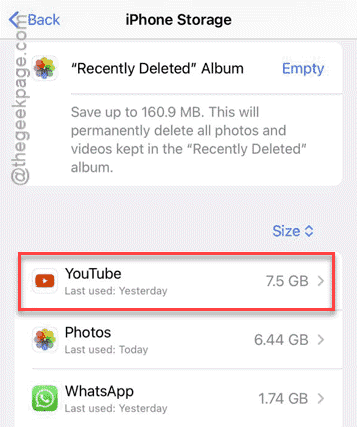
Step 4 – Next, choose to Offload or Delete the app.
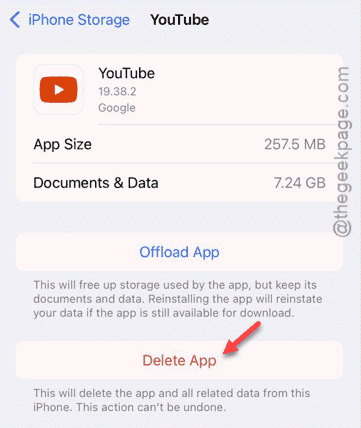
Step 5 – This way, offload/delete other big apps in that list to free up more space.
Step 6 – Now, go to App Store and reinstall all the apps that you have uninstalled.
This way, you will save a lot of space otherwise occupied by the cached app data.
Fix 4 – Connect to iTunes and hard reset
This workaround has worked out for many affected users.
Step 1 – Connect your iPhone to the PC or MacBook. Load up the iTunes app on your system and connect your iPhone through it.
Step 2 – Lock your iPhone and keep the device plugged in.
Step 3 – Next, eject the device from your PC and then, do the force-restart procedure we have mentioned before (Fix 2).
After hard resetting the iPhone, you will save a lot of space on your iPhone.
How to clear app cache on iPhone?
You can’t directly clear the app cache of the apps on your iPhone, as it does not offer any such options. To clear the app cache, you have to uninstall or offload the app from your iPhone, and reinstall the app. This will empty the app cache on your iPhone.
How much free space do you need on your iPhone?
Your iPhone requires at least 2 GB to operate regular daily tasks, but certain high-end games or apps may require an additional 5 GB free space to function smoothly. But, to update your iPhone, you require at least 10 GB of free space to download and install the update.