Another Patch appeared on your device, another security switch that won’t switch. This time it’s Smart App Control. You turned it off for some reason. Maybe an installer complained. Now you want it back on, and the On option just sits there, gray and unclickable. It can be extremely frustrating?. Very, especially when you’re the one who turned it off. But it’s fixable.
What’s Actually Going On
Smart App Control is the part of Windows Security that blocks apps it doesn’t recognize or trust. Normally you can flip it off and on in a couple of clicks.
Then the October update (KB5127648) arrived. And Microsoft has confirmed it as a known issue: after that update, a hidden feature setting locks Smart App Control in whatever state it was in. So if yours was off, it stays off. The toggle isn’t broken, exactly.
The Windows Security screen reads that lock and grays the button out, without telling you about it.
Fix 1 – Install the Latest Update
Start here. Microsoft knows about the bug. And the newest patch is the cleanest way out.
1 – Press Windows + I to open Settings.
2 – Click Windows Update at the bottom of the left sidebar.
3 – Click Check for updates on the right side.
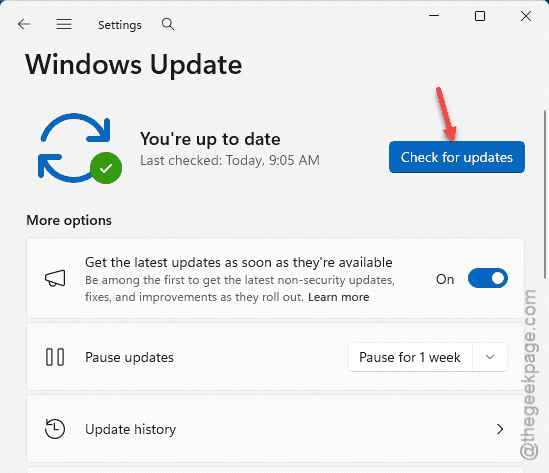
4 – Install anything it finds and restart when asked.
Then open Windows Security and look at the toggle again. Still gray? Nothing new showed up yet, most likely. Move on to Fix 2.
Fix 2 – Unlock the Toggle With Two Commands
You can tweak the registry to allow particular Windows features.
1 – Click Start,
2 – Next, type cmd, right-click Command Prompt, and pick Run as administrator.
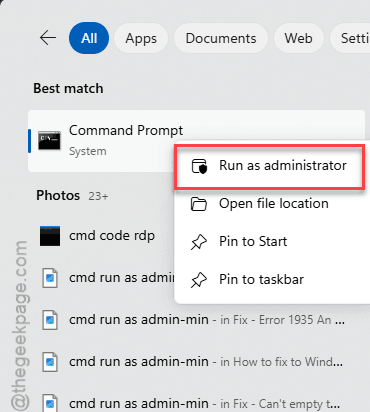
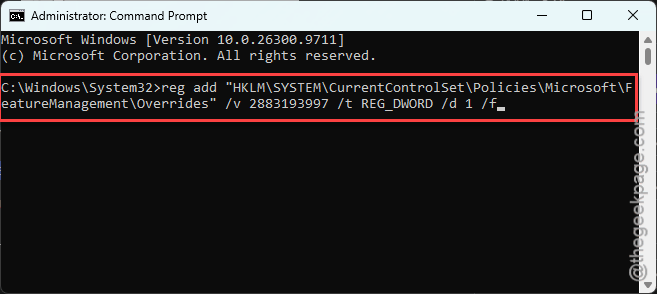
3 – Then, paste this command and press Enter:
reg add "HKLM\SYSTEM\CurrentControlSet\Policies\Microsoft\FeatureManagement\Overrides" /v 2883193997 /t REG_DWORD /d 1 /f
4 – Wait for the message:
The operation completed successfully
5 – Paste this second command and press Enter:
reg add "HKLM\SYSTEM\CurrentControlSet\Policies\Microsoft\FeatureManagement\Overrides" /v 2850574478 /t REG_DWORD /d 1 /f
6 – Restart your computer.
Try checking again.
Fix 3 – Deploy Microsoft’s Hotfix Policy (Work PCs)
If you manage a bunch of company PCs, Microsoft has a Group Policy hotfix for this. It’s the KB5074105 Feature Preview template (a policy file you add to Group Policy). Home users can skip this one.
1 – You have to download the KB5074105 261015_19222 Feature Preview ADMX templates from Microsoft’s enterprise portal.
2 – Copy the .admx files into C:\Windows\PolicyDefinitions.
3 – Copy the .adml files into the en-US folder inside it.
4 – Press Windows + R, type gpedit.msc, and press Enter.
5 – Go to:
Computer Configuration > Administrative Templates > Windows Components > Windows Security
6 – Then, double-click the new Feature Preview policy,
7 – Set it to Enabled, and tap OK.

Then, restart the PC.
Check if this works.
Fix 4 – Uninstall the October Update
Last resort. Removing KB5127648 takes the PC back to the September build, before the lock existed.
1 –Open Settings, click Windows Update,
2 – Then Update history, then Uninstall updates near the bottom.
3 – Find KB5127648 and click Uninstall.
It takes a few minutes and one restart.
But Windows will try to put it back. Pause updates for a week or two afterward (the pause button is right on the Windows Update page).
Quick Answers
How do I fix Smart App Control not turning on?
Check Windows Update first, because Microsoft is patching the bug. If the toggle is still gray, run the two reg add commands as administrator and restart. Resetting the Windows Security app can help too.
Is it safe to add the FeatureManagement registry overrides?
Yes, for this purpose. The two values only tell Windows that the Smart App Control feature is allowed, which brings the toggle back.