Another day, another Windows process quietly eating memory. This time it’s audiodg.exe. Here’s what that process actually is. The audiodg stands for Windows Audio Device Graph Isolation, and it’s the thing that runs every sound effect on your PC. Dolby Atmos. Bass boost. Those “enhancement” features your laptop maker bolted on. All of it runs inside audiodg. And when one of those effects has a memory leak (Dolby Atmos and Windows Sonic are the usual suspects), audiodg grabs RAM and never gives it back. So the fix isn’t to kill the process. It’ll just come back. The fix is to switch off whatever’s leaking. Takes five minutes.
Fix 1 – Turn Off Spatial Sound
Start with the biggest culprit.
1 – At first, right-click the speaker icon in the bottom right corner of the taskbar.
2 – Click Sound settings.
3 – Under Output, click your speakers or headphones.
4 – Scroll down to Spatial audio.
5 – Set it to Off.
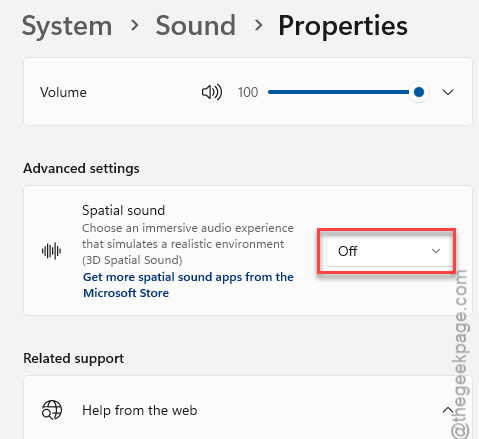
It should drop within a minute. Didn’t budge? There’s more to switch off.
Fix 2 – Turn Off Audio Enhancements
Same page, one more toggle. Enhancements are the manufacturer’s processing layer (loudness equalization, virtual surround, that sort of thing). They cache a lot of audio data, and the cache grows.
1 – Stay on the same device page from Fix 1.
2 – Find Audio enhancements. It’s right near the Spatial audio option.
3 – Set it to Off.
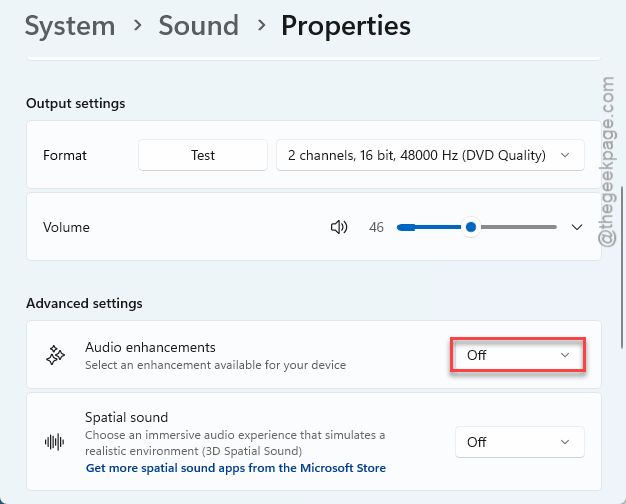
Your sound might get a touch flatter.
Fix 3 – Restart the Windows Audio Service
Here’s the part people skip. Switching the effects off stops the leak from growing.
1 – Press Windows + R.
2 – Type services.msc and press Enter.
3 – Scroll down to Windows Audio. The list is alphabetical, so it’s near the bottom.
4 – Right-click it and pick Restart.
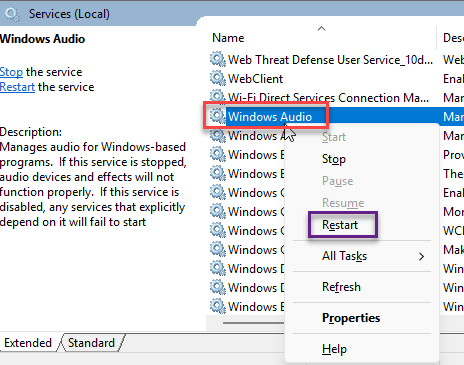
Sound cuts out for a second or two, then comes back. Check Task Manager. audiodg should be back down to a few dozen megabytes, where it belongs.
No restart needed for the PC, by the way. The service restart is enough.
Fix 4 – Change the Default Sound Format
Still creeping up? Then it may be a format mismatch. If Windows is set to 24-bit, 192,000 Hz and your app plays at something else, the buffer over-allocates. And over-allocates. Dropping to a sane format stops that.
1 – At first, right-click the speaker icon in the taskbar and click Sound settings.
2 – Scroll down and click More sound settings. A smaller, older-looking window opens.
3 – Right-click your playback device and pick Properties.
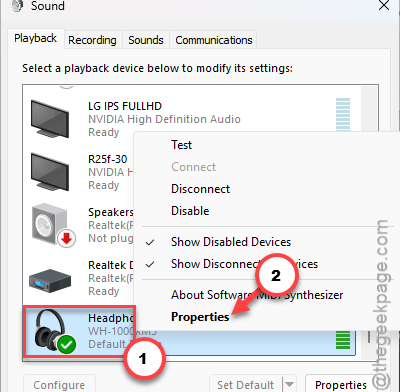
4 – Click the Advanced tab.
5 – Set the Default Format dropdown to 16 bit, 48000 Hz (DVD Quality).
6 – Click Apply, then OK.
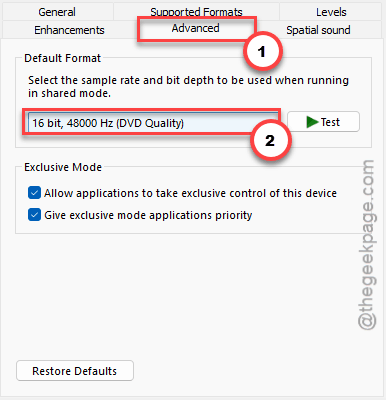
Check if this works. You will notice the 3 GB of RAM you got back.
Fix 5 – Uninstall the Manufacturer’s Audio Software
Nahimic, Sonic Studio, Waves MaxxAudio. Every gaming laptop ships with one of them, and they all plug their own effects into the audio pipeline. Some of those effects leak. So remove it.
1 – At first, press Windows + I to open Settings.
2 – Proceed to the Apps in the left sidebar. Then open the Installed apps tab.
3 – Write audio in the search box at the top.
4 – Then, click the three dots (⋯) next to anything (like Nahimic, Sonic Studio, MaxxAudio, or Realtek Audio Console), and pick Uninstall.
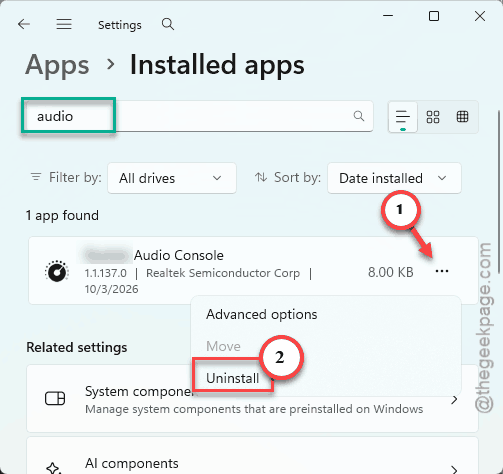
5 – Restart the PC when you’re done.
Your speakers keep working. The basic driver stays; only the control panel on top goes. And if the sound does vanish, do this:
1 –Open Device Manager.
2 – Pick Scan for hardware changes under the Action menu.
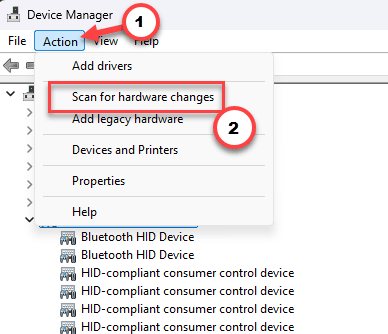
Windows pulls the plain driver back in.
Keep It From Coming Back
- Leave spatial sound off unless you’re actually watching a movie with proper headphones.
- Check Task Manager after every big Windows update. Updates love to flip audio enhancements back on. Of course they do.
- Skip the manufacturer’s audio suite on a fresh install.
- Stick with 16-bit, 48 kHz. It’s what nearly everything you play was made at anyway.