Why would Remote Desktop work fine for admins and fail for everyone else? The answer is the October’s updates. That’s why the Standard users trying to connect and getting the error 0xC000000D. Admins sail right in. Same PC, same network, same settings.Here’s what changed. The October security patches (KB5127646 and KB5124006) clash with Administrator Protection, a newer Windows 11 feature that handles admin permission requests in a stricter way. The built-in Remote Desktop app runs into that clash when a non-admin signs in. And it fails with a code instead of a useful message. Of course it does. One thing before you start. Every fix below happens on the host PC, the one people are connecting to. Not the laptop they connect from.
Fix 1 – Switch Admin Approval Mode to Legacy
This one is cleanest if the host runs Windows 11 Pro or Enterprise. But Home editions don’t have the Group Policy Editor. So skip to Fix 2 if yours is Home.
1 – Press Windows + R, type gpedit.msc, and press Enter.
2 – In the left pane, go to
Computer Configuration > Windows Settings > Security Settings > Local Policies > Security Options
3 – In the right pane, find User Account Control: Configure type of admin approval mode. The list is long and alphabetical, so scroll toward the bottom.
4 – Right-click it and pick Properties, or simply double-tap it.
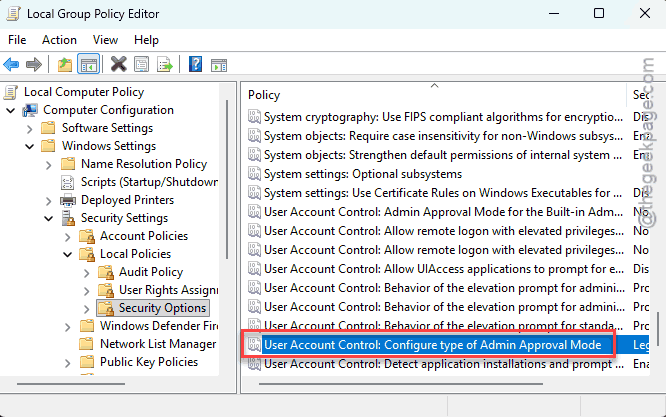
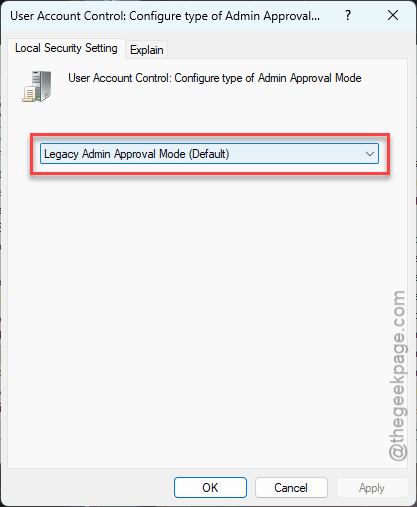
5 – Change the dropdown to Legacy admin approval mode (default).
6 – Click Apply, then OK.
7 – Restart the computer.
Then have a standard user try connecting again.
Fix 2 – Turn Off the Conflict With Two PowerShell Commands
An admin on a forum posted this after chasing the problem in their own network, and it works on Home editions too. Two settings. One reboot.
1 – Right-click Start and pick Terminal (Admin).
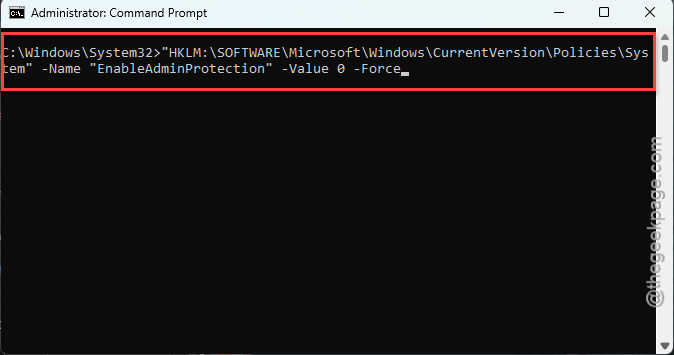
2 – Paste this command and press Enter: Set-ItemProperty -Path
"HKLM:\SOFTWARE\Microsoft\Windows\CurrentVersion\Policies\System" -Name "EnableAdminProtection" -Value 0 -Force
3 – If this is a standalone or lab PC that isn’t on a company domain, also paste this one and press Enter:
Set-ItemProperty -Path "HKLM:\SOFTWARE\Microsoft\Windows\CurrentVersion\Policies\System" -Name "LocalAccountTokenFilterPolicy" -Value 1 -Force
4 – Restart the PC right away.
And no output after each command is normal. Silence means it worked.
Fix 3 – Uninstall the October Patches
Still blocked? Then roll back the two updates that started it.
1 – Press Windows + I to open Settings.
2 – Click Windows Update, then Update history.
3 – Scroll down and click Uninstall updates.
4 – Find KB5127646 and click Uninstall.
5 – Do the same for KB5124006.

6 – Restart when Windows asks.
But this also strips out a month of security fixes. Not a trade you want to keep for long.
Fix 4 – Check the Network Level Authentication Setting
Quick test. Network Level Authentication (NLA, a check that makes people sign in before the remote session even opens) can trip up the connection on its own.
1 – Press Windows + R,
2 – Later, type sysdm.cpl, and press Enter.
3 – Click the Remote tab.
4 – Tick or untick Allow connections only from computers running Remote Desktop with Network Level Authentication.
5 – Click Apply, and try again.
Whichever way connects reliably, keep it. But turning NLA off does make the PC a little easier to attack.
Fix 5 – Give the User Temporary Admin Rights
The error only hits non-admins, so making the user an admin skips it entirely.
1 – Open Settings and click Accounts.
2 – Click Other users.
3 – Click the affected user and pick Change account type.
4 – Set it to Administrator and click OK.
But set it back to Standard User once Microsoft patches this. Seriously. Admin rights for everyone is how malware has a great day.
Fix 6 – Use a Different Remote Tool for Now
The bug lives in the built-in Remote Desktop app. And other tools don’t go through that same broken check. AnyDesk works as a stopgap. So do Chrome Remote Desktop and TeamViewer, while you wait for a proper patch. Clunky? A bit. Better than no access, though.
Keep It From Coming Back
- Test monthly updates on one PC before rolling them out to the rest. Five minutes of testing beats a morning of locked-out users.
- Write down any setting you flipped above. When the real fix lands, you’ll want to undo them, and nobody remembers which ones three weeks later.
- Keep a second way in. Even a free remote tool on standby saves you when Remote Desktop breaks again. And it will.
People Also Ask
How do I fix error code 0xC000000D in Remote Desktop?
On the host PC, set admin approval mode to Legacy in Group Policy, or set EnableAdminProtection to 0 with PowerShell and reboot. Both stop the clash between October’s patches and Administrator Protection. Uninstalling KB5127646 and KB5124006 works too, at the cost of those security fixes.
Why does Remote Desktop work for admins but not standard users?
Because the bug sits in how Windows checks permissions for non-admin accounts. After the October updates, Administrator Protection and the Remote Desktop app disagree about standard users, and the sign-in fails with 0xC000000D. Admin accounts take a different path, so they never hit it.