Seomtimes, it is the Credential Guard usually what is stopping your PC from getting back on the domain. You see “The trust relationship between this workstation and the primary domain failed.” You try the usual fixes. And they don’t work, because a security feature is quietly getting in the way of every one of them. It can be Infuriating sometimes, honestly.
Why This Happens
Every PC on a domain has its own hidden password. It uses it to prove to the domain controller (the server that runs your company’s sign-ins) that it’s really a member. That password changes on its own every few weeks.
But sometimes the two sides fall out of sync. Maybe the PC was off for a long time, or it was restored from an old backup. Now the PC and the server disagree. And the trust breaks.
And normally a reset fixes that in a minute. But Credential Guard (a Windows 11 feature that locks sign-in secrets inside a walled-off, protected part of the system) blocks the PC from setting up a new password. So the reset fails too. Why does a security feature stop you from repairing security? Good question. Nobody at Microsoft has a great answer.
Fix 1 – Turn Off Credential Guard for Now
This is the step that makes everything else work. And you’ll turn it back on at the end, so don’t panic.
1 – Sign in with the local administrator account.
Your domain account won’t work right now, so use a local one. On the sign-in screen, type .\ and then the local account name, like .\Administrator. No password for it? Your IT team should have one.
2 – Press Windows + R, type regedit, and press Enter. Click Yes when asked.
3 – Then, reach this address –
HKEY_LOCAL_MACHINE\System\CurrentControlSet\Control\LSA
4 – Later, find LsaCfgFlags in the right pane and double-click it.
5 – Write down the number in Value data so you can put it back later.
6 – Change Value data to 0 and click OK.
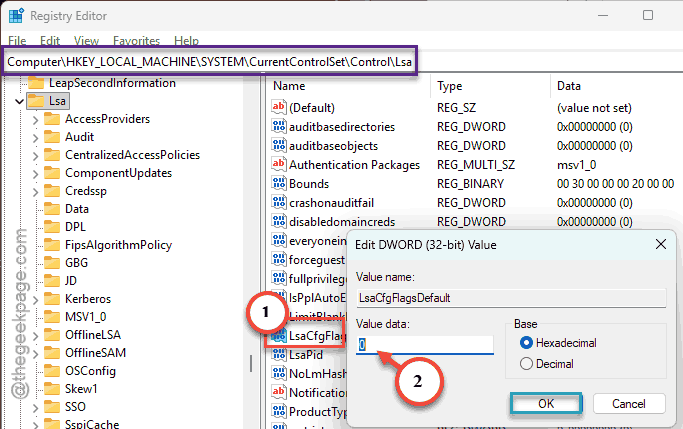
7 – Restart the computer.
The restart matters (Credential Guard only switches off during startup). Then sign back in with the same local account and go straight to Fix 2.
Fix 2 – Reset the Machine Password With PowerShell
Now that Credential Guard is out of the way, the PC can ask the domain controller for a fresh password.
1 – Start by right-tapping the Start button, and pick Terminal (Admin).
2 – Type this command, swapping in your own domain controller name and a domain admin account:
Reset-ComputerMachinePassword -Server yourdomaincontroller.com -Credential DOMAIN\adminname
3 – Press Enter.
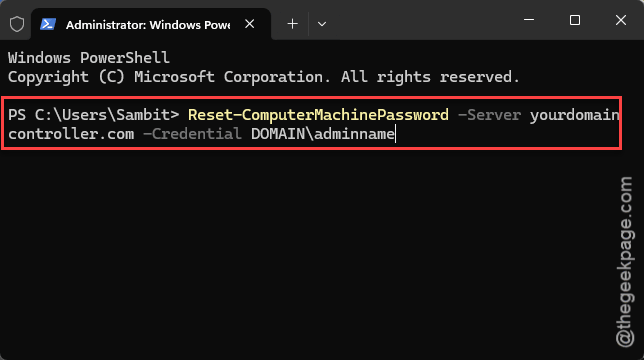
4 – Type the domain admin’s password in the box that pops up and click OK.
5 – Restart and sign in with your normal domain account.
If the command finishes with no message at all, that’s good news.
Fix 3 – Clear Old Kerberos Tickets
Got back in, but some network drives or apps still refuse you? Old sign-in tickets may be stuck in memory. Kerberos (the system Windows uses to hand out those tickets) keeps them around for hours.
1 –Open Command Prompt as administrator,
1 – Type , and press Enter.
klist purge
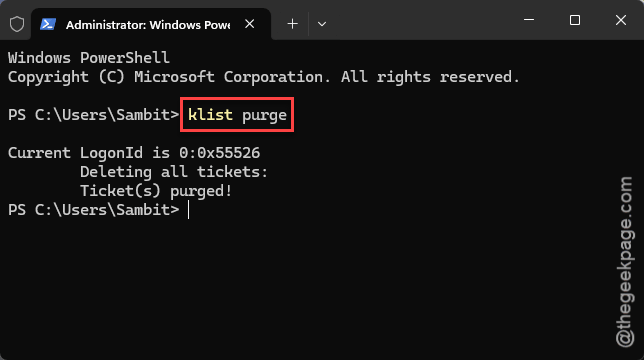
Then restart.
So Windows fetches fresh tickets on the next sign-in.
Fix 4 – Leave the Domain and Join It Again
You should leave the domain and join it once again.
1 – Press Windows + I to open Settings.
2 – Go to System, then About.
3 – Click Domain or workgroup.

4 – Then, move the PC to a workgroup (any name works, like WORKGROUP) and restart.
5 – Go back to the same screen and join your domain again.
6 – Enter a domain admin’s details when asked, then restart once more.
And your user profile stays on the PC, so your files and desktop should look the same after you sign in.
How to Prevent This
- Don’t leave domain laptops switched off for months.
- Restoring VM snapshots rolls back the machine password too. Instant trust failure.