You plug in your audio interface. The lights come on, Windows plays the little connect sound, and then nothing. No sound. There is no input.
What Broke
The October cumulative update, KB5127648. The Code 10 is Windows-speak for “this device cannot start.” Here it starts fine in plain stereo. But the moment the device asks for 8-channel or 3D surround, the driver crashes. And USB 3 ports make it worse. They talk to the device at a different speed, and the shaky handshake fails even faster there.
So the hardware is fine. Your cables too. It’s a software bug wearing a hardware costume.
Fix 1 – Switch the Device to 2-Channel Stereo
Fastest fix.
1 – Press Windows + R,
2 – Type , and press Enter.
mmsys.cpl
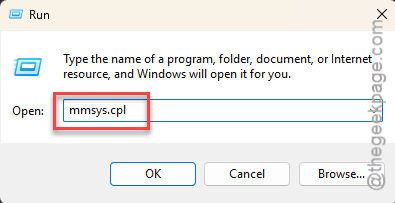
3 – On the Playback tab, double-click your USB audio device.
4 – Click the Advanced tab.
5 – Then, open the Default Format dropdown and pick a 2 channel option.
6 – Click Apply, then Test.
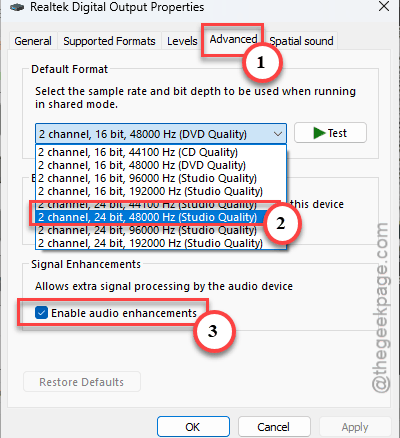
You should hear the test chime. Need 8-channel for a mixer or a surround setup? Stereo won’t cut it long term. Fix 3 is your real answer.
Using the interface for a mic or guitar too? Do the same thing on the Recording tab of that window. Inputs can hit the same crash, so pick a 2 channel format there as well.
Fix 2 – Plug Into a USB 2.0 Port
1 – Unplug the audio device.
2 – Wait about 10 seconds.
3 – Plug it into a USB 2.0 port directly on the back of your PC, where the motherboard ports are.
USB 2.0 ports are usually black. USB 3 ports are usually blue (or teal, or red, depending on the board). And skip front-panel ports and hubs for now.
Then open Device Manager and check. The yellow triangle should be gone.
Fix 3 – Install Microsoft’s Out-of-Band Patch
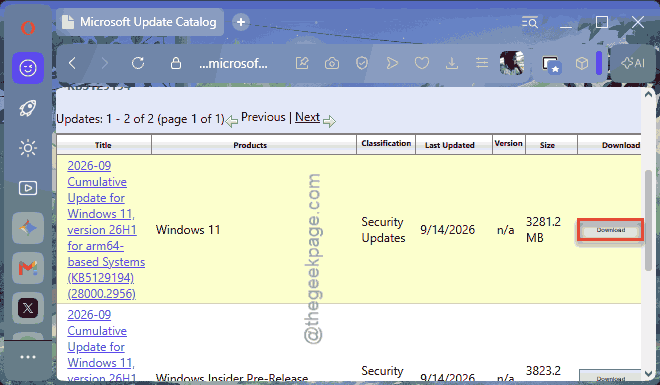
Microsoft quietly released an emergency fix for this. KB5129194 (KB5129195 on some builds). Thing is, Windows Update doesn’t always offer it, so you grab it by hand. Annoying, but it’s the proper fix.
1 – Open your browser and go to the Microsoft Update Catalog website.
2 – Type KB5129194 in the search box at the top right and press Enter.
3 – Find the row that matches your Windows version and PC type. Most PCs are x64.
4 – Click Download on that row, then click the link in the window that pops up.
5 – Double-click the downloaded .msu file and follow the prompts.
6 – Restart when it asks.
Fix 4 – Reinstall the Device in Device Manager
Hit or miss. Sometimes Windows just needs to rebuild the device from scratch.
1 – At first, right-click Start and click Device Manager.
2 – Expand Sound, video and game controllers. If your device isn’t there, check Universal Serial Bus controllers instead.
3 – Right-click your USB audio device and pick Update driver.

4 – Click Search automatically for drivers.
No luck?
1 – Then, right-click the device again.
2 – This time, choose Uninstall device, and restart.
Windows sets it up fresh when it boots back up. Takes a minute or so.
Fix 5 – Remove the October Update
For when you need 8-channel audio today and the patch from Fix 3 didn’t take.
1 – Press Windows + I.
2 – Click Windows Update,
3 – Later, reach the Update history.
4 – Then Uninstall updates near the bottom.
5 – Find KB5127648, click Uninstall, and restart.
The yellow triangle in Device Manager should clear after that.
But don’t stop there. Go back to the main Windows Update page and click Pause updates for a few weeks.
People Also Ask
What does the Realtek audio error Code 10 mean?
Same thing as on any device: the driver failed to start it. On built-in Realtek audio, an outdated or damaged driver is the usual cause, so update it from your PC maker’s site. USB audio Code 10 after October’s update is a different bug with its own patch.