File Explorer slows to a crawl. You open Task Manager and explorer.exe is sitting at a couple of gigs of RAM. For doing basically nothing.
It started after the 24H2 update. And it just keeps climbing the longer your PC stays on.
Why This Happens
Quick background. explorer.exe runs your whole desktop — the taskbar, the Start menu, every folder window you open. It’s supposed to sip memory. On 24H2, it doesn’t.
There’s a leak in this build. The longer Windows runs, the more RAM Explorer grabs and never hands back. Open a few folder windows, leave the PC on overnight, and it balloons.
Why does it leak? A bug in the 24H2 code.
But it creeps right back up. So until Microsoft patches it, you need a real workaround. Good news: there are a few.
Fix 1 – Restart Windows Explorer
Instant relief. Restarting Explorer dumps all that hoarded memory in one shot. No reboot needed.
1 – At first, hit the Ctrl + Shift + Esc buttons together to open Task Manager.
2 – Go to the Processes tab. Then, scroll to find Windows Explorer.
3 – Later, right-click the process, and choose Restart.
Your memory just got freed. Check again.
Fix 2 – Make a One-Click Restart Shortcut
If you’re restarting Explorer all day, skip Task Manager. Build a desktop button that does it in one double-click.
1 – Right-click an empty spot on your Desktop. Choose New > Shortcut.
2 – In the location box, paste this exactly:
C:\Windows\System32\cmd.exe /c taskkill /f /im explorer.exe & start explorer.exe
3 – Click Next.
4 – Name it something obvious, like Restart Explorer. Click Finish.
5 – Double-click it any time things feel sluggish.
Your taskbar will blink and any open folders will close for a moment. The cache clears instantly. Way faster than digging through Task Manager every time.
Fix 3 – Launch Folder Windows in a Separate Process
This one actually helps contain the leak. By default, every folder window shares one Explorer process. So one leaky window drags the whole desktop down with it. Split them apart and the damage stays isolated.
1 – Open File Explorer.
2 – Click the three dots (⋯) in the toolbar at the top, then Options. (Or just search Folder Options in Start.)
3 – Click the View tab.
4 – Scroll down and tick Launch folder windows in a separate process.
5 – Click Apply, then OK.
It uses a touch more memory per window. But it stops one folder from taking down your taskbar. Worth the trade.
Fix 4 – Clear File Explorer History
Explorer caches every folder you visit and every recent file. On a leaky build, that pile makes things worse. Clearing it out helps.
1 – Open Folder Options again (three dots ⋯ > Options).
2 – Stay on the General tab.
3 – At the bottom, under Privacy, click Clear.
4 – While you’re there, untick Show recently used files and Show frequently used folders if you want even less for it to cache.
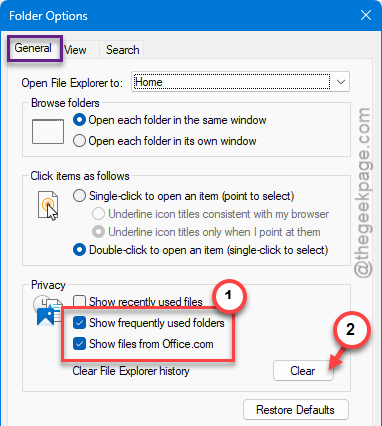
Small thing. But every bit of cache you cut is memory Explorer can’t leak.
Fix 5 – Install the KB5083631 Preview Update
This is the real fix. Microsoft acknowledged the leak and patched it in the April 2026 optional preview update, KB5083631, for 24H2 and 25H2.
1 – Press Windows + I to open Settings.
2 – Click Windows Update.
3 – Click Check for updates.
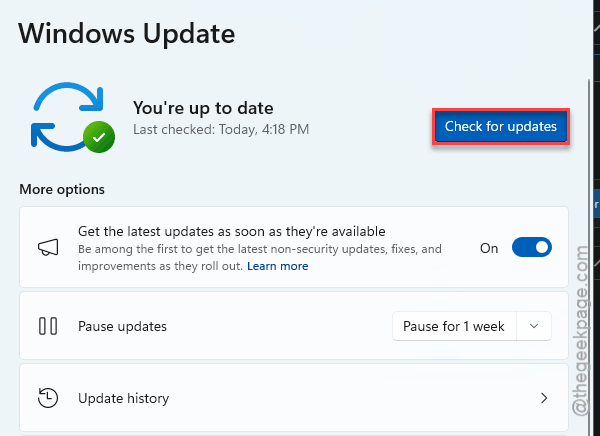
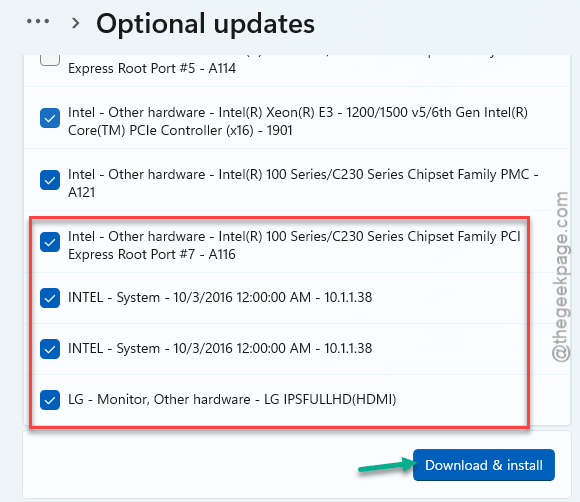
4 – Look for KB5083631. It’s an optional preview, so you may have to expand Optional updates available to see it.
5 – Click Download & install, then restart.
And once it’s in, the leak should stop for good. The other fixes? Just bandaids until you get this installed.
How to Prevent This
- Keep that one-click restart shortcut on your desktop. Until the patch is everywhere, it’s the fastest reset.
- Don’t leave dozens of folder windows open for days. They each add to what Explorer hoards.
- Check Windows Update for optional previews now and then. The fixes for stuff like this land there first.
- Reboot every couple of days anyway. Good hygiene, and it clears any leak that slips through.
People Also Ask
Why does explorer.exe use so much memory?
Normally it shouldn’t — a few hundred MB at most. On Windows 11 24H2 there’s a known leak that makes it climb into the gigabytes over time. It’s a bug in the build, not your hardware.
How do I fix a memory leak in Windows 11?
First, pin down which process is leaking using Task Manager. If it’s Explorer, restart that process for instant relief. Then install the latest update, since most leaks get patched. Splitting folder windows into separate processes also stops one leak from taking down everything.
Why does Windows 11 File Explorer crash so much?
Often it’s the same memory issue — once Explorer hogs too much RAM, it gets unstable and crashes. Third-party shell add-ons make it worse. Restarting Explorer, clearing its history, and staying current on updates usually settles it down.