You sign in to your work virtual desktop. The welcome screen spins. Then it’s just pitch black. There is no taskbar, no Start button, no icons. Just a mouse pointer on an empty screen. Wait five minutes and it’s still black. Sign out and back in? Same thing. And everyone on your team might be seeing it too.
Where This Comes From
Here’s the weird part. Your profile loads fine. But Explorer (the program that draws your desktop and taskbar) never starts.
Most virtual desktop setups use FSLogix. It stores your whole profile as one virtual disk file on a network share (a .vhdx file), so it follows you to whatever server you land on. That server is called the session host.
A recent Windows build changed how the desktop starts up. Profile disks made under older builds don’t agree with it, and the new shell crashes when it opens them. Microsoft’s October 13 cumulative update says it fixes this startup failure on Windows 11 24H2, 25H2 and 26H2. But not every host has it yet.
Quick split. Fix 1 is for anyone stuck at the black screen right now. Fixes 2 to 5 are for IT.
Fix 1 – Start Explorer by Hand
Your profile is already loaded. It’s just missing the desktop. So you can start it yourself.
1 – At first, Press Ctrl + Shift + Esc to open Task Manager.
2 – Then, tap the Run new task at the top of the window.
3 – Type explorer.exe in the box.
4 – Press Enter.
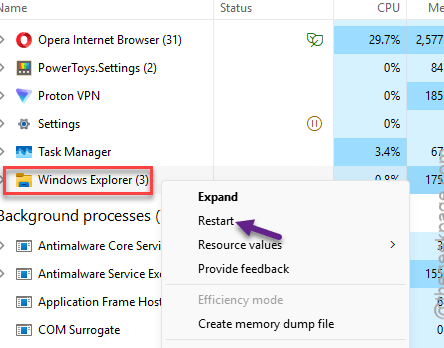
Your taskbar and desktop should appear within a few seconds. But it’s a patch for this one session. Next login, same black screen, until IT does one of the fixes below.
Ctrl + Shift + Esc does nothing? Some virtual desktop apps grab that shortcut. Try Ctrl + Alt + End instead, then pick Task Manager from the menu.
Fix 2 – Rename the User’s FSLogix Profile Disk
This is the one that sticks for a single broken user. An old, damaged profile disk keeps crashing the new desktop every time it mounts. Give the user a fresh one.
1 – Make sure the user is fully signed out of every session.
2 – Open the FSLogix profile share from an admin PC.
3 – Open the folder for the affected user.
4 – Rename the Profile_XYZ.vhdx file, for example by adding .old at the end.
5 – Ask the user to sign in again.
The first sign-in takes longer than usual (FSLogix is building a brand-new profile). Then the desktop loads normally.
So rename, don’t delete. Saved files in the old disk can still be copied out later if the user needs them. Deleting it means they’re gone for good.
Fix 3 – Turn Off FSLogix Profiles on the Host for Now
Temporary bypass. With FSLogix off, users get a plain local profile on that host, and the container bug never comes up.
1 – Then, sign in to the session host as an administrator.
2 – At first, press Windows + R,
3 – Type regedit, and press Enter.
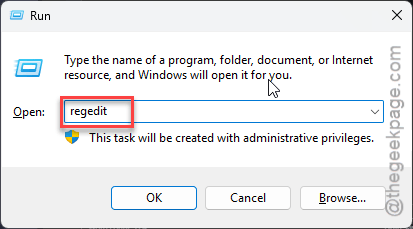
4 – Paste into the address bar at the top and press Enter.
HKEY_LOCAL_MACHINE\SOFTWARE\FSLogix\Profiles
5 – Double-click Enabled in the right pane.
6 – Change Value data to 0 and click OK.
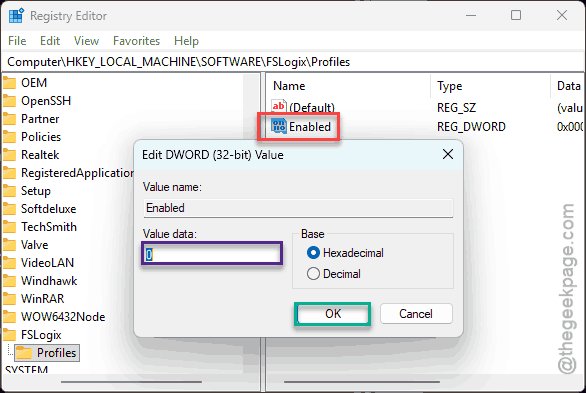
Downside? Big one. Users lose their roaming settings and files on that host while this is off. So set it back to 1 the moment the real fix is in.
Fix 4 – Put the October Update on Your Golden Image
This is Microsoft’s actual fix. The cumulative update from October 13, 2026 (KB5127648) or anything newer resolves the startup failure on OS builds 26100.9711, 26200.9711 and 26300.9711.
Install it on your golden image (the master copy you build session hosts from), not just on one host. And then redeploy or update the host pool from that image. Otherwise new hosts come up broken again. Classic.
Fix 5 – Roll Back the Update on an Affected Host
For when a whole host pool is down and you need people working today. Some admins report the black screen right after a newer update landed on hosts with old profile disks. Removing it brings logins back.
1 – On the host VM, press Windows + I to open Settings.
2 – Click Windows Update, then Update history.

3 – Scroll to the bottom and click Uninstall updates.
4 – Remove the update installed just before the black screens started. Admins have reported both KB5120996 and KB5127648 here.
5 – Restart the host.
Users on that host should log in normally with their existing profiles. Still, it’s a stopgap. Fix 2 for the problem profiles, plus Fix 4 on the image, is the proper end state.
Avoiding This Next Time
- Test each monthly update on one host with a few real user profiles before it hits the whole pool. Fresh test accounts won’t show this bug. Old profiles will.
- Patch the golden image, not individual hosts. Hosts rebuilt from an old image bring old bugs back.
- Clean out profile disks for people who left the company. Fewer stale disks, fewer surprises.
- Tell users about the Task Manager trick in Fix 1. It turns a lost morning into thirty seconds.
Quick Questions
How do I fix a black screen on a virtual desktop?
Press Ctrl + Shift + Esc, click Run new task, type explorer.exe, and press Enter. That brings the desktop back for the current session. For a lasting fix, IT should rename the user’s FSLogix profile disk or put the October 13 cumulative update on the golden image.
What happens if explorer.exe is killed?
Your taskbar, Start menu and desktop icons disappear, but open apps keep running. Nothing is lost. You can start Explorer again from Task Manager with Run new task.
Why does the black screen only happen on some virtual desktops?
Hosts without the October fix crash on older disks. Users with newer profiles, or hosts already patched, load normally. That’s why it looks random across a team.