You double-click Paint on your computer. Nothing happens. Then, you go check the taskbar and nothing is there. But, when you open it in the Task Manager, you can find the Paint app process running there. If the Paint process is running in the background, it won’t pop up on your display, or you can’t do anything with it! This is a known issue on Windows 11. Paint launches, gets stuck, and never actually opens a window. While this is annoying, it can be fixed very easily.
Why This Happens
Windows 11 replaced the classic Paint with a new version from the Microsoft Store. And that version doesn’t always play nice with system updates. After certain Windows updates, Paint’s cached data gets corrupted. So the app tries to launch, hits a wall, and just sits there in the background. The process runs, but the window never shows up. It is not frozen exactly; it’s stuck in a loop. Microsoft knows about this. Hasn’t fully fixed it yet.
Fix 1 – Kill the Background Process
First things first. If Paint is stuck in the background, you have to kill it before anything else will work.
1 – Press Ctrl + Shift + Esc to open Task Manager.
2 – Click the Processes tab at the top.
3 – Look for Paint or mspaint.exe. It might be under “Background processes” — scroll down a bit.
4 – Right-click it and select End task.
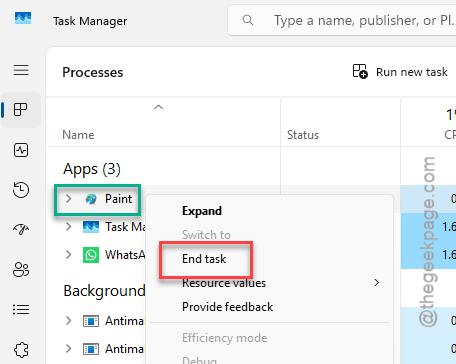
Done. Now try opening Paint again. If it opens? Great. If it still won’t show up, keep going.
Fix 2 – Repair Paint
Windows has a built-in repair tool for Store apps. Weirdly hidden in the settings. But useful.
1 – Open Settings.
2 – Go to Apps > Installed apps.
3 – Find Paint in the list. Click the three dots next to it.
4 – Select Advanced options. It’s in the dropdown.
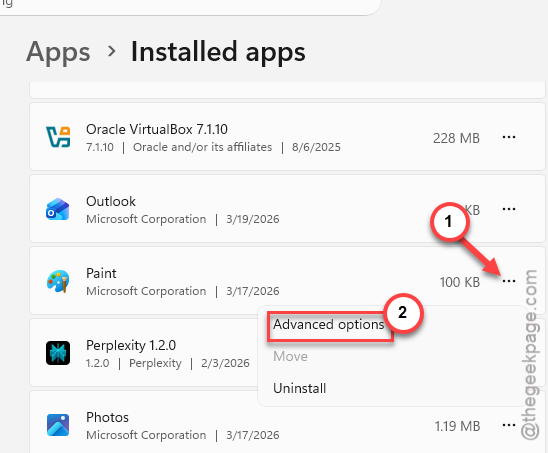
5 – Scroll down and click Repair.
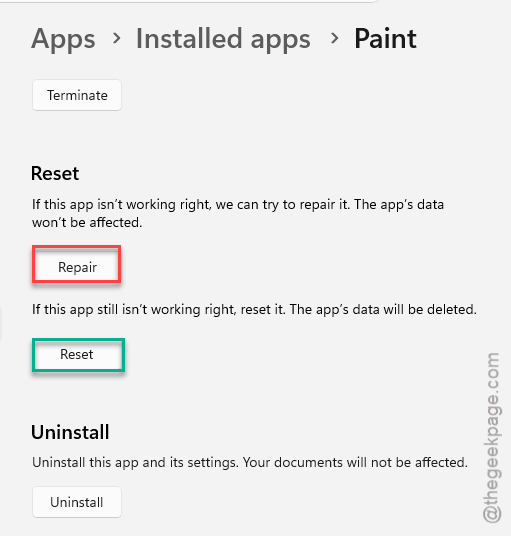
This fixes corrupted app files without touching your settings (takes about 30 seconds). And if it doesn’t work? There’s a more aggressive option right below it.
Fix 3 – Reset Paint
Same place as Repair. But this one wipes everything and starts fresh.
1 – Go to Settings > Apps > Installed apps > Paint.
2 – Click the three dots. Select Advanced options.
3 – Scroll down and click Reset.
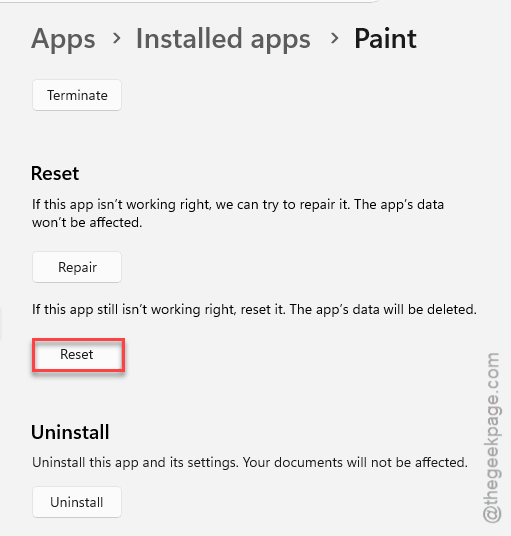
This clears all of Paint’s data and resets it to factory defaults. You will not lose any saved image files — just Paint’s internal settings. It’s worth a shot if repair didn’t help.
Fix 4 – Force Open Paint via PowerShell
Quick fix. If Paint won’t open from the Start menu or taskbar, try forcing it through PowerShell.
1 – Right-click the Start button at the bottom left. Select Terminal (Admin) or Windows PowerShell (Admin).
2 – Type mspaint.exe and press Enter.
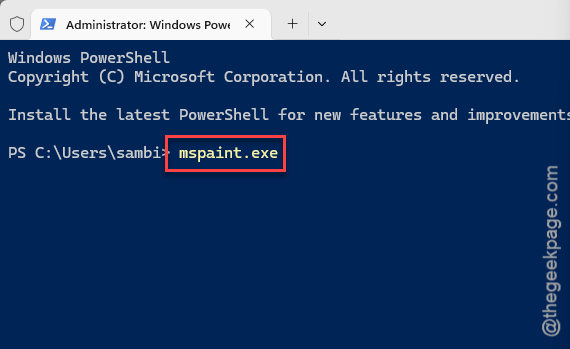
That’s it. If Paint opens, the shortcut was the problem. Not the app itself. But if it still doesn’t open? The app is broken. Move to the next fix.
Fix 5 – Reinstall Paint
Full uninstall and reinstall. This fixes most stubborn issues.
1 – Open Settings > Apps > Installed apps.
2 – Find Paint. Click the three dots.
3 – Select Uninstall. Confirm it.
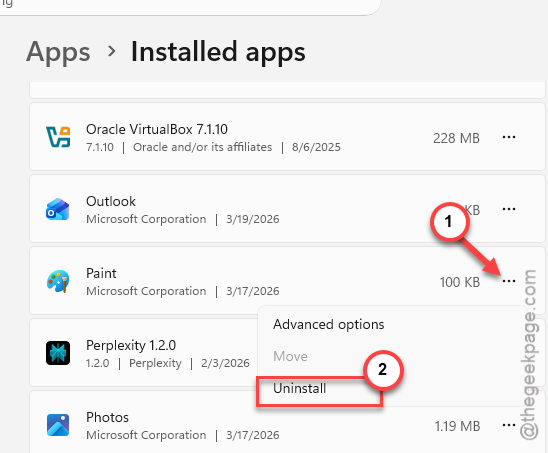
4 – Restart your PC. Do not skip this step.
5 – Open the Microsoft Store. Search for Paint. Click Get.
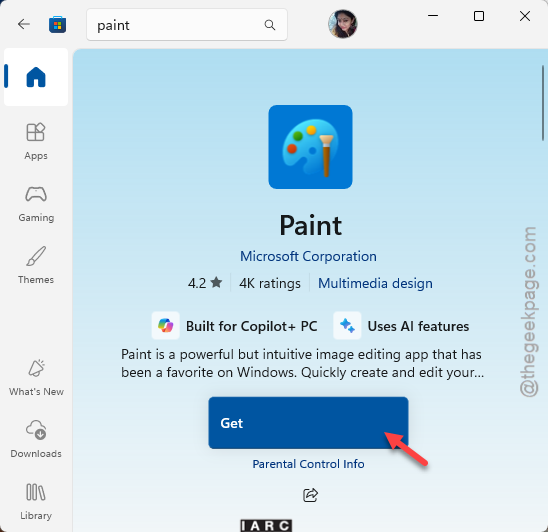
And if Paint doesn’t show up in Installed apps, try this instead: go to Settings > Apps > Optional features. Find Paint there, remove it, restart, then add it back from the same page. Same deal.
Fix 6 – Run SFC and DISM
Nuclear option. If nothing else works, there might be corrupted system files causing the problem.
1 – Right-click the Start button and open Terminal (Admin).
2 – Type sfc /scannow and press Enter. Wait for it to finish. Takes a few minutes.
3 – Then type this there and press Enter.
DISM /Online /Cleanup-Image /RestoreHealth
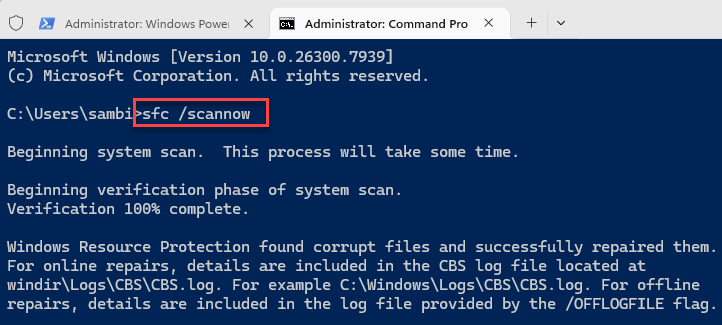
So yeah, not the fastest fix. But it repairs Windows system files that might be interfering with Paint. And honestly, if you’ve gotten this far, it’s worth running.
How to Prevent This
- After major Windows updates, check that Paint still opens. Catch it early.
- Don’t force-close Paint during saves — this corrupts its cache.
- Keep Paint updated through the Microsoft Store. Auto-updates help here.
- If you need Paint daily, pin it to the taskbar so you notice immediately when it stops working.
People Also Ask
How to fix MS Paint not opening?
Kill any background Paint processes in Task Manager first. Then try Repair or Reset through Settings > Apps > Installed apps > Paint > Advanced options. Didn’t help? Reinstall it from the Microsoft Store. One of these usually does it.
How do I turn off background processes?
Open Task Manager with Ctrl + Shift + Esc. Find the process you want to stop under the Processes tab. Right-click it and hit End task. But be careful — ending the wrong process can cause issues. Only end ones you recognize.
How to clear a background using Paint?
Different kind of “background.” To remove an image background in Paint, open the image and use the newer Paint’s background removal tool — it does it automatically in Windows 11. If you’re on an older version, use the free-form selection tool to trace around what you want to keep. Then cut and paste it onto a blank canvas. Not the smoothest process. But it works.