Does the notifications started to disappear all of a sudden from the Apple Watch since updating to the watchOS 26? The notifications are disappearing automatically from the Notification Centre on the affected Apple Watches. It seems that this update has somehow interfered with the Send & Receive settings of iMessage app for the affected users. Hence, the notifications are disappearing from the Apple Watch. Here is the main fix, with a few extra resolutions that should restore the normalcy.
Fix 1 – Modify the Send & Receive settings in iMessage
You have to manually rectify the Send & Receive settings in the iMessage settings.
Step 1 – On your iPhone, go to the Settings panel.
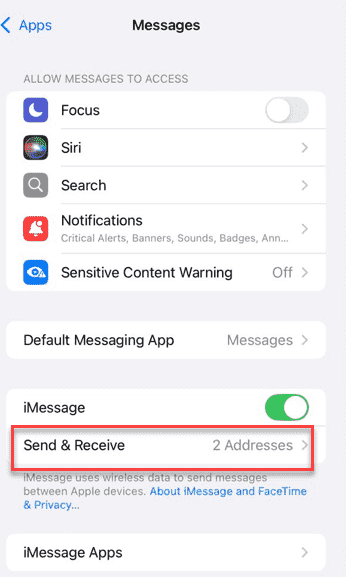
Step 2 – Now, go to the Apps tab. Load up the Messages app.
Step 3 – Open the Send & Receive settings.
Step 4 – Select the correct credentials there to set it up.
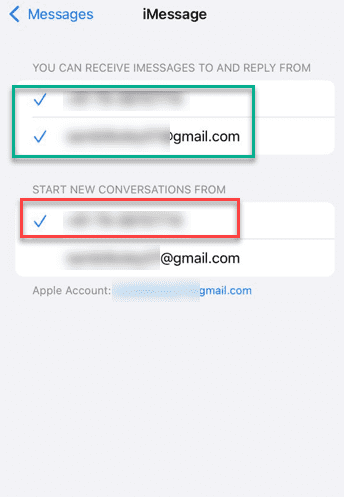
After setting up the Send and receive settings, check back with the Apple Watch.
Fix 2 – Force Reboot the iPhone and Apple Watch
You must force restart the Apple Watch and your iPhone to get rid of any temporarily bugs.
Steps for force resetting the iPhone~
Step 1 – To do this, terminate all the apps running on the iPhone. Next, press and release the Volume Up button once.
Step 2 – Next, press and release the Volume Down button.
Step 3 – Now, finally, to force-restart the iPhone, press-hold the Side button on your iPhone for 10–15 seconds. You will see the Apple logo has appeared on the iPhone’s screen.
Steps for force resetting the Apple Watch~
Press and hold the side button and the digital crown together until the Apple logo shows up on the Apple Watch. This will clear up any temporary glitch or bug causing this issue on the wearable.
Fix 3 – Install the latest patch of watchOS 26
This can be just a bug in the build of watchOS that you are currently using. So, installing the current patch might fix it.
Step 1 – Open the Watch app on your iPhone.
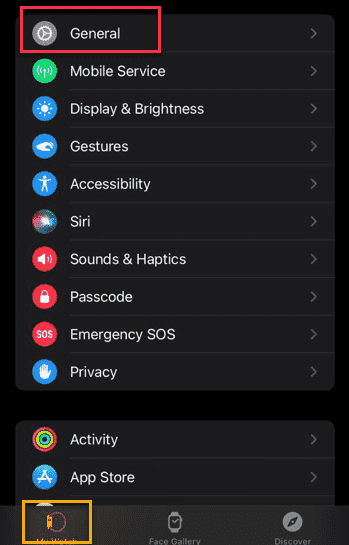
Step 2 – Next, go to the My Watch tab. Then, go to the General tab.
Step 3 – Later, open up the Software Update section.
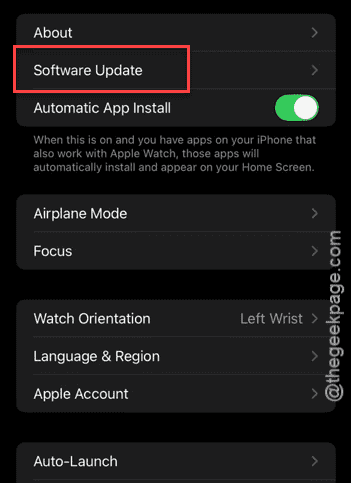
Step 3 – If any watchOS update is pending, install it from there.
After upgrading to the latest build of watchOS, the notification issue should be resolved.
Fix 4 – Overdue notifications gets cleared out
Your Apple Watch and the iPhone automatically clears out the notifications that are long overdue. It means that the notifications that are no longer valid, they are automatically removed. This is by design so that too many notifications does not overcrowd the notification centre on the Apple Watch.
Why the notifications are disappearing after watchOS 26 update?
If the notifications are disappearing from your Apple Watch, try basic troubleshooting steps like, restarting the Apple Watch or, checking whether the Apple Watch is in silent mode or do not disturb mode. However, if the notifications are not still working, check the app specific notification settings.
How to make Apple Watch notifications disappear?
To clear out the notifications in the Apple Watch, do this –
Slide from the top of the Apple Watch to load up the Notification Centre. Then, slide across the notification that you want to clear and tap the ❌ button to delete the notification from the Apple Watch. Repeat for all the notifications that you want to remove.