Ollama’s 0.40 update moved your models into a new folder layout. And it built that layout out of links Windows refuses to follow. So now a model you’ve used for months won’t load. The error mentions an untrusted mount point. Scary wording. But your downloaded models are almost certainly fine.
The Short Version
Version 0.40.x runs a one-time migration on your model library. It writes new manifest files (small JSON files that tell Ollama which model pieces belong together) into a folder called manifests-v2.
Here’s the snag. On PCs with Windows Developer Mode turned on, Ollama writes some of those manifests as symbolic links instead of real files. A symbolic link is a pointer to a file somewhere else. And Windows 11 treats links made by a normal, non-admin program as untrusted. So when Ollama tries to read them, Windows says no: ERROR_UNTRUSTED_MOUNT_POINT.
Why would Ollama write files its own OS won’t read? No good reason. It’s a bug in the migration, plain and simple. But the actual model data (the big GGUF files) never moved. Only the little pointers broke.
Fix 1 – Run Ollama as Administrator
The quickest workaround. Admin programs are allowed to follow those links.
1 – Right-click the Ollama icon in the system tray (bottom right, by the clock) and click Quit Ollama.
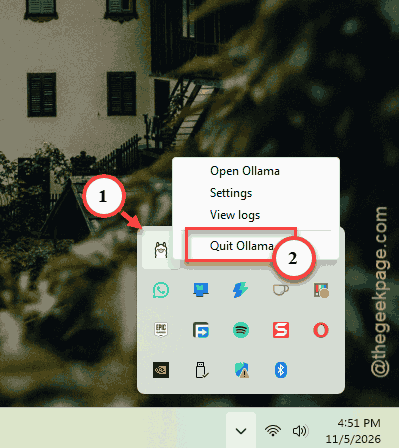
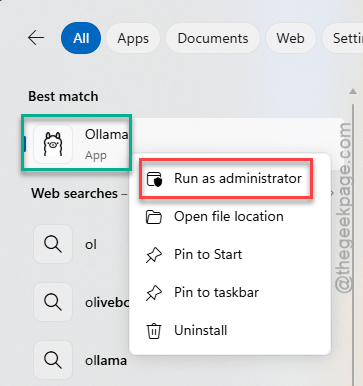
2 – Open the Start menu and type Ollama.
3 – Right-click Ollama in the results and pick Run as administrator.
4 – Click Yes when Windows asks.
But you’ll have to launch it this way every time. Fine for today. The fixes after this one remove the bad links for good.
Fix 2 – Check Your Model Through Its Backup Name
Want proof your model survived? The migration also creates a renamed entry for it, starting with llamacpp: and a long string of letters and numbers (the file’s fingerprint).
1 –Open Command Prompt,
1 – Then, run ollama list, and look for that entry.
1 – Then run ollama run llamacpp: followed by the rest of the name, copied exactly.
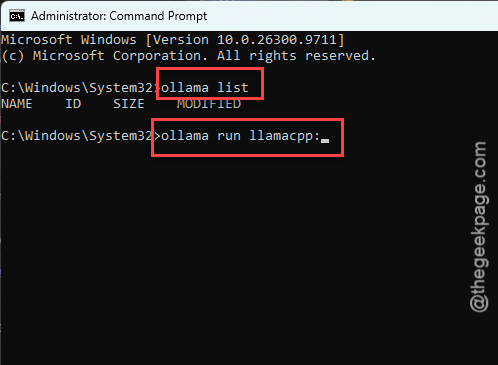
If it answers you, the model data is intact. You can even use it this way while you fix the main name.
Fix 3 – Swap the Links for Real Files
This fixes the actual problem. No re-download if you copy the files; one quick re-pull if you don’t.
1 – Quit Ollama from the system tray.
2 – Open PowerShell from the Start menu. Admin isn’t required.
3 – Run this to go to the manifest folder:
cd "$env:USERPROFILE\.ollama\models\manifests-v2\ollama.com\library\"
4 – Run this to list the broken links:
Get-ChildItem -Recurse | Where-Object {$_.LinkType -eq 'SymbolicLink'}

5 – Note which models show up. Each one is broken.
6 – For each of those models, run ollama rm <model-name> and then ollama pull <model-name>.
The pull writes a normal file this time. Big models take a while to download again, so be patient.
Would rather skip the download? For each link, check its Target in the list from step 4. Copy that target file to the link’s folder with a .bak name. Delete the link with Remove-Item, then rename the .bak copy to the link’s old name. Fiddly. But it saves gigabytes.
Fix 4 – Turn Off Developer Mode, Then Re-Pull
Developer Mode is what lets Ollama make those links in the first place. Turn it off and future downloads write plain files.
1 – Press Windows + I to open Settings.
2 – Click System, then For developers. On some builds it’s under Privacy & security instead.
3 – Switch Developer Mode to Off.
4 – Open Command Prompt and run ollama pull <model-name> for each broken model.
Need Developer Mode for other work? Then flip it off just while Ollama updates or downloads models, and back on afterward. Annoying, but it works.
Fix 5 – Delete the Broken Model’s Manifest Folder
One model stuck, everything else fine? Clear out just that one.
1 – Press Windows + R, paste %USERPROFILE%\.ollama\models\manifests-v2\ollama.com\library, and press Enter.
2 – Find the folder named after your broken model, for example qwen3.5.
3 – Delete that folder.
4 – Open Command Prompt and run ollama run <model-name>.
And Ollama rebuilds the manifest as it starts the model. Only the manifest goes, not the model data, so this is quick.
Fix 6 – Go Back to Ollama 0.35
If the migration keeps re-breaking your library, step back to a version that doesn’t run it.
1 – Uninstall Ollama from Settings > Apps > Installed apps.
2 – Then open %USERPROFILE%\.ollama\models
3 – Delete the manifests-v2 folder (the model data in the blobs folder stays put).
4 – Finally, download Ollama v0.35.15 from the official GitHub releases page and install it.
Watch the Ollama release notes for a fixed 0.40 build before you upgrade again.
So It Doesn’t Happen Again
- Turn Developer Mode off before Ollama updates. It’s the switch that makes the bad links possible.
- After any Ollama update, run ollama list right away. Spotting a llamacpp: entry early means you fix one model, not twenty.
Quick Answers
Will I lose my Ollama models fixing this?
No. The big model files sit in the blobs folder and the migration doesn’t touch them. Every fix here only replaces the small manifest files.
Is downgrading Ollama safe?
You’ll miss newer features and model support from 0.40, so upgrade again once a release fixes the migration.