Some Microsoft Word users delete or rename the Normal.dotm template to fix the template corruption, which is a standard practice in the community. But what if the corruption returns despite making those changes in the template? Some users have complained about this problem, mainly the Microsoft 365 users. This problem stems from the fact that Word pulls the settings and configuration details directly from the cloud, which is not dependent on local configuration.
| Issue | Recommended Fix |
| Old fonts return after deletion | Fix #1: Disable Office Sync |
| Word crashes on every exit | Fix #2: Disable COM Add-ins |
| Margins are wild in new docs | Fix #3: Change default printer |
Fix 1 – Disable OneDrive Office File Sync
If you have OneDrive set to sync Office settings, it can get confused between the corrupted and normal version of the Normal.dotm template in Microsoft Word.
Step 1 – At first, right-click the OneDrive icon (cloud icon) on the taskbar, and tap Settings.
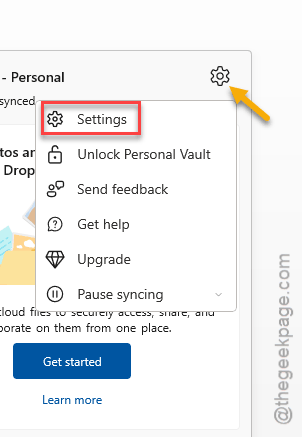
Step 2 – Go to the Office tab.
Step 3 – Uncheck the Use Office applications to sync Office files that I open option.
This way, Microsoft Word can use the standard Normal.dotm template without any issues.
Fix 2 – Perform a clean Boot of Word
Sometimes 3rd party add-ins (like a PDF creator) can be the main source of corruption that causes such issues.
Step 1 – Hit the Win+R buttons together.
Step 2 – Type this there, and click OK.
winword /safe
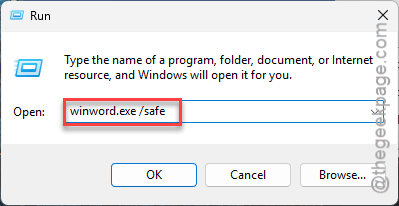
This will launch Microsoft Word in Safe Mode, where the add-ins are disabled. Check whether the template is working or not.
If it is, then the origin of the issue must be a third-party add-in.
Step 3 – Follow this path –
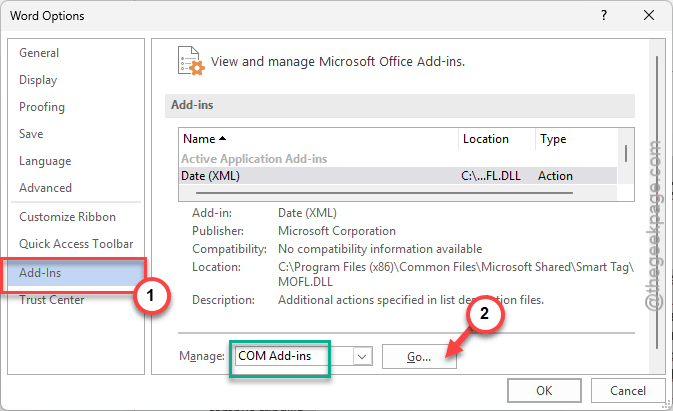
File > Options
Step 4 – Switch to the Add-ins tab. Fix the Manage button to COM Add-ins and tap Go.
Step 5 – Uncheck every add-in there and click OK to finalize this.
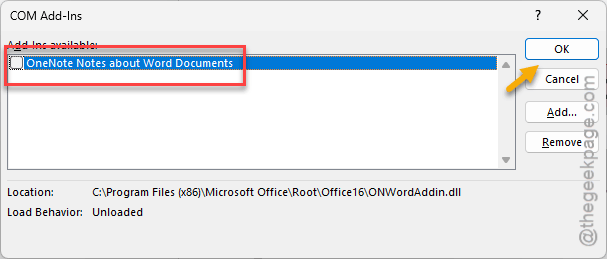
After disabling the COM Add-ins, the issue will be fixed.
Fix 3 – Switch to Microsoft Print to PDF Mode
Some users have fixed this problem simply by switching to the Microsoft Print to PDF briefly, where the issue has developed from a corrupt printer driver.
Step 1 – Open the Windows Settings. Go to the Bluetooth & devices tab.
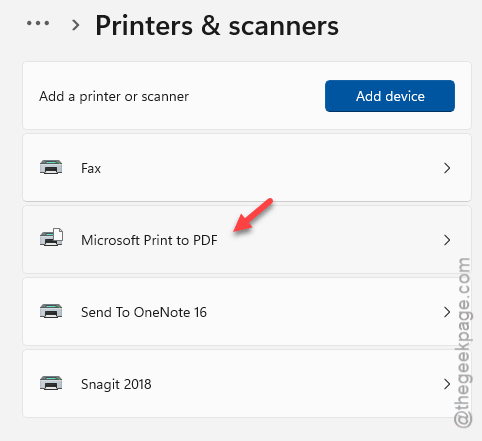
Step 2 – Proceed to the Printers & Scanners tab.
Step 3 – Choose the Microsoft Print to PDF option.
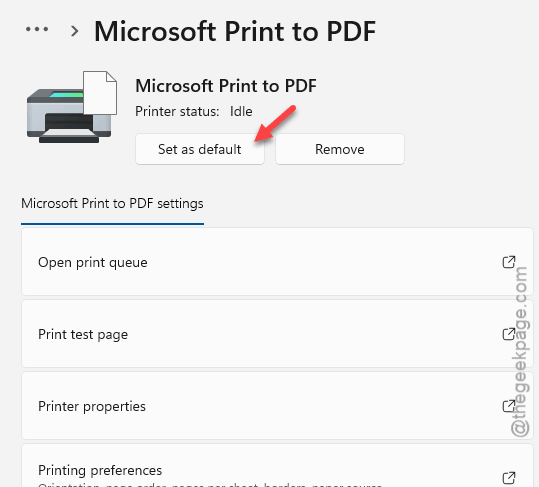
Step 4 – Tap the Set as default option.
Step 5 – Re-open Word and reset the Normal.dotmtemplate.
This time there won’t be any more such issues.
Fix 4 – Disable Automatically Update Document Styles Feature
Microsoft Word automatically chooses the global template for any new document you open.
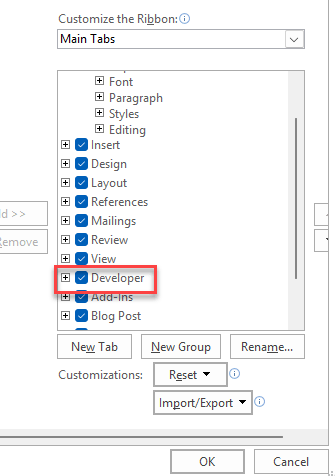
Step 1 – Load up the Word application. Go to the Developer tab. (If you don’t see the Developer tab, right-click the Ribbon > Customize Ribbon and check the Developer entry to enable it.)
Step 2 – Then, tap the Document Template.
Step 3 – Uncheck the Automatically update document styles feature there.
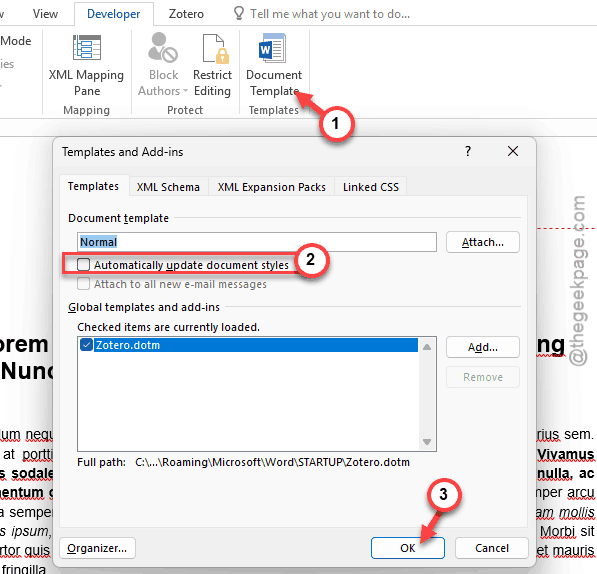
This will prevent individual documents from changing the global Normal.dotm template settings.
Fix 5 – Manually Rebuild the Template
If nothing else works for you, rebuild the template once again.
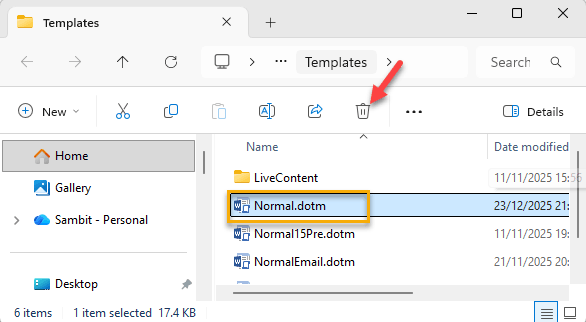
Step 1 – Close the Microsoft Word application. Then, delete the old Normal.dotm template.
Step 2 – Open a blank new document. Change one small thing in the document, like the default font setting.
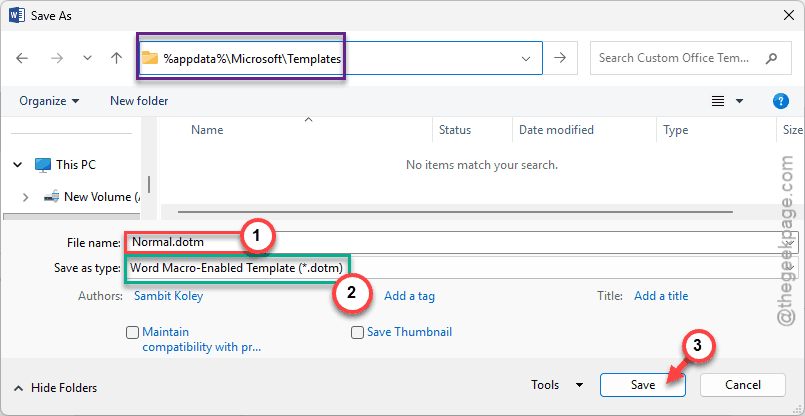
Step 3 – Use the Save As menu and change the file type to Word Macro-Enabled Template (.dotm) type.
Step 4 – Name the file Normal.dotm and save it directly over the same file in this address –
%AppData%\Microsoft\Templates
This new template should work without any issues. Check if this works.