It can be extremely annoying for you if the very ‘AutoSave’ feature meant to save your work in case of a fatal error corrupts the save file. OneDrive’s Autosave function sometimes creates this situation where it tries to save the file while downloading another version of it. The result of this issue is the error message ‘File is Corrupt’ or the ‘Upload Failed’ error message. Here are some tips you can enact to save your work from getting corrupted.
Quick Fix Guide ~
| Issue/Symptom | Recommended Action |
| “File is Corrupt” error | Fix #1: Restore an earlier version via OneDrive Version History |
| Changes missing after sync | Fix #2: Search the local AutoRecover folder .asd files |
| Workbook won’t open at all | Fix #3: Use the Open and Repair function |
Fix 1 – Restore via OneDrive History
OneDrive keeps the record of all the modifications of any files you have there. If the current version is corrupted, you can retrieve the correct version of the file from there.
Step 1 – Go to the OneDrive in your browser. Log in with proper account credentials.
Step 2 – Once you have signed in to it, find the file there.
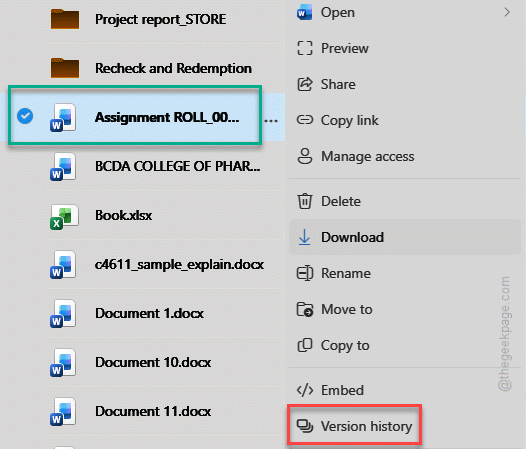
Step 3 – Then, right-click the file and tap Version History.
Step 4 – Now, hover over a version from before the crash and choose Restore.
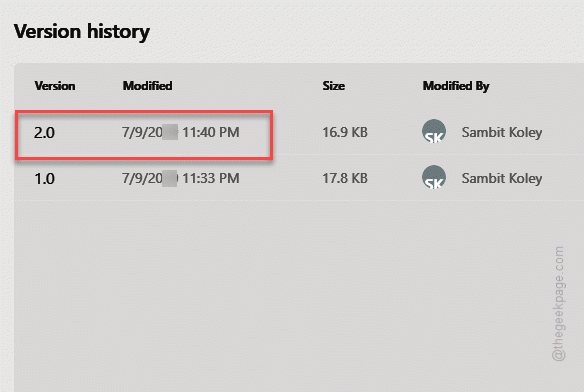
This will restore the correct version of the file.
Fix 2 – Locate the Local AutoRecover Files
Even if the cloud version of the file is broken or corrupt, Excel often stores a copy in your local drive.
Step 1 – Load up the Excel utility. Then, go this way –
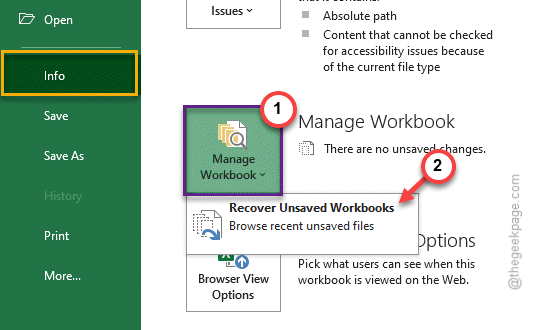
File > Info
Step 2 – Tap the Manage Workbook option, and tap Recover Unsaved Workbook feature.
Step 3 – If it isn’t there, manually paste this into the File Explorer address bar, and hit Enter.
%AppData%\Microsoft\Excel\
Step 4 – Find the file or folder name with the file name that you are currently working. It will contain .asd extension.
Step 5 – If you can find it there, right-click it and tap Rename. Rename it to .xlsb version.
Now, close the File Explorer and retry opening the file again.
Fix 3 – Use the Open and Repair Function
If the Excel recognizes the file is damaged but refuses to open it, you can use the ‘Open and Repair’ function to fix the file and use it.
Step 1 – Open a blank instance of Excel.
Step 2 – Then, go this way –
File > Open > Browse
Step 3 – Select the corrupted file from there. Tap the small drop-down next to the Open button, and choose Open and Repair option.
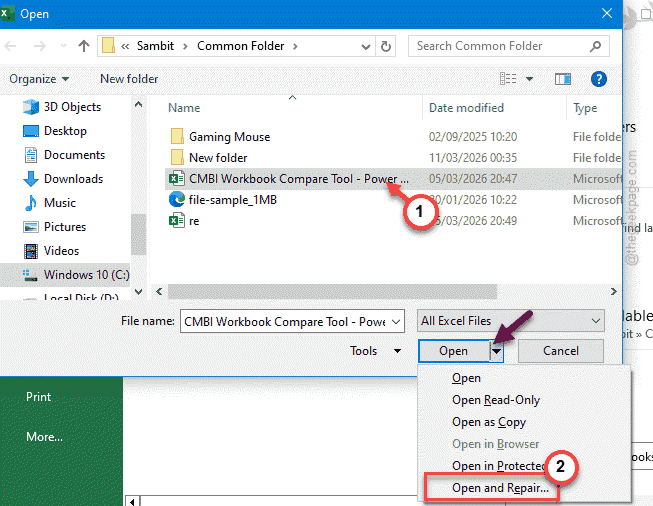
Excel will automatically try to fix the corruption in the file.
Fix 4 – Tweak the File Collaboration Setting
The files on the OneDrive are often collaborative in nature, where the same file is shared with others, which may lead to such issues.
Step 1 – Right-click the OneDrive icon in the taskbar. Then, load up Settings.
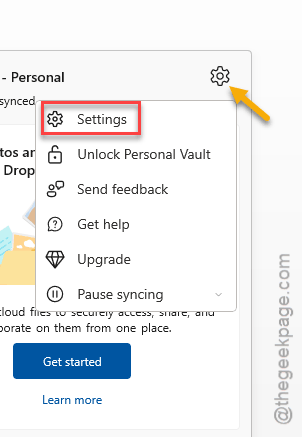
Step 2 – Go to the Advanced tab.
Step 3 – Uncheck the Use Office applications to sync Office files that I open feature.
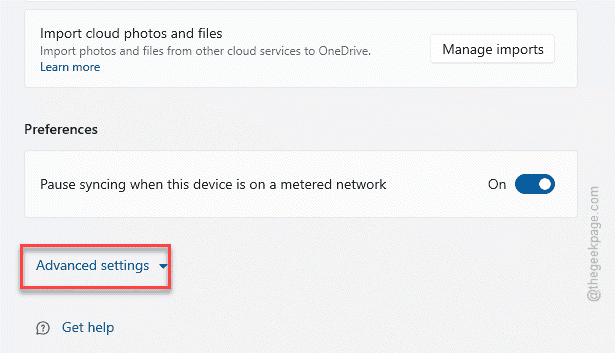
This will force OneDrive to handle the file normally while you are working on it.
Fix 5 – Clear the Office Document Cache
If you notice the corruption in every single document you access, you should clear the document cache.
Step 1 – Close all the Office programs.
Step 2 – Then, follow this path –
File > Options
Step 3 – Then go to the Save settings. Scroll down to the Cache Settings. Tap the Delete cached files option.
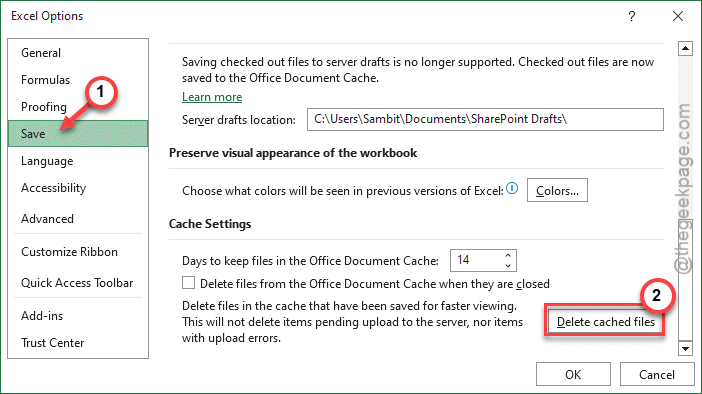
This will clear the local cache of the file that might be the root cause of this issue. Check if this resolves the issue.