You’re mid-game. The screen tears into garbled blocks. Textures flicker. Colors go wrong. Then — crash.
Intel Arc cards are solid these days. But DX12 games still throw fits. Especially with the fancy features switched on.
Why This Happens
Intel Arc is the new kid on the block. Strong hardware. But the drivers are still catching up to everyone else.
And DX12 is demanding. It leans on the GPU and the driver at the same time. When Intel’s driver trips on a bug, you get corruption — flickering, torn textures, sudden crashes.
Two things make it worse. Multi-Frame Generation (MFG) is buggy on Arc right now. And Auto HDR fights with certain games. Turn both on at once? You’re basically asking for it.
There’s also Resizable BAR. It usually helps Arc run faster. But for some setups it’s the exact thing causing the instability. Go figure. Why is Arc so finicky? New hardware, young drivers. That’s the short of it.
Fix 1 – Update the Intel Arc Driver
Start here. Intel ships driver updates constantly, and a lot of them target specific game corruption. Yours might already be fixed.
1 – Go to Intel and open the graphics drivers download page.
2 – Download the latest Intel Arc driver for your card.
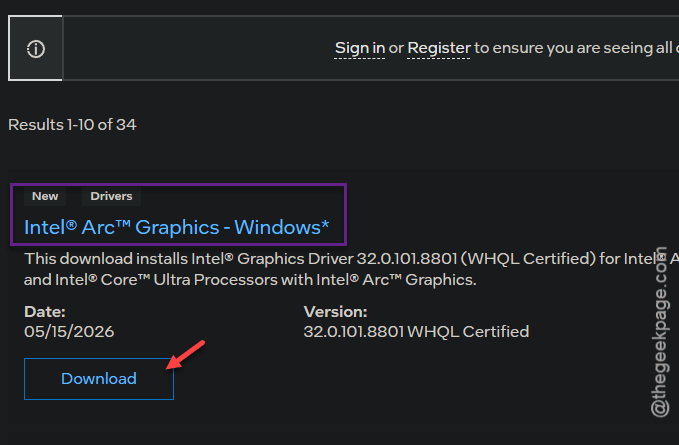
3 – Run the installer. When it asks, pick the Clean install option.
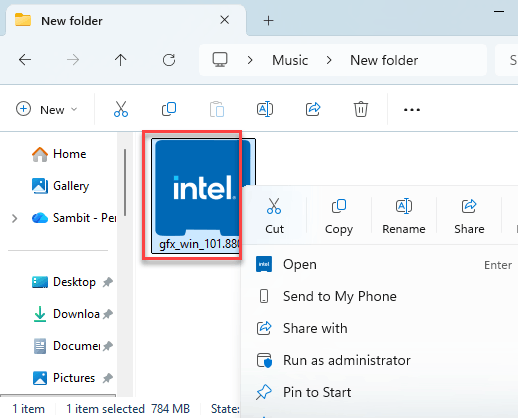
4 – Restart your PC.
And don’t rely on Windows Update for this. It hands out old Arc drivers. Always grab them from Intel.
Fix 2 – Turn Off Multi-Frame Generation (MFG)
Big one. Testing keeps pointing at MFG as the actual cause of the crashes — not DX12 itself. Shut it off and a lot of people’s problems vanish.
1 – Launch the game that’s crashing.
2 – Open its Graphics or Video settings.
3 – Find Frame Generation or Multi-Frame Generation. In Battlefield 6, for example, it’s right under the upscaling options.
4 – Set it to Off.
5 – Apply, then restart the game.
This can cause this problem.
Fix 3 – Turn Off Auto HDR
Quick fix. Windows Auto HDR clashes with some DX12 games on Arc. Off it goes.
1 – Press Windows + I to open Settings.
2 – Go to System > Display > HDR
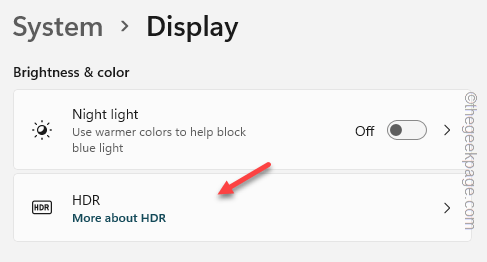
3 – Turn the Auto HDR toggle off.

Takes ten seconds. Then test the game again.
Fix 4 – Clean-Reinstall the Driver With DDU
If updating didn’t help, the current driver might be corrupted. A normal reinstall leaves bits behind.
1 – Download DDU and the latest Intel Arc driver first, while you still can.
2 – Boot into Safe Mode. DDU works best there.
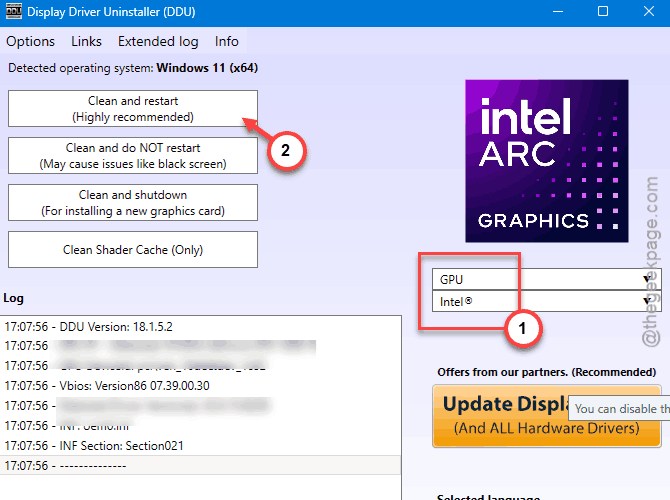
3 – Open DDU. From the device type dropdown, pick GPU, then Intel.
4 – Click Clean and Restart.
5 – After it reboots, install the Intel driver you downloaded.
Fresh start.
Fix 5 – Check Resizable BAR in the BIOS
Resizable BAR (ReBAR) matters a lot for Arc. If it’s off, performance tanks. So you check it both ways.
1 – Restart and tap Delete or F2 at boot to enter the BIOS.
2 – Look for Resizable BAR or Above 4G Decoding (usually under Advanced or PCIe settings).
3 – If it’s off, turn it On. Save and test your games.
4 – Still crashing? Go back and try turning ReBAR Off.
One of the two states will be smoother for your exact rig.
Fix 6 – Lower DX12 Settings or Test on the iGPU
Still glitching? Two things to try here.
1 – In the game’s graphics settings, turn off Ray Tracing and Path Tracing. These hit Arc the hardest.
2 – If the flickering stops, leave them off — or bump them up slowly until it returns.
And if you want to be sure the Arc card is the culprit, isolate it. Disable the Intel Arc GPU from Device Manage. Runnig the game on the integrated graphics card might fix this issue. No corruption on the iGPU? Then it’s confirmed — the issue is the Arc driver, not the game.
Re-enable the Arc card the same way once you’re done testing.
How to Prevent This
- Update Arc drivers straight from Intel, often. They patch game-specific bugs constantly.
- Leave Multi-Frame Generation off until Intel stabilizes it. It causes more crashes than it’s worth right now.
- Keep Auto HDR off for DX12 gaming. One less thing to fight with.
People Also Ask
How do I fix DX12 games crashing?
Start with the driver — update it, or clean-reinstall with DDU. Then turn off Multi-Frame Generation and Auto HDR, since both trigger crashes on Arc. If it still happens, lower ray tracing settings and double-check Resizable BAR in your BIOS.
Why does my Intel Arc card glitch only in some games?
Because each game uses DX12 differently, and the driver isn’t equally optimized for all of them. Newer or heavily ray-traced titles hit the rough edges first. That’s why a driver update or turning off frame generation fixes one game but not another.