The VLOOKUP function is used in Excel to search for a specific value in the leftmost column of a table in your document and returns a matching value from a specified column in the same row. But if the VLOOKUP function is returning the #N/A error, it’s either due to leading or trailing spaces in the cells or text and numbers in the same VLOOKUP search function. Here are some tips you can follow to avoid this #N/A error.
Quick Fix Table: VLOOKUP with #N/A Errors
| Issue | Recommended Fix |
| Numbers look the same | Fix #1: Convert both the columns to the same Data Type |
| Hidden spaces in cells | Fix #2: Use the TRIM function to remove the spaces |
| Table is not sorted | Fix – Set the [range_lookup] argument to FALSE or 0 |
Fix 1 – Match the Data Types (Text vs Number)
This is the primary cause for the #N/A error. If the lookup value is set to a number but the source table saves it as Text, the VLOOKUP will fail.
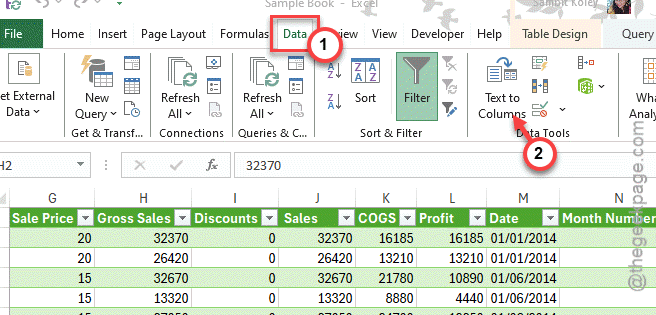
Step 1 – Select the Text column. Then, go to the Data tab. Select Text to Columns mode.
Step 2 – Tap Finish.
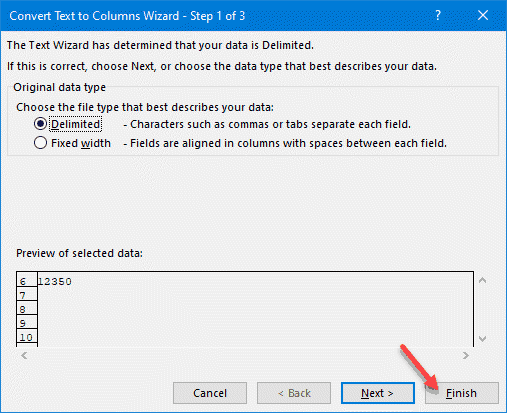
This will enforce the Excel to re-evaluate the data type.
Fix 2 – Clean the Hidden Spaces with TRIM
Sometimes the data exported from a database may contain trailing spaces. This can fail the VLOOKUP functionality.
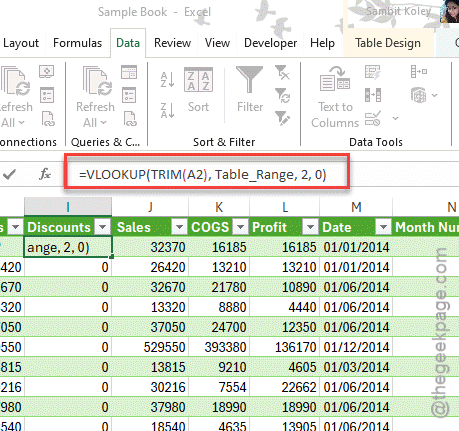
Step 1 – Wrap your lookup value in the TRIM function: =VLOOKUP(TRIM(A2), Table_Range, 2, 0).
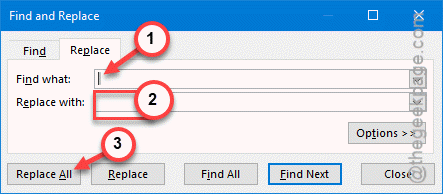
Step 2 – To clear out any possibility of a leading or trailing space, press the Ctrl+H to invoke the Find & Replace function.
Step 3 – Type a single space in the Find box and leave the Replace box empty. Tap Replace All to finally replace all the trailing spaces in your document.
This should have fixed the issue.
Fix 3 – Ensure Exact Match is Requested
If you are omitting the last part of the VLOOKUP formula, Excel might default to TRUE (Approximate Match). So, you must end the formula with a 0 or FALSE.
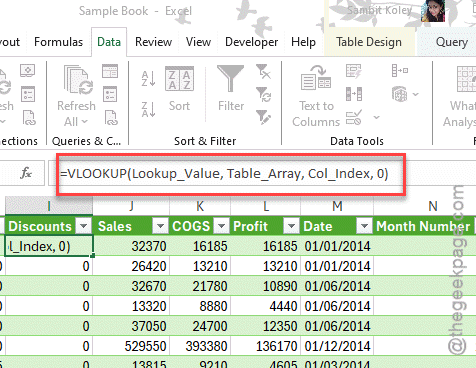
Step 1 – Always end your formula with 0, or FALSE.
Example of correct Syntax: =VLOOKUP(Lookup_Value, Table_Array, Col_Index, 0)
This should have fixed the issue.
Fix 4 – Lock the Table Range
If the VLOOKUP works for the first row but returns #N/A as you drag it down, your lookup range is shifting downwards and leaving data behind.
Step 1 – Use absolute references (dollar signs) to lock the table.
Like, $A$2:$B$100
This should stays locked on the data.
Fix 5 – Check for Non-Printing Characters (CLEAN)
If the TRIM function does not work for you, there is a chance that you have non-printing characters, like line breaks, present inside the cell, which is causing such issues.
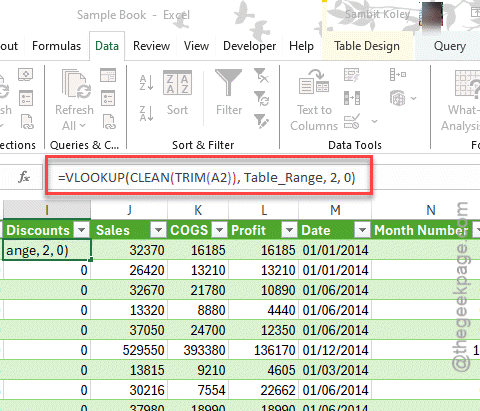
Step 1 – Use the CLEAN function to strip out the non-printing characters: =VLOOKUP(CLEAN(TRIM(A2)), Table_Range, 2, 0)
Step 2 – If the data has come from a web source, you might have a Non-breaking Space (HTML char 160). You can use this to fix it:
=SUBSTITUTE(A2, CHAR(160), "")
This way you can stay away from the #N/A errors in your spreadsheet.