During the installation of the latest version of the MS Teams, some users have run into this error message, ‘We’ve run into a problem’. This error evidently halts the installation process, and the user can’t install the MS Teams client on their machine unless this is fixed first. Microsoft Teams require the Microsoft Edge WebView2 Runtime to perform correctly. Generally, the absence of this feature incurs this problem. Here are some solutions that will help you resolve the issue.
Fix 1 – Install the Microsoft Edge WebView2 Runtime feature
MS Teams need the Microsoft Edge WebView2 Runtime components to function properly.
Step 1 – Load up the Microsoft Edge WebView2 Runtime on the browser.
Step 2 – Tap the Download button there. Next, find the Evergreen BootStrapper package.
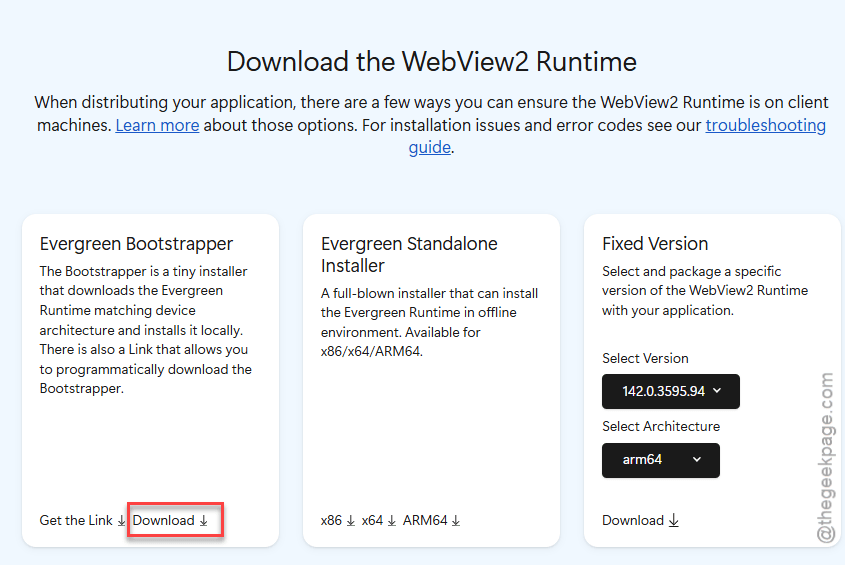
Step 3 – Tap the Download button there. Accept the terms and conditions there and download the update package.
It will download the Edge WebView2 Runtime Installer bootstrapper package.
Step 4 – Run this small executable file. It will download the Edge WebView2 components and install it on the system.
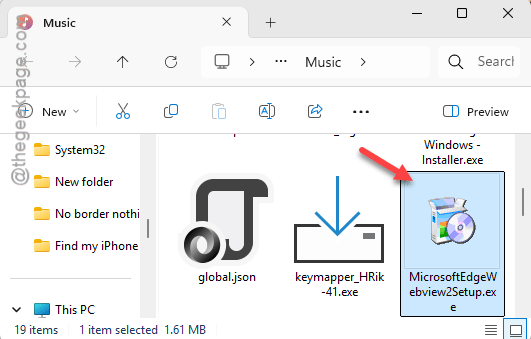
Wait for a few seconds for it to complete. After installing the Microsoft Edge WebView2 component, restart the system once.
There won’t be any further issues installing Microsoft Teams.
Fix 2 – Enable the Developer Mode and install the Teams app
Sometimes Windows may block the installation of Microsoft Teams if you are trying to do that from a package installer file.
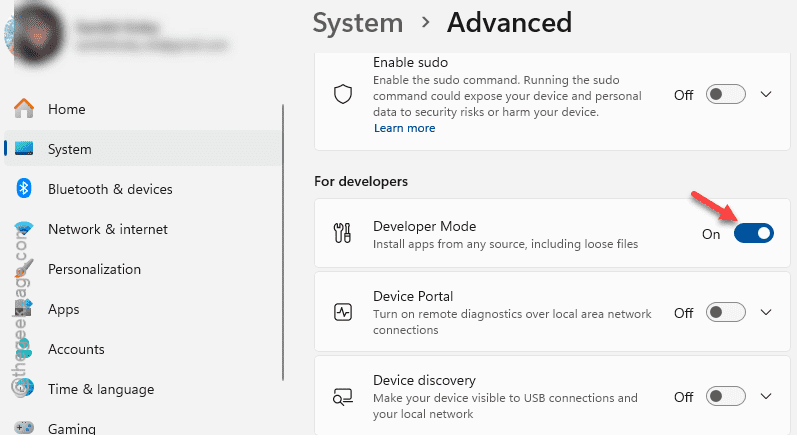
Step 1 – Use the Win+I button together to load up the Settings console.
Step 2 – Next, open up the System settings. Later, get to the Advanced tab.
Step 3 – Find the For Developers tab on the right-hand pane. Turn on the Developer Mode from there.
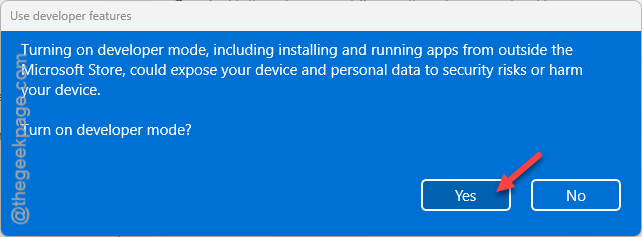
Step 4 – Tap the Yes button to enable the developer mode.
Close the Settings window afterwards. Later, try to reinstall the Microsoft Teams again.
Fix 3 – Install the MS Teams using PowerShell
If you are still having trouble installing the Microsoft Teams, you can do it using a PowerShell terminal.
Step 1 – At first, right-click the Windows icon, and choose the Terminal (Admin) to load up the terminal with administrative rights.
Step 2 – Open up a PowerShell terminal from there.
Step 3 – In the PowerShell terminal, type this code there, and hit Enter to install the MS Teams package.
winget install Microsoft.Teams
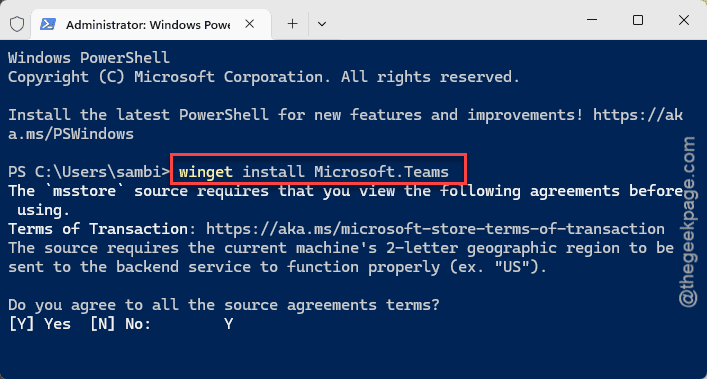
It will start to download and install the MS Teams package on your system. You can track the progress of installation directly from the terminal.
This way, you can install the Microsoft Teams directly via the PowerShell terminal.
Fix 4 – Try the web version of MS Teams
Just like the other Microsoft Office components, Microsoft Teams also has the web client that you can use.
Step 1 – Go to the Microsoft account on a browser window.
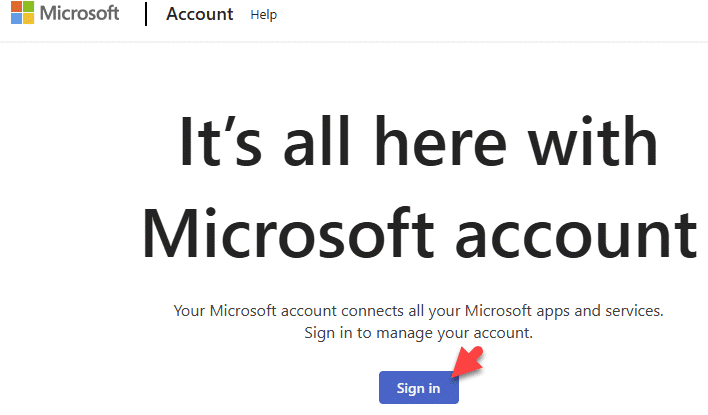
Step 2 – Tap the Sign in button and log in with your Microsoft account credentials.
Step 3 – Once you have logged in, tap the menu button in the top-left corner. Tap the Teams app to load it up.
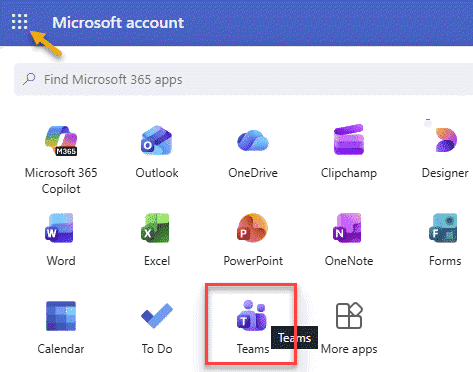
This way, you will get access to the Teams app on the web directly. It carries the exactly similar UI as the Teams desktop client.
You can continue to use the Teams on the web client as long as you are having issues with the desktop client.
Hope these fixes have helped you resolve the issue.