Does the background effects are not showing up on your Microsoft Teams client? The background effects on Microsoft Teams is a feature that helps users alter their background digitally, letting personalize their video call experience. This is an essential feature on Microsoft Teams. So, if the background effects are not available or showing on the Teams app, here are some fixes that should help you.
Fix 1 – Make sure Background Effects Policy is Active
If your MS Teams account is a part of an organization, there is a chance that the Background policy is blocked or disabled for your account. You have to ask your IT admin to allow you this feature.
Step 1 – Go to the Microsoft 365 Admin Center or Teams Admin Center.
Step 2 – Next, load up the Meetings tab. Open the Meetings policies tab. Load up the particular user’s policy.
Step 3 – Permit the user to use the Allow background effects option.
Wait for the policy changes to take effect. It may take some time for this synchronization to take place.
After this, just sign out from your MS Teams account, and sign in again. Check whether this works.
Fix 2 – Provide Teams Camera Permissions
Background effects or filters are not available if the Teams app does not have proper camera permissions.
Step 1 – Use the Win+I button to open Windows Settings.
Step 2 – Go this way –
Privacy & Security ⇾ Camera
Step 3 – In the Camera permissions, make sure the Camera access is turned on.
Step 4 – While the Let apps access your camera option is enabled, turn on the Microsoft Teams app in the list.
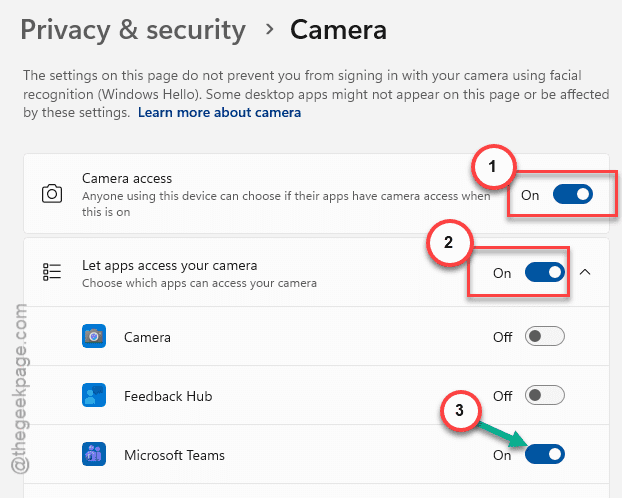
This way, MS Teams have adequate permission to use the camera. Go ahead and start a demo video call. Turn on the camera in the Teams app, and test whether you can activate the background effects or not.
Fix 3 – Tweak MS Teams to Run in High Performance mode
You have to tweak the Microsoft Teams to always run in High Performance mode for the background effects to work properly.
Step 1 – Load up the Windows Settings. Go to the System settings and follow this path afterward –
System ⇾ Display ⇾ Graphics
Step 2 – Look for the Microsoft Teams app in the list.
Step 3 – Set the GPU Preferences to High Performance mode.
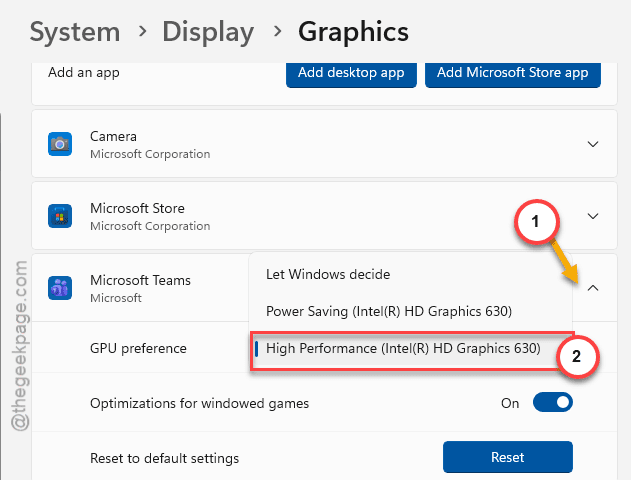
NOTE – If you can’t find the Microsoft Teams app, do this –
1. In the Graphics page, tap the Add Microsoft Store app option.
2. Select the Microsoft Teams app.
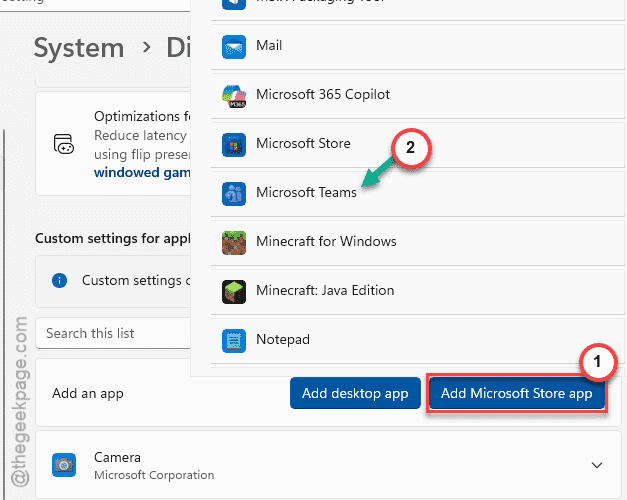
Or, if you have sideloaded the MS Teams app from an installer package,
1. Use Add desktop app option.
2. Proceed to this location and select the Teams.exe from there and add it.
C:\User\%usersname%\AppData\Local\Microsoft\Teams
Once you have added the Microsoft Teams executable, set it to the High Performance mode.
This should help you resolve the background effect issue in the MS Teams.
Fix 4 – Update the GPU Driver
The background effects require a portion of GPU resources to work properly. Update the GPU driver to the latest version.
Step 1 – Load up the NVIDIA App or AMD Adrenalin app, based on the GPU your device use.
Step 2 – Go to the Driver tab and download-install the latest GPU driver from there.
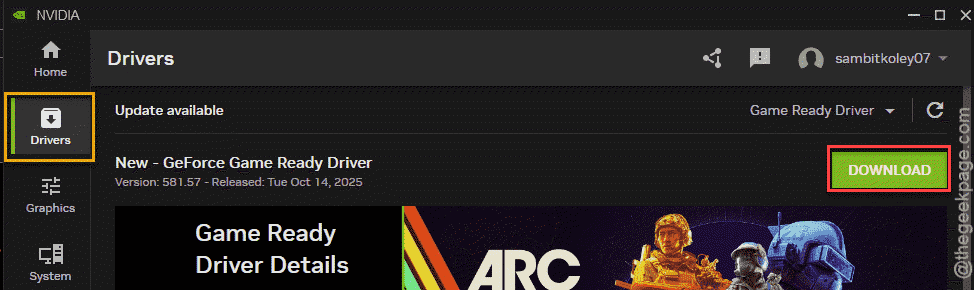
You can also download and install the driver update from the respective NVIDIA, AMD websites.
After updating the graphics driver, you can restart your system. Try to use the MS Teams and check.