Does your Microsoft Teams screen turns black all of a sudden while you are in a meeting? Some users have notified this problem in various forums about their recent struggle with this black screen problem on Microsoft Teams. This problem can be happening due to some graphics driver issues, corrupted Teams cache or screen refresh rate problems. We have focused on the best proven fixes that will fix the problem, followed by a detailed outlook on the origin and current status of the issue.
Fix 1 – Set the Microsoft Teams graphics settings to Power Saving
It seems that this Teams call going black problem is directly linked to the GPU power. Try using it in Power Saving mode.
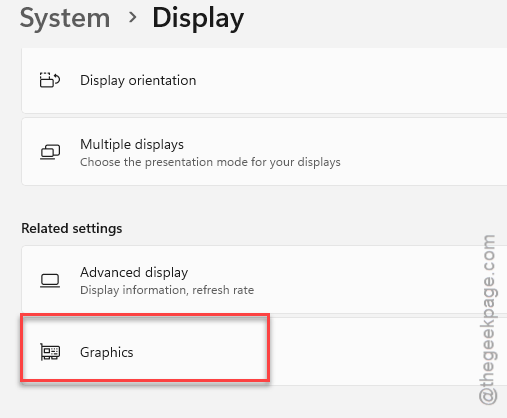
Step 1 – Load up the Settings page on your system. Then, go this way –
System > Display > Graphics settings
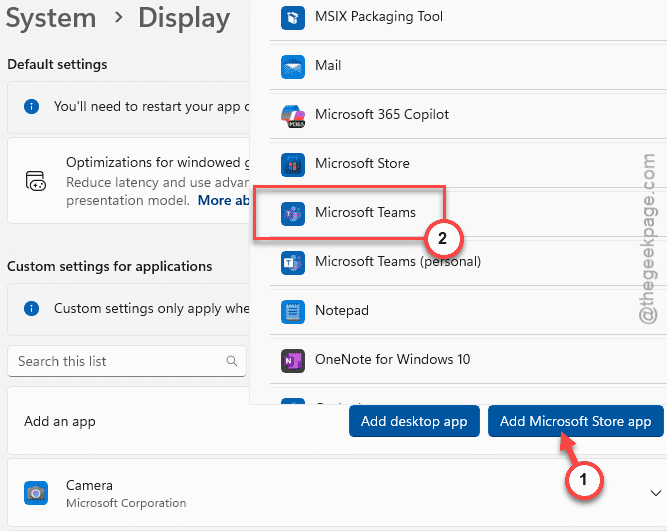
Step 2 – Then, tap the ‘Add Microsoft Store‘ to add Microsoft Store apps.
Step 3 – Next, choose the Microsoft Teams app from the drop-down and tap that to add it to the list.
Step 4 – Now, expand the Microsoft Teams settings there. Set the GPU preference to Power Saving mode from the drop-down.
Step 5 – If you see the Optimization for windowed games option, check that. Save the changes there.
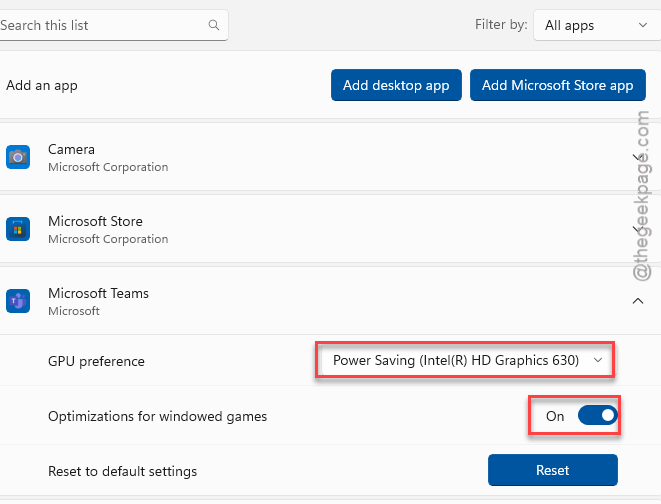
After enabling these changes, close and relaunch the Microsoft Teams app.
Fix 2 – Use Microsoft Teams on browser
Microsoft Teams have already flagged this issue as some of their third-party partners has introduced a driver version configuration fault.
Step 1 – You can access the Microsoft Teams directly from a browser page. So, open up Google Chrome or MS Edge.
Step 2 – Then, search or directly open up the Microsoft Teams on web page.
Step 3 – Next, tap the Sign in option and use that to sign in using your credentials.
Once you have signed in, you can perform all of your task there.
Fix 3 – Update your Graphics driver to latest version
This can be a case of an old, incompatible GPU driver that is causing such problems.
Step 1 – Right-click the Windows icon and tap Device Manager.
Step 2 – Next, expand the Display adapters section.
Step 3 – Later, right-click the display driver and tap Update driver.
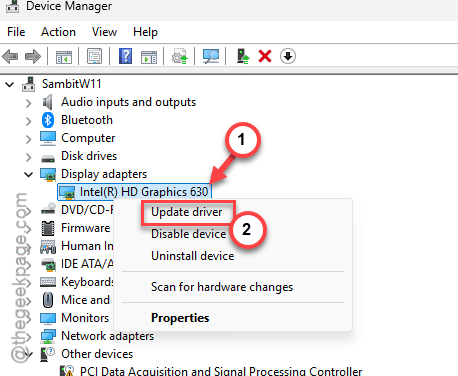
Step 4 – Opt for the Search automatically for drivers option.
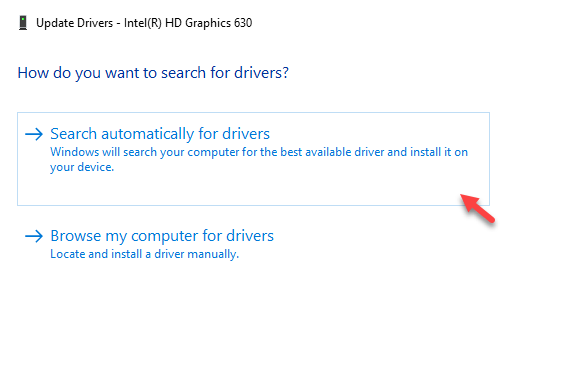
After updating the driver update, which may take a while to complete, restart the device once.
Optional Steps for dedicated GPU users –
Step 1 – You can update your GPU driver from the designated app. Download and install the app, if you don’t have it installed on your machine.
NVIDIA users – NVIDIA App
AMD users – AMD Adrenalin
Intel HD graphics users – Intel Driver and Support Assistant
Step 2 – Open the particular app and download-install the latest version of the GPU driver on your machine.
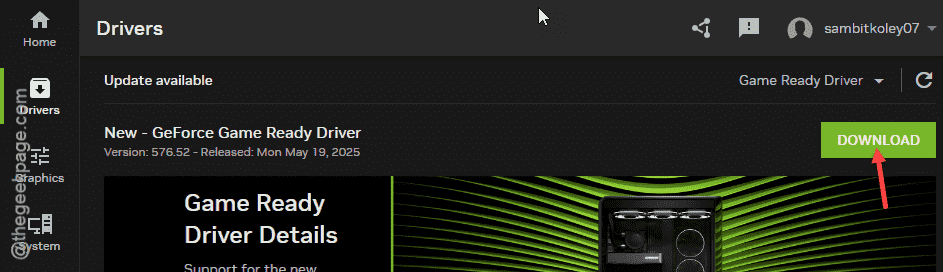
Check the status of the Microsoft Teams app once again.
Fix 4 – Turn off HDR or reduce the refresh rate
Many of the affected users have resolved this problem simply by tweaking some of the advanced display features, such as using a lower refresh rate, turning off HDR, etc.
Step 1 – Load up the Settings page and go to the System settings there.
Step 2 – Next, load up the Display settings.
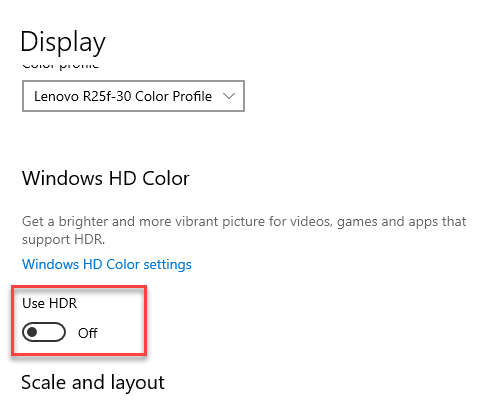
Step 3 – Later, find the HDR settings there and turn it off.
Step 4 – After that, proceed to the Advanced display settings on the same page.
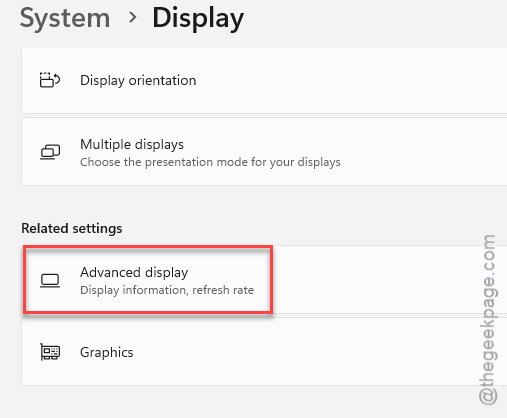
Step 5 – Tap the Choose a refresh rate option, and select a lower refresh rate from the drop-down table.
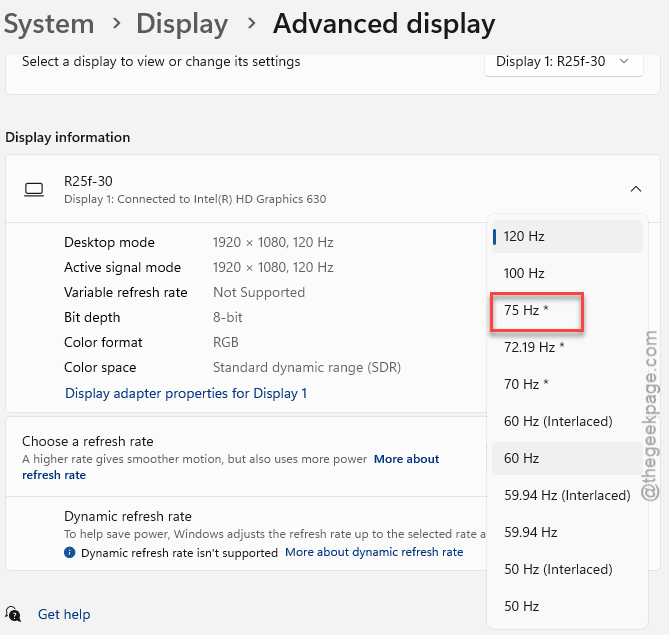
After this, use the Microsoft Teams once again. Check whether the black screen is appearing while you are on a call or not.
Why the MS Teams is turning black?
It seems that the users with the Intel driver 32.0.101.69xx (including 32.0.101.6913, 32.0.101.6987, 32.0.101.6989) on their system are affected by this problem the most. This is already a flagged issue which should be solved in a next patch for the Microsoft Teams app. So, keep a look for an ensuing update of the Teams app, which shall patch the issue and fix it for the user.
Final Words – We hope that these resolutions were helpful in fixing the MS Teams app screen going black.