Having some problem with the search function in the Messages app on your iPhone? There are a bunch of users who are having issues with the search mechanism in the Messages app on their iPhone. According to these reports, the search function is not returning any meaningful result. The misconfiguration of the Siri and search settings usually lead to this issue, and that can be solved very easily.
Fix 1 – Refresh the iMessage function
Start the troubleshooting process with a quick workaround, where you have to disable and re-enable the iMessage function.
Step 1 – Go to your iPhone Settings. Next, load up the Apps section.
Step 2 – Proceed to open up the Messages app from there.
Step 3 – Find the iMessage function. Turn it off once.
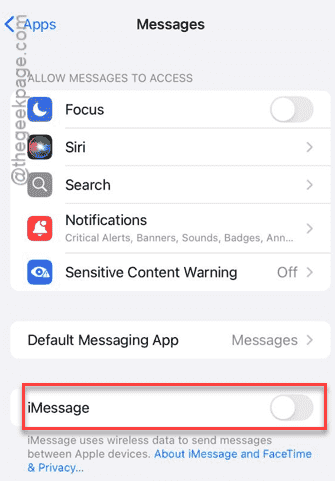
Step 4 – Wait for a few seconds and turn it back on.
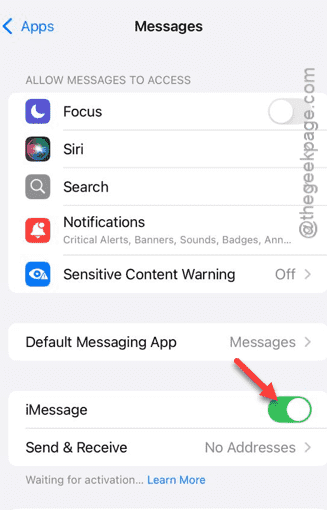
After refreshing the iMessage settings, try to search anything from your old messages and test.
Fix 2 – Enable or Refresh Spotlight Indexing for Messages
The Spotlight won’t show the contents from your messages, if it is disabled in the settings.
Step 1 – To do this, head on to the main Settings console. Next, load up the Search settings.
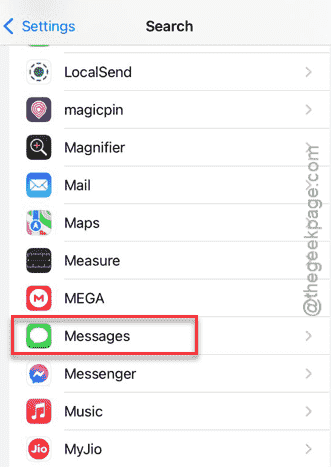
Step 2 – Now, scroll through the list of apps and open the Messages app.
Step 3 – Turn on both the Show App in Search and Show Content in Search settings there.
Step 4 – If they are already enabled, disable them once, later re-enable the same.
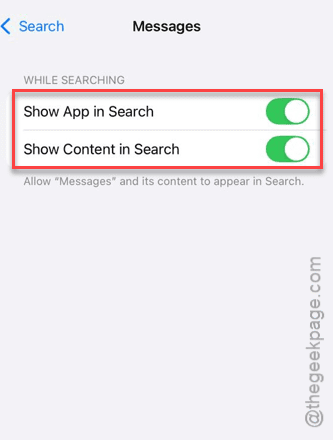
After this, close the Settings and try searching the messages.
Fix 3 – Force Restart the iPhone
Force restarting the iPhone can eliminate this problem, if this has originated from just a temporary bug or glitch.
Step 1 – At first, press the Volume Up button on the iPhone once and release it.
Step 2 – Then, press the Volume Down button briefly and release it.
Step 3 – Next, press-hold the Power button of the iPhone. Do press and hold the button till the device completely shuts down, and it restarts. When the Apple logo shows up, you may let go off the power button after this.
Fix 4 – Update to the latest version of iOS
The initial stable builds of iOS 26 comes with too many bugs like, where the later patches have squashed a significant portion of that.
Step 1 – Go to Settings on your iPhone.
Step 2 – Next, go this way –
General -> Software Update
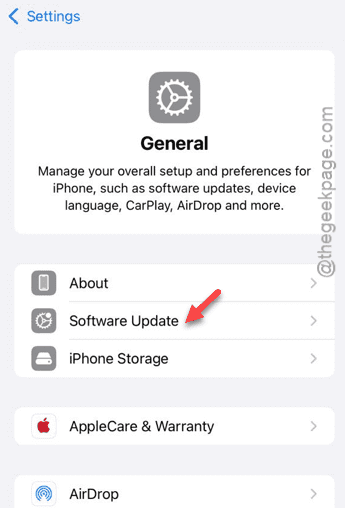
Step 3 – Tap the Update Now button to update your iOS software.
After installing the update on your iPhone, the searching process will return you correct results.
Why the message search is not working?
The reason why the search result in the messages is not returning anything is due to misconfigured Messages settings which is blocking the contents from appearing in the search results. Refreshing the Search settings for the Messages app should resolve the problem. However, if a recent iOS update has caused this issue, disabling and re-enabling the iMessage function should help you resolve it.