Some users have reported an issue with Microsoft where the bullet or number lists are randomly skipping numbers or resets out of the blue. Microsoft Word’s list numbering system can sometimes glitch out because the numbering is usually laid on the document as direct or manual formatting rather than being tied to a particular style. If your Word document has many list definitions, MS Word can easily get confused with them and cause certain misplaced bullets in the document.
| Issue | Recommend Fix |
| The List starts at 1 randomly | Right-click > Continue Numbering |
| Lists skips a number | Right-click > Set Numbering Value |
| Number change after saving | Use Define New Multilevel List to lock the style |
Fix 1 – Use the Continue Numbering Feature
If a certain list has started at 1 in the middle of a listing sequence, you can force the list to reconnect.
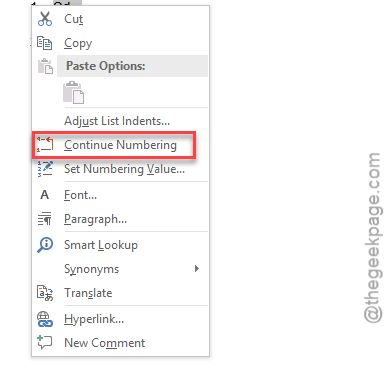
Step 1 – Right-click the bullet number that is wrong and choose Continue Numbering value.
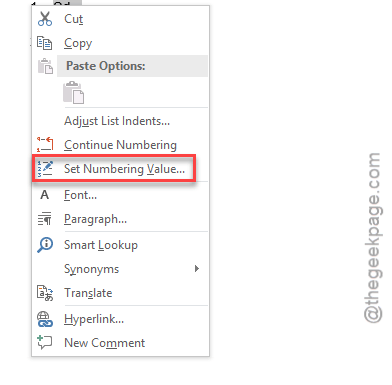
Step 2 – But, if the number list skips a particular value, right-click the value, and tap the Set Numbering Value option.
Step 3 – Then, manually type the correct number in the Set Value to: box.
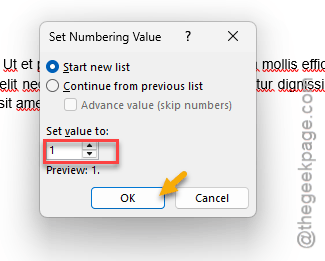
This way, you can fix the numbering problem that you are having on Microsoft Word.
Fix 2 – Adjust the List Indents in MS Word
If the numbered lists are working properly until it hits the number ’10’ and the numbering resets with a jump in the text, it is a classic case of tab-stop conflict.
Step 1 – Right-click any number in the list.
Step 2 – Then, tap the Adjust List Indents option.
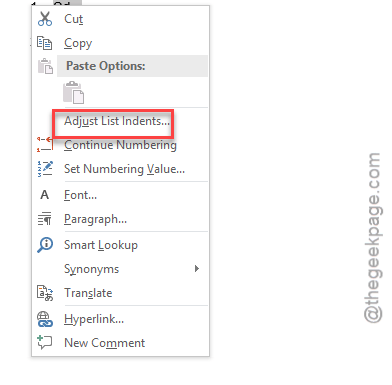
Step 3 – Later, change the ‘Follow number with‘ to Space.
Step 4 – Save the changes.
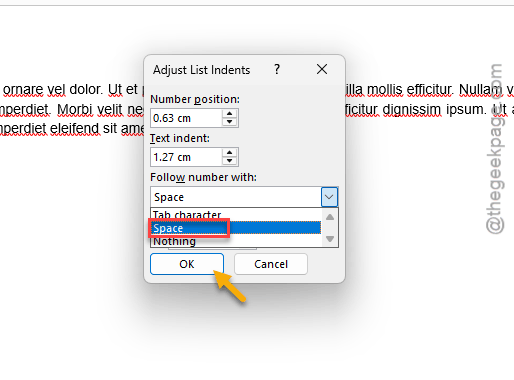
After enacting this, the numbering system won’t break MS Word layout.
Fix 3 – Define a New Multi-Level List
If you are working with a list in a document that spans over 5 pages, manual restarts should fix the issue.
Step 1 – Place the cursor on the first item of the list. Tap the MultiLevel List icon on the Home tab. Choose the Define New Multilevel list.
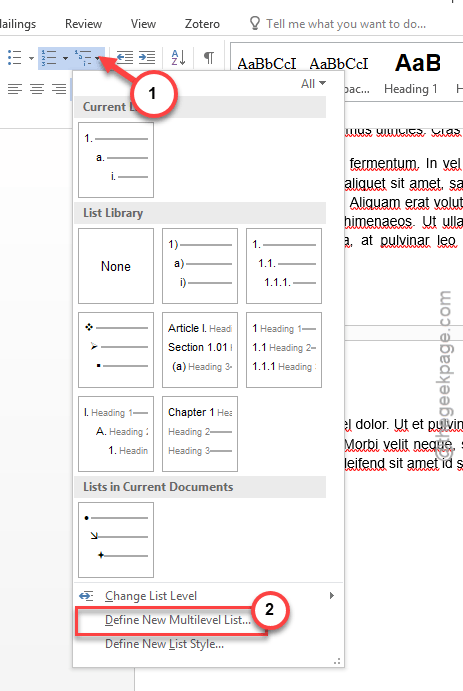
Step 2 – Tap the More>>> button.
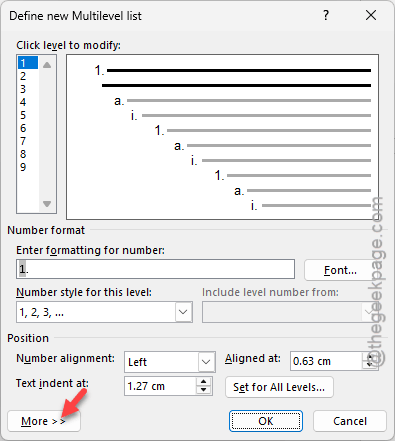
Step 3 – For each of the level, make sure that Restart list after: option is checked for the above level.
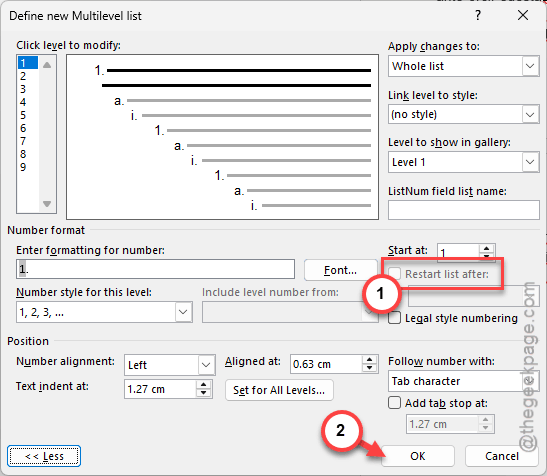
Microsoft Word won’t automatically format the lists, overriding the new multilevel rule that you have applied.
Fix 4 – Deactivate Auto Format for Bullets and Numbering Settings
If you want to take control of the whole bullet and numbering feature, you can set that from the Microsoft Word settings console. This way, Word won’t automatically number the list as you type.
Step 1 – Open the File tab in Microsoft Word. Then, proceed to the Options tab.
Step 2 – Go to the Proofing tab. Later, go to the AutoCorrect Options.
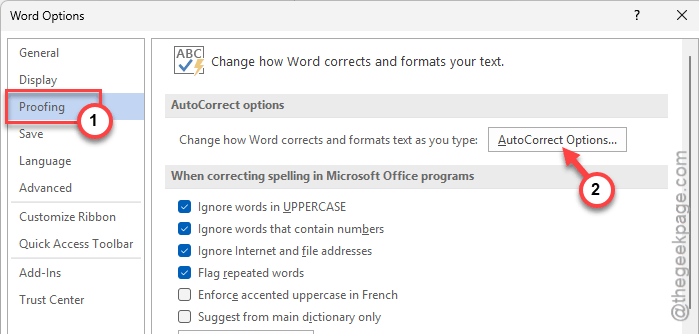
Step 3 – Find the Autoformat As You Type tab, uncheck the Automatic bulleted lists and Automatic numbered lists feature.
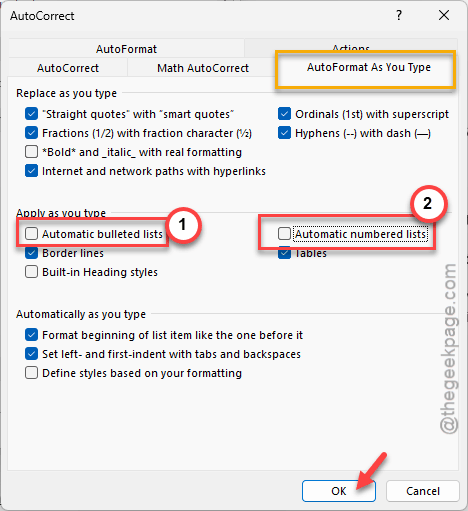
Step 4 – Don’t forget to save the changes.
Once these changes take effect, you can manually bullet or number the list according to your preference. This manual method should counter this issue.